Gradebook - Preparing and exporting results for StudentOne
Staff can export marks from Canvas LMS Gradebook into a spreadsheet in preparation for local review and compiling final results for StudentOne.
The assessment results in the Gradebook can be downloaded to use in the calculation of the final results that will be entered into the University’s student management system, StudentOne. It is important to remember that the Gradebook data may not be the only source of student marks collected during the semester and will have to be compiled with other records for the finalisation of results.
Before using any part of the data export file to help prepare results, you should check:
- Setup of all assessment tasks for the Subject - does the setup match the assessments and weightings stated in the Handbook?
- Progress of subject marking - has all marking within the LMS been completed, and have missing or delayed records been documented accordingly?
Check the setup of the Subject's assessment tasks
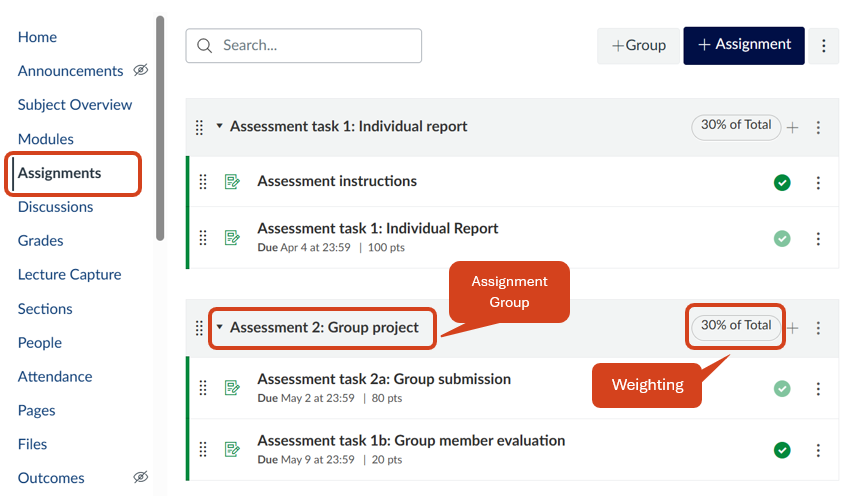
Before exporting the Gradebook data, you should ensure that all assessment tasks and the Assignment Groups within the LMS Subject have been set up in accordance with the assessments and weightings recorded in the Handbook.
Review the assessment tasks and Assignment Groups
Click on the Assignments link in the subject navigation menu to view all assessment tasks and Assignment Groups. Staff are strongly advised to check the following details:
- The Assignment Groups and the assessment task(s) that belong to each group are arranged in accordance with the assessment structure in the Handbook.
- The total of all Assignment Groups' weightings adds up to 100%.
- If the subject content has been copied from a previous delivery of the subject, there may be copies of old assessments and Assignment Groups. Check that these are not included in the current weightings. Unused Assignment Groups can be set to 0% or deleted.
Review the Gradebook
Click on the Grades link in the subject navigation menu to view the Gradebook and the marks for all assessment tasks.Note: Not all the marks you see in the Gradebook will necessarily contribute to the final subject grade for a student as some may represent ungraded or optional activities.
Each assessment task (including Assignments, Quizzes and Discussions) and each Assignment Group should have a separate column in the Gradebook. There is also a Total column where the total subject grades have been calculated.

Check that all marking has been completed
Click on the Grades link in the subject navigation menu to view the Gradebook.
Check if all assessment marks are displayed in the Gradebook. There may be some outstanding assessment results, which may be recorded with a zero mark for missing submissions, or may be delayed if they are pending an investigation.
Staff can record important information on students' assessment results in the Notes column, which is not visible to students. The Notes column can be enabled by going to the View Options tab of the Gradebook Settings.
In Gradebook Settings, the View graded as 0 option can be selected to display ungraded assignments as if ungraded assignments were given zero marks. This is a visual-only feature and does not affect the actual student grades. However, it does affect the configuration of the Total column in the Gradebook, which also applies to the Gradebook export spreadsheet. When you enable this setting, a warning message containing important information about the setting will be displayed on the screen.

Export the Gradebook data
Once all of the marking taking place in Canvas LMS is complete, the assessment results can be exported as a CSV file.
Follow the step-by-step instructions in the How do I export grades in the Gradebook? guide.
In addition to the student details and assessment marks displayed in the Gradebook, the CSV file contains many more data columns which are explained in the guide. Staff are strongly advised to visit the guide to familiarise themselves with the meaning of each grade column.
Useful tips when reviewing the Gradebook export
- Review the calculations in each assessment, Assignment Group, and Final Score columns.
- The Gradebook export file contains a Section column. For merged subjects, this column helps identify which subject a student is enrolled in, so the records for each subject can be separated.
- The export file contains an ID column. The numbers contained in this column are unique identifiers used by Canvas LMS and should not be confused with the University of Melbourne Student ID number which appears in the SIS User ID column.
Preparing the Gradebook data for StudentOne
Important: Always follow your Faculty or Department processes and consult with Academic Support Officers when preparing your Gradebook export to be uploaded to StudentOne.
Depending on the use of the Gradebook during the semester, some assessment results may be calculated outside of the LMS and consolidated separately before being entered into StudentOne. Additionally, some students may not receive a calculated score and other grades, such as WXT (Withheld - Extension) may be entered directly into StudentOne instead.
The Gradebook export file and the StudentOne result sheet file (which is used to import results into StudentOne) can be both be sorted by Student ID so that marks can be matched to the correct student.
This guide was last updated 10 Sep 2025.
Please report any errors or omissions in this guide by submitting an LMS support request.