LMS Classic Quiz (as on-campus digital exams)
This guide and checklist are for academic staff who have nominated with the Exams Office to have an on-campus digital exam using LMS Classic Quiz – where a Canvas Classic Quiz with LockDown Browser assessment is required.
The students sit the exam in an invigilated exam location, and access their Exam as a quiz with LockDown Browser, and submit the quiz at completion or at the end of the exam time.
LockDown Browser needs to be downloaded and installed by students prior to accessing the exam. Whilst sitting the exam, they are locked into the quiz until they submit it. The browser prevents students from opening additional browser windows, using other browsers, accessing other websites, or opening additional applications on their device. LockDown Browser is compatible with both Windows and Mac computers.
Have students self-enrol in the LMS Community – LockDown Browser testing. Once enrolled, students can then take a practice LMS quiz with LockDown Browser installed on their device. It is highly recommended students download the browser from the University specific URL and take the practice exam in this community prior to their exam, so they are familiar with the experience.
Students can download and install the LockDown Browser from the University of Melbourne LockDown Browser page.
Checklist
Subject Coordinator or delegate steps:
If there are any concerns or questions with the below guide please contact SASS Exam Support.
Staff can pre-prepare questions and content for their quiz while the Exam Portal automated quiz creation is pending by using the Question Bank option outlined below.
Automation if you used the Exams Portal
If you supplied the details of your exam to the Exams Office, for an on-campus digital exam, an Assignment Group called Semester 2 exams, 2026 with 0% weighting will be created in your subject and an LMS Quiz will be created and allocated to this group.
For more information on when the steps in this process are scheduled to occur, see exam key dates.
The exam timetable will be created to minimise clashes for students and to balance, where possible, the assessment load for all students across the examination period.
Step one
An Assignment Group called Semester 2 exams, 2026 with 0% weighting will be created in your subject, and a quiz will be created and allocated to this group.
ACTION: Please update this weighting to reflect the correct weighting for the exam
Step two
For your LMS quiz shell created for the exam, the following settings are automatically set from the Exams Office. DO NOT CHANGE THESE SETTINGS unless there is there an identified option to do so. If you have any concerns with the settings, please contact Exams Support.

-
- Quiz name: The name of the exam – format is ‘Exam: exam name in portal (subject code)’. If needed for clarification, append any extra information such as 'Part A'
- Quiz instructions: This will be populated with the plagiarism declaration statement to ensure students see this statement when viewing the quiz from a mobile device
- ACTION: Below the Academic Integrity Declaration, please update the quiz instructions with relevant information for your particular exam.
- Quiz Type: Graded Quiz
- Assignment Group: Semester 2 exams, 2026
- Shuffle Answers: Unchecked
- OPTIONAL ACTION: You can change this if you wish, but consider how you will answer queries about individual questions – if a student says "there is a problem with Question 5", you will not know the order in which their multiple-choice options appear.
- Time Limit:
- Timer: Not Checked. Invigilators will manage timing on the day
- Allow Multiple Attempts: Unchecked
- Let Students See Their Quiz Responses (Incorrect Questions Will Be Graded in Student Feedback): Unchecked
- Show one question at a time: Unchecked. As per the advice from the Semester 1 2020 Assessment Review, this setting is locked and you are unable to change it. The SASS Exam Support team will reach out to you to discuss your digital exam arrangements if an adjustment to this setting is required.
- Require an access code: Unchecked
- Filter IP Addresses: Unchecked
- Assign to: Everyone
- Note: This may say Everyone else if some students have exam exceptions. Exceptions will be listed as additional Assign to settings.
- Due date: populated with the scheduled finish date and time for the exam includes reading time and exam time selected in the exam portal
- Available from date: populated with the date and time from which the student can access the exam
- Available until date: populated with the due date plus 30 minutes
- The LMS quiz will be Published.
In the LMS, students will see the quiz as scheduled in the Assignments section, the Grades section and as a Calendar item with the due date. They will not be able to open the quiz or read the description until the Available from date and time passes.
Adding questions and content to your exam quiz
With the quiz created via the automated integration with the Exams Office as above and following the required checks you need to make to those settings, you will finally need to set up the questions to be added to the quiz.
-
To enter quiz questions directly into the quiz:
- Click on Quizzes in the subject menu.
- Click on the exam quiz.
- Click Edit.
- Click on the Question tab at the top.
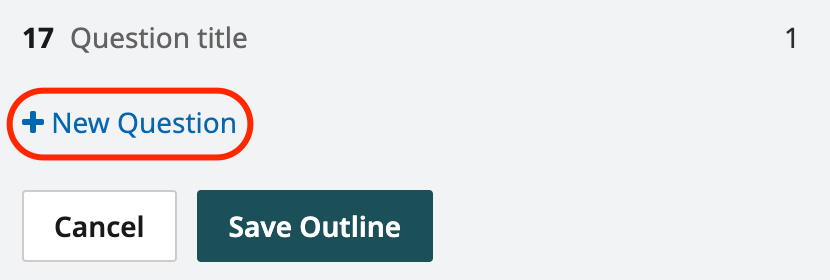
- Click + New Question.
- From the drop-down next to Question, select the type of question you wish to create.
- Update the pts: box with the points value of the question.
- Write your question in the Message Text box, including adding any links, files, images or media needed for the question.
- Follow the steps to create the question type you have selected. See this guide for a description of each question type.
- Note: As this is an exam, entering feedback to students is not needed.
- IMPORTANT: Click Update Question - a common error is to miss this step, if you do you will lose your work.
- Click + New Question to create your next question and repeat until all the question are created.
- Click Save when you are finished.
-
It is recommended that you consider using a Question Bank as this helps with management and movement of the questions for an exam as a group should that be needed.
- You can do this by clicking on Quizzes in the subject menu, then clicking on the vertical ellipses (three dots) menu in the top right of the Quizzes page.
- From here, select Manage Question Banks, then Add Question Bank.
- Enter a name for the question bank, for example Exam SM1 2025, and press Return on your keyboard to save.
- Now click on the name of the question bank that you have just created and click the Add a Question button on the right.
- Once you have added all your questions to the question bank, attach it to the quiz. See How do I create a quiz with a question group linked to a question bank?
NOTE: To ensure that students' accessibility needs are met ensure any images you add to the quiz have alt text added to them. For more information see how do I manage alt text?
-
If there are multiple staff members in a subject and you wish to limit the number of staff who can see the exam before it is released to students, we suggest the following workflow:
- First set up an example online exam quiz in your Playpen subject.
- Add the exam questions to a private Question Bank. You can do this by clicking on Quizzes in the subject menu, then clicking on the vertical ellipses (three dot) menu in the top right of the quizzes page.
- From here, select Manage Question Banks, then Add Question Bank.
- Enter a name for the question bank, for example Exam SM1 2025, and press Return on your keyboard to save.
- In the Manage question bank page, bookmark the question bank by clicking on the bookmark icon.
- Now click on the name of the question bank that you have just created, and click the Add a Question button.
- Once you have added all your questions to the question bank, attach it to the quiz in your Playpen subject.
- Add your exam collaborators to your Playpen subject to work on/verify the questions. See how do I create a quiz with a question group linked to a question bank?
- Your quiz can be built in your subject LMS site from the bookmarked question bank closer to the exam time.
The below guides may assist with this process:
- Import quiz tool information (for quizzes with no question banks)
- Copying quizzes to other LMS subjects
If you have created a complex quiz with multiple question banks, please contact Exams Support for assistance with moving your quiz from your Playpen subject to the quiz exam shell.
NOTE: To ensure that students' accessibility needs are met ensure any images you add to the quiz have alt text added to them. For more information see how do I manage alt text?
- Do not ‘copy forward’ exams, recreate them to ensure links and images are not broken.
- Verify that images are uploaded to your LMS site and published within the subjects.
- If using question banks from previous subject delivery, ensure they are copied to the new version of the subject.
- Answer variables for multiple dropdown questions and the second part of a matching pair in matching questions can display a maximum of 100 characters. Any extra text over this limit won't display to students.
Preparing students for the online exam
Practice exam
We strongly recommend that your students take the practice Respondus LockDown Browser quiz available in the Canvas Community - Respondus LockDown Browser testing before their exam, so they know how to use LockDown Browser prior to the exam period.
For more details on how to prepare your students for the exam, including how to set up a practice exam in your subject, follow the preparing your students for exams guide.
Setting up LockDown Browser for the LMS Classic Quiz exam
Lockdown Browser first needs to be added to your subject in the LMS, and then connected to the Quiz you are using as your exam.
Adding LockDown Browser menu item to Subject Navigation menu
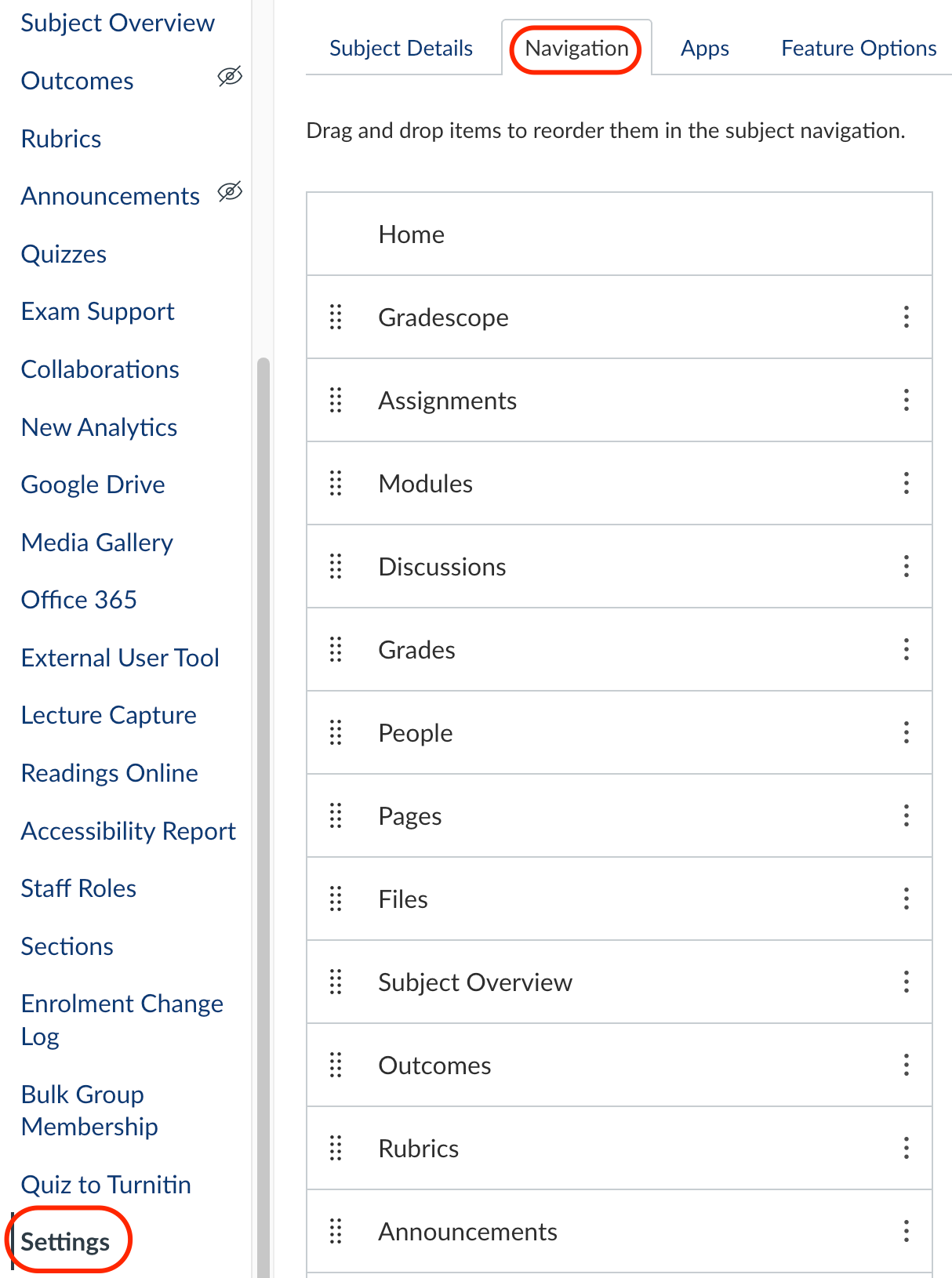
- Click on Settings at the bottom of the subject menu list.
- Select the Navigation tab at top.
- In the group at the bottom, find LockDown Browser. Click the three dots and choose +Enable OR drag LockDown Browser to the group above and to the location where you want it to appear in the Subject Navigation menu.
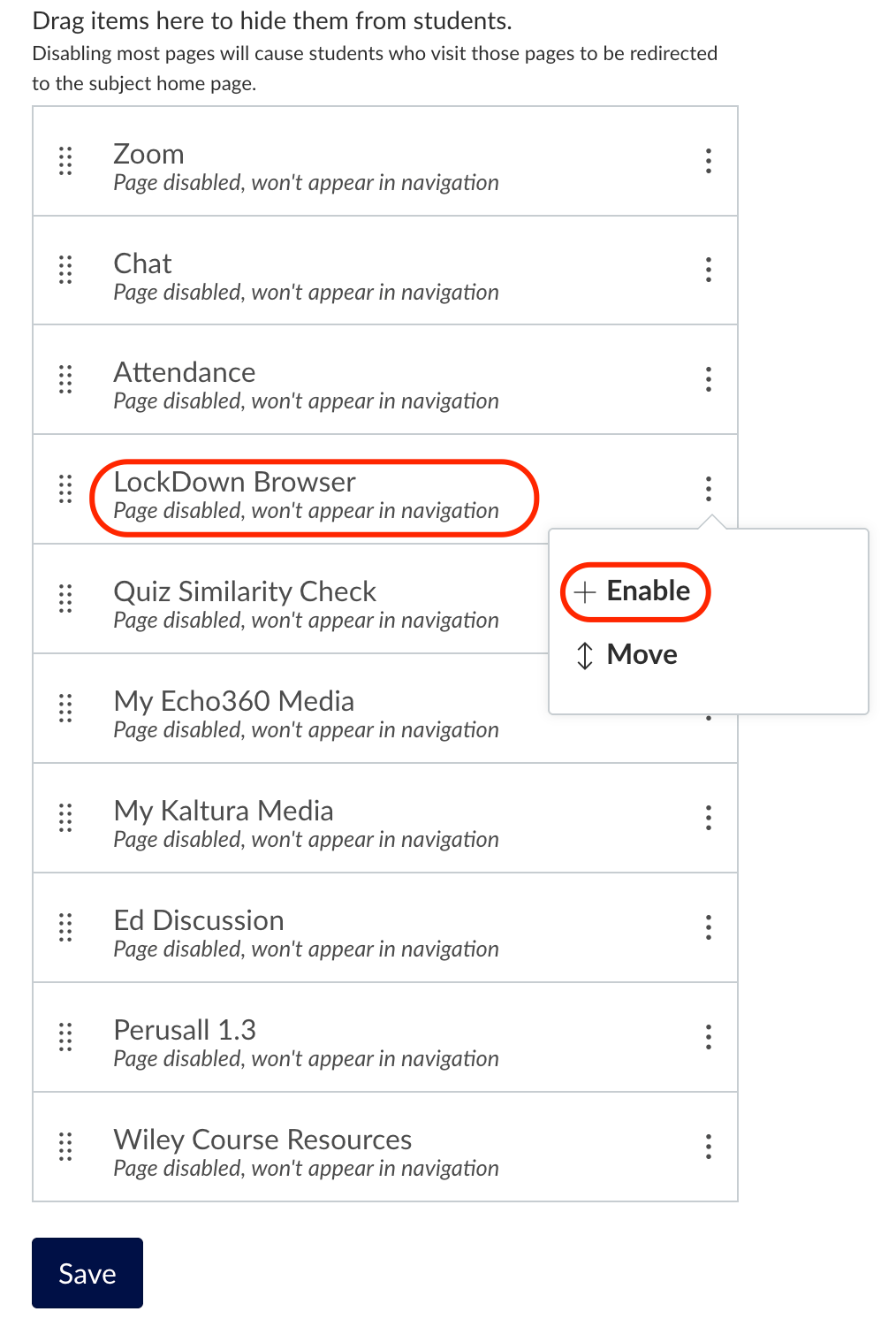
- Click Save.
Setting a LMS Classic Quiz to Require LockDown Browser for the exam
- Open the LockDown Browser dashboard from the Subject Navigation menu.
- If prompted, click Authorise to authorise Lockdown Browser to have access to your subject.
- Locate the Quiz that will be used for the exam in the list of quizzes displayed.

- Use the context menu to select Settings.
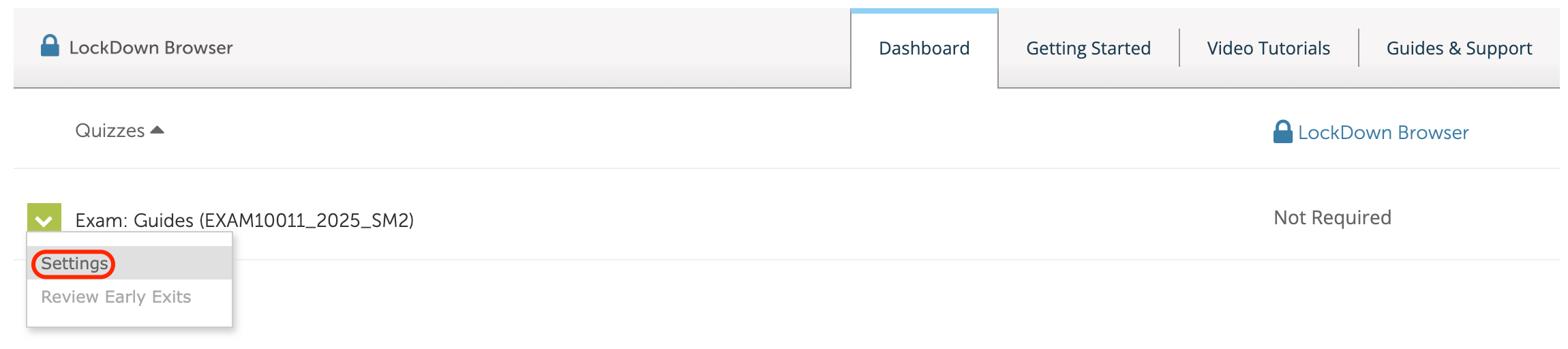
- Select the radio button Require Respondus LockDown Browser for this exam.
- Do not enter an access code.
- Click the Save + Close button.

- In the dashboard table, the Quiz for the exam name is appended with Requires Respondus LockDown Browser and the LockDown Browser column value is now Required. Meaning the students will be required to use LockDown Browser to access their quiz as an exam.

Students can download and install the LockDown browser from the University of Melbourne Respondus web page.
For more supports for students about using LockDown browser please refer them to the students’ exams site.
Grading in Gradescope and consolidating exam marks
If an LMS Quiz exam has a combination of auto-marked questions (multiple choice, true/false…) and essay questions, by default, student responses to the latter will be scanned into Gradescope. You can use Gradescope to mark if you would like to mark by question or are familiar with marking in Gradescope, otherwise you can still mark your exam in SpeedGrader. You can also request to not have the student responses scanned into Gradescope by indicating same in the exam cover sheet submission.
If you choose to mark in Gradescope, you must take the following steps to consolidate the exam marks, as the marks are naturally split between LMS Quiz (for auto-marked questions) and Gradescope (for written response questions). If unaddressed, the exam marks will be skewed and you will still have to rectify it later.
- In Gradescope, adjust the individual question marks to their correct value.
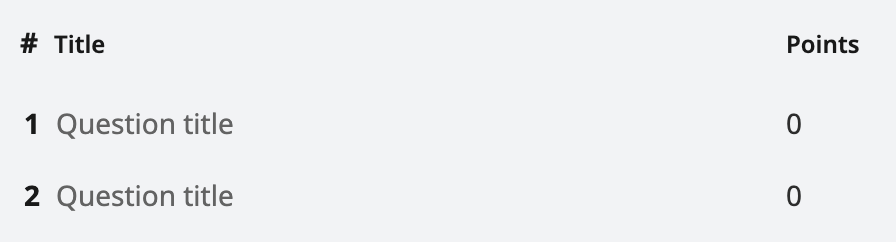
- Add an extra question to the Gradescope template with the total point value of all auto-marked questions in the exam.
- Once you finish marking the written response questions in Gradescope, manually input the total marks each student has received for the auto-marked questions from LMS Quiz to into the additional question in Gradescope. Use the consolidated Gradescope score as the final exam result for distribution to students or publication in StudentOne. Do not use the LMS Quiz score as a separate final exam mark.

Example scenario
An exam is worth 50 marks and consists of 10 marks for multiple-choice questions and 40 marks for essay questions.
In the LMS, there is a LMS Quiz that is worth 50 marks and the scanned Gradescope shell that is worth 0 marks. Staff will update the marks for each individual question to match their correct value. They then add an additional question in Gradescope, label it “LMS Quiz" and make it worth 10 marks.
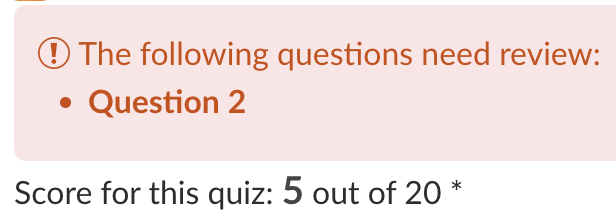
A student has received 9 marks for the multiple-choice questions and 36 marks for the essay questions. Without consolidating their exam marks, Canvas LMS will not display any marks in the gradebook as the quiz will be considered unmarked, and display 36/40 for the Gradescope assignment, instead of a combined 45/50. By adding the extra question worth 10 marks to Gradescope and manually inputting the student marks from the LMS Quiz, exam marks are consolidated into one column in the LMS Gradebook, making it easier for you to transfer the results to StudentOne or make them visible to students.
Publishing exam marks from Gradescope
Once the exam marks are finalised in Gradescope, you can publish them to the LMS Gradebook by clicking the Post Grades to Canvas button. You will have to adjust the Available from and Until dates to future dates in the LMS assignment shell so students can’t see their exam marks and feedback within Gradescope. Check that the Grade Posting Policy is set to Manual to ensure that students do not see their marks.
Staff resources
For guides on creating Lockdown Browser, quiz questions and setting up question banks:
- Video: Preparing a quiz for use with LockDown Browser in Canvas
- Video: Introduction to LockDown Browser for Canvas
- Digital exams: Frequently asked questions
- Guides for each question type
- How do I create a question bank in a course (subject)?
- How do I create a quiz with a question group linked to a question bank?
- How do I create a quiz by finding questions in a question bank?
- How do I add a rubric to a quiz?
- Guide to check when students can see their marks and feedback is configured as desired
- Import quiz tool information
- Copying quizzes to other LMS subjects
- Quiz to Turnitin tool.
Workshops on LMS Quizzes are regularly available from Teaching and Learning Innovation.
SASS Exams Support on creating your exam quiz.
This guide was last updated 07 Sep 2026.
Submit an LMS support request for further assistance or to report any errors or omissions in this guide.