Exam cover sheet submission
The exam cover sheet submission component of the Exam Submission Tool allows Subject Coordinators or delegates to prepare and lodge their exam cover sheet requirements.
Selecting your cover sheet
- Click Go to Cover sheets on the Exam Submission Tool landing page.

- Select the correct exam period from the Exam Round drop-down menu.

- Using the Filters, select your exam by entering the subject code in the Value field.
- Click Create to start creating the exam cover sheet.

Exam venue rules
While they will not be visible in the form, there are standard exam rules that are printed on the cover sheet for your selected exam type.
-
- Do not communicate with other students in the exam venue.
- During writing time, write your student number on the cover sheet, student declaration form, and on any script books or answer pages.
- Blue scrap paper is for informal working notes only and will be collected and destroyed at end of session.
- No part of the exam paper may be removed from the venue.
- Ensure you only have permitted materials on your desk. The permitted materials are listed on this cover sheet.
- Raise your hand if you require assistance.
- Turn off your phone prior to commencement of reading time. Phones must be fully powered off.
-
- Do not communicate with other students in the exam venue.
- During writing time, write your student number on the cover sheet, student declaration form, and on any script books or answer pages.
- Blue scrap paper is for informal working notes only and will be collected and destroyed at end of session.
- No part of the exam paper may be removed from the venue.
- Ensure you only have permitted materials on your desk. The permitted materials are listed on this cover sheet.
- Raise your hand if you require assistance.
- Turn off your phone prior to commencement of reading time. Phones must be fully powered off.
- Raise your hand immediately if you lose connection to the Wi-Fi.
- Accessing any links/information outside of the exam portal is a breach of exam rules.
Exam details
The Exam Round and Exam name fields have been pre-selected from the information previously entered. The Exam Type is pre-defined in Exams Manager and cannot be updated. For further information on the on-campus invigilated exam types, refer to the comparing on-campus supervised exam options table.
Permitted materials
Standard permitted materials
The Standard permitted materials are printed on the cover sheet by default:
- Identification card (Hardcopy student ID, Passport or Australian Government-issued photo ID)
- Pencils, pens, erasers
- Clear bottle of water
Additional permitted materials
Select any permitted materials, including the use of calculator and student notes, to be populated on the cover sheet. If you want to remove your selection, click on the option again.
Calculator (Select one if applicable)
- Calculator (Programmable)
- Calculator (Non-programmable)
- Calculator (Casio FX-82 any suffix)
Student Notes (Select one if applicable)
- Student Notes - 1 x double sided A4 page of notes
- Student Notes - 2 x double sided A4 pages of notes
- Student Notes - Unlimited notes (Paper based notes only, may be bound or in a binder)
Other (Select all that apply)
- The use of any printed material is permitted (includes text books, paper-based notes - may be bound or in a binder)
- Mathematical instruments (Protractor, compass, ruler, circle template)
- Scientific models (Molecular model)
- Printed Dictionaries - English language
- Printed Dictionaries - Language other than English
- Highlighter
Exam instructions
Select specific instructions for students that will be printed on the exam coversheet.
Reading time (You must select at least one)
- During reading time, students may not write, type, or select answers
- During reading time, students may highlight or annotate the exam paper and any permitted or reference materials
- During reading time, students may commence writing or typing their exam and annotate any permitted or reference materials
Other (Select all that apply)
- Students must use a blue or black ball-point pen
- Students may use a pencil for diagrams
- Show all working or calculation steps for each question
- Marks and weightings differ per question. Ensure you verify the marks for each question
- Next to each question you will find its assigned marks/weight
Special exam instructions
Enter any special exam instructions in the textbox provided. Do not list standard exam rules or permitted materials that have already been selected earlier in the submission form to appear on the cover sheet. There is a maximum of 400 characters including spaces.
Exam Weighting and Approver
Exam Weighting
Any exam weighting and marks that should be included on the cover sheet can be input in the provided textbox. There is a maximum of 400 characters including spaces.
Example: This exam contains 4 questions worth 120 marks. This exam is worth 50% of your final mark. This exam comprises 10 pages.
Approver
Enter the email of the contact person responsible for cover sheet approval in the provided textbox. The email must be a valid email ending with @unimelb.edu.au.
Important: The approver of the exam cover sheet cannot be the same person who submits the cover sheet
Flexible marking options with Canvas Quiz and Gradescope
If your exam is running digitally on Canvas Classic Quiz, we will automatically make the students' answers available in both Canvas Quiz and Gradescope to provide you with the flexibility to mark using either platform. You can select to opt out of this service by selecting the Opt out of Canvas Quiz to Gradescope processing option.
Cover sheet preview
A preview of the cover sheet populated with the information you have input about your subject exam will appear in this step. Review the cover sheet carefully and check that the information is accurate.
To download (as a PDF file) or print the cover sheet, select the relevant download or print icon in the top right corner of the document preview window.

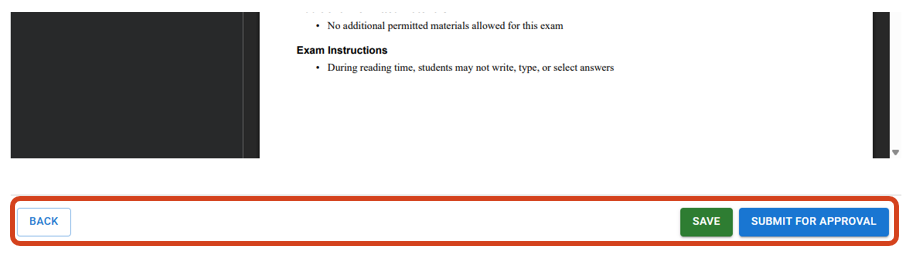
If you identify any errors, you can return to the relevant step to make an adjustment by clicking the Back button below the preview window. You can also save the progress of the cover sheet submission and return to it at a later time by clicking on the Save button, or submit the cover sheet by clicking on the Submit for approval button.
Note: Once you submit your exam cover sheet, no further changes can be made.
Exam cover sheet submission
Once you submit your exam cover sheet, the status Lodged will show against your cover sheet submission. You as the submitter and the nominated approver will receive an automatic confirmation email. The submission status will change to Approved when your exam cover sheet is approved, or Rejected if your cover sheet has not been accepted. In this case, you will be able to amend the cover sheet and re-submit it.
Note: If your cover sheet is in Lodged status after the submission deadline, Teaching and Learning Innovation will process the lodged cover sheet and selections as is. Any changes post-submission will be processed as part of the errata process.

Approver’s instructions - review the cover sheet
As a nominated approver of the exam cover sheet, once you log in to the Exam Submission Tool, you will have to select the appropriate cover sheet.
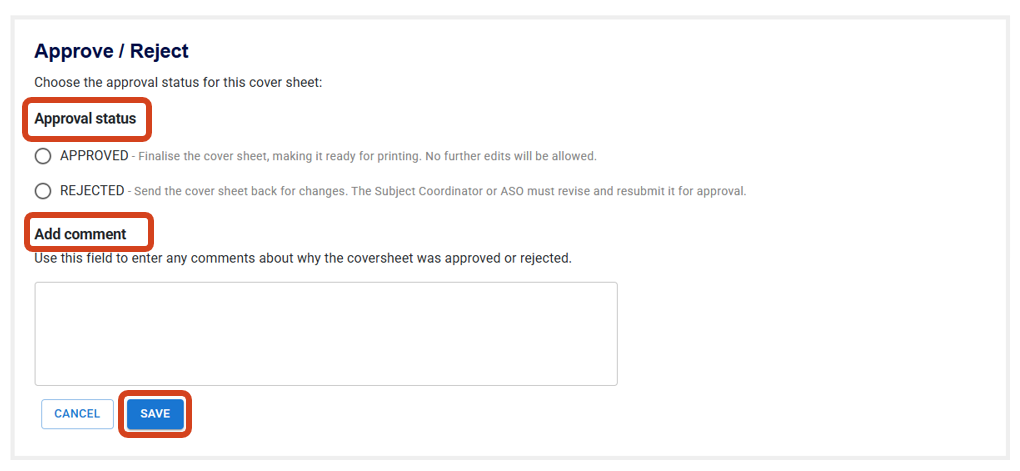
After previewing the submitted cover sheet, select the relevant approval status and add further comment if needed. Click Save to submit your approval status.
Next steps
Once the cover sheet has been approved, Teaching and Learning Innovation will prepare the cover sheet data to brief in-venue supervisors on exam conditions. The cover sheet, along with any exam papers or reference materials that have been submitted via the Exam Submission Tool, will be prepared for printing by the print vendor. Note: Printing will only occur if these submissions are approved by the set exam deadline.
Instructions on how to submit exam papers and/or reference materials can be found in the exam paper submission guide.
If you require support or have any questions, contact SASS Exams Support.
This guide was last updated 27 Apr 2026.
Submit an LMS support request for further assistance or to report any errors or omissions in this guide.