Exam paper submission
Exam paper submission
The Exam Paper Submission component of the Exam Submission Tool allows Subject Coordinators or delegates to prepare and submit their exam paper.
Instructions on how to complete the submit the Exam cover sheet can be found in the exam cover sheet submission guide.
Selecting your subject
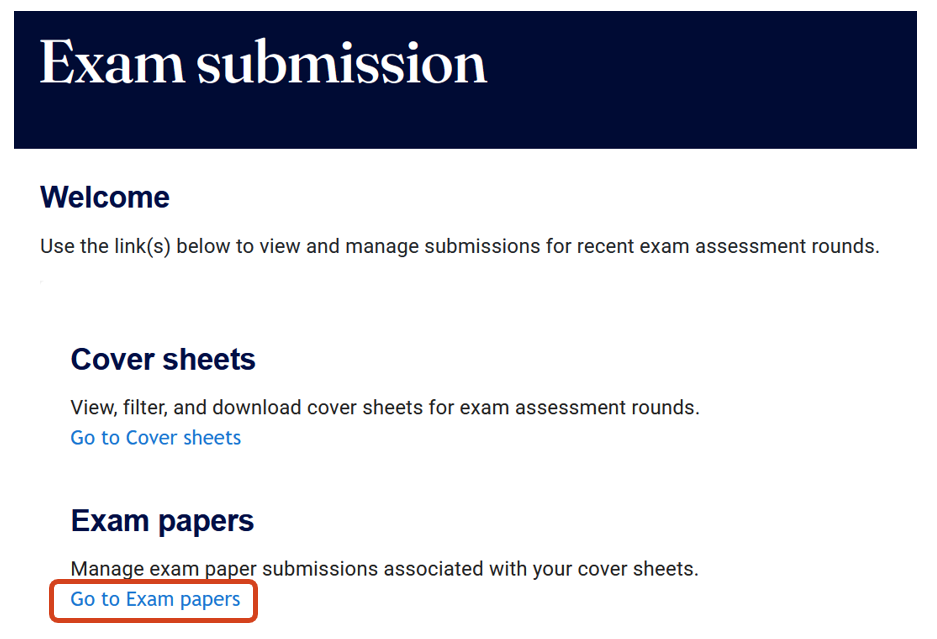
- Click Go to Exam papers on the Exam Submission Tool landing page.
- Select the correct exam round and use the filters to search for your exam.

- Click Create to start the exam papers submission.

Click on the relevant exam type from the left-side navigation menu of this guide for detailed instructions on how to proceed with the exam paper submission.
If you require support or have any questions about the exam paper submission process, contact SASS Exams Support.
This guide was last updated 06 Mar 2026.
Submit an LMS support request for further assistance or to report any errors or omissions in this guide.
On-campus written exam (scanned)
Preparation
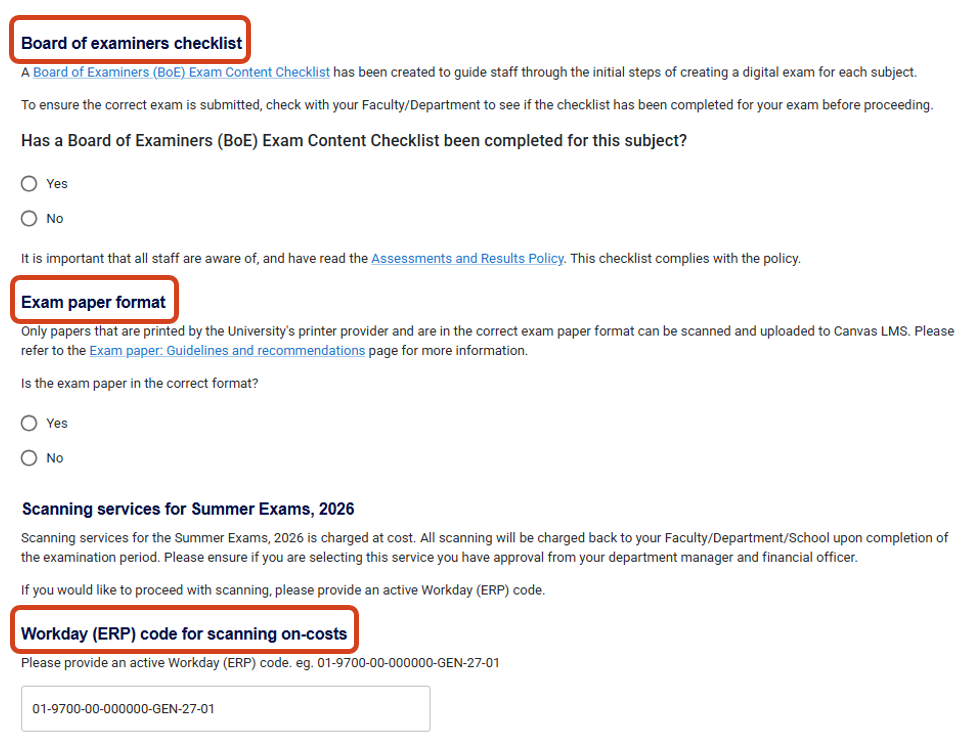
Answer the questions regarding the Board of examiners checklist, Exam paper format and enter a Workday (ERP) code for scanning services.
Note: Scanning services for exams are charged back to your Faculty/Department/School upon completion of the examination period. If you are selecting scanning for your exam, ensure you have approval from your department manager and financial officer.
Printing arrangements
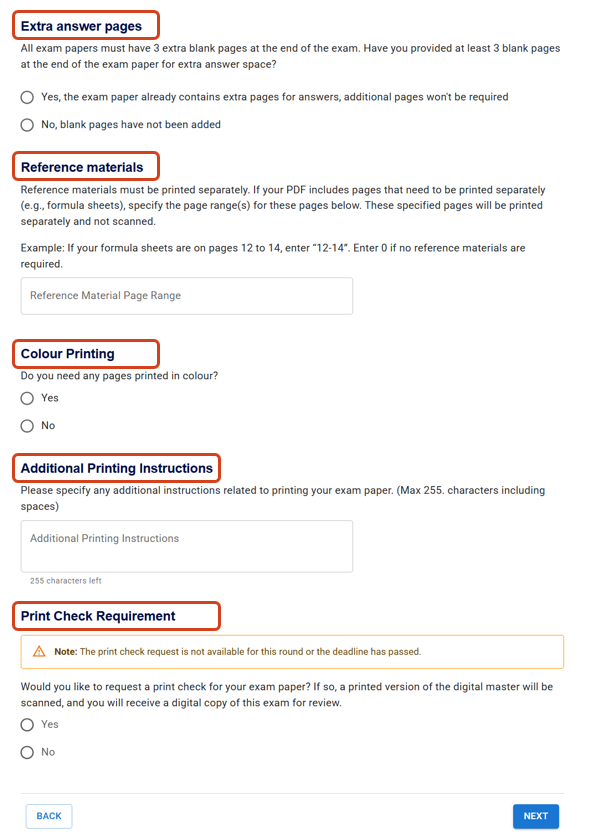
Check whether your exam contains three (3) extra blank pages at the end of the exam paper for extra answer space, and specify the pages that will be printed as reference materials.
Additionally, specify whether any colour printing is needed, list additional printing instructions and request a print check (if applicable).
Upload printed materials
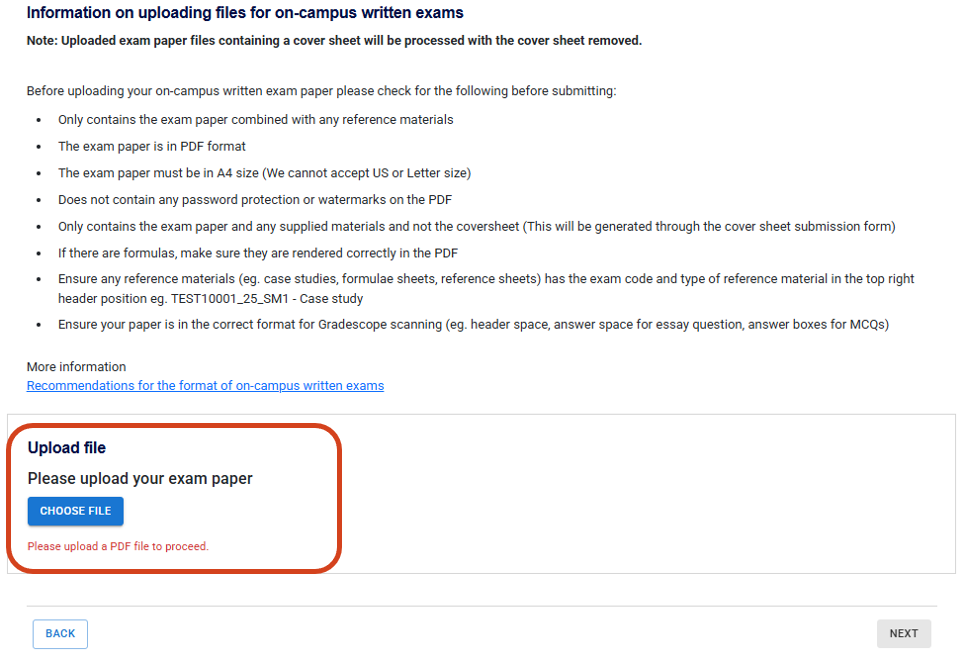
Before uploading your exam paper, use the checklist to ensure your exam paper meets all the requirements.
Review and submit
Review all information you record in the exam submission form and ensure the exam approver’s email is correct before submitting the exam paper for approval. Your submission must be approved by the set exam deadline for printing to occur.
Note: If your exam paper submission is in Lodged status after the submission deadline, Teaching and Learning Innovation will process the lodged file and selections as is. Any changes post-submission will be processed as part of the errata process.
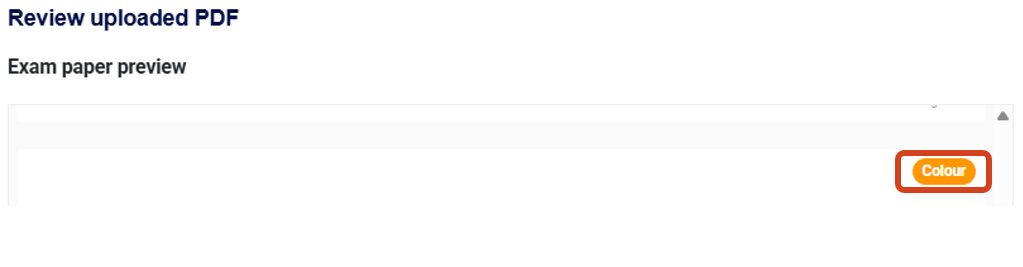
You can preview your PDF exam paper including any pages that will be printed in colour.
This guide was last updated 06 Mar 2026.
Submit an LMS support request for further assistance or to report any errors or omissions in this guide.
On-campus written exam (non-scanned)
Preparation
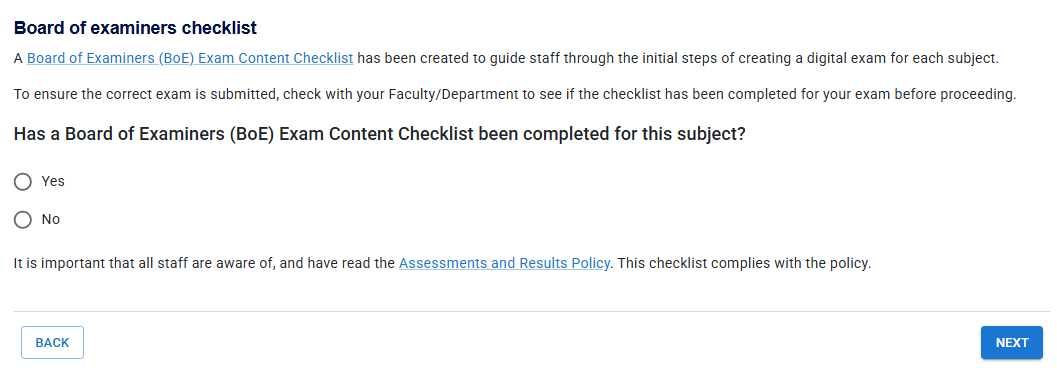
Confirm whether a Board of Examiners (BoE) Exam Content Checklist has been completed for this subject.
Printing arrangements
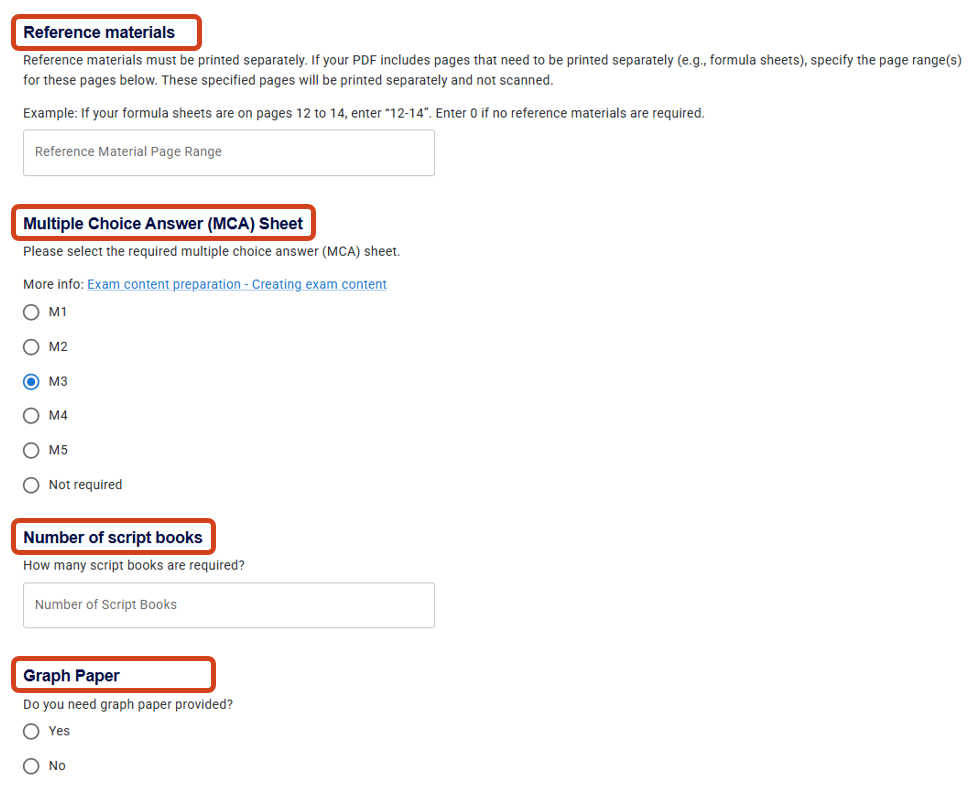
Specify the pages within your exam paper that will be printed as reference materials, whether you require a multiple-choice answer (MCA) sheet and graph paper, and the number of script books your exam needs.
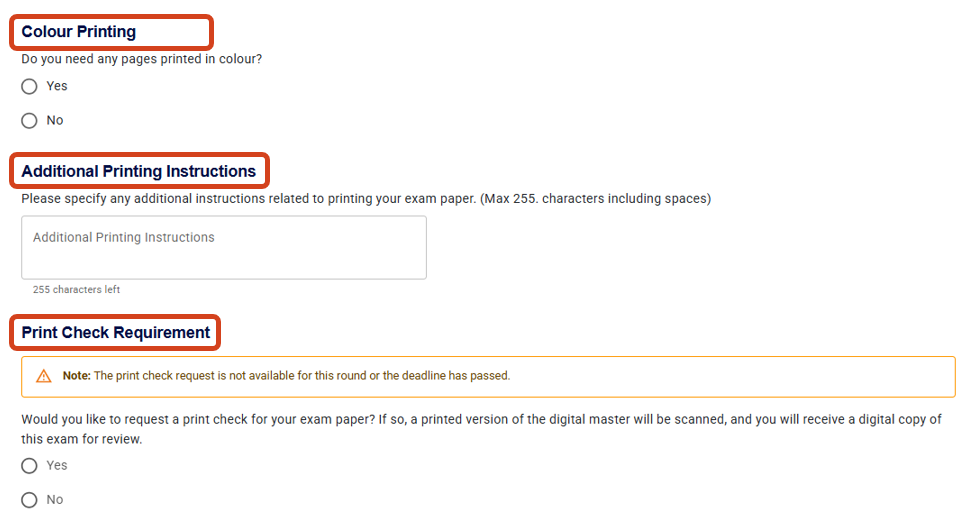
Specify whether any colour printing is needed, list additional printing instructions and request a print check (if applicable).
Upload printed materials
Before uploading your exam paper, use the checklist to ensure your exam paper meets all the requirements.
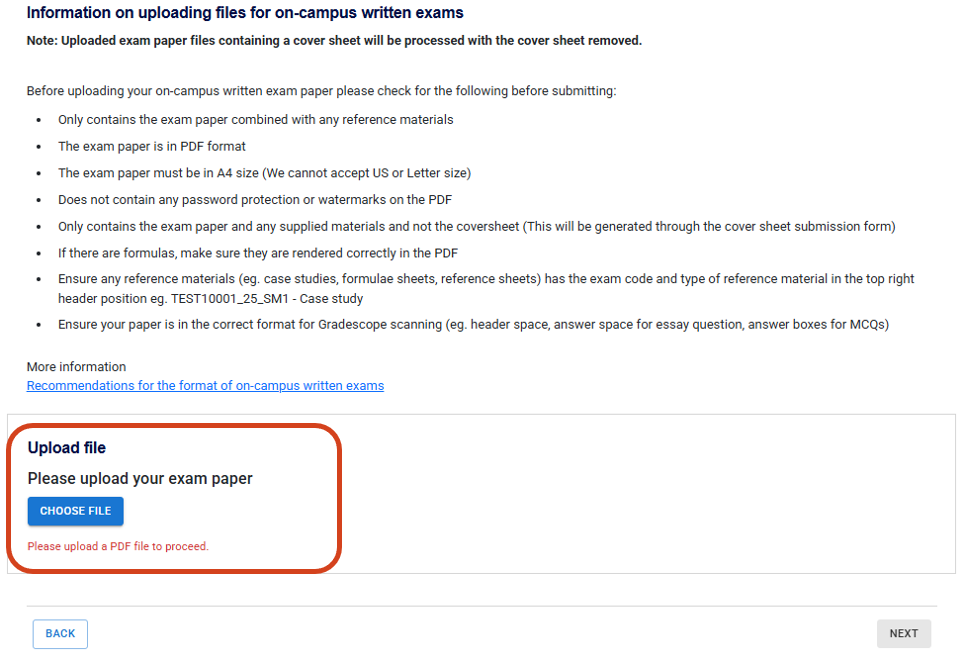
Review and submit
Review all information you record in the exam submission form and ensure the exam approver’s email is correct before submitting the exam paper for approval. Your submission must be approved by the set exam deadline for printing to occur.
Note: If your exam paper submission is in Lodged status after the submission deadline, Teaching and Learning Innovation will process the lodged file and selections as is. Any changes post-submission will be processed as part of the errata process.
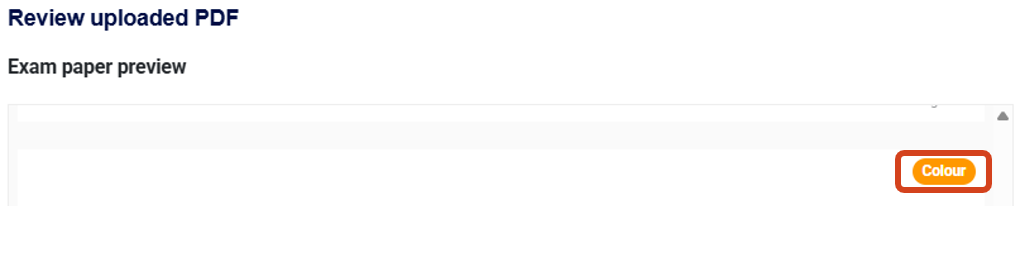
You can preview your PDF exam paper including any pages that will be printed in colour.
This guide was last updated 06 Mar 2026.
Submit an LMS support request for further assistance or to report any errors or omissions in this guide.
On-campus digital exam
You don't have to submit your exam paper in the Exam Submission Tool, only the cover sheet as per the exam cover sheet submission process. You will have to set up your exam in the LMS subject, once the exam shell(s) has been created.
Refer to the on-campus digital exams guides for further instructions.
Your exam in the Exam submission tool will have a 'View' button, indicating that your exam details can be viewed but there is no action required from your end.

This guide was last updated 22 Jan 2026.
Submit an LMS support request for further assistance or to report any errors or omissions in this guide.
On-campus digital exam with reference materials
Preparation
Confirm whether a Board of Examiners (BoE) Exam Content Checklist has been completed for this subject.
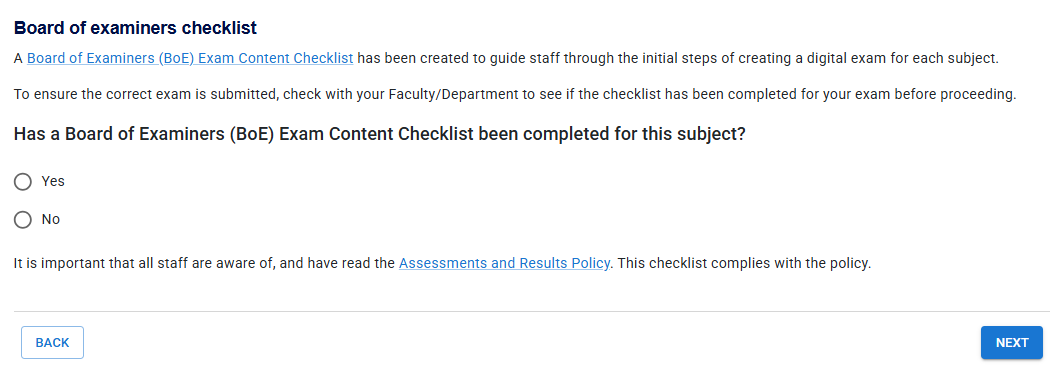
Printing arrangements
Specify whether any colour printing is needed, list additional printing instructions and request a print check (if applicable).
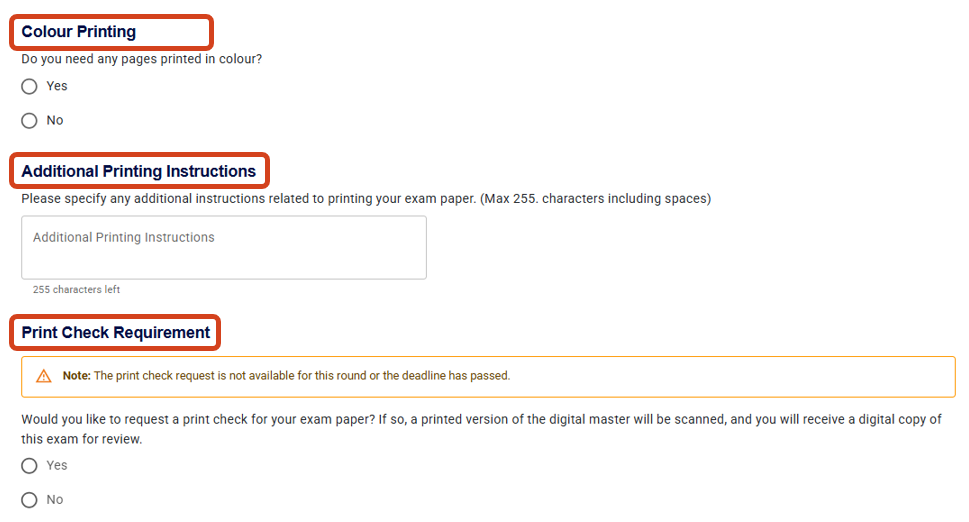
Upload printed materials
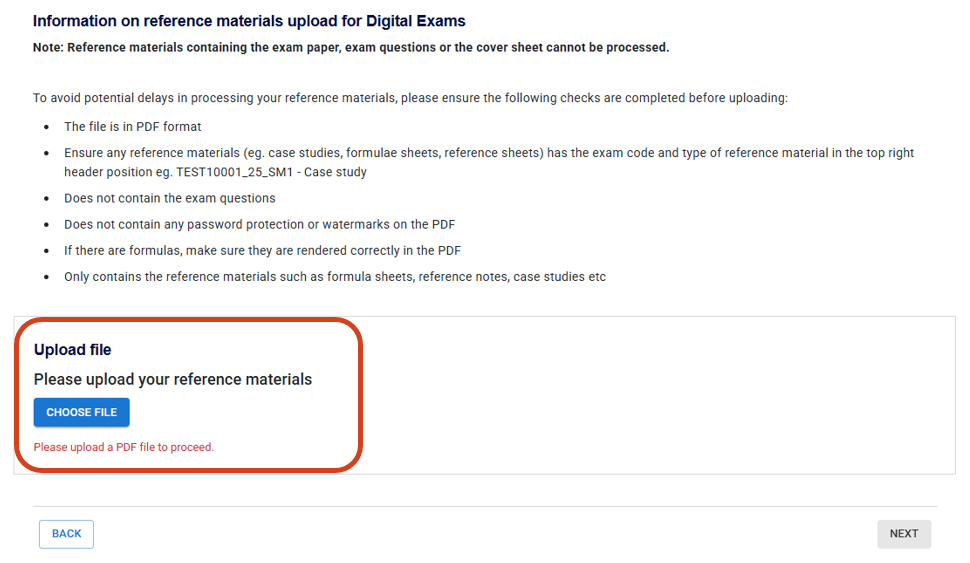
Before uploading the reference materials for your digital exam, use the checklist to ensure the reference materials meet all the requirements.
Note: Reference materials containing the exam paper, exam questions or the coversheet cannot be processed.
Review and submit
Review all information you record in the exam submission form and ensure the exam approver’s email is correct before submitting the reference materials for approval. Your submission must be approved by the set exam deadline for printing to occur.
Note: If your reference materials submission is in Lodged status after the submission deadline, Teaching and Learning Innovation will process the lodged file and selections as is. Any changes post-submission will be processed as part of the errata process.
You can preview your uploaded reference materials including any pages that will be printed in colour.
This guide was last updated 06 Mar 2026.
Submit an LMS support request for further assistance or to report any errors or omissions in this guide.
On-campus digital exam with written component (scanned)
Preparation
Answer the questions regarding the Board of examiners checklist, Exam paper format and enter a Workday (ERP) code for scanning services.
Note: Scanning services for exams are charged back to your Faculty/Department/School upon completion of the examination period. If you are selecting scanning for the written component of your exam, ensure you have approval from your department manager and financial officer.
Printing arrangements
Check whether your exam contains three (3) extra blank pages at the end of the exam paper for extra answer space, and specify the pages that will be printed as reference materials.
Additionally, specify whether any colour printing is needed, list additional printing instructions and request a print check (if applicable).
Upload printed materials
Before uploading your exam paper (written component), use the checklist to ensure your exam paper meets all the requirements.
Review and submit
Review all information you record in the exam submission form and ensure the exam approver’s email is correct before submitting the exam paper for approval. Your submission must be approved by the set exam deadline for printing to occur.
Note: If your exam paper submission is in Lodged status after the submission deadline, Teaching and Learning Innovation will process the lodged file and selections as is. Any changes post-submission will be processed as part of the errata process.
You can preview your PDF exam paper including any pages that will be printed in colour.
This guide was last updated 06 Mar 2026.
Submit an LMS support request for further assistance or to report any errors or omissions in this guide.
On-campus digital exam with written component (non-scanned)
Preparation
Confirm whether a Board of Examiners (BoE) Exam Content Checklist has been completed for this subject.
Printing arrangements
Specify the pages within your exam paper that will be printed as reference materials, whether you require a multiple-choice answer (MCA) sheet and graph paper, and the number of script books your exam needs.
Specify whether any colour printing is needed, list additional printing instructions and request a print check (if applicable).
Upload printed materials
Before uploading your exam paper (written component), use the checklist to ensure your exam paper meets all the requirements.
Review and submit
Review all information you record in the exam submission form and ensure the exam approver’s email is correct before submitting the exam paper for approval. Your submission must be approved by the set exam deadline for printing to occur.
Note: If your exam paper submission is in Lodged status after the submission deadline, Teaching and Learning Innovation will process the lodged file and selections as is. Any changes post-submission will be processed as part of the errata process.
You can preview your PDF exam paper including any pages that will be printed in colour.
This guide was last updated 06 Mar 2026.
Submit an LMS support request for further assistance or to report any errors or omissions in this guide.