EchoVideo: Getting started
EchoVideo is the University’s video management system, enabling staff to manage and share media. This guide provides an introduction to navigating, creating, and sharing media in EchoVideo.
Logging into EchoVideo
Staff can access EchoVideo either:
- Using SSO
- Using the EchoVideo mobile apps
- In the LMS by clicking on the Lecture Capture link displayed in the subject navigation menu
Navigating EchoVideo
General
Library
Once logged into EchoVideo, you will be brought to your Library. In your Library, you will see all the content belonging to your account, including uploaded media, duplicated media, presentation files, and Collections. By default, content in your Library is private to you unless you share or publish it.
Courses
The Courses tab contains all subjects to which you have access to. By default, Courses will be displayed as thumbnails showing the number of available media. You can search and sort courses by name, offering code, or term. Detailed guidance on navigating courses in EchoVideo can be found below.
-
The Classes tab provides you with access to all available content for the selected subject. From here, you can:
- View and download recordings
- Duplicate recordings to your personal library
- Modify the availability of recordings to students
- See a list of scheduled recordings
- Create new classes and groups
For a detailed walk-through of the Classes section, view the vendor guide to understanding the instructor's class list.
-
The Polling tab shows any polls you have embedded to media or files in your course. If no polls have been added it will display the message “No classes in this course contain polling questions yet”. See adding polling questions/activity slides to a presentation if you would like to add polls to your slides.
If polls have been added, you can review student responses to your polls in this tab.
For a detailed walk-through of the Polling section, view the vendor guide for reviewing student responses to polling questions.
-
The Analytics tab provides information and feedback regarding student engagement and class participation.
Some reports won’t be available until certain features are activated. For example, reporting on features such as Questions will require the Q&A feature to be turned on.
For more information, view the vendor guide course analytics overview.
-
The Settings tab allows you to:
- View course Details
- View Instructors and Students that have accessed the course in Lecture Capture.
- Enable or Disable any available Features for the course.
The Q&A feature is disabled by default but can be enabled for your subject from the Course Settings tab, under Features. For more information on using this feature, see the Lecture Capture – Q&A discussions guide.
-
The Lecture Capture system gives you the ability to search for text that is used throughout the subject. Some examples of searchable information within the system are listed below:
- Class or course names, descriptions or dates
- Slide deck content (if a slide deck has been uploaded to the system)
For a detailed walk-through of the search functionality, view the vendor’s guide on searching across a course.
Collections
The Collections tab allows you to view and manage your Collections. Collections are collaborative spaces where multiple users can post and view media. For more information, see the vendor’s guide on Collections.
Analytics
The Analytics tab allows you to view the analytics for subjects linked to the LMS. Available analytics include media and polls engagement. For more information, see the vendor’s guide on consolidated media analytics.
Media Player
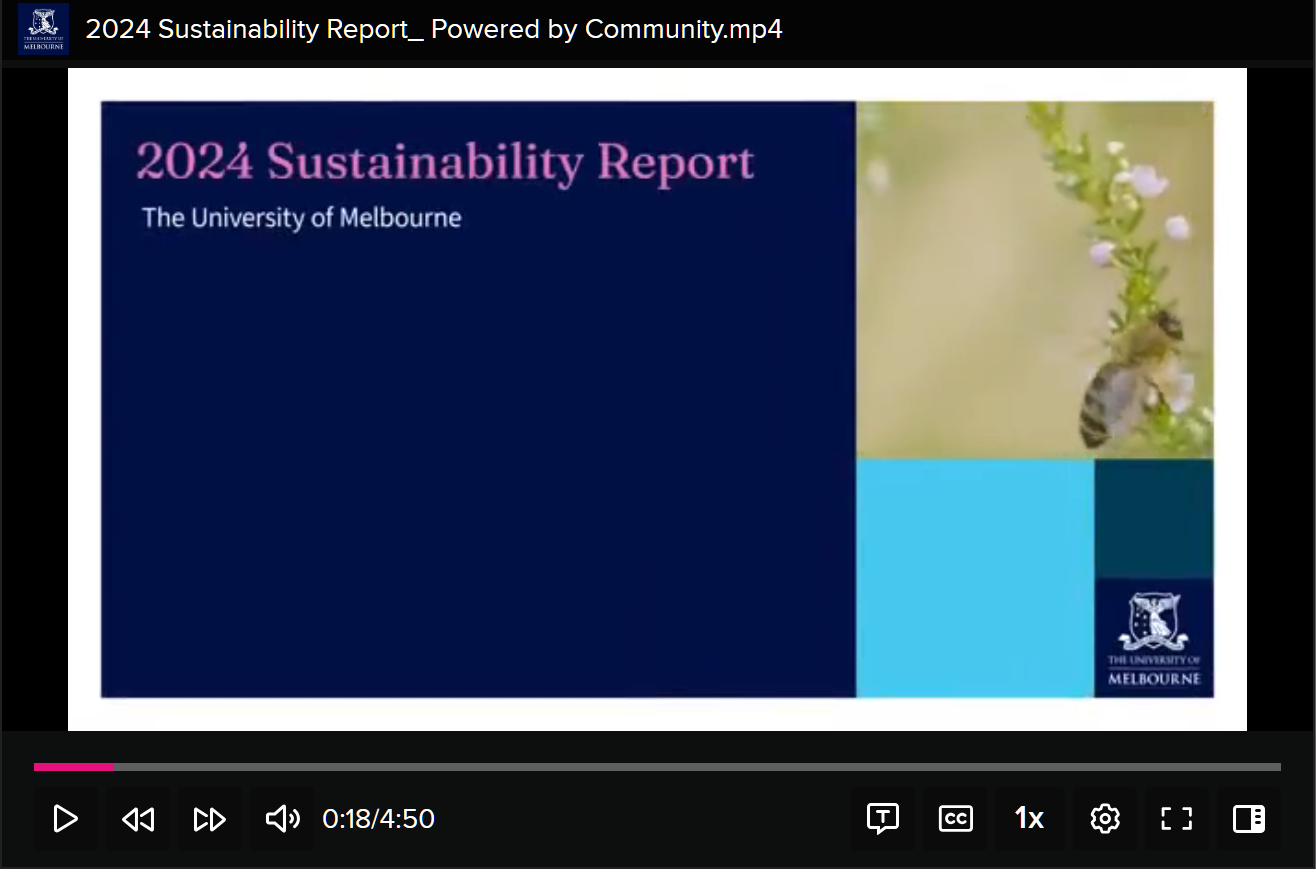
Below are the common icons you will find in the Media Player. Note that depending on the configuration of your media, additional icons and features may be available (e.g. Layout button to adjust the display where more than one screen has been recorded).
Media Player icons

Play

Pause


Skip back/skip forward buttons (10-second intervals)

Volume control

Transcripts

Toggle captions

Playback speed

Settings for additional options (e.g. streaming quality, closed captions, and overlays)

Full screen

Open/Close sidebar
Adding content to your Library
Adding content to your Library grants you ownership over the media, allowing you to easily save, edit, and share media with other users.
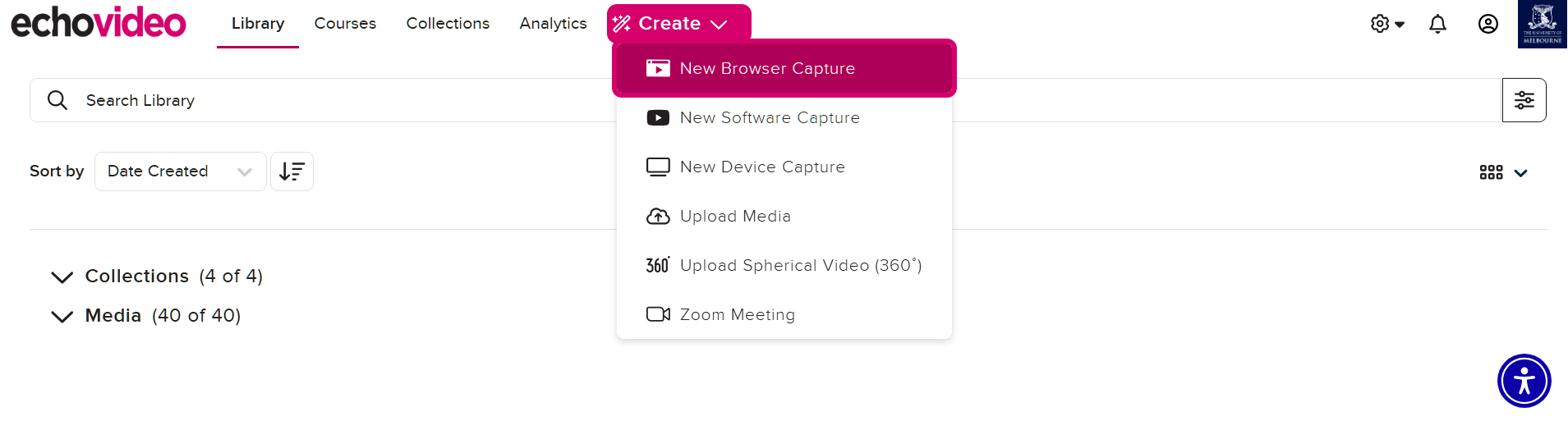
There are multiple ways to add media into your Library.
Create: Upload options
The most straightforward way to add media to your Library is by uploading from your device. Under the Create button, you have two upload options:
- Upload Media: Upload a media file directly from your device into your EchoVideo Library. Note that there is a file size limit of 20GB for direct uploads, and uploads from a virtual storage space (for example, Google Drive, Box, Dropbox, OneDrive, etc.) will have a file size limit of 20MB.
- Upload Spherical Video (360°): Upload a media file captured or formatted as a Spherical Video from your device. More information can be found in the vendor guide on spherical videos.
Create: Capture options
EchoVideo also allows users to create captures that will then be automatically uploaded into your Library. Under the Create button, you have three capture options:
- Browser Capture: Create a capture using the In-Browser Capture to record content from your device directly from your browser. More information can be found in our guide on Browser Capture.
- Software Capture: Create a capture using the Universal Capture, an application by EchoVideo for recording content from your device. More information on installing and selecting software capture can be found in our guide on Universal Capture.
- Device Capture: Create a capture using the Device Capture option, allowing users to select from lecture capture-enabled venues to initiate immediate recordings. Note: Where in-venue captures are required, we recommend using the Scheduling Assistant.
Zoom Meeting
Create an instant Zoom Meeting that will be automatically recorded and uploaded to your Library. Note that by default all Zoom recordings created outside of EchoVideo are securely stored and automatically available in your EchoVideo library when the option “Record to Cloud” is enabled. More information can be found in our guide on the Zoom and EchoVideo integration.
Media: Make a copy
For media you have access to but do not own (e.g. lecture recordings in your subjects), you can select choose to select the media and Make a Copy. Duplicated media will then owned by you, stored in your Library, and can be edited or shared without affecting the original.
Scheduling Assistant: Book a recording
The Schedule Assistant is a self-service tool that allows staff to schedule recordings in capture enabled-venues. For more guidance on using the Schedule Assistant, visit our guide on booking and accessing events.
Managing media
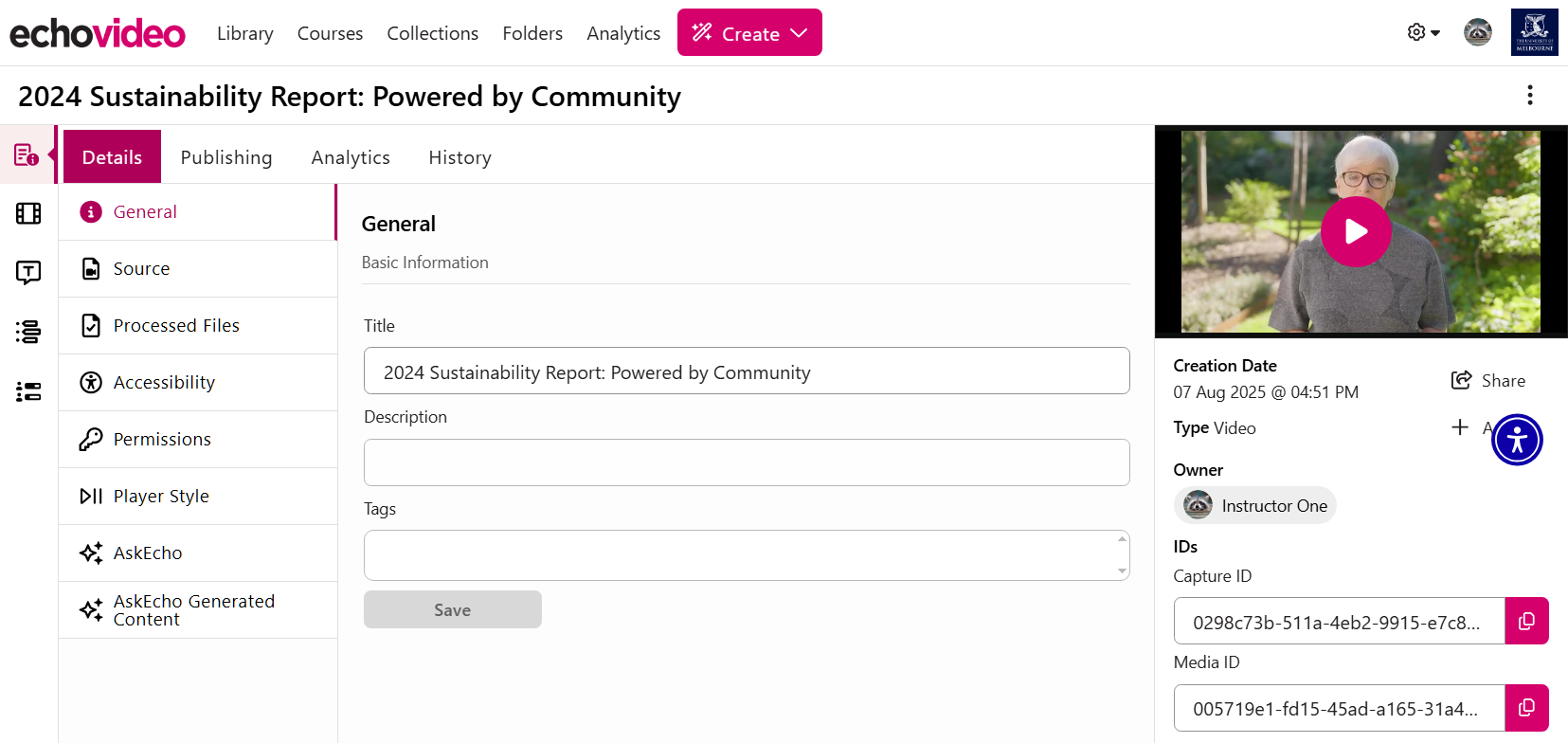
Editing media
When you click on your media, you will be brought to the media’s details page, where you can also view and edit information including the title, description, and tags. On the left-hand side of this page, you will also find the:

Media Editor which provides basic video editing functionality where cuts and trims can be applied. This allows for post-production tasks on recordings, such as the removal of inessential or sensitive information. More information can be found in the vendor guide on using the media editor.
Transcript Editor which allows users to view and edit transcripts, as well as apply it to the media’s closed captioning. For more information, visit our guide on editing transcripts and captions.
Sharing media
To share media, select the Publishing tab under the media details page:
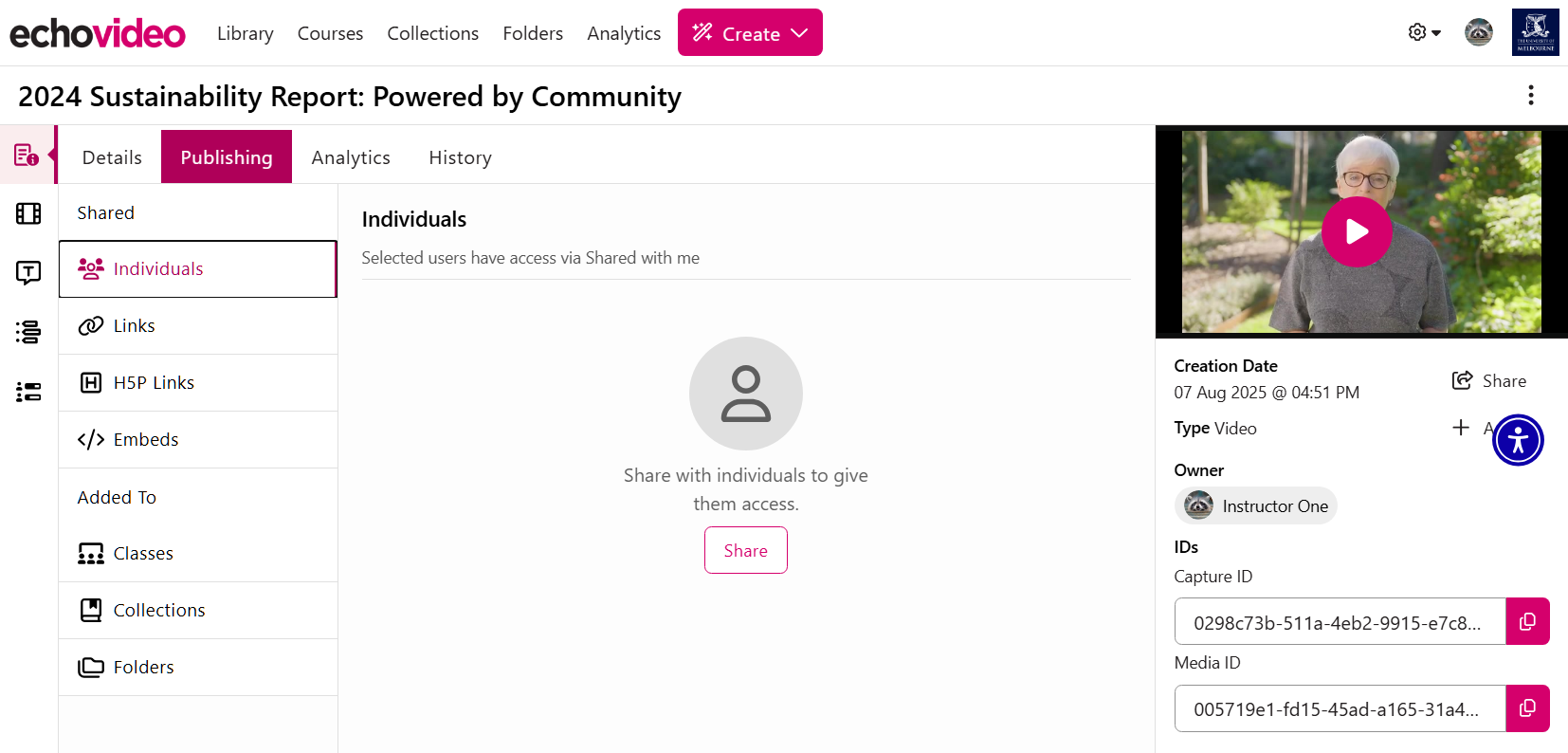
From there, you can select to share the media via:
- Individuals: Share the link directly to other EchoVideo users
- Links: Create a link which you can share to other users
- H5P Links: Create a link that you can use in an H5P activity
- Embeds: Create an embed code that you can use to embed the media (e.g. in LMS pages)
Alternatively, you can add the media to:
- Classes: This provides access to the media for all users enrolled in a Class
- Collections: This provides access to the media for all members in a Collection
Player Styles
All media added to EchoVideo adopts the University’s default Player Style.
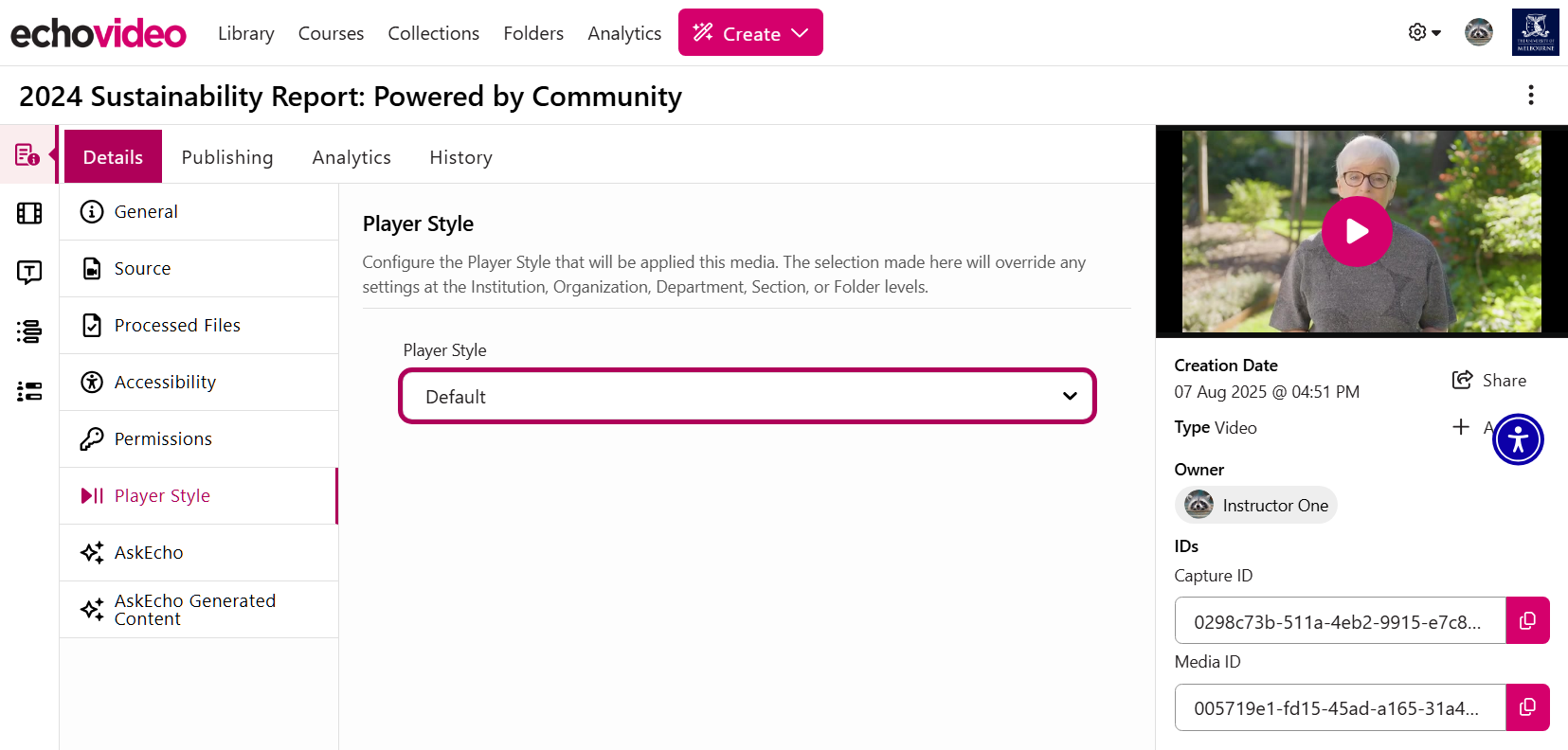
Additionally, Player Styles can also be applied to individual share links and embeds. Under the Publishing tab, create a share link or an embed and use the vertical dots for more options. From there, select a specific Player Style for when the media is accessed using the share link or when embedded.
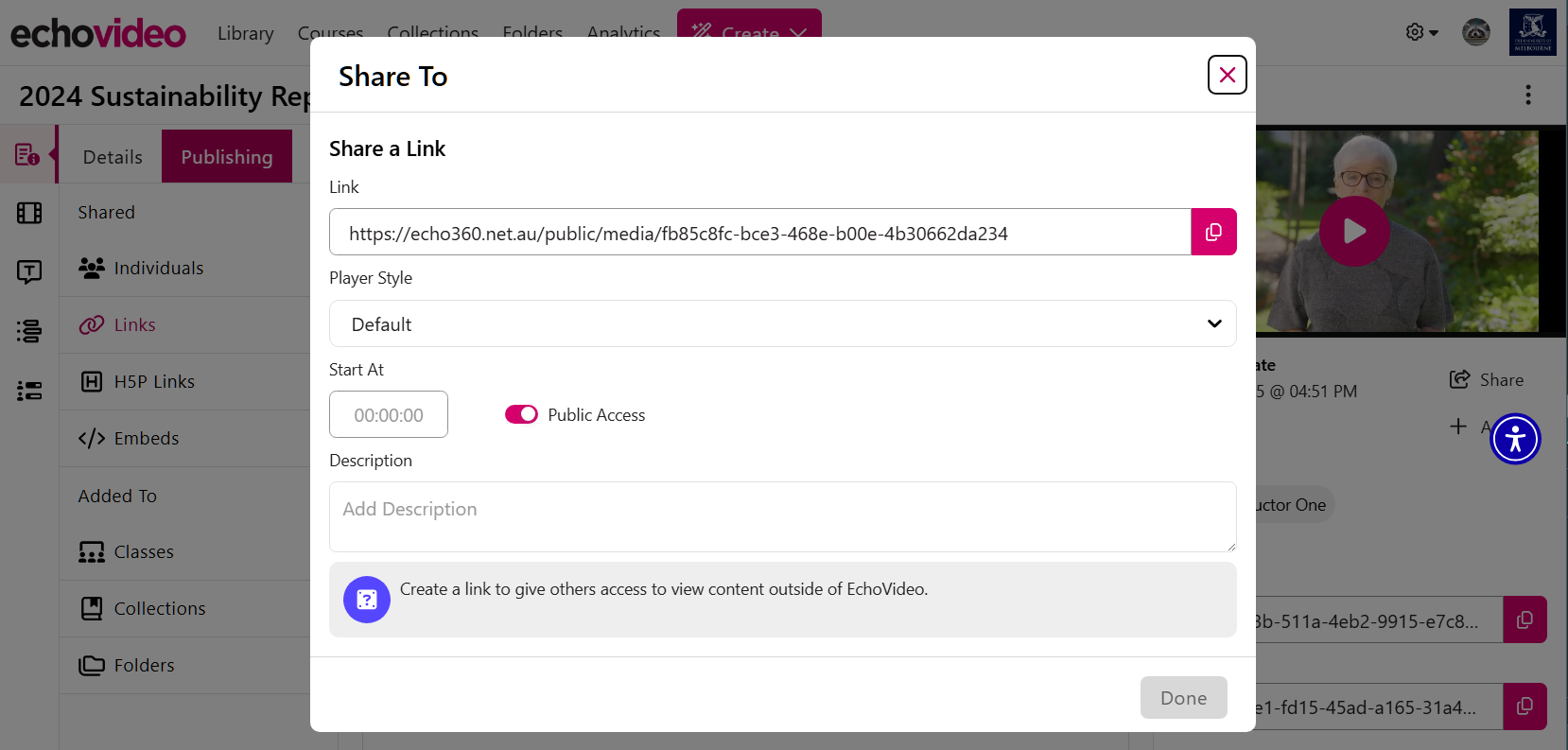
Please reach out to Teaching and Learning Innovation for advice on applying or creating alternative Player Styles for your media.
Support and resources
Submit an LMS support request for further assistance or to report any errors or omissions in this guide.
This guide was last updated 19 Aug 2026.
Submit an LMS support request for further assistance or to report any errors or omissions in this guide.