Editing transcripts and captions in EchoVideo
All Lecture Capture recordings are automatically transcribed by EchoVideo and the transcript is applied to closed captions. However, speech recognition software does not produce a perfect transcript, so it’s recommended that you check and edit it for accuracy.
To edit the text of the transcript:
- Go to your EchoVideo Library.
- Select the video you want to edit and click on the Transcript Editor icon located on the left-hand side of the media details page.
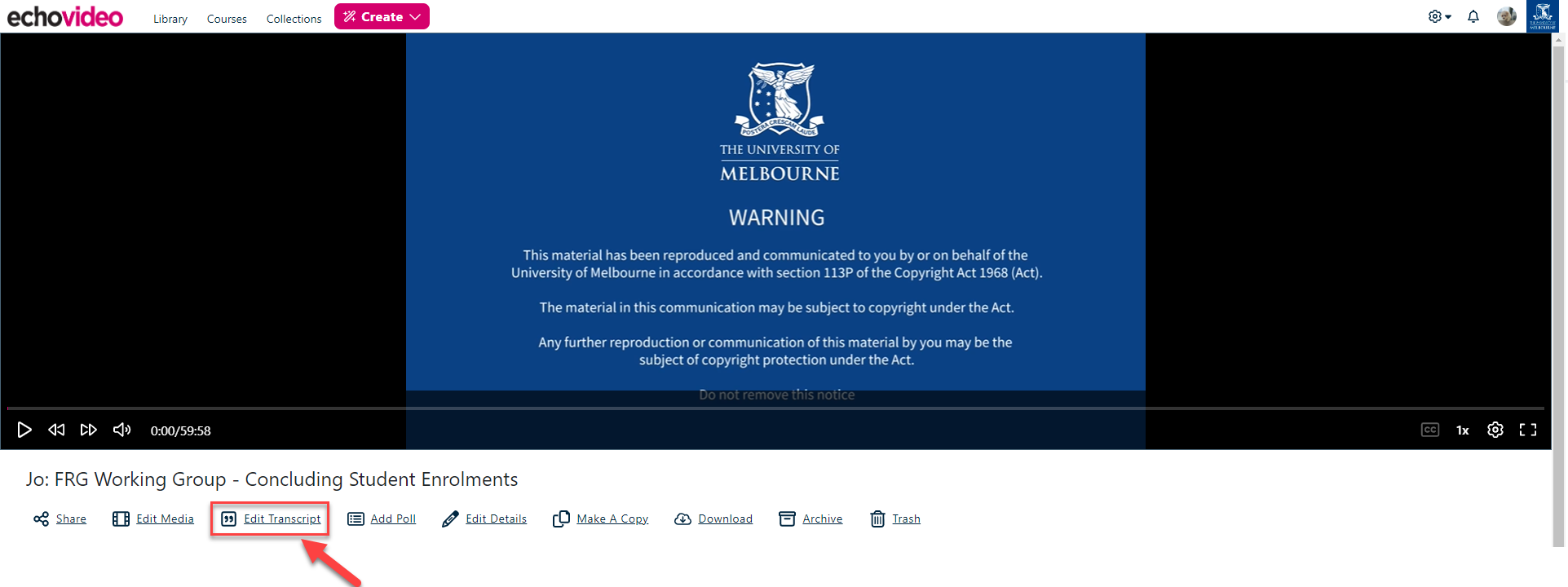
- The Transcript Editor screen will show a preview of the video next to a time-coded transcript. To begin editing, click on the Edit Transcript button at the top right of the screen.

- You’ll now be able to make changes to the transcript by clicking into the text at the appropriate points.
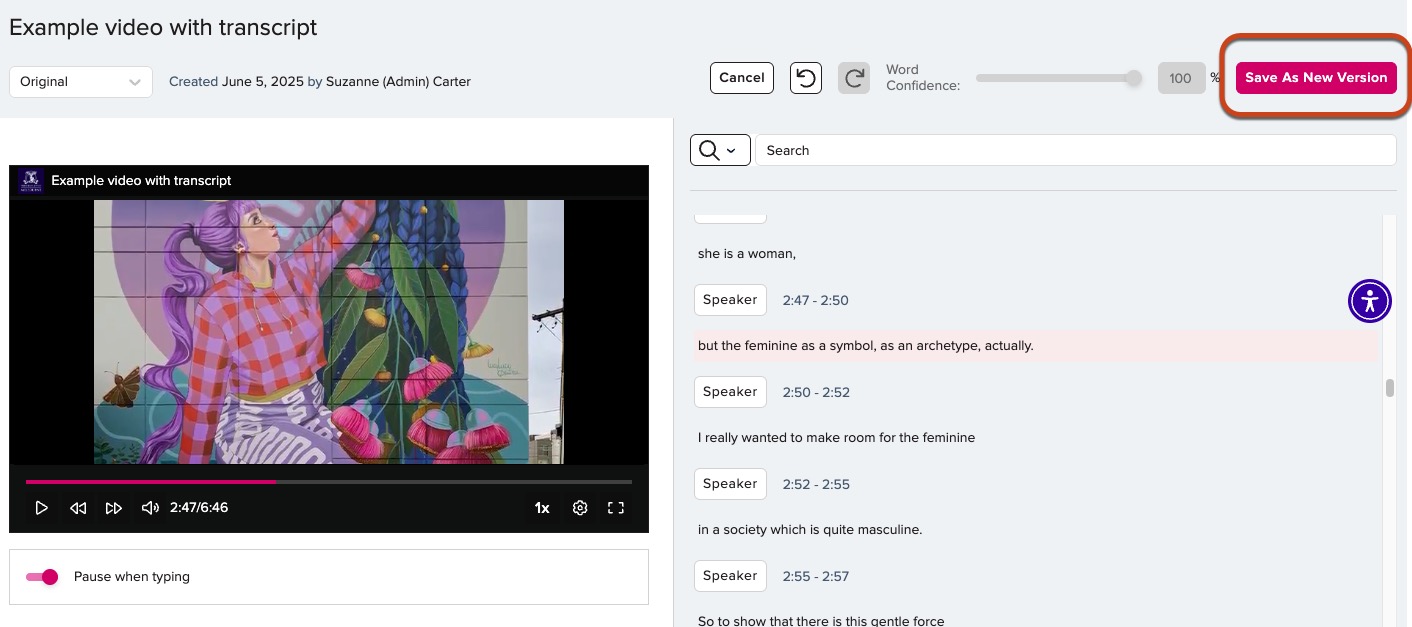
- Once you’re happy with your edits and have an accurate transcript, click on the Save As New Version button at the top right of the screen. The new version will be the version that students see.
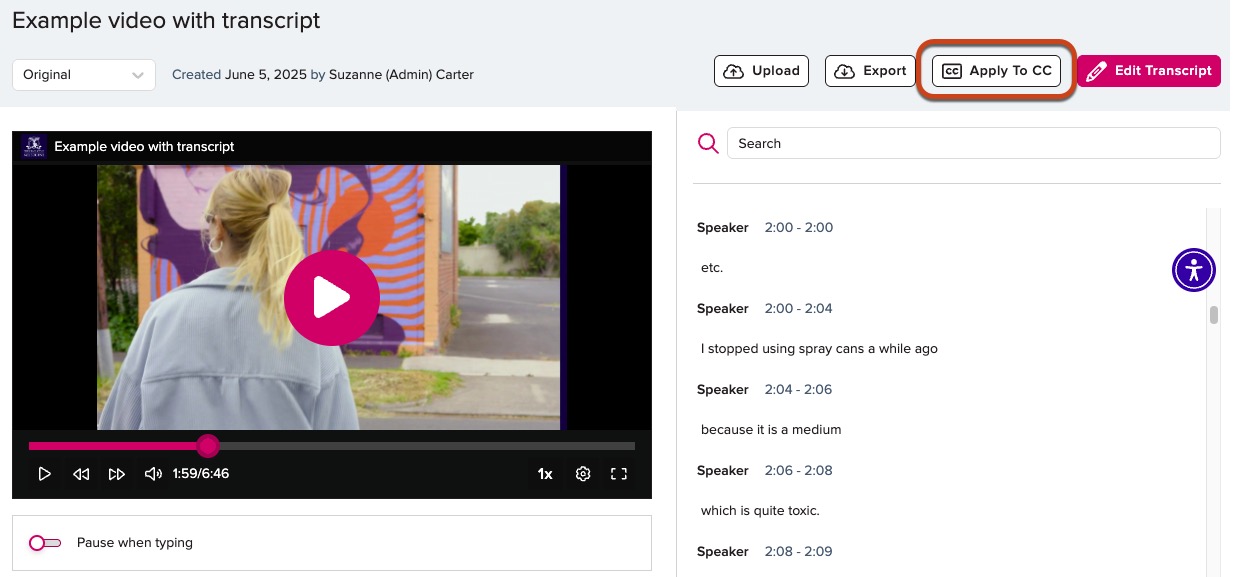
- The final step is to click on the Apply to CC button at the top of the page.
This guide was last updated 24 Jul 2025.
Submit an LMS support request for further assistance or to report any errors or omissions in this guide.