Using Stackle with assignments in the LMS
Using Stackle with Assignments in the LMS opens up two additional features:
- You can give students feedback on their Stackle submissions using Speedgrader.
- If your LMS Assignment has a due date, it will appear in the students' to-do lists in the LMS.
To create an Assignment with Stackle:
- Create an Assignment in the LMS using the Submission Type External Tool.
- Choose Stackle from the list of external tools.
- The pop up window that appears will have options for creating a new activity or using an existing one. Choose an Activity Type option to Create a New Activity.
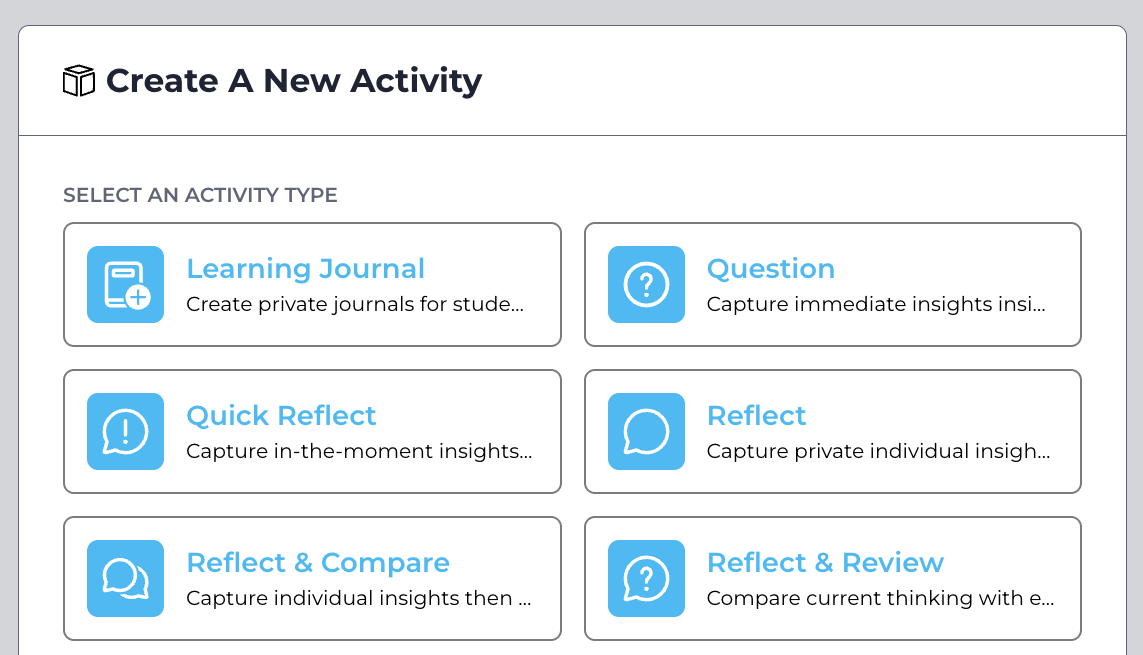
Note: The differences between these activity types is in the settings. Settings can be changed for individual activities, so don’t worry too much about which to choose, just opt for whichever fits best and check the individual settings later.
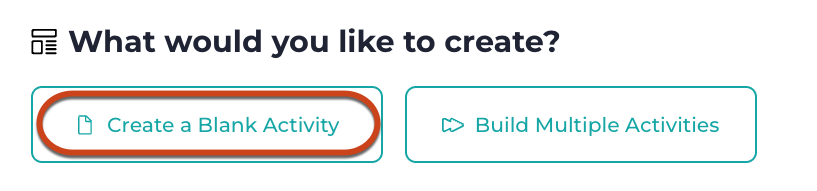
- For a one-off reflective writing task, after choosing an Activity Type, click on Create a Blank Activity.
Note: To see instructions on creating multiple activities at once see the guide Creating a Learning Journal with Stackle.
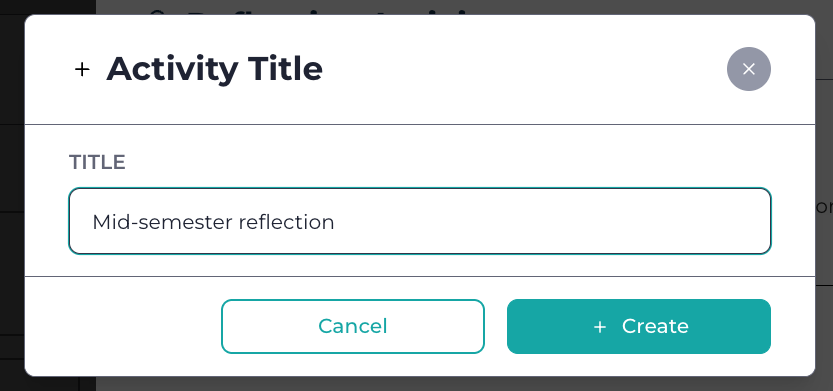
- You’ll be prompted to give the activity a title, then click on + Create.
- The pop up window will disappear and the new activity will be listed in the Existing Activities section on the Stackle subject home page.
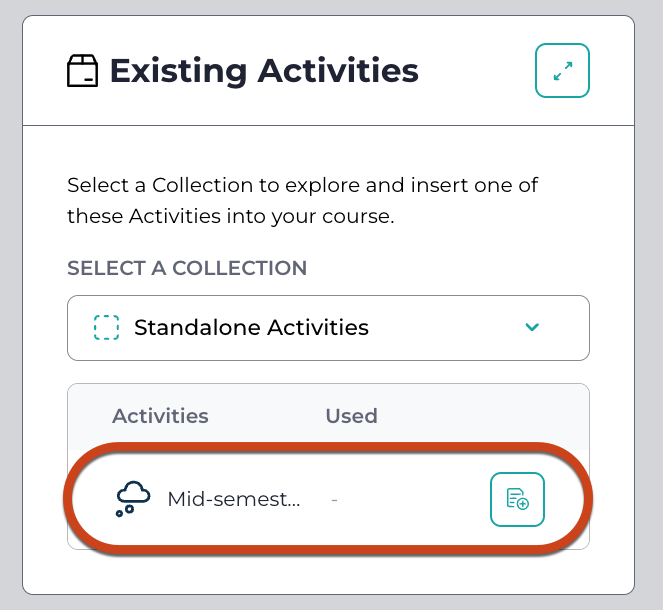
- Use the button on this row to add the activity to your Assignment. At this stage, the activity will be added as a blank placeholder.
- The pop-up window will disappear. Click Select in the Configure External Tool pop up.
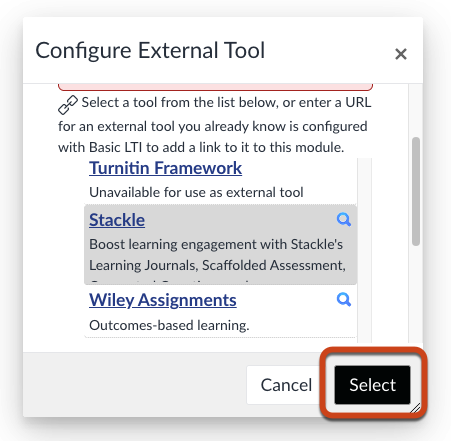
- Complete the Assignment settings with any instructions or due dates and click Save.
- The new blank Stackle activity will now be visible in your Assignment. To add a prompt question click on the Author Tools button in the top right corner of the embedded activity, then choose Modify Activity.
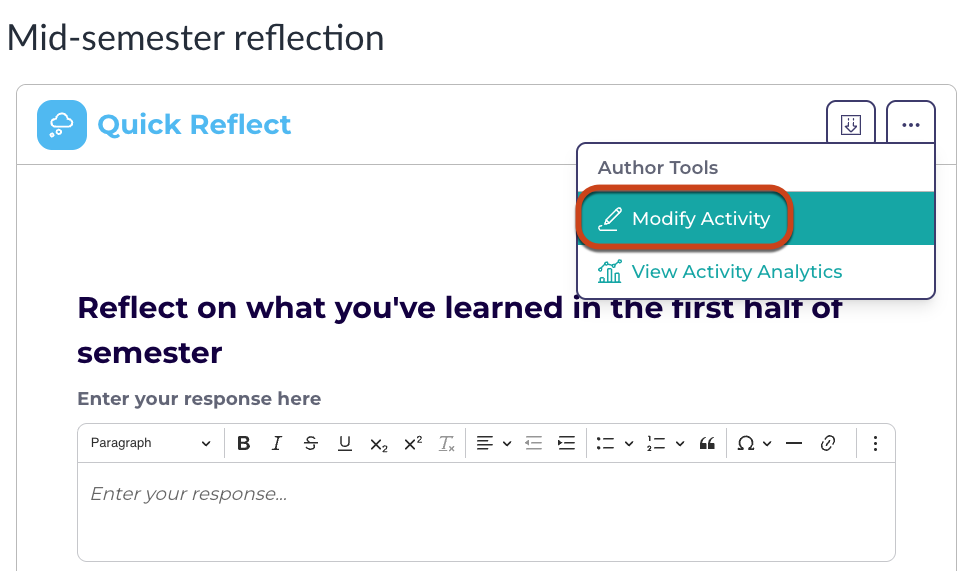
- A new browser tab will open at the Stackle edit page for the Activity. Add any additional instructions or information for students in the text box here.
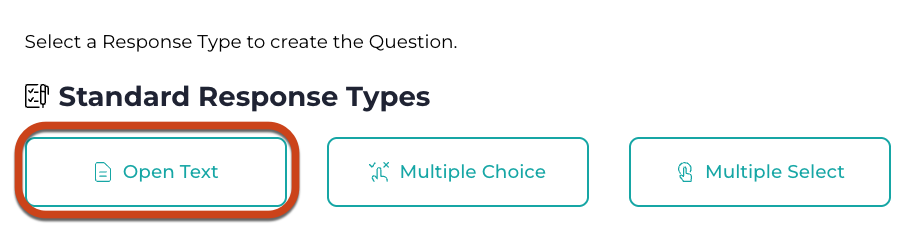
- Scrolling down this page, you’ll find the Activity Content section. Click on the + Add a Content Item button, then + Create New Question to add a prompt question with the Open Text response type.
- Toggle Preview Mode to see how the activity will look to students.
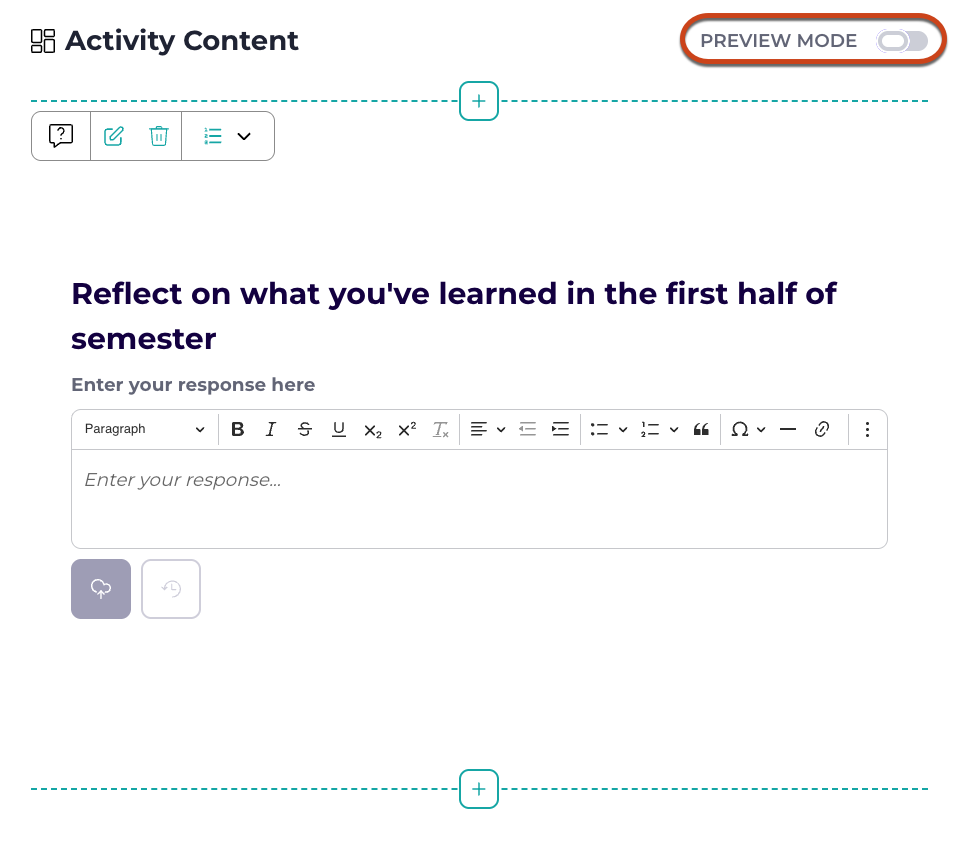
Note: Options for prompts include additional questions, images, and embed codes for other media such as EchoVideo media.
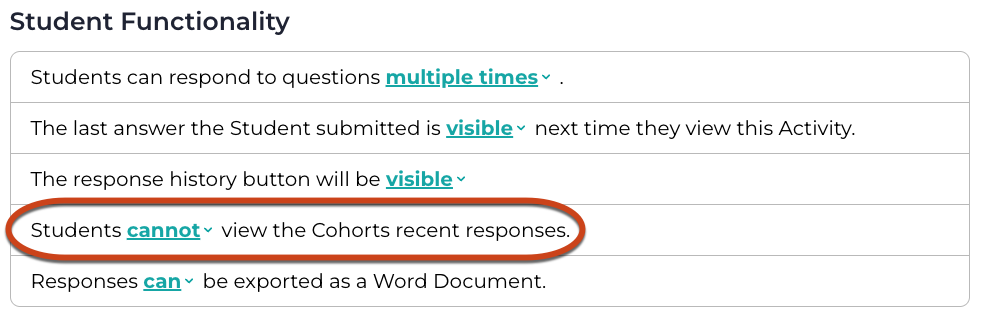
- Next, check the settings are configured correctly. Click on the Configuration tab and make sure everything is as you want it to be. For a private student journaling task, scroll down to the Student Functionality section to double-check that students cannot view their peers' recent responses.

- If you want to set a deadline in Stackle, scroll further down the Configuration page to see options for availability dates for the Activity.
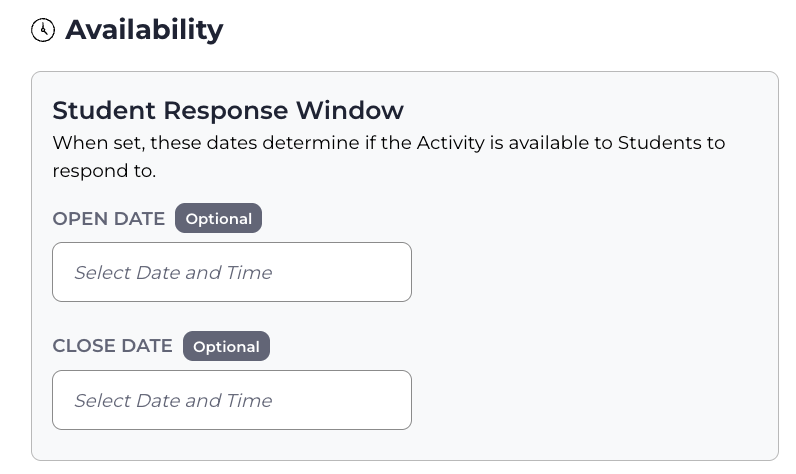
Note that these dates are for the Stackle Activity only; they do not pass back to the LMS and won’t have any effect on your LMS Assignment deadline if you have set one.
Viewing student submissions and giving feedback
There are two ways to see your students' responses to a Stackle activity. Choose Option 2 if you want to give students feedback on their work.
- In the embedded Stackle activity, click on the 3-dot Author Tools button and choose View Activity Analytics from the drop-down menu.
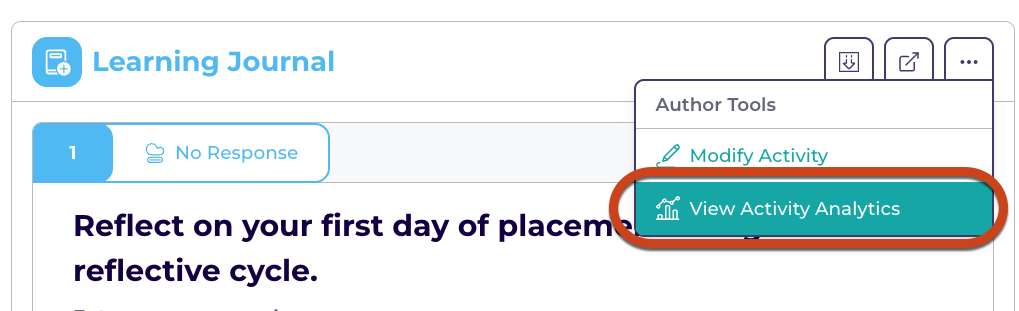
A new browser tab will open where you can view student submissions on screen or by downloading an excel file.
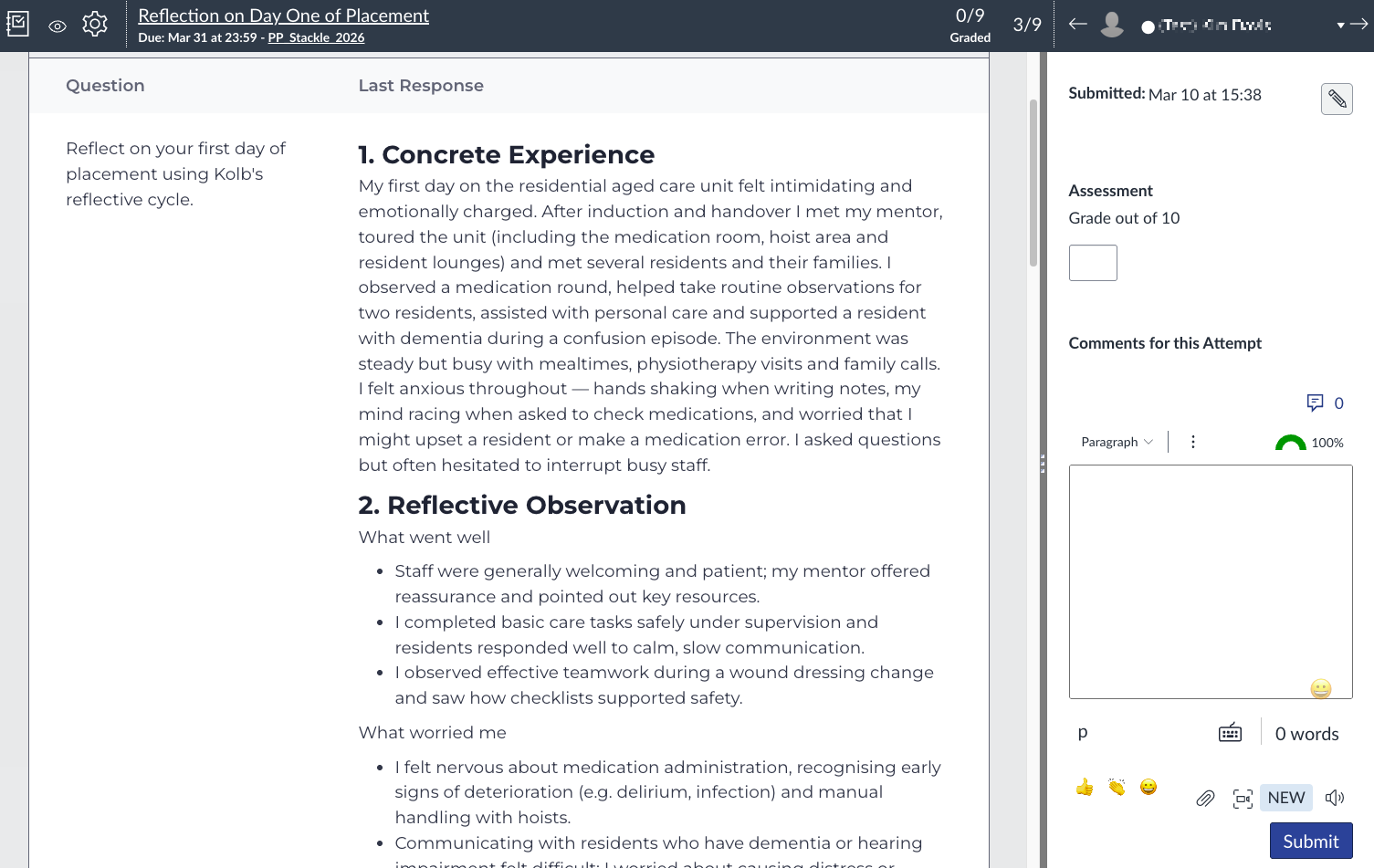
- Open Speedgrader. Student submissions will be visible in the same way as other Assignment types, allowing grading and feedback.
Useful links
This guide was last updated 11 Mar 2026.
Submit an LMS support request for further assistance or to report any errors or omissions in this guide.