Creating a Learning Journal with Stackle
Stackle is a journaling tool that can be used to create a series of structured reflective writing tasks in the LMS.
- Choose a Canvas page where you want to put the first journaling activity in the series and click Edit.
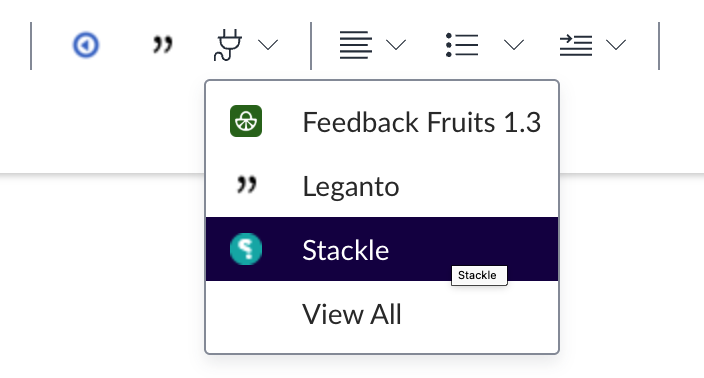
- Click the apps button in the rich content editor and select Stackle.
- A pop up will provide you with options for creating a new activity or using an existing one. Choose the option Learning Journal.
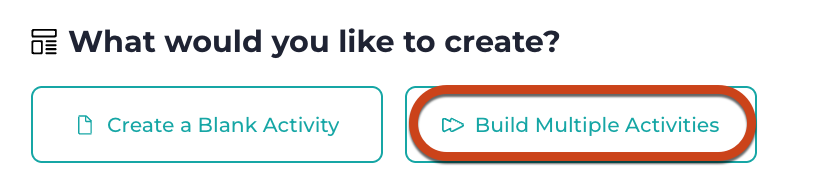
- Next, click on Build Multiple Activities.
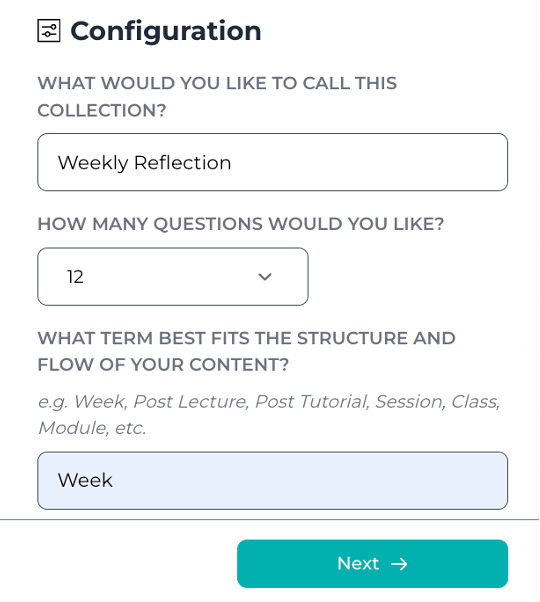
- You’ll be prompted for a name for the collection of activities you’re creating, a number of activities and a name for them. In this example, I’ve chosen ‘Weekly Reflection’ for 12 activities differentiated by week.
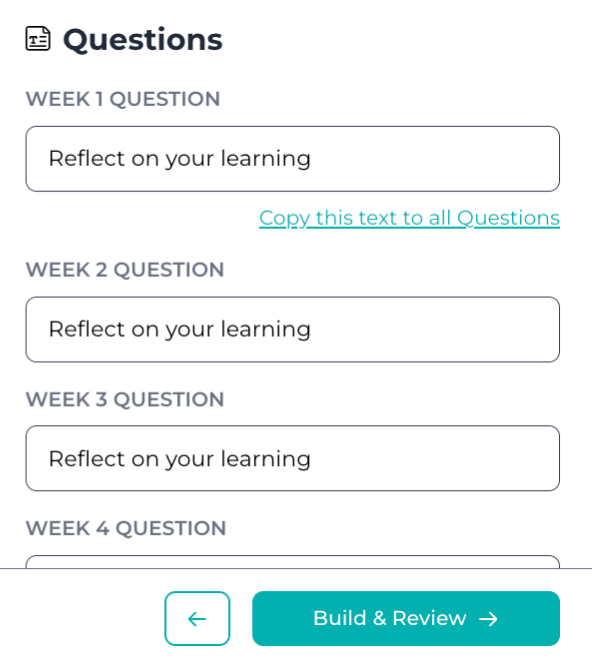
- Click Next, then add your prompt questions for each activity. You will be able to edit these prompts and add more detailed instruction for students later.
- Click Build & Review. The small modal window will disappear and you’ll see your new activities listed in the Existing Activities section. Each activity has a button to add it to Canvas. Click on this button for the first activity in the series.
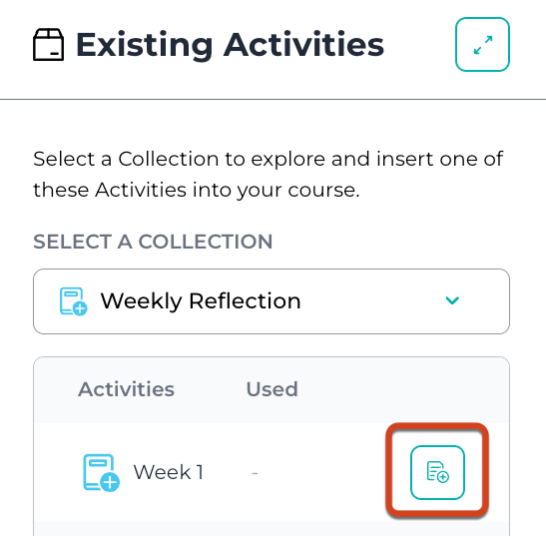
- The pop-up window will disappear and you will see your Stackle activity in the Canvas rich content editor. Click Save.
- If you wish to add instructions, further information, images or media, click on the Author Tools button in the top right corner of the embedded activity, then choose Modify Activity.
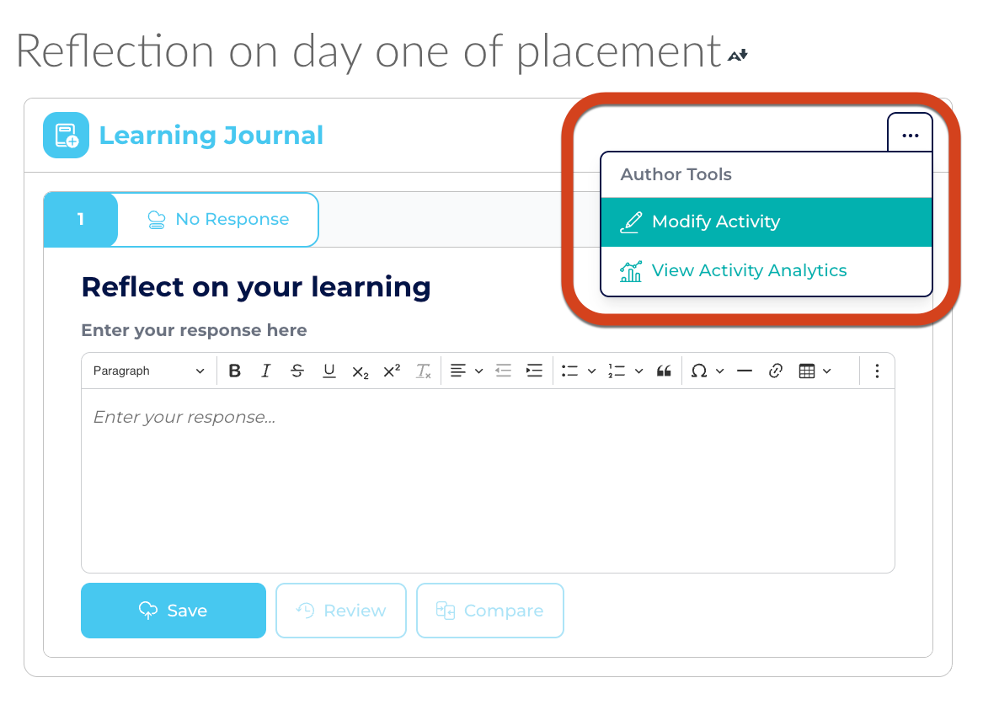
- A new browser tab will open at the edit page for the Activity. Add any instructions or information for students in the text box here.
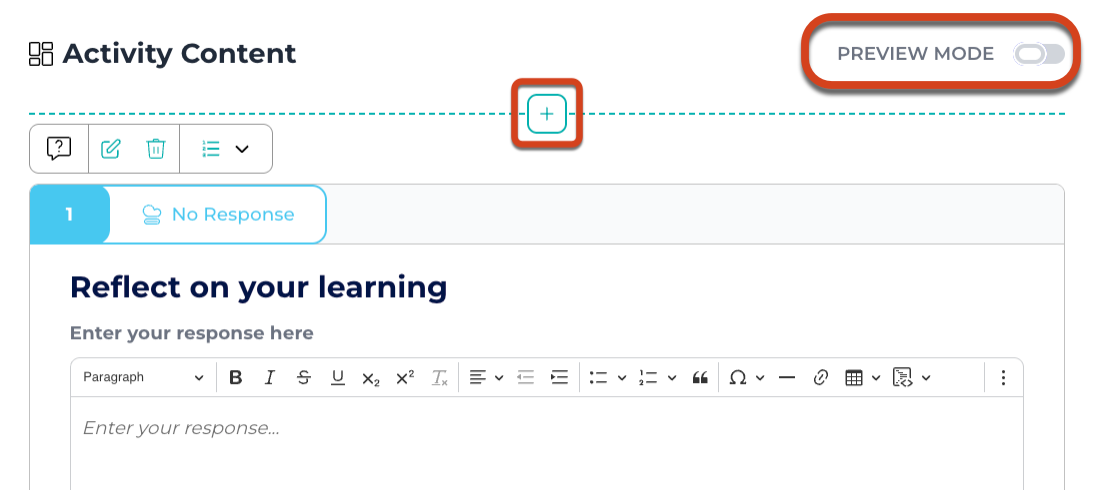
- Scrolling down this page, you’ll find the Activity Content section. Click on the + button if you want to add any other content. Options include additional questions, images, audio files and embed codes for other media. Toggle Preview Mode to see how the activity will look to students.
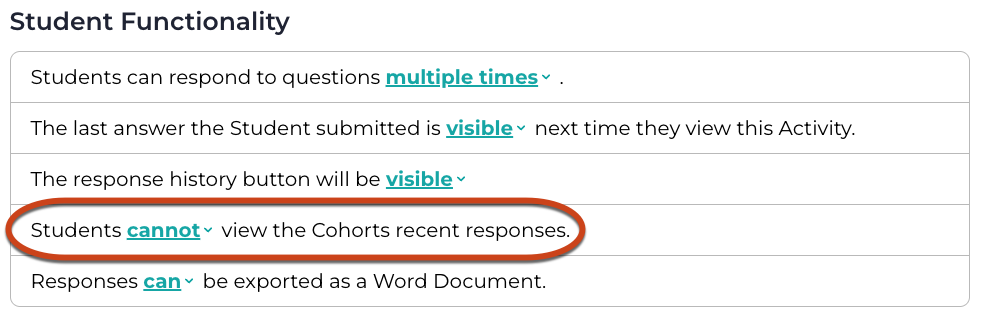
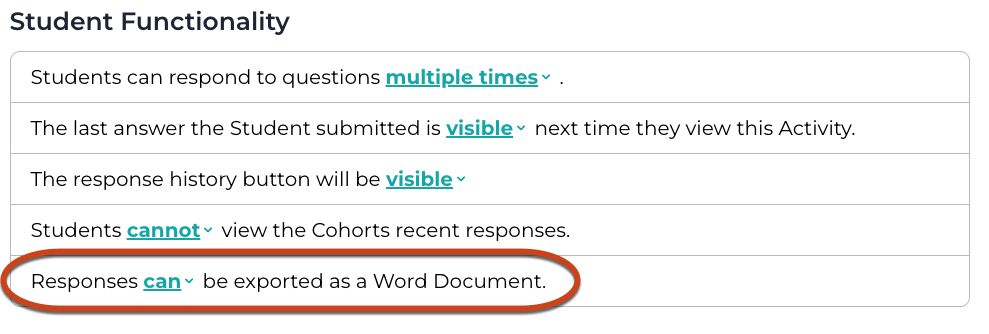
- Click on the Configuration tab and make sure all settings are configured correctly. For a private student journaling task, scroll down to the Student Functionality section to double-check that students cannot view their peers' recent responses.

- On the left hand side of this page, you’ll see all your Learning Journal activities listed. Click on any other activities that you want to edit and modify or configure them on the page.
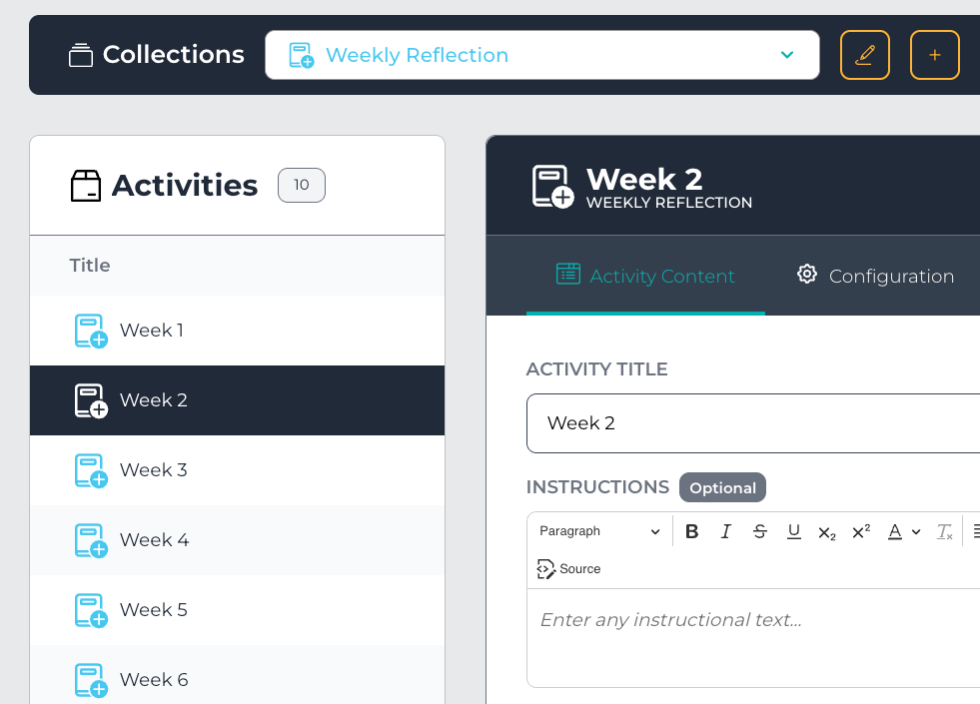
Note that there will be an additional activity that collates all of the prompt questions. This activity can be embedded into an LMS Page to provide students with a collated view of their reflections throughout the teaching period. Check the export setting for this activity if you wish to allow students to download all their responses into one Word document.
- Once you’ve made your edits, go to the LMS Pages that you want the rest of the activities to appear in and embed them using the apps button in the rich content editor.
Useful links
This guide was last updated 02 Mar 2026.
Submit an LMS support request for further assistance or to report any errors or omissions in this guide.