Qualtrics surveys: Anonymous and identifiable responses
Staff can utilise the LMS to distribute identified and anonymous surveys to students, and record results in the Grade Centre.
Access to Qualtrics
University of Melbourne staff and research students access Qualtrics using their username and password at the Qualtrics/University of Melbourne login page.
Anonymous surveys in the LMS
To gather anonymous survey responses from students, you may share the Qualtrics anonymous link with students from a Canvas LMS subject or community.
To share an anonymous survey link:
- Open the survey to be shared in Qualtrics.
- Click the Distributions tab.
- In the left-hand menu, select Anonymous Link.
- Click the Copy survey link button.
- Proceed to the LMS and into the relevant LMS subject.
- Share the anonymous link with students by adding a web link to an Item, an Announcement or an Email from the LMS email tool.
- Set the web link to open in a new tab and click Submit to save the Item, Announcement or email.
Identified surveys in the LMS
At present, Qualtrics is not integrated with the LMS. As a result, student information is not passed from the LMS into Qualtrics, and survey responses or scores are not automatically returned to the LMS.
If you plan to use the scoring feature in Qualtrics and record those results in the LMS, you will need to track student responses within Qualtrics and then manually transfer the relevant score data into the LMS.
Tracking who responds to a Qualtrics survey
To upload Qualtrics survey scores to the LMS, staff must ensure that students are identified within the survey before they complete it. To do this, create a contact list in Qualtrics that includes all students enrolled in the relevant LMS subject.
- Export the student list from the LMS subject.
- In the relevant subject, navigate to Subject Analytics and select the Students tab.
- Click the download CSV icon and save the CSV file to an appropriate place on the local computer.
- The exported student list file will include fields such as: Student Full Name, Student ID, Email, LMS login/participation activity.
- In Qualtrics, select Directories from the main menu.
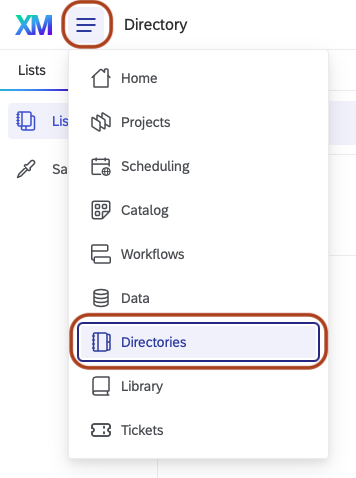
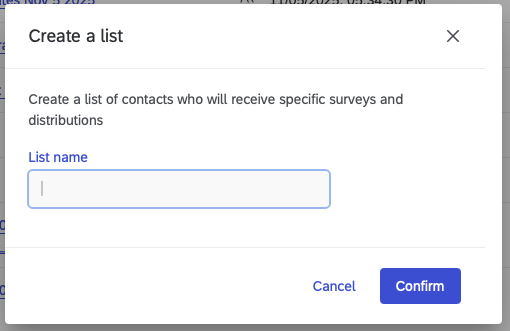
- Under the List tab, select Lists from the left-hand menu and click on the Create a list button.

- Provide a name for your contact list, and click Confirm.
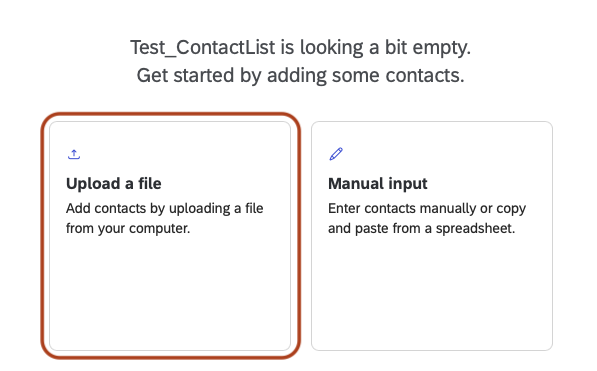
- Click the Upload a file option.
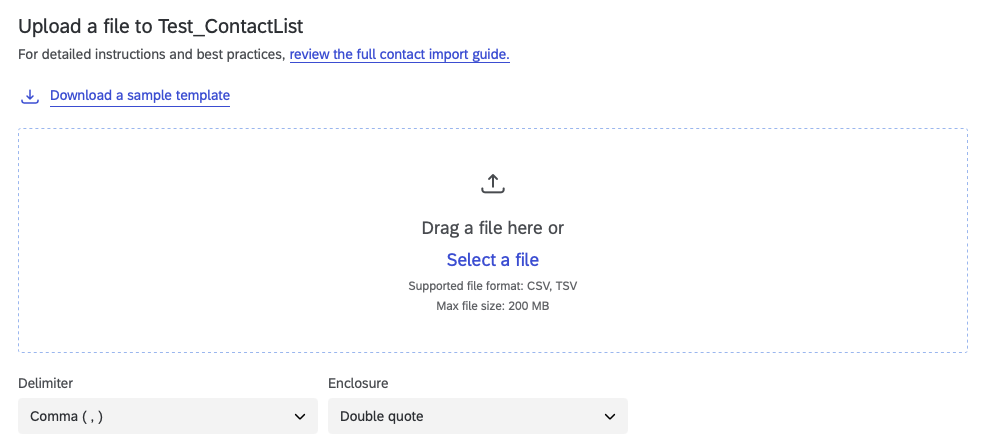
- Drag and drop or click on Select a file to browse for the exported student list file.
- Click on the Next button upon receiving a success banner that the file is appropriate.

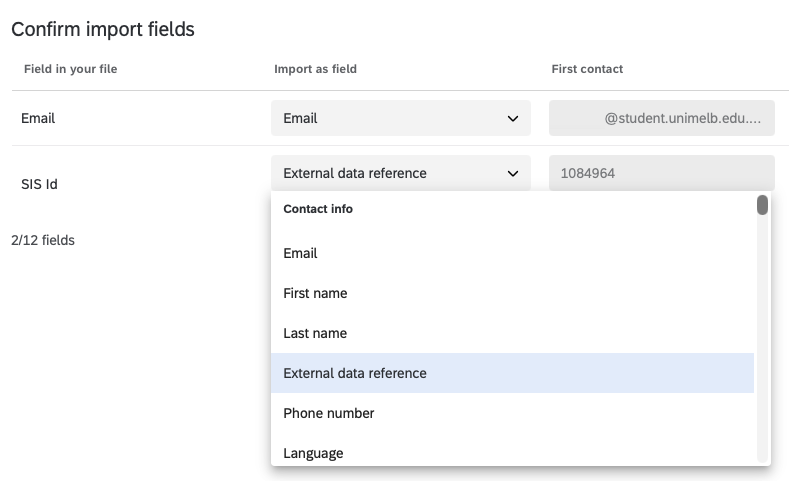
- Confirm and match the import fields that are relevant. For example, in the Email field, select Email from the drop-down menu; for SIS Id, select External reference data.
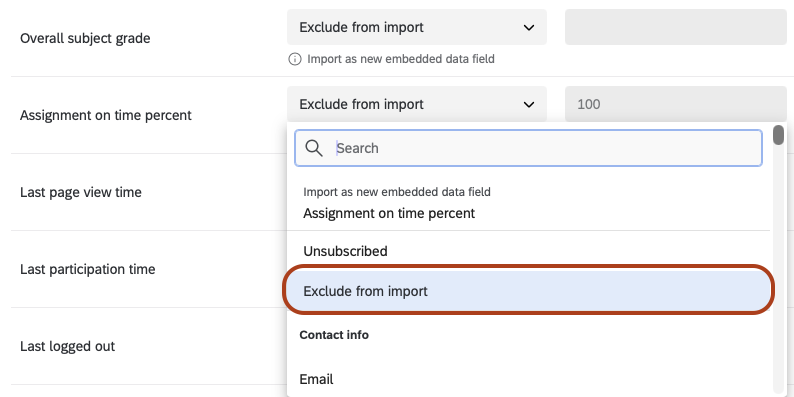
- For fields that are not required, select Exclude from Import from the drop-down menu. For example, fields like Overall subject grade and Assignment on time percent are not necessary for the contact list.
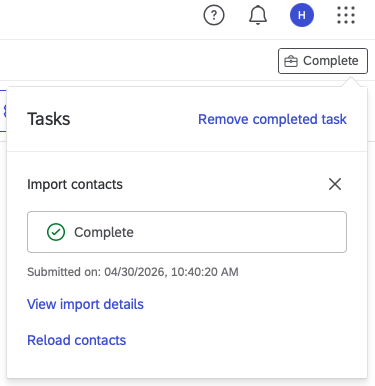
- Once you have verified all fields, click Upload the file at the bottom of the page. You can track the progress of the contact import via Tasks (the Briefcase icon), where a completion status will be displayed.
- From the main navigation menu, select Projects and open the relevant survey.
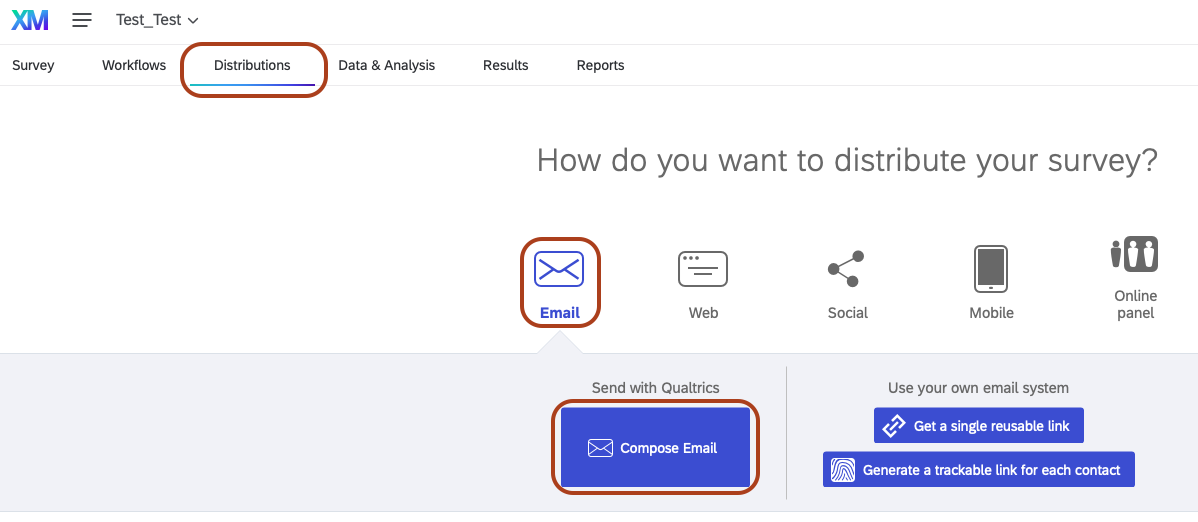
- Once inside the survey, click on the Distributions tab. Then select the Email icon and click Compose Email.
- Under the To: field, click the Select Contacts dropdown to locate your imported contact list (typically found under My Library).
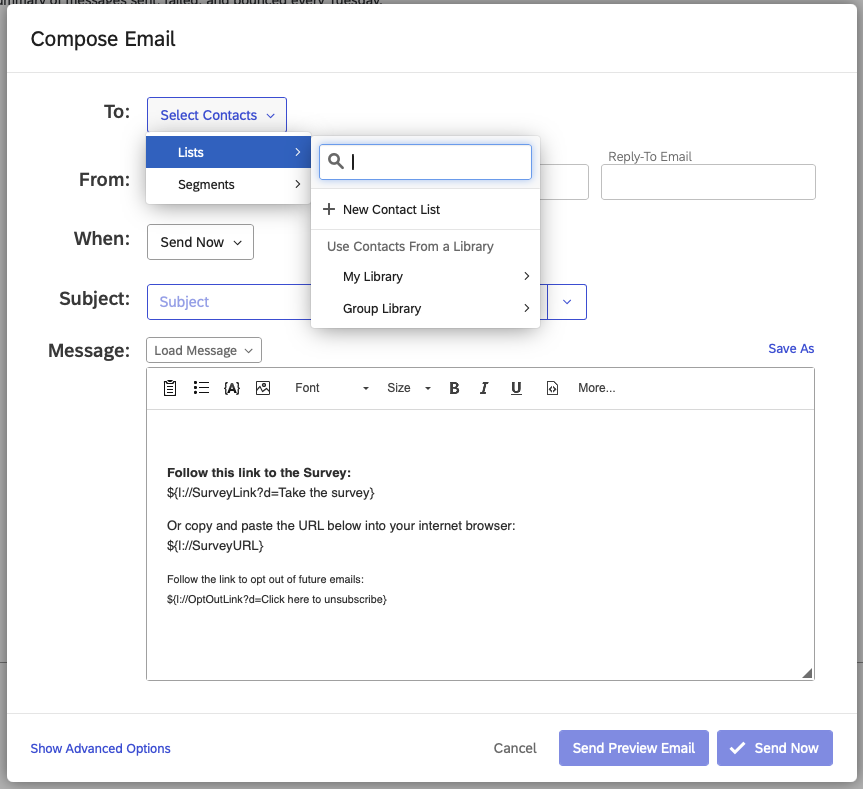
- Compose the email, including an appropriate subject and message. Keep the standard text provided, and adjust the scheduled send time as needed.
- When ready, click Send Now. Each student will receive a personalised email with a unique tracking link that identifies them as the respondent.
Guides and support
Guides
For more information, please refer to the following guides:
- Qualtrics guide: Creating mailing lists
- Qualtrics guide: Email distribution
- Qualtrics guide: Scoring
- University of Melbourne guide: Getting started with Qualtrics
Support
Qualtrics is supported by Teaching and Learning Innovation. Any questions regarding accounts, usage and training can be submitted through our support request form.
This guide was last updated 15 May 2026.
Submit an LMS support request for further assistance or to report any errors or omissions in this guide.