Transferring Qualtrics survey scores to LMS gradebook
Staff using the scoring feature in Qualtrics who wish to record those results in the LMS will need to manually transfer the relevant score data into the LMS.
Step 1: Export raw data report in Qualtrics
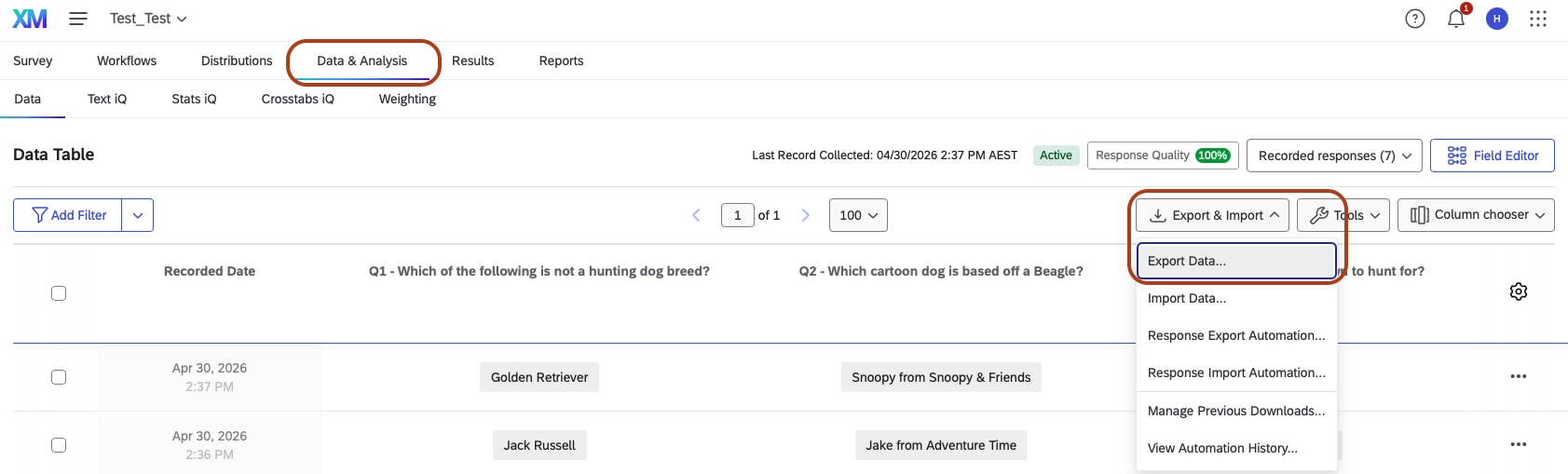
- In the Qualtrics survey, navigate to the Data & Analysis tab.
- Click on the Export & Import dropdown and select Export Data.
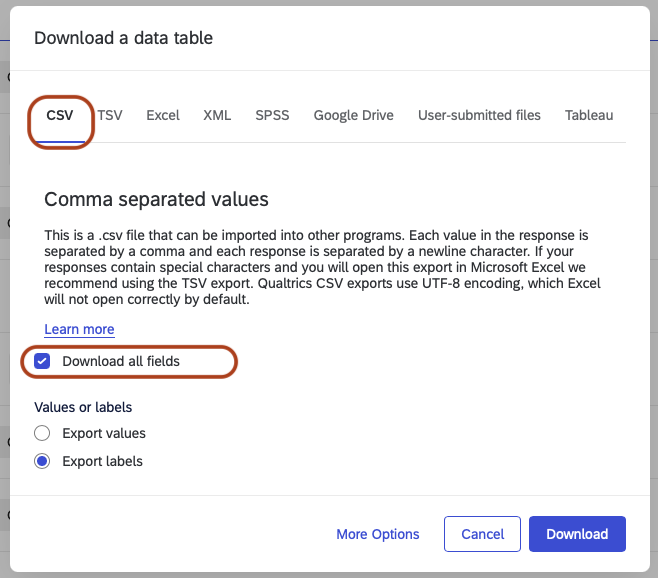
- Select CSV and ensure the Download all fields checkbox is ticked.
Step 2: Export the LMS Subject’s Gradebook
- In the LMS subject, navigate to Grades to view the Gradebook.
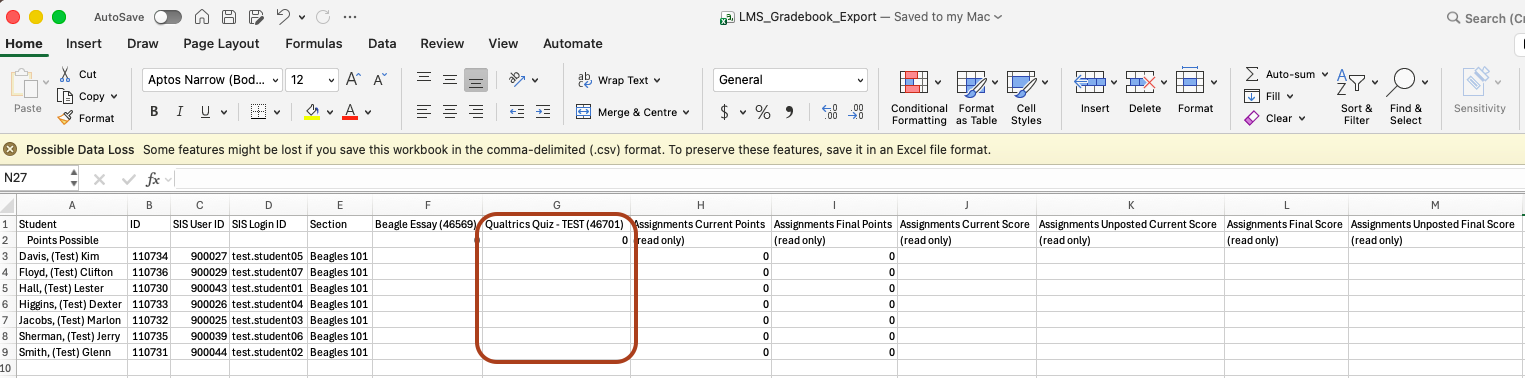
- Click on the Export dropdown button and select Export Current Gradebook View. This CSV file will serve as the template for importing grades later.

Step 3: Copy scores from Qualtrics Survey to the LMS Gradebook
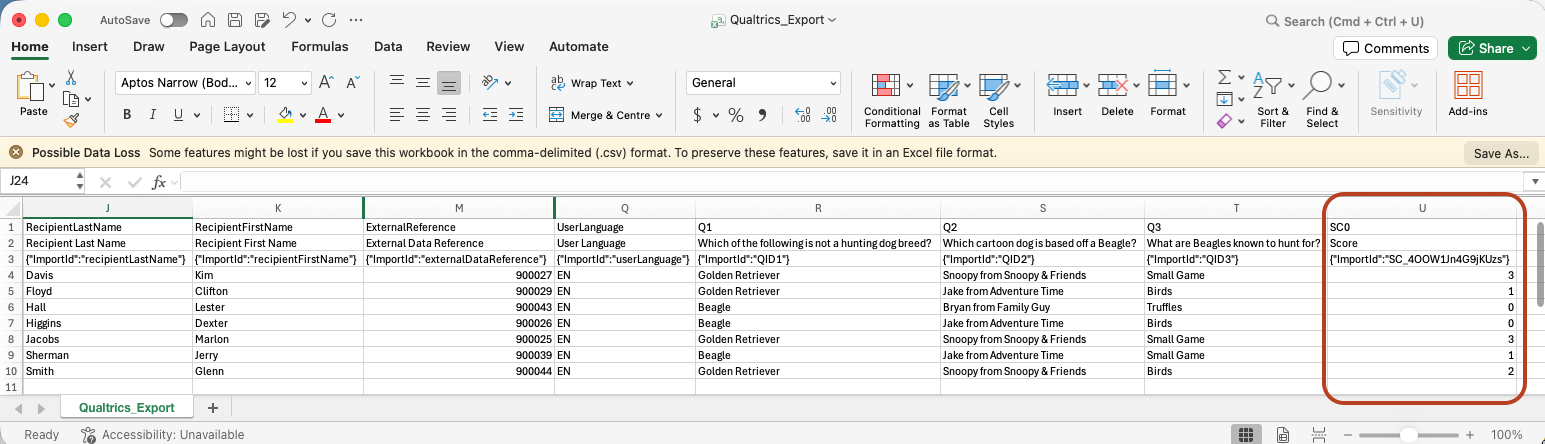
- Ensure both CSV files are sorted consistently. Use the Score column to copy and paste marks from the Qualtrics CSV file into the corresponding assignment column in the gradebook CSV file.
- Alternatively, use an XLOOKUP function to populate the scores from the Qualtrics survey into the relevant assignment column in the LMS gradebook, using the student ID as the common matching field.
- Ensure you save the LMS Gradebook CSV file once the scores have been copied over.
Step 4: Import updated Gradebook back into the LMS
- Navigate to Grades in the LMS subject and click on the Import button.

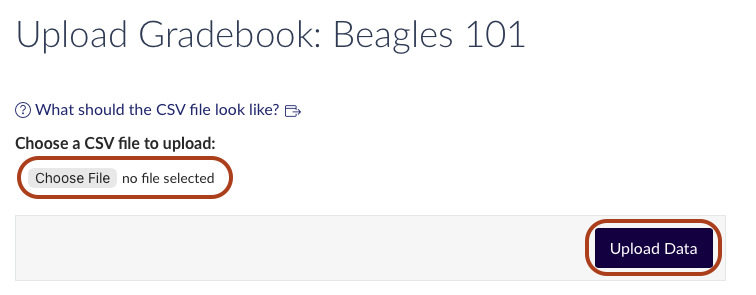
- Click the Choose File button to select the gradebook CSV file that now contain the scores exported from the Qualtrics survey.
- Once selected, click Upload Data for the scores to uploaded into the LMS subject grades.
Step 5: Confirm and save
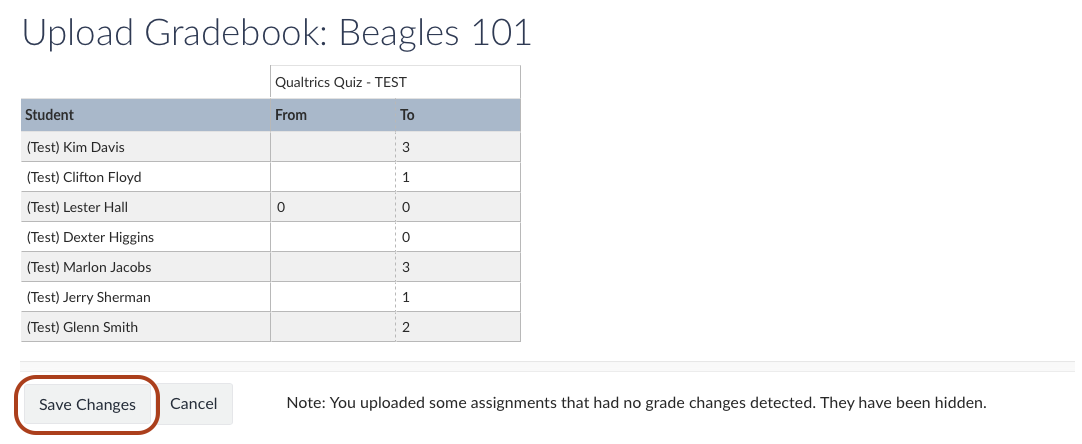
- The uploaded scores from the LMS gradebook CSV file will be displayed on screen as a preview. Further manual adjustments can be made by clicking on the score in the To column for any student.
- If no further adjustments are needed, click Save Changes to proceed with the import.
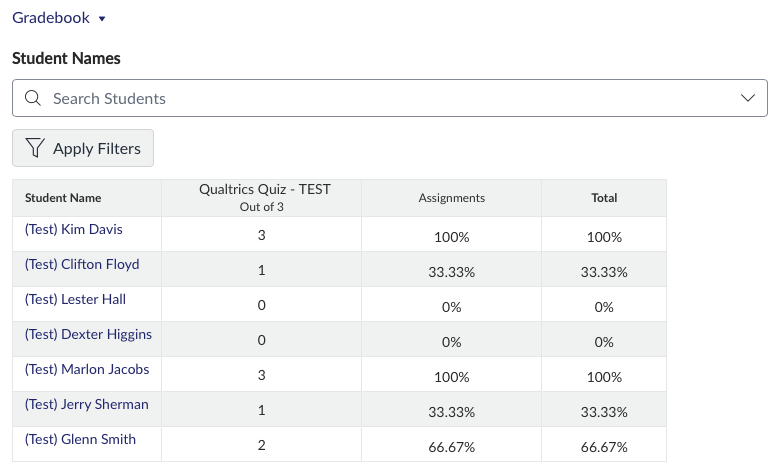
- Once the Gradebook file has been imported, the scores will be automatically populated within the Gradebook view.
Guides and support
Guides
For more information, please refer to the following guides:
- Microsoft XLOOKUP functionality
- Qualtrics guide: Exporting results reports
- Qualtrics guide: Scoring
- University of Melbourne guide: Getting started with Qualtrics
Support
Qualtrics is supported by Teaching and Learning Innovation. Any questions regarding accounts, usage and training can be submitted through our support request form.
This guide was last updated 15 May 2026.
Submit an LMS support request for further assistance or to report any errors or omissions in this guide.