EchoVideo: Presentations and polls
This guide outlines how to use the Presentation and Polling features in EchoVideo.
Presentations
EchoVideo users can upload a presentations associated with a lecture following or prior to its delivery.
This functionality has several advantages for students using their own device during a lecture, allowing them to:
- Display the relevant slides and track progress whilst the lecture is being presented
- Zoom-in on slides if they are unable to see content being displayed in the lecture theatre
- Take notes on each slide
- Review slide content before and after the lecture’s delivery.
Uploading a presentation
To upload a presentation for a future lecture, the relevant booking will first need to be scheduled in EchoVideo. Alternatively you can select New Class from the classes tab if the lecture will not be scheduled. Presentations can also be uploaded to recordings that have already occurred.
- Log in to EchoVideo.
- Navigate to the required subject via the Courses menu.
- Select the Add Presentation icon adjacent to the recording for which you would like to upload your presentation.
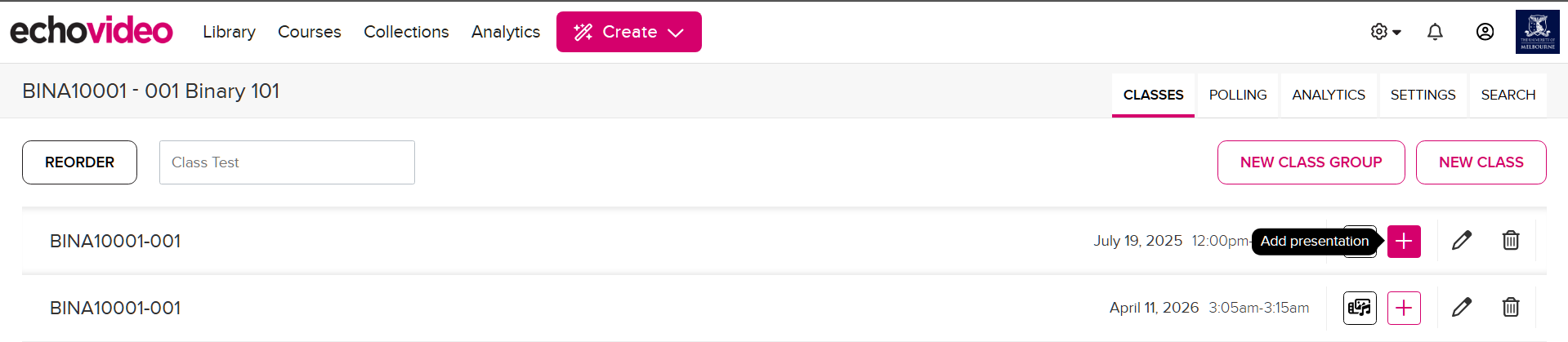
- From the new window, select Upload a File to choose a document from your computer, then drag and drop the file or select Choose File to navigate to a PDF or PowerPoint file on your device
- When a file upload is in progress, a greyed Presentation icon will be displayed next to the class name.
- Once the presentation file has been successfully uploaded, the green Presentation icon will display.
Removing Presentations
- Click the presentation icon in line with the recording, and then select Remove from the options provided.
- When prompted, confirm that you would like to remove the content.
Important to note
- Presentation file types accepted are: PDF, PPS, PPSX, PPT, PPTX.
- Only one presentation can be uploaded to each recording.
- On the person who uploaded the presentation can remove it.
- Removing a presentation from your recording will also remove any references to the presentation in Analytics, Student Notes and Q&A.
- Uploaded presentations do not retain PowerPoint slide transitions or animations when being viewed in the EchoVideo system.
- Poll Everywhere polls embedded in PowerPoint will display the poll holder frame only, not dynamic responses.
- Please ensure any presentation uploaded adheres to copyright requirements. For more information, see the Copyright Office website.
Editing presentations
EchoVideo provides the ability to edit a presentation once it has been uploaded. Using the presentation editor you can rearrange slides, add/remove slides from other presentations, as well as add media and activity slides.
- Navigate to the subject via the Courses menu in the Lecture Capture system.
- Click the presentation icon and then select Edit Presentation. A warning will display that editing will affect all published versions of the content; click OK to continue.
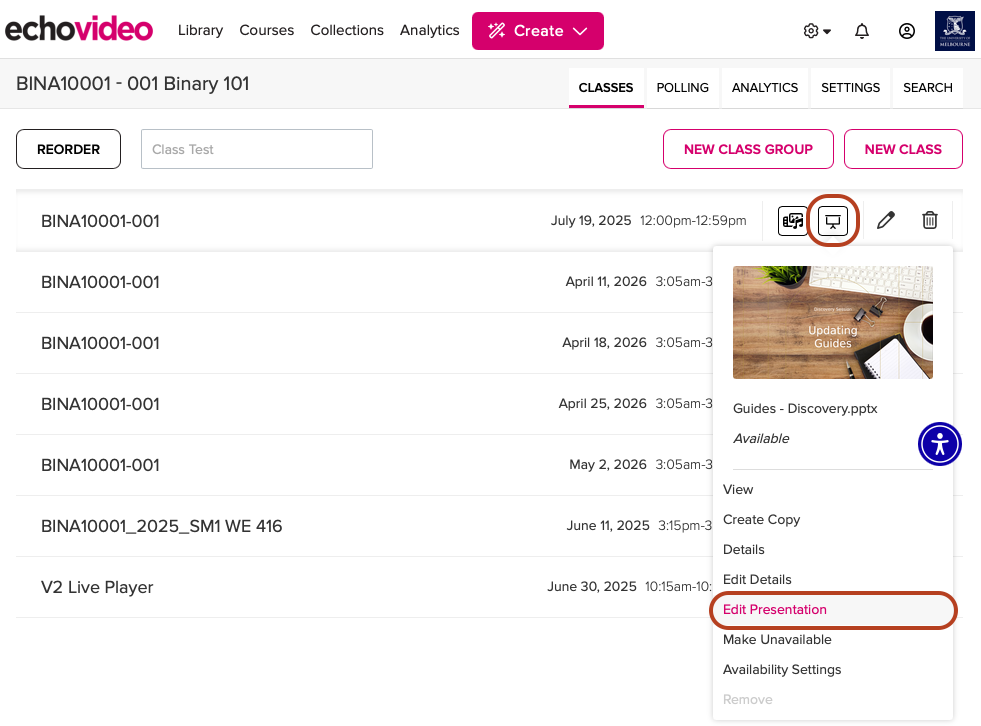
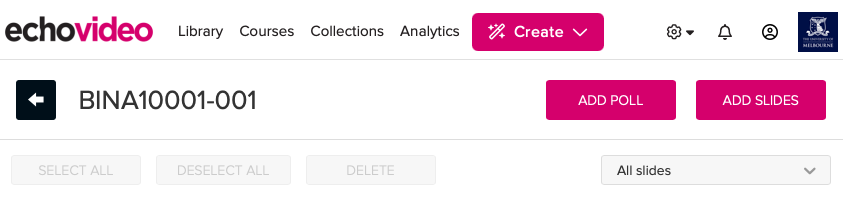
- Drag and drop slides to rearrange them as needed. You can also delete or add additional slides as well as polls.
Interactive Polls
EchoVideo’s Poll Slide feature allows you to create interactive slides within an uploaded presentation.
This feature can be used in a number of different ways:
- Interacting with students during a lecture to facilitate engagement
- Asking preliminary questions before a lecture to introduce a topic
- Following up after a lecture for feedback or to gauge understanding.
As the feature is built into the platform these features can be used alongside recorded lectures and uploaded presentations.
Creating a poll slide
To create a poll slide you must create a presentation or edit an existing presentation in your EchoVideo subject.
- Once in the Edit section of your presentation, click the pink Add Poll button to add a poll.
- Select one of the available poll types.

-
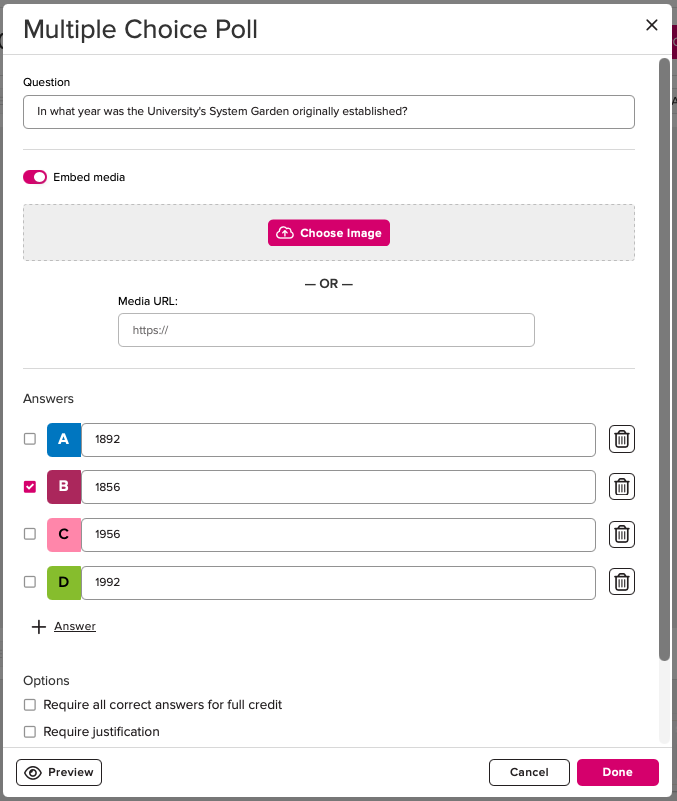
Multiple choice polls let you ask a question with a set number of answers to choose from.
- Choose Multiple choice when creating a poll.
- Enter your question in the free text field.
- Enter your answers in the text boxes underneath Answers. Use the bin icon to remove answers.
- Select the checkbox next to any correct answers. You may select multiple correct answers or none.
- Click on the + Answer button to add additional answers.
- Check the Require justification box to prompt students to provide a free text explanation of their chosen response.
- Select Require all correct answers for full credit, if you would like students to only receive a pass mark if they choose all correct answers.
- Use the Preview button to view your poll from a students' point of view.
-
Short answer polls can be used to ask questions that require students to input text to respond.
- Choose Short answer when creating a poll.
- Enter your question in the free text field.
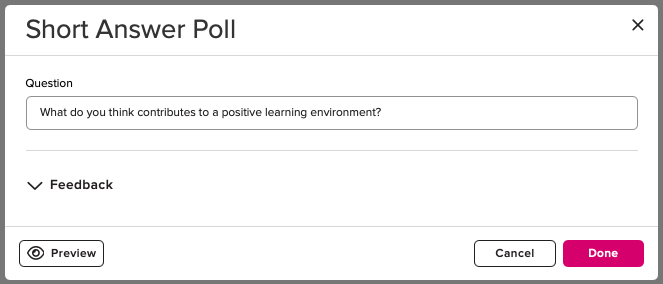
Short answer polls currently have several limitations:
- It is not possible to moderate answers or prevent responses from being displayed in the results screen, however student specific responses are visible to the instructor via the 'analytics' section.
- There is also no word limit, so we recommend if this is used keeping questions short as larger responses can impact the way responses are displayed in the 'results' page.
As an alternative, the Q&A feature in the Lecture Capture system, Qualtrics and Poll Everywhere can be utilised for more in depth questions and extensive moderation functionality.
-
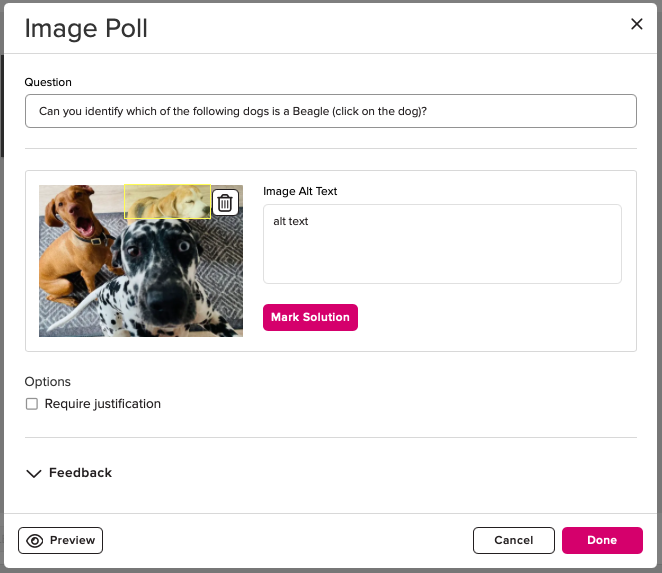
Image quiz polls require students to mark a specific location on an image to respond to the question.
- Choose Image quiz when creating a poll.
- Enter your question in the free text field.
- Click on the Choose Image button to upload an image. Ensure that images are appropriately sized, as this can impact how the image displays to students.
- Choose Mark solution if there is a correct location on the image, then draw a rectangular area over the correct area. If there is no correct location, you do not need to mark a solution.
-
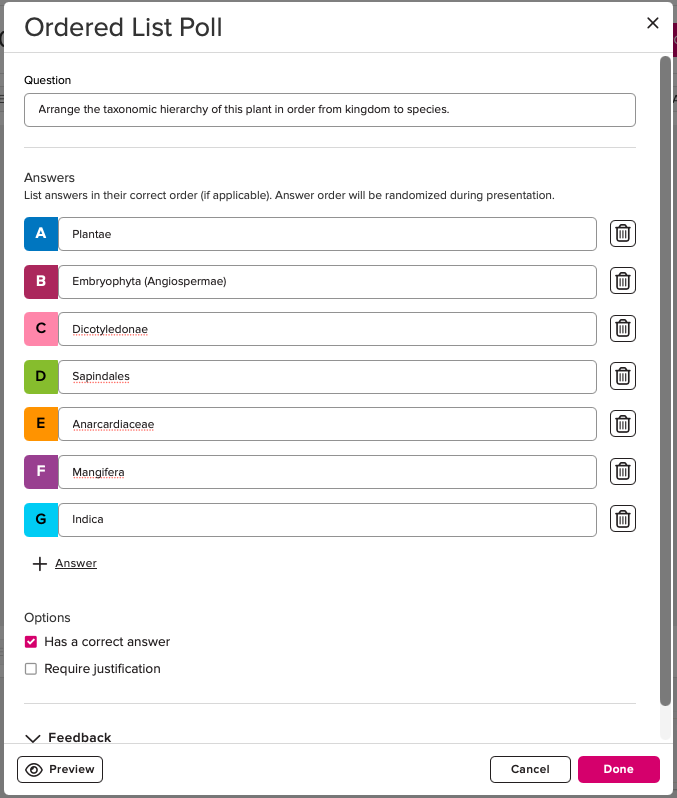
Ordered list polls involve students putting a set of answers into an order.
- Choose Ordered list when creating a poll.
- Enter your question in the free text field.
- Add the answers to your question in their correct order (if there is one). The items will be randomised when presented to students.
- Use the + Answer button to add any additional answers as required.
- Choose Require justification to require students to explain their answer. Ensure Has a correct answer is selected if there is a particular order.
-
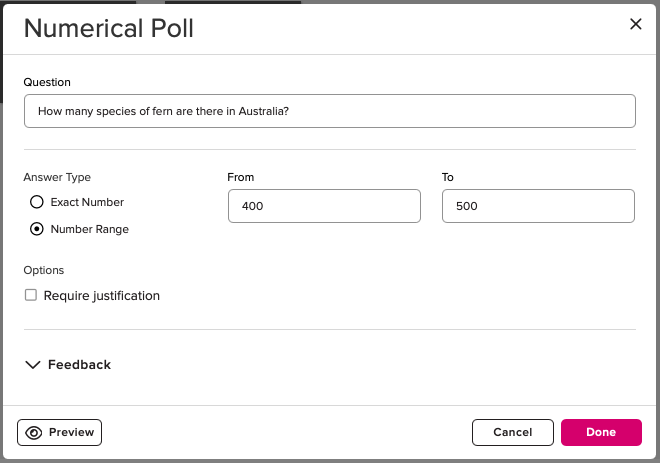
Numerical polls can be used to ask questions that require a number or range as the answer.
- Choose Numerical when creating a poll.
- Enter your question in the free text field.
- Select the Answer Type, either Exact Number or Number Range and enter the values in the provided field(s).
- Choose Require justification to require students to explain their answer.
Presenting polls
Polls can be presented during a lecture, as well as being made available to students before or after the lecture. Students are able to access poll slides by viewing the presentation (if available) in their subject recordings list.
There are a number of functions available to you through the presenter interface that allow you to control your polls and presentation. The presentation interface can be accessed by selecting the Presentation icon and choosing View from the dropdown menu.
Below is a brief overview of the presenter interface and its various functions.

| Icon | Description |
|---|---|
| View all slidesOpens the slide deck to change between slides. |
| Slide visibilityToggles whether the selected slide is visible to students. Slides must be made visible to students in order to enable participation in an activity. |
| Open an activity to responses The 'hand' icon at the bottom of an activity slide toggles whether students can submit a response to an activity. A blue hand indicates the activity is closed to student responses. When an activity is closed students will see at the bottom of the slide a notification that the poll is closed. Once a poll is closed they will not be able to edit their answers or submit a response. Activities can be opened and closed as many times as required. |
| Show activity results Display audience responses to the question. A blue icon indicates the results are visible to students. Results can be displayed even if the activity is still open to submissions. |
| Show activity solution Display the correct answer(s) to an activity. A blue icon indicates the solution is visible to students This will indicate on the slide the correct answer. Note: Activities must be closed in order for the solution to be activated. |
| Live stream total users Provides an overview of the total number of users attending the live stream. |






Student analytics
Student analytics enable you to track participation in polls and also monitor progress of individual students.
To view student poll results:
- Navigate to your list of recordings and select the Analytics tab.

- Select the Students tab from the side menu.
- The Student tab shows each student’s Polling Participation % and Polling Correct % across all classes.
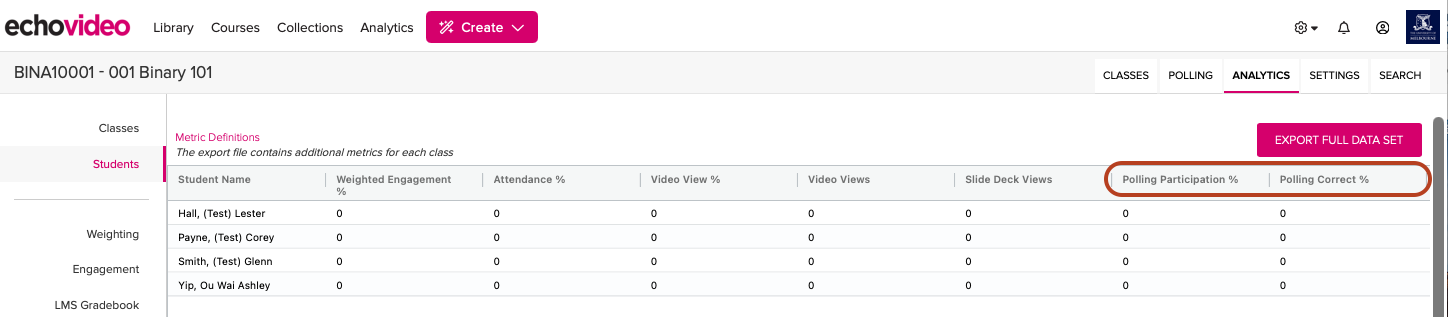
- To view participation and percentage of correct responses for a specific class, click into an individual student’s record.

To view student responses:
- Navigate to your list of recordings and select the Polling tab.

- Under the Polling section, choose the relevant lecture/recording from the Lesson dropdown menu, then use the Poll Question dropdown menu to display either all questions or an individual question.
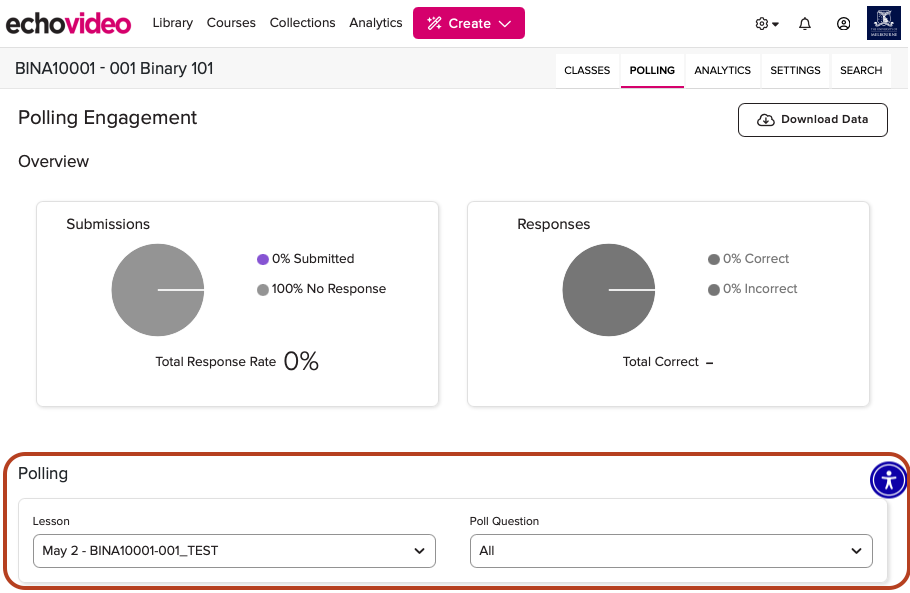
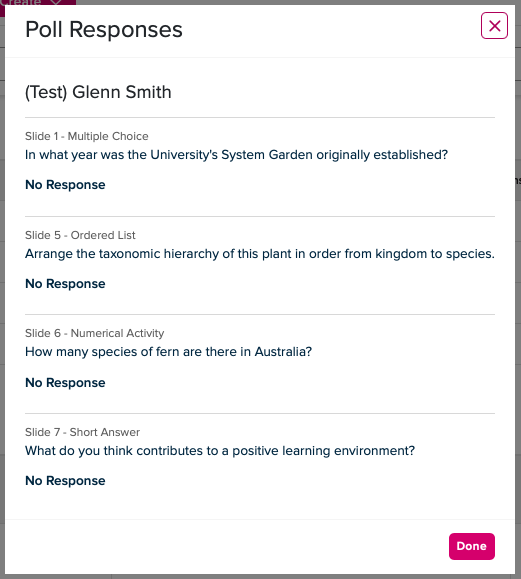
- In the Student Responses section, click an individual student’s name to view their responses to the poll question(s).

Embed media and web content
You can embed media in EchoVideo Presentations to create Media Slides. Refer to the vendor guide on Embedding a Video Into a Media Slide for more information.
This guide was last updated 12 May 2026.
Submit an LMS support request for further assistance or to report any errors or omissions in this guide.