Creating a journal activity
LMS Assignments
LMS Assignments can be used as a journal tool where student submissions are accessible only to staff to review and grade.
You can set up one assignment where students submit multiple journal entries and receive one overall combined grade. Alternatively, you can create one assignment for each journal entry; however, this approach may over-clutter the Assignments page if there are many journal entries to be completed by students.
You can follow the standard process of setting up a LMS Assignment to create a journal assignment. For step-by-step instructions, see how do I add or edit details in an assignment. Note: We recommend setting the Submission Type to Online, then selecting either Text Entry or File Uploads. Both submission types will allow staff and students to view student’s journal submissions along with the submission date and time.
To view and evaluate multiple submissions, refer to the how do I view the details of a submission for a student in SpeedGrader guide for the detailed instructions.
Stackle
Stackle Learning Journal allows you to set up a journal activity consisting of multiple entries in one build, then embed each journal entry where it belongs in your Canvas modules or pages.
Use a Stackle Learning Journal when you want students to:
- Build a habit of short, regular reflection by completing journal entries
- Track progress, decisions, and feedback across the semester
- Bring their journal entries together so students can look back across weeks (and, if enabled, export their journal entries as a Word document for portfolio-style tasks)
How Stackle Learning Journal works in practice
When you create a Stackle Learning Journal, you:
- Build multiple journal entries as a set (for example 10 weekly prompts)
- Embed each journal entry into the relevant Canvas page or module item
- Optionally embed the collated “all prompts” activity so students can review their journal entries across the teaching period in one place
For step-by-step instructions, see creating a Learning Journal with Stackle.
Cadmus
Cadmus Assignment, which operates as a browser-based online assessment tool, can be used as a journal tool to allow students to record their journal entries continuously until the submission due date.
Cadmus offers a range of assessment templates, such as the Reflective Journal template, that you can use to scaffold the journal activity for students.
Cadmus also allows one draft submission per assignment, meaning that you can require students to submit their journal entries as a draft at one point during the assessment and provide feedback on their journal. All submissions in Cadmus will be run through Turnitin to generate similarity reports.
For step-by-step instructions on how to set up and configure settings for a Cadmus Assignment, see setting up a Cadmus link in the LMS and setting assessment requirements (Canvas).
H5P
The H5P Documentation tool allows you to create a structured journal writing activity for students. You can pre-define the structure of the journalling activity with prompts and questions to ensure a consistency amongst student responses.
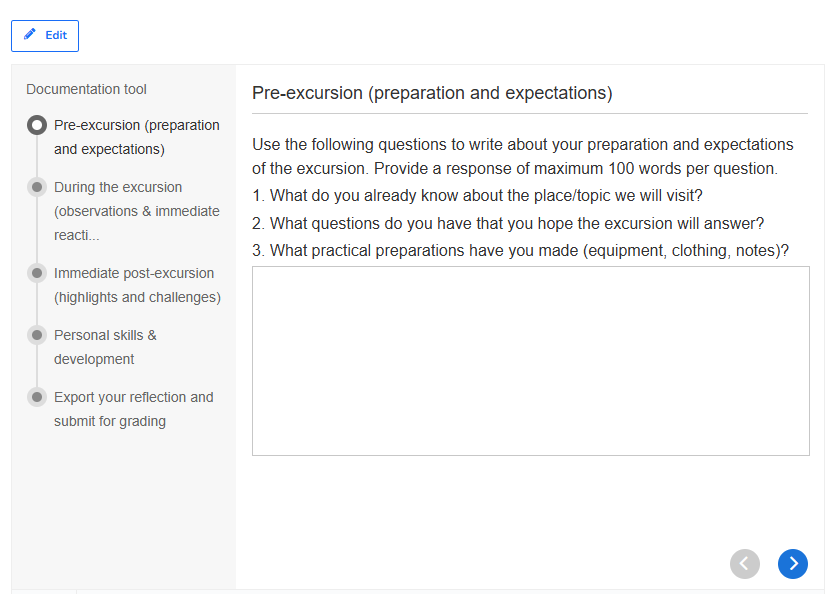
Once students enter their reflection into the provided text box, they can then generate a downloadable document with their responses and submit it to a LMS Assignment for grading.
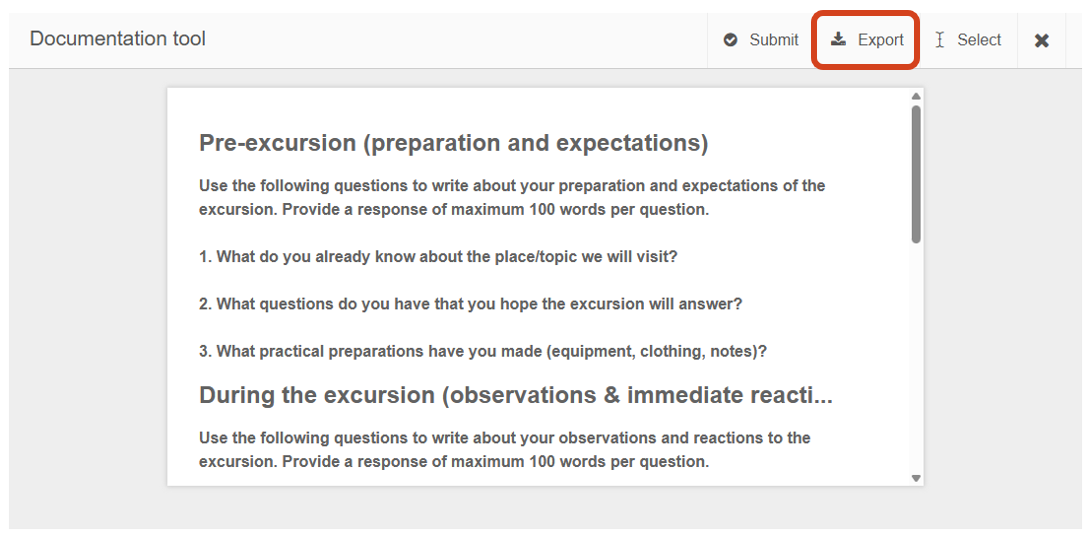
Note: The Submit button saves a copy of student response to H5P which can be viewed by the staff member who is the owner or collaborator on the H5P activity. However, the activity cannot be graded in H5P itself.
For step-by-step instructions on how to add a H5P activity to your LMS subject, see H5P in the LMS.
For detailed instructions on how to set up a H5P Documentation tool, refer to the Documentation Tool tutorial guide.
PebblePad
As PebblePad blogs are private by default, they can be used as journals or shared with peers, with students being able to control share permissions within PebblePad. Students can record and reflect on their learning experiences such as during a project or on a placement. These activities can be completed at a specific point in time or on an ongoing basis. The posts can be displayed in chronological order.
The activity can be unassessed or assessed. However, if you are planning to use it as a summative assessment, contact Teaching and Learning Innovation to discuss your needs and request for PebblePad to be linked with your LMS subject.
For further information on setting up or using blogs, refer to the create a blog guide and the create, edit and share blog posts in PebblePad student guide.
If you would like any support with setting up a journal activity, please submit a support request for assistance.
This guide was last updated 21 Aug 2026.
Submit an LMS support request for further assistance or to report any errors or omissions in this guide.