Access and navigate PebblePad
This guide contains the steps students should take to access PebblePad at the University.
Access and navigate PebblePad
This guide contains the steps students should take to access PebblePad at the University. You have two options:
- Access PebblePad via the LMS (for assessment and subject-related activities)
or - Access PebblePad via the direct link (if you wish to use PebblePad informally for your own learning and development)
Access PebblePad within Canvas LMS
If you are expected to use PebblePad for a subject and your teacher has made it available to you via the LMS, it will usually be available in one of two ways: as a page via Modules (most common), or within an Assignment.
Note: If you cannot locate the PebblePad link within your LMS subject, you can always access PebblePad via the direct link (see below).
PebblePad link within Assignments
If your lecturer or tutor wants you to fill in a PebblePad workbook or worksheet as part of an assessment, it may be available via Assignments. If so, PebblePad links should be listed within the relevant assessment, either in the assignment information details, or as a grey button at the base of the assignment.
- Navigate to Assignments in the LMS and open the relevant Assignment.
- Click the grey button link available within the relevant assignment (base of page).
- PebblePad will then open in a new browser window.
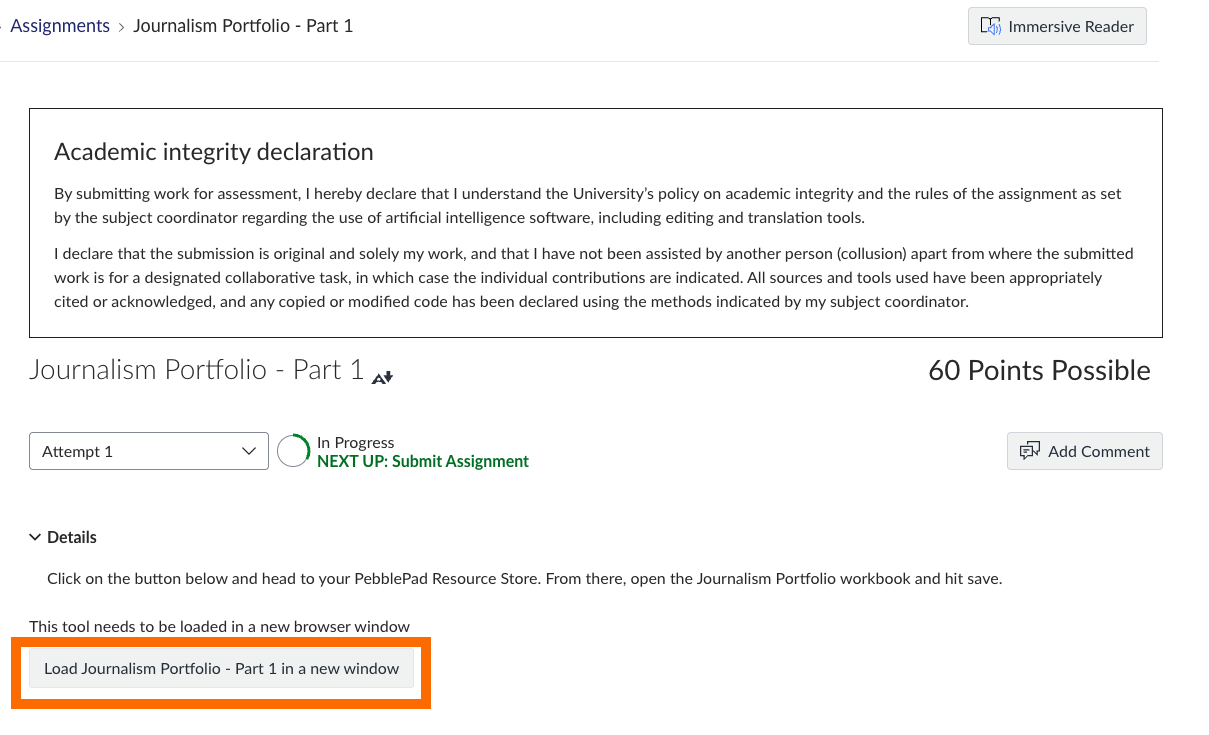
If you cannot find a PebblePad link within Assignments, please log in to PebblePad via one of the alternative options below. You can then refer to the access PebblePad resources created by your subject coordinator student guide for further information on locating workbooks, templates or worksheets in PebblePad that your instructor or tutor may have provided.
PebblePad link within Modules
Often, a link to PebblePad will be available in your subject via a page in one of the Modules, titled Access PebblePad for this subject.
- Within your Canvas subject, navigate to Modules by using the Subject navigation menu (link in left menu).
- Within Modules, look for a page titled Access PebblePad in this subject. It may be available within an orientation module, or a PebblePad support module.
- Open the page, then select the Open PebblePad link. This will open PebblePad in a new window.
If you are unsure, please check with your lecturer or tutor, or use the PebblePad direct link where needed.
Access PebblePad via direct link
If you cannot locate a link to PebblePad within your subject, or with to use PebblePad for your own study purposes (such as a private study journal or collecting evidence of work for a graduate portfolio), log in to PebblePad directly via the PebblePad direct login page.
To login via the direct link:
- Visit the PebblePad direct login page.
- Choose the I have a Unimelb student/staff account option then click the Log in to PebblePad link.
- Enter your University student account credentials (student name/ID and password) when prompted.

Further support
For further support in navigating and getting started with PebblePad, refer to other PebblePad student guides, or visit the PebblePad for learners help guide on the PebblePad help hub.
You may also like to review the PebblePad FAQs page for further advice on why you might use PebblePad for your own learning, and tips for handling media, files, assessment and confidentiality.
This guide was last updated 15 May 2026.
Submit an LMS support request for further assistance or to report any errors or omissions in this guide.