Access PebblePad resources created by your subject coordinator
Your subject coordinator may create templates, workbooks or other resources in PebblePad that they want you to fill in or use as a base when creating work or for submitting as part of assessment.
There are two key ways that teaching staff will share PebblePad resources with you:
- As a resource via PebblePad (available in your resource store).
- As a link (typically via the LMS).
Generally, for workbooks that will need to be assessed or used for placements, your subject coordinator will share the resource via PebblePad. This guide provides further steps on accessing resources via PebblePad.
Access a resource via PebblePad
- Log in to PebblePad first as needed. Refer to the access and navigate PebblePad student guide for further help with logging in to PebblePad.
- On the PebblePad Home page, select Resources. This is known as your Resource Store.
Alternatively, open the Get Started link available under the Start working on... section on the PebblePad Home page to access recent Custom Workbooks or Custom Templates shared by your instructor.

- Locate the Resource from the list. It will often include the subject code as part of the Resource name or Workspace name. Refer to information within your LMS subject or other instructions from your lecturer or teaching instructor where needed.
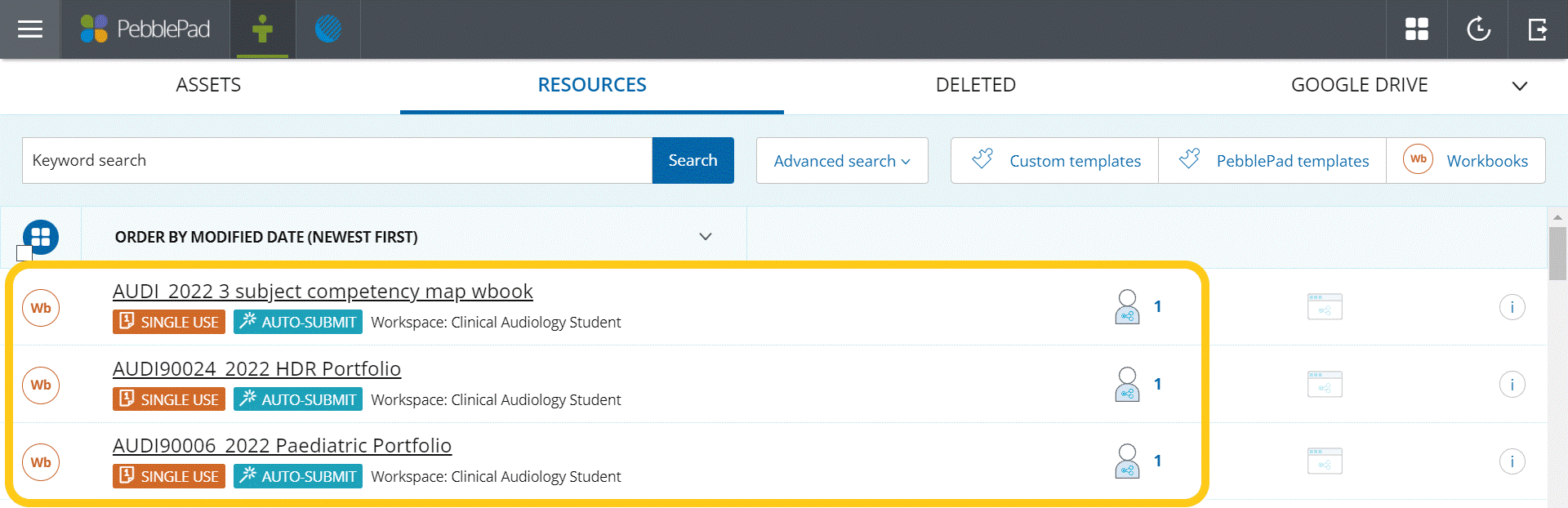
- If you cannot easily locate the Resource in the list, ensure you are in the Resources store, then try searching for the Resource using the subject code, subject title and/or assessment name. You can use the Keyword Search bar (top of the page) or change the Order by: choice to a different sorting option such as Title.

For more tips on searching and using options such as Advanced search, refer to the student guide techniques for searching in PebblePad.
- Click on the title of the Resource to open it and start editing it.
- After making updates, click Save (blue button on top left of the page) to save any edits you make. This will save the Resource to your Asset store for next time.
- After saving, please ensure you return to the PebblePad Home dashboard before closing the application/window – select the PebblePad logo in the top banner to return to PebblePad Home. This makes sure you are ‘checked out’ of the asset/resource. Sometimes missing this step can see you or others locked out of your work.
Understanding Resource details
The Template or Workbook resource may have one of the following listed underneath the title in the Resources store:
- Single use: The resource (i.e. workbook or template) can only be collected once. If you try to open the resource again, your existing saved work (Asset) will open. This is the typical setting for most workbooks.
- Auto-submit: The resource will automatically be shared to a PebblePad submission area (ATLAS workspace) when you save. Any updates you make in PebblePad will automatically also update on the ATLAS workspace.
- Workspace: The workspace name will be the same or similar to the Canvas subject name and subject code. Use the Workspace details to identify and confirm the relevant subject the Resource is being used for.
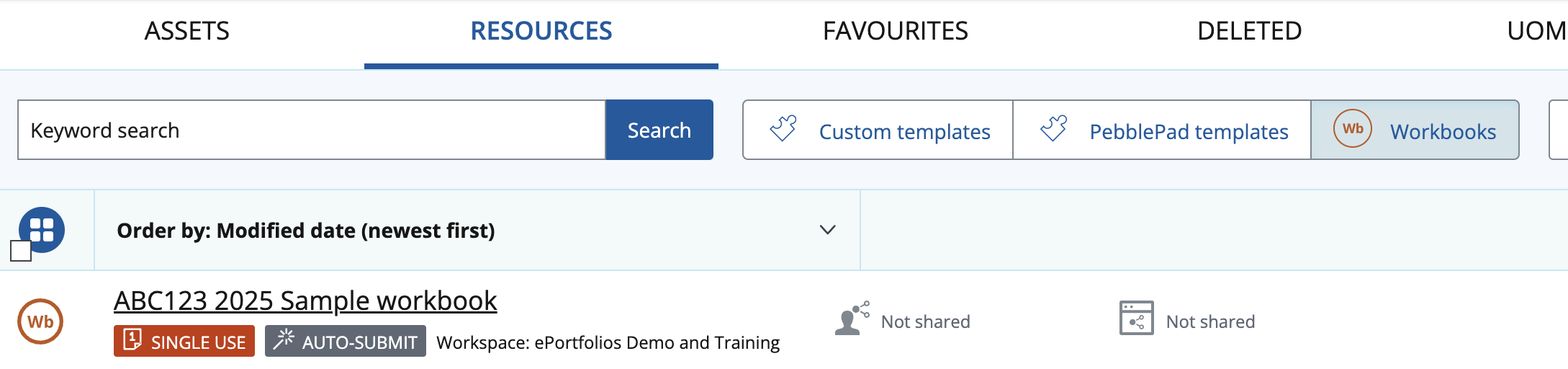
At the University of Melbourne, the auto-submit feature is usually not used for assessment purposes, but for supporting you in your work. Your instructor should make you aware if the workbook/template will automatically be submitted to ATLAS and for what purpose. Only that particular asset/resource listed as auto-submit will be submitted to ATLAS for teaching staff to view, the rest of your work in your PebblePad repository will still continue to be private. If you have concerns, please discuss with your lecturer or tutor.
Re-accessing existing work
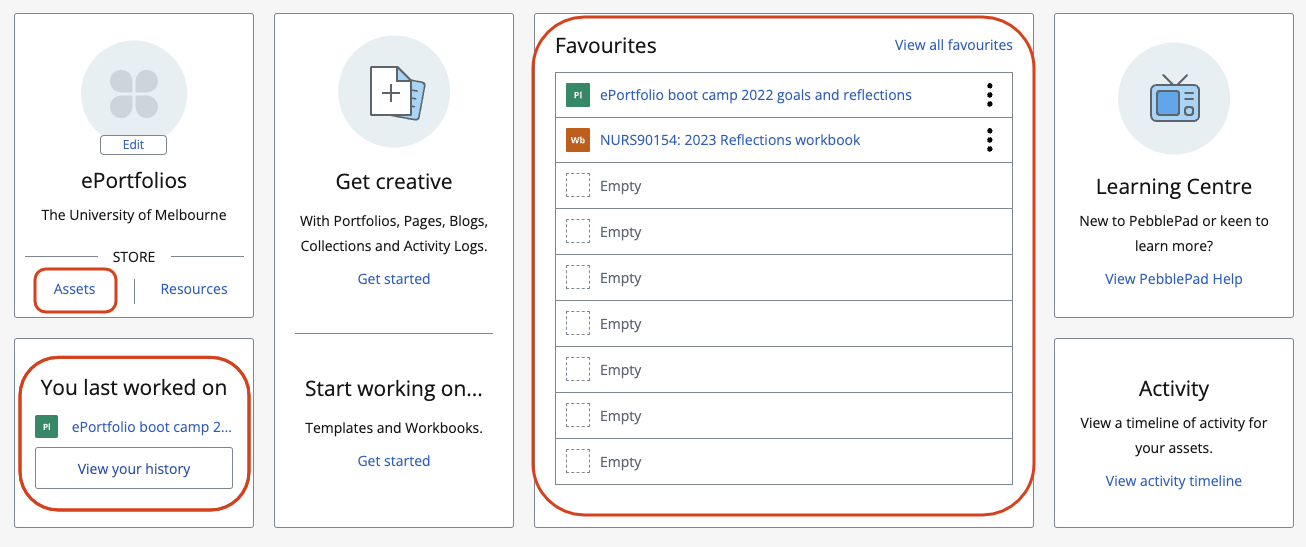
On subsequent return visits, you can access your work via the following methods available from the PebblePad (Pebble+) Home page:
- Assets store: All saved work will appear in your Assets store for future editing.
- You last worked on: Available below your profile name, the You last worked on section gives you quick access to your most recently edited work and history.
- Favourites: If you have Favourited the item, it will also appear in your Favourites. To favourite an asset use the I want to... option available when editing the asset then choose Favourite. The asset will then appear on the Pebble+ Home page in the Favourites list.
FAQs and common troubleshooting
This guide was last updated 18 Feb 2025.
Submit an LMS support request for further assistance or to report any errors or omissions in this guide.