PebblePad frequently asked questions
PebblePad FAQs
General
-
PebblePad is a platform used to develop digital portfolios (ePortfolios) and curate and manage evidence of reflection, learning, assessment and professional development.
-
An ePortfolio is a digital body of work (similar to a website, or an electronic version of a print portfolio) that you might create for personal or professional reasons or for assessment. You can develop an ePortfolio to document a learning journey or evidence of work practice, for example: reflections, drafts, images, photos or documents demonstrating specific skills you are developing or have mastered.
-
You might be using PebblePad as part of an assessment as instructed by your subject coordinator. Your teaching staff would be able to discuss more why you and how you will be using PebblePad but often it’s because an ePortfolio helps you to reflect, document and present evidence of skills and knowledge across the course and as a professional.
Many professions such as nursing, education, engineering and social work will expect you to demonstrate skills related to professional standards and to document ongoing professional practice or ongoing learning and development. An ePortfolio can help you not only document evidence of skills so you can become employed in your field, but also help you build regular habits needed for ongoing professional practice.
An ePortfolio can also help you regularly reflect on your learning and skills so is great as a study tool to support you in your learning.
-
Yes, as a University of Melbourne student, you have access to use PebblePad even if you are not using it in a subject or course.
-
All student guides on using PebblePad are found on the LMS support for students page. Further PebblePad support guides are available via the PebblePad Help Hub.
Access and accounts
-
Log in via the PebblePad direct login link using your University of Melbourne student account. An account will be automatically created for you when you first login. We recommend using Chrome, Firefox or Safari browsers.
-
Log in to PebblePad either by using the login link made available to you within Canvas, or via the PebblePad direct login link. We recommend using Chrome, Firefox or Safari browsers.
For subjects using PebblePad in assignments, you can also access PebblePad through either Assignments or via a relevant LMS page in your subject. Most subjects using PebblePad will have a support page in Modules titled Access PebblePad for this Subject.
-
Yes, you can access PebblePad after you graduate by creating a PebblePad alumni account. Before graduating, you need to make an alumni account and transfer your PebblePad content over to the new account.
-
Refer to PebblePad’s Get an Alumni account guide. If you experience issues, please contact Student IT.
-
You can use PebblePad on mobile devices using either the web version or the PebblePocket mobile app. The PebblePocket app allows you to collect evidence on the go (including while offline) and then upload the evidence into your PebblePad account.
PebblePocket does not support all PebblePad functionality so some tasks will still require you to either use a web browser app on your mobile device or tablet, or use a computer. Refer to the Get PebblePocket guide for steps on installing PebblePocket on your mobile device. Review the PebblePocket Help Hub guides for instructions on using PebblePocket.
-
You can create an alumni account anytime after your University of Melbourne PebblePad account has been created. The two accounts will exist in parallel until you graduate from the University, which is when the University of Melbourne account will be deleted. It is recommended to do this after you have completed your last semester/term of study and before graduation.
Saving work
-
No, PebblePad does not have autosave functionality. It is recommended that you save your work as frequently as you can. PebblePad does have a recovered work function if you do not save your work.
-
No, PebblePad does not work offline. The PebblePocket mobile app will work offline for collecting artefacts and evidence.
-
If PebblePad freezes, it is recommended that you save your work at that point in time if you can. If you are unable to save, usually PebblePad will aim to autosave and autorecover your work. Log out, close your browser and reopen PebblePad again while on a stable internet connection. A recovered version of your PebblePad asset, if it exists, will be shown to you when you next log in and access your asset.
Create and manage your content
-
PebblePad resources will be accessible via your Pebble+ Resource Store. These are resources that your instructor or tutor has made available for a subject and are listed at the top of the resource store listing. Refer to the University of Melbourne student guide access PebblePad resources created by your subject coordinator for more information on locating resources from your instructor.
To locate resources, you will need to be enrolled in a relevant LMS subject that is using PebblePad and ATLAS, and will need to have first logged in to PebblePad.
-
This depends on the assessment criteria and how you would like your content to be presented. Discuss with your instructor or subject coordinator how they want your work presented, as they may have an existing template they want you to use or and example that gives you ideas.
For creative work you can begin by creating a PebblePad Page, which is similar to a webpage. Multiple Pages can be added to a Portfolio, which is similar to a website. If you are expected to keep a journal, the Blog tool is a good option. All the creative asset types will share similar options for creating content blocks.
Refer to the PebblePad student guides and the PebblePad Help Hub for specific support on creating Pages, Portfolios, Blogs or other asset types.
-
PebblePad supports all common file types such as PDFs, Word, and PPT, uploaded as assets.
You have a maximum of 5GB storage for uploaded files per PebblePad account.
-
Any deleted assets will typically be stored in the Deleted files area and can be retrieved. Refer to the Delete an Asset PebblePad guide for steps on how to delete and restore assets.
-
Connecting your Office365/OneDrive account allows you to easily access your University Microsoft files directly within PebblePad without needing to import or upload them first.
Review the Connect external services PebblePad guide for steps on connecting your Office 365 / Microsoft OneDrive account to PebblePad.
-
When you are recording and collecting evidence from a workplace setting, you may at times draw on experiences and reflections based on confidential and private information. It is important to only provide the basic details you need and not have any personal details that may identify particular individuals, and families, as this would breach confidentiality.
Some general advice on how to follow privacy and copyright is available via the student guide: Using copyrighted and sensitive materials on PebblePad. For more support or to check what is allowed for your subjects and courses, it is best to speak to your subject coordinator for advice, as each course is different.
Assignment submissions and assessment
-
There are many ways to submit your PebblePad work, and there may be preferences and instructions from your subject coordinator on how to approach this. PebblePad work is usually submitted through one of the share options. Generally submission will either be via the LMS, via ATLAS, or both.
You should refer to the instructions within the LMS for your subject which should clarify how to submit your PebblePad work as an assignment. If you are unsure, please contact your subject coordinator.
Once you have confirmed how your instructor wants work submitted (e.g. web share link, ATLAS submission, PDF) the following guides can also support you:
- Share your work in PebblePad can support you in how to share work with supervisors or create a web share link to paste into Canvas assignments.
- Submit your work in PebblePad provides steps on how to submit work to ATLAS.
- Export a PebblePad asset as a PDF file provides support in how to export your PebblePad work as a PDF.
-
PebblePad is accompanied by ATLAS (Active Teaching, Learning and Assessment Space). You may be asked by your teaching staff to submit your work to an ATLAS workspace for assessment.
-
To check if your work has been submitted depends on the method which you have submitted, which your subject coordinator will specify.
If you have shared to ATLAS, look at the submit your work in PebblePad student guide for steps on how to check if your work has been submitted. Also look for an email notification from PebblePad, this should let you know if your submission was successful and confirm the ATLAS workspace you submitted to. Keep a copy of this email for your records.
If you have shared your asset to the web via a share link, you can confirm if this has been shared to the web via the status icon from your PebblePad asset store. Make sure this link stays active while your assessment is being marked.
-
You might receive feedback on your work in a number of ways, so if you are unsure, please confirm with your teaching staff.
You can receive feedback for assessment via:
- PebblePad feedback: If you have been asked to submit your work to ATLAS for assessment or peer review, this will usually be the way you receive feedback. Work will be linked to your PebblePad asset, you will need to open the asset in PebblePad and open up the feedback pane to view feedback. Refer to PebblePad’s view feedback guide for further information
- LMS feedback: If you have been asked to submit a link or pdf to LMS, feedback from your instructor will likely be via LMS speedgrader. Refer to the FAQ, how do I view annotation feedback comments from my instructor directly in my assignment submission?
-
When you have received feedback for an asset, you will receive an email notification in your student inbox. To view feedback in PebblePad, go to your Asset Store and select the feedback icon on the asset entry listing. The number of feedback comments will be displayed next to the feedback icon. Refer to PebblePad’s view feedback guide for further information.
Informal comments: You might receive comments in PebblePad if you share with another student, your placement supervisor or others informally. You can view comments by selecting the comment/discussion icon available in the asset entry listing, similar to to how you view feedback. Refer to the view a comment PebblePad guide for further support.
-
If you have submitted the wrong asset or file to the ATLAS workspace, you may be able to remove the submission, if this setting has not been changed by your subject coordinator.
To remove a submission, go to your Asset Store, select the i icon which is on the right of the asset entry listing. Then select Ask for submission to be removed. You will be notified if your request to remove the submission has been approved. You can then share the right asset to ATLAS. For further information on how to check your submission or manage PebblePad ATLAS submissions, refer to the following:
- How do I check if my task has been shared for assessment? (within the 'Submit your work in PebblePad' student guide)
- Complete an assignment PebblePad guide
- Contact Student IT for further support.
If you cannot remove the submission, please contact your subject coordinator to let them know of the error and work out an alternative option, as they may be able to update the ATLAS settings or organise another method of submission.
-
If you have submitted to the incorrect ATLAS workspace, it is best to get in contact with your subject coordinator in the first instance and alert them of the issue. If you submitted to the correct subject but wrong assignment in ATLAS, they may be able to move your work into the correct assignment for you.
Otherwise, you may be able to remove the submission and resubmit to the correct one, if this setting has not been changed by your subject coordinator.
Removing and resubmitting work will mean that your previous submission and a timestamp of when you have submitted will be lost, and your new submission may be marked as late. For this reason, it’s best to discuss with your subject coordinator first and take a screen capture image or export of your previous assignment and when it was submitted, if you need to prove you submitted on a previous date.
If you need to remove your submission and submit again to a different ATLAS workspace, refer to the steps listed in “I submitted the wrong work (wrong asset) to ATLAS for assessment”. The steps to remove a submission and re-share to a workspace will be the same.
If you encounter any issues or would like assistance with removing and resubmitting work, please contact Student IT.
-
Try using a different internet browser when using PebblePad and ATLAS (for example, Chrome, Firefox, Safari).
The most common reason for ATLAS workspace and assignment options not showing is interference by an ad blocker in the browser being used. This causes the share modal to not work as it should. The following information can be shared with users if they are having an issue with not seeing workspaces and assignments:
To allow the share modal to function correctly you will need to:
- Click on the AdBlock icon in the browser toolbar.
- Click Don't run on pages on this site.
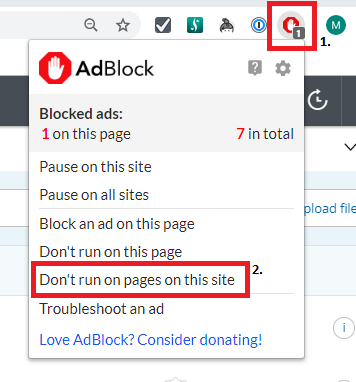
- Drag the Site slider from left to right.
- Click the Exclude button.

Getting help
-
For technical and administrative support:
- Refer to the PebblePad student guides available on the LMS support for students page.
- Student IT can support in person, via chat, or through a support ticket. Refer to the Student IT contact options.