Marking in Gradescope
This step-by-step guide will take you through the recommended process for marking in Gradescope.
The guide follows the best practice system of marking all submissions question-by-question (e.g. first grading every student submission for Question 1, before moving on to the responses for Question 2). This is in line with the intended use of the Gradescope tool and ensures there is uniformity in marking, mitigating the risk of inconsistencies between each student's marks.
How to mark in Gradescope
The following is a step-by-step guide on the best practice process for marking in Gradescope.
Note: If you are using Gradescope for an on-campus digitally scanned exam, you can skip Step 1 as the Digital Assessment Support team will set up the template and outline in Gradescope for you. For information on how to mark multiple choice exams with Gradescope, consult the Gradescope marking guide for exam MCQs.
1. Settings
Once you have selected the Homework/Problem set as your assignment type, you will need to upload the PDF template for the activity. You will also be presented with an option of creating your marking rubric before student submission or while you are grading. We recommend selecting the former and setting up your marking rubrics before the marking process is underway.

2. Choose how you will score
Negative versus positive scoring
After you have created your assignment and uploaded the template, you will be taken to the Create Outline stage. It is at this point you will have access to the settings for scoring.
Note: If you have nominated to do an on-campus digitally scanned exam, the Digital Assessment Support team will have uploaded your template and completed the Create Outline stage for you. In this case, you will still follow the same process from here on.
Now, your next step is to determine how you will score. In Gradescope, you have the choice of negative or positive scoring for marking.
To select your scoring system, you will need to navigate to Settings in the left-hand menu. Then under the Grading Defaults section, select either Positive scoring or Negative scoring and then make sure the setting for Apply these settings to all questions is checked.
By default Gradescope is always set to negative scoring. The image below shows how to change the setting to positive scoring.

-
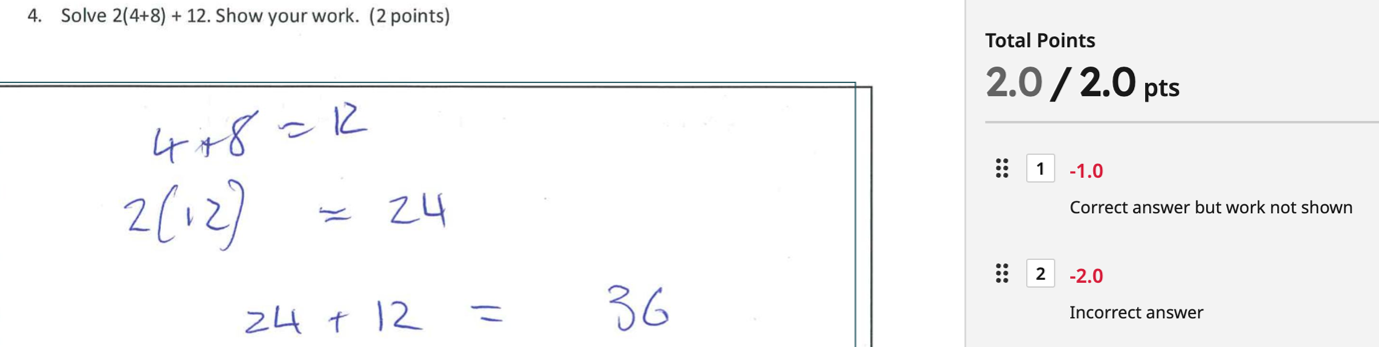
By default, the rubric is set to Negative scoring. Negative scoring means that the items you set in the rubric will detract marks from the student’s score rather than award them marks.
An example of a negative scoring rubric looks like this:
-
Alternatively, positive scoring means that the rubric items must be selected to award points to students.


3. Creating your rubric
The rubric tool
Gradescope’s rubric tool is the recommended way to mark submissions. Not only does using the rubric tool allow you to mark faster and more efficiently, it ensures there is a uniformity across the feedback by reducing the risk of subjectivity in tutor marking.
Now that you have set your scoring method (to positive or negative), it's recommended that you create a marking rubric for each question before students submit their papers. You will need to do this at the Create Rubric stage. You will need to set up a rubric for scoring for each of the questions and it’s advisable that this should be done by the subject coordinator and can also be done in collaboration with the other marking staff to agree on the rubric – including whether negative or positive scoring should be used.
The list view rubric displays vertically alongside the student’s submission. Before marking, you must first populate the rubric list with items allocating the number of points (your choice of negative or positive scoring will affect this) and a description for the point value. You will only need to do this once for each question.

Once the rubric has been set, there is always the option to add more rubric items or edit existing ones after reviewing the received student submission – although the rubric items should be agreed upon and finalised before any marking commences.
Note: Once a rubric has been set up for a question and the marking process has begun, do not modify or edit the rubric. Doing so, will affect every student submission for that question, which has already been marked. In rare cases where changes are required, they should only be done in consultation with relevant teaching staff and markers.
4. Marking as part of a team
If marking is being divided across a team, it is advisable that, for consistency, one marker does all submissions for a question, for example. the same marker will mark all submissions for question 1, while another will do all for question 2.
If this is not possible, markers will have to be aware that no modifications or edits should be made to the rubric during marking, otherwise this will affect the scores for all students (even across divided cohorts).
Marking in sections
If you would like to mark only the students that are in your class or tutorial groups (or would like to allocate tutors in your team to do so), you can now sync LMS Sections in Gradescope. To see more information on how to allocate cohorts into sections on Gradescope, consult the following guide Gradescope Sections.
5. Grouping and marking efficiency
A great way to automate and speed up the marking process is grouping different student responses into categories. The Gradescope AI can group your students submissions visually by scanning the submission content. It is worth checking the submissions within the groups as sometimes the AI can make mistakes or won’t be able to recognise poor handwritting. This visual scanning and grouping option works best for responses that require visual inputs (rather than text), such as formulas, graphs, equations or chemical symbols.
Note: If you are using Gradescope for marking an on-campus digitally scanned exam, the Digital Assessment Support team will do the grouping of your answers for you, but you should review these groupings to make sure they are correct.
Multiple choice
On-campus written exams that include multiple choice questions will need to use a template to set up outlines that include boxes where students hand-write their responses to multiple choice questions, with an additional reminder to students to use capital letters. The Gradescope AI can then visually group these responses to make marking more efficient.
To mark using grouping:
- After the submissions have been uploaded, you will first be required to ‘’Manage the submissions’ by allocating the correct student on the system against the identity they have provided. When you are done, click Grade Submissions in the bottom right hand corner.
Note: If you are using Gradescope for marking an on-campus digitally scanned exam, the Digital Assessment Support team will also do the student ID allocations for you, but you should review these groupings to make sure they are correct.

- Next, in the Grade Submissions view, you’ll see the list of questions to mark from your exam outline. Select one of your multiple choice questions to begin grouping the submissions.

- Next, you will need to select Review Groups in the new window.

- Once you have selected a question, you will need to first make sure you choose From Answer Groups First rather than Grade individually. For the current supported method of digitally scanned multiple choice questions, you’ll need to then select Text fill-in-the-blank. You have the option to apply this grading method to all questions (which may be more efficient if many of your questions are multiple choice).

- After selecting Review Answer Groups, the AI technology on Gradescope will visually scan and group the different submissions based on what the students have answered, for example if all students answered the same and correctly, there will only be one group.
- Once the answer groups are shown, select Review First Group at the bottom right hand corner to begin.
Note: If for some reason some groups contain the same answers and should be merged, you can select Merge to merge the groups. You need to select the groups you want to merge and then click Merge Selected in the bottom action bar.

- Once all groups have been reviewed, you will see to the Ungrouped Answers page (if there are any). You can add ungrouped answers to a group by clicking and dragging, or by clicking on each answer and then clicking on the group.
- After reviewing, if needed you can go back and re-review a group by clicking View Groups in the bottom action bar.
- Once you have finished grouping, click Grade Answers in the bottom action bar. You will start by marking the approved groups and then be able to mark the individual ‘ungrouped’ submissions.

6. Marking submissions
Once the students’ submissions have been uploaded to Gradescope, you can begin the marking process. You do this be selecting the Grade Submissions tab and selecting a question to mark.
After selecting a question to mark, the first submission will open in the grading window. In this display window there are three main navigation functions to consider:
- The student submission
- The rubric
- The bottom action bar.

While viewing the student submission, you can select the appropriate rubric item to award/deduct marks (depending on whether you selected positive or negative scoring). You can also include feedback specific to the student's submission in the text box below the rubric.
Note: You must select a rubric item for the question to be considered marked, for example if (you are using positive scoring) and wish to award zero points, you must still select a rubric item labelled '0', for the submission to be considered marked.
Rubrics versus points adjustment
Below the rubric, you will see the option for Points Adjustment underneath the rubric items. This allows you to manually enter a score or ‘adjust’ the score calculated from the rubric for whatever reason. It is not advised that staff use points adjustment to mark submissions as doing so undermines the ability to provide uniform feedback.
Next, navigate to the next submission for the same question by selecting Next Ungraded. Moving to the next ungraded submission avoids more than one staff member grading the same submission at the same time.
Remember that Gradescope works by allowing you to mark question by question (ie if you start with question 1, you will mark all student submissions for question 1 before moving on to another question).

7. Reviewing grades versus publishing grades
After marking your student submissions, you will be able to review grades where you will be able to see a full overview all the marked submissions.
Note: Students are not able to see the grades until you publish them.
To ‘publish’ the results so that they are visible to students, select Publish Grades. Once you have selected Publish Grades, marked submissions that are now visible to students you will have Grades Published in green next to them. Those that haven't been published, you will have Grades Not Published in grey next to them.
You will also be able to see whether students have viewed their marked submissions by the eye icon next to the submission in the Viewed? column on the Review Grades page. If the eye icon is green, that means the student has viewed their submission.

Support and resources
Please submit a support request to Teaching and Learning Innovation with any questions about this tool.
The following resources are available for staff and students:
University of Melbourne staff guides
- Getting started with Gradescope
- LMS Assignments with Gradescope as off-campus digital open book exams
- Setting up Gradescope for an off-campus digital open book exam
- On-campus written exams with Gradescope scans
- Recommendations for the format of on-campus written exams
Vendor guides
- A general Gradescope walkthrough video
- A Gradescope video with scanning tips and best practices
- Gradescope get started page featuring other helpful short videos
- Gradescope guides site for written documentation and frequently asked questions
This guide was last updated 20 Aug 2025.
Submit an LMS support request for further assistance or to report any errors or omissions in this guide.