Lecture Capture - Managing live streams
Live streaming allows students to remotely view lectures as they are being delivered in real-time.
If your lecture or seminar is scheduled via the central timetable, in Lecture Capture-enabled venues, live streaming will be automatically enabled.
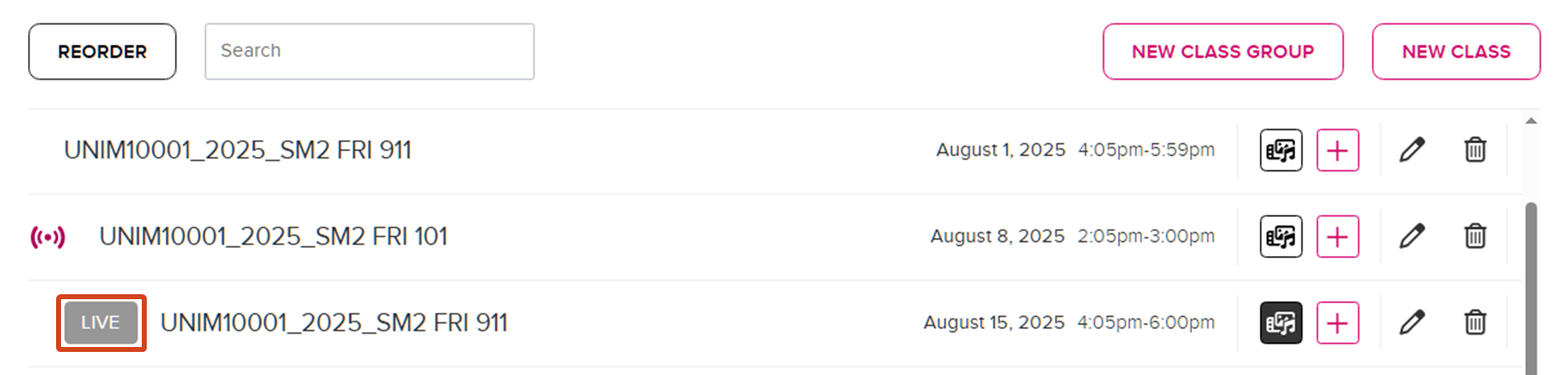
To assess if this applies to your subject, go to the Lecture Capture link in your LMS subject and any events that are due to be recorded and live streamed will be listed with the grey LIVE icon. Any events that currently being live streamed will be listed with a pink broadcasting icon.
Viewing attendance and analytics
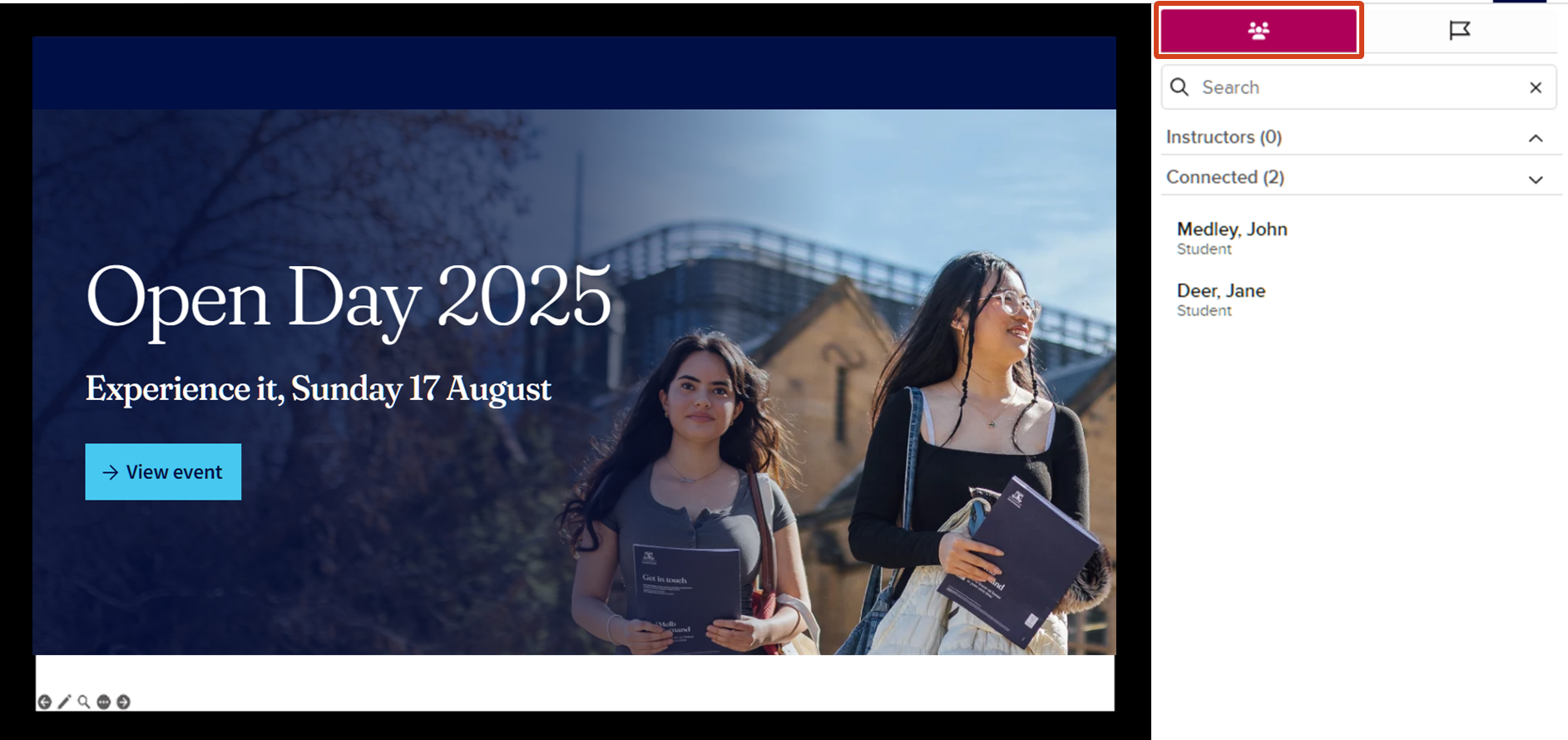
During a live stream, you can see which users are in attendance by:
- Using an alternative computer or tablet, go to the Lecture Capture link in your LMS subject.
- Click live streaming session as indicated by the broadcast icon.
- Click Join Session.
- Click on the Users icon and select the drop-down icon next to “Connected”.
After the lecture, the Analytics tab in your Lecture Capture subject will show who attended your lecture via live-streaming:
- In the Attendance % figures in Classes, you can view the percentage of your students that attended via live-streaming. Click on the % number to view the names of the students.
- In the Attendance % column in Students, click on a student % number to view which lectures they attended live.
Pausing the recording and live stream
All Lecture Capture enabled venues have a pause/stop button on the AV touch-panel in the room. The Pause button allows users to temporarily stop and resume the stream or recording. The Stop button will end the stream and send what has been recorded to be processed and published.
Live streaming for ad hoc recordings
Live streaming is only available for scheduled recordings that are connected to a course or community.
Ad hoc recordings can be scheduled using the Lecture Capture Scheduling Assistant, allowing users to:
- Record a subject
- Record an event or public lecture
Record a subject allows users to schedule an ad hoc booking for a class, thereby enabling live streaming by default. By contrast, recording a non-class event or lecture will disable live streaming.
Interactivity during live streams
Some options for interactive elements during a live stream include:
- Questioning using PollEverywhere.
- Student-student or student-teacher discussions using the LMS Discussion forum.
- Discussions or collaborative activities using Padlet walls.
Opting out of live streaming
The live streaming and/or recording of lectures can be opted-out by staff provided the request is supported by a sanctioned reason and approved by the Faculty’s Associate Dean of Teaching and Learning. For more information, refer to our guide on the opt out process.
This guide was last updated 02 Sep 2025.
Submit an LMS support request for further assistance or to report any errors or omissions in this guide.