Getting started with Cogniti
Cogniti is a platform allowing staff to create and customise the behaviour of AI-based agents, activities and sandboxes to enhance teaching and learning.
Cogniti terminology
Cogniti term
Definition
Agent
AI-guided bots that can be configured to assume roles designed to assists in their learning.
Mini-app
AI-based learning activities such as quizzes, games, and visualisations. Mini-apps are not currently available.
Sandbox
Instructor-designed environments that allow students to create their own agents.
System message
The main prompt that dictates the behaviour and output of your AI agent. Input any parameters or rules that you wish your agent to follow here.
Conversation starter
Optional and suggestive buttons that users can select to initiate conversations with agents.
Temperature
Controls the randomness of the responses generated. A higher temperature would offer more randomness while a lower temperature would offer more predictable responses.
AI model
The version of the AI software that is used to inform the agent’s behaviour. Note that some of these may be flagged as Deprecated, which can be understood as outdated and may therefore not work.
Resource
Material that agents can draw upon in their responses; reference material that is occasionally used. Examples include notes or supplementary readings.
Knowledge
Material that inform the agent’s identity and responses. Knowledge can be understood as information grounding agents. Examples include a course syllabus or assessment instructions.
Accessing Cogniti
Staff can access Cogniti by logging in using your University of Melbourne account.
- Visit the Cogniti login page and click Log in.
- Enter your University of Melbourne email (for example, pdavis@unimelb.edu.au) and click Continue.
- Click Sign in with University of Melbourne SSO.
- Enter your University of Melbourne username (for example, pdavis) and password.
- Once signed in, you will be redirected to the Cogniti welcome page. Once you have clicked Chat with agents you will be able to view the library of existing agents, with possible options to Chat, Clone, or Pin depending on the agent’s sharing settings.
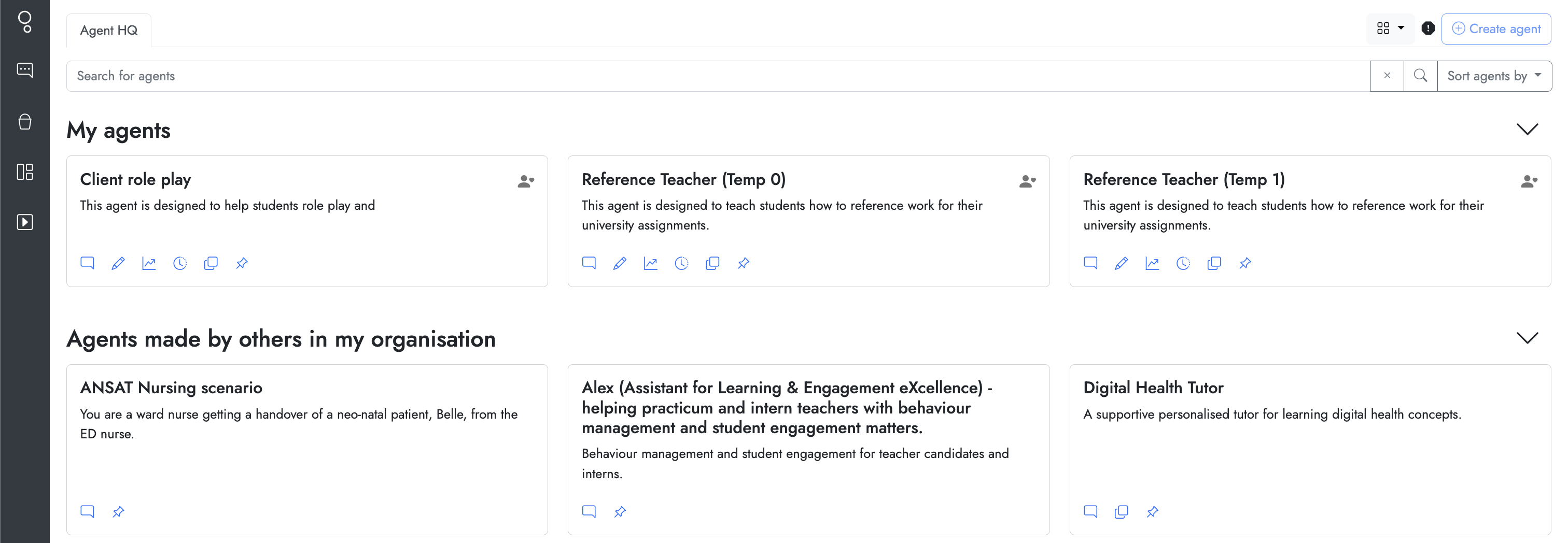
Note: If you are unable to access or clone a specific agent, you may need to contact the agent owner to adjust the usage and access settings. For more information, please see our creating and managing Cogniti agents guide.
Creating an agent
Staff can also create or clone agents. In doing so, staff effectively ‘own’ the agent and can subsequently edit, share, and deploy agents.
To be able to create or clone an agent, you will need to be allocated an agent quota.
There are three main ways that agents can be created:
- From scratch.
- From a template.
- From cloning an existing agent.
Students do not have the ability to create their own agents unless a Sandbox has been set up.
For more information on how to create and manage Cogniti agents see our creating and managing agents guide.
Embedding agents into Canvas LMS
Agents can be embedded into Canvas pages via Apps in the rich text editor.
- Create a new page in Canvas.
- Click the Apps icon and select Cogniti. You may need to select View all to see the full list of applications if this is your first time embedding Cogniti into Canvas.
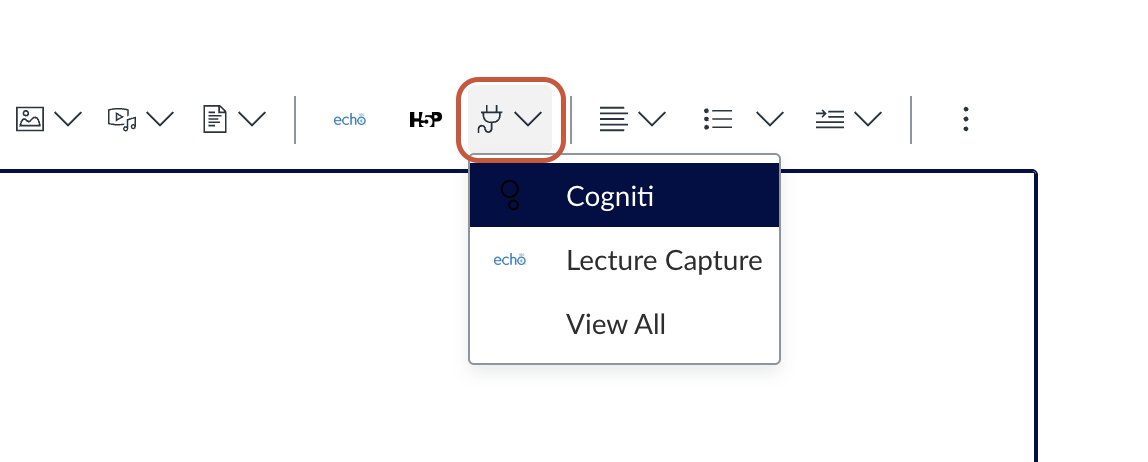
- Select the agent that you wish to embed into Canvas.
Note that you cannot create an agent directly from Canvas.
Support and resources
This guide was last updated 02 Sep 2026.
Submit an LMS support request for further assistance or to report any errors or omissions in this guide.