Schoolyear Lockdown Browser laptop check (Mac)
This guide shows how to complete a Schoolyear Lockdown Browser on a macOS device.
What is Schoolyear
Schoolyear Lockdown Browser is a secure browser environment designed to protect academic integrity by restricting the websites and applications that students are able to access during a digital exam. Prior to using Schoolyear Lockdown Browser, you will need to run a laptop check on your device to ensure it is ready for use during your exam.
This guide provides information on how to run a laptop check for Mac devices. If you have a Windows device, see Schoolyear laptop check (Windows).
For more information about Schoolyear, how to install the software, and how to prepare for a Schoolyear exam, see Schoolyear for students.
Laptop check for Mac devices
Follow the steps below to complete a Schoolyear laptop check on a Mac device.
- Go to check.schoolyear.app on your web browser.
- Schoolyear Lockdown Browser exams are compatible with Google Chrome, Firefox, Microsoft Edge, and Safari.
- Enter your University email address and click Login.
- Enter your University username and password, and click Verify. If prompted, complete any Okta multi-authentication steps.
- Click Launch to open Schoolyear on your device.
- If this is your first time using Schoolyear, click Download to install the software to your device. For more information on installing Schoolyear, see how to install Schoolyear on MacOS.
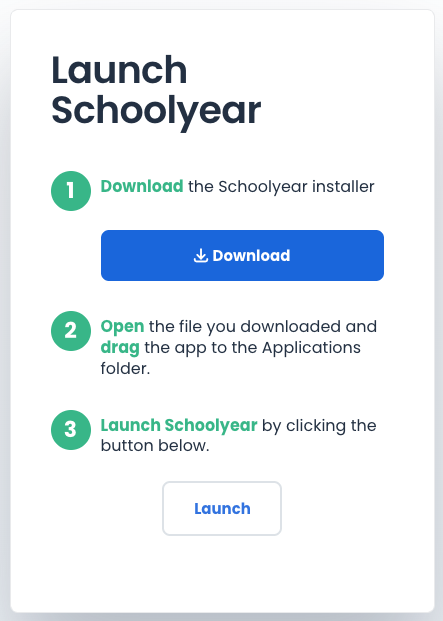
- Allow any required permissions when prompted by your browser to open Schoolyear Exams. A Starting Schoolyear pop-up window will open.
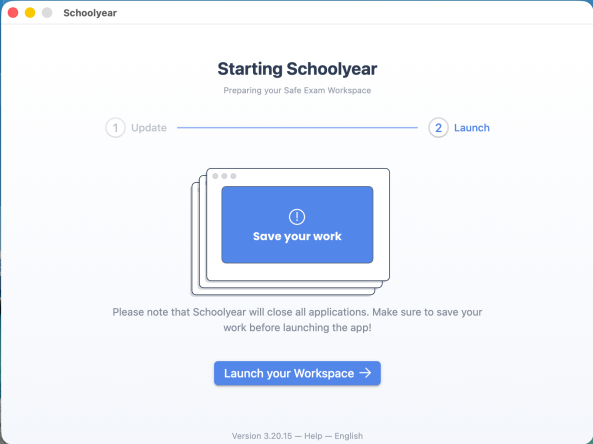
- Ensure that you have saved any work on your laptop. Any applications that you have open will be closed in the next steps.
- Click Launch your Workspace. Schoolyear will perform a series of checks before starting the exam.*
- Once the checks are successfully complete, you will see a page confirming your device is ready for Schoolyear exams.
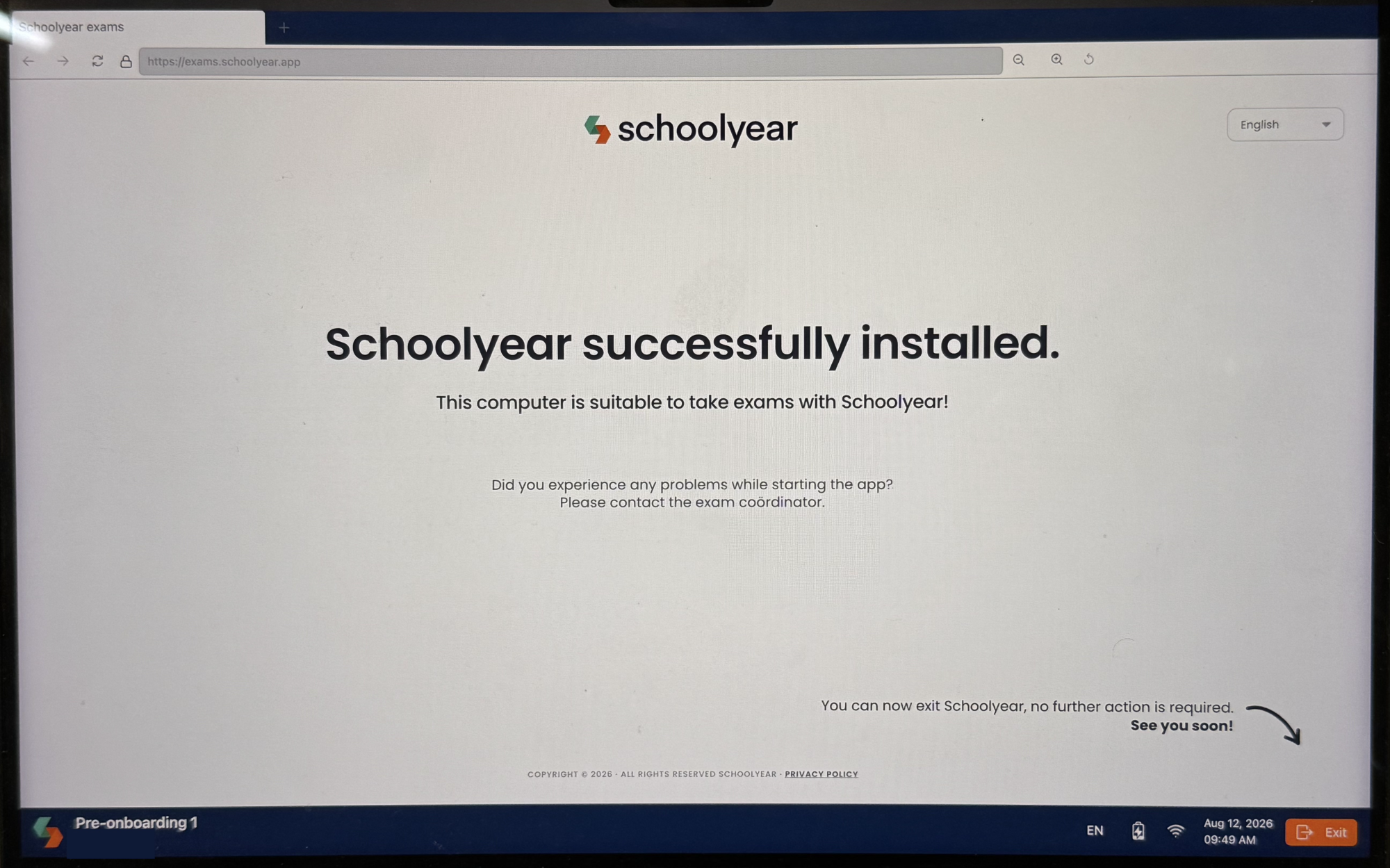
- Click Exit to leave the Schoolyear Exam Workspace and return to your MacOS desktop. You can now resume regular use of your device.
* If any of these checks fail, raise your hand to get assistance from exam staff on the day. If you are launching your exam before the official start time, it is normal for these checks to pause at the Load configuration step. The checks will continue at the exam start time. When all the checks pass, the Schoolyear browser will open the exam launch page in Canvas.
Support and resources
For more information, see Schoolyear’s device check guide.
This guide was last updated 18 Sep 2026.
Submit an LMS support request for further assistance or to report any errors or omissions in this guide.