Respondus LockDown Browser student guide
Respondus LockDown Browser is a web browser for taking quizzes in the LMS. It prevents students from accessing another URL or other application during a quiz attempt. If an LMS quiz requires Respondus LockDown Browser, the quiz cannot be taken with a standard web browser.
Cadmus exams use a separate version of the Respondus Lockdown Browser. Please refer to this guide for information specific to Lockdown Browser OEM for Cadmus exams.
Only laptops are considered an acceptable device to bring into the exam venue. Tablets, mobile phones and other digital devices may not be used to take your digital exam.
If you need to borrow a University laptop with Respondus LockDown Browser pre-installed, please submit this form. Note:
- You will not receive a confirmation email after you complete this form.
- You will need to fill out this form for each exam you require a laptop for.
Note on video: We are not using Respondus Monitor, only the Respondus LockDown Browser. Your device’s webcam will not be used.
Downloading Respondus LockDown Browser
Download Respondus LockDown Browser for the University of Melbourne
Download URL: download.respondus.com/lockdown/download.php?id=113132090
This link is unique to the University of Melbourne, only download Lockdown Browser from this URL.
Searching for LockDown Browser on other sites may lead to incompatible or potentially malicious applications.
Respondus LockDown Browser must be installed on each device being used for a quiz. Quizzes that require Respondus LockDown Browser will have Requires Respondus LockDown Browser on the end of their name.
If you navigate to an LMS Quiz which requires Respondus LockDown Browser in a normal browser, it will show as:

Click the link [Download Respondus LockDown Browser], or use the Download Respondus LockDown Browser button above. This will take you to the Respondus site to download and install the browser software.
Installing Respondus LockDown Browser
You must be logged in as administrator on your device to install the Respondus LockDown Browser software.

Click the yellow 'Download' button. This will download the ZIP file that contains the install file: .exe for Windows or .pkg for Macs.
If the ZIP file does not unzip automatically, look in your downloads folder and double click the ZIP file.
The account used for installation must have administrator rights on the device.
Useful videos:
- How do I install Respondus LockDown Browser for Windows?
- How do I install Respondus LockDown Browser for Macs?
Taking a Quiz with Respondus LockDown Browser
The Respondus LockDown Browser shortcut is in the Windows Start Menu, in the Respondus folder, if you cannot see it, use the Windows Search at bottom left of your taskbar (magnifying glass icon), type Respondus LockDown Browser.
On Macs, Respondus LockDown Browser is in your Applications folder, you can search for Respondus LockDown Browser in Finder at top right of your screen, type Respondus LockDown Browser.
- Close all other programs before starting Respondus LockDown Browser.
- Click on the Respondus LockDown Browser icon to start.
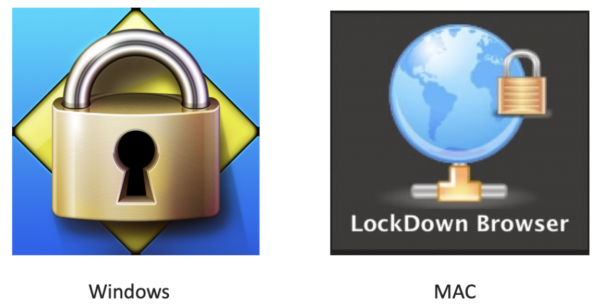
- Respondus LockDown Browser may display a pop-up asking to close other applications before continuing. Click on Close Process for each suggested application.

- Respondus LockDown Browser automatically navigates to the LMS.
- You will be prompted to enter your username and password.
- After logging into the LMS, navigate to your Subject then Assignments.
- Find and click the link for the Respondus LockDown Browser Quiz, its name will end with “Requires Respondus LockDown Browser”.

- Click the Take the Quiz button.
- Enter the answers, when you are finished the quiz, click Submit quiz.
- Log out of the LMS.
- Click X at the top of the Respondus LockDown Browser to close the browser window.
Taking a practice Respondus LockDown Browser quiz
You can take a practice exam to check your Respondus LockDown Browser setup. To do this:
- Self-enrol in the in the Respondus LockDown Browser Test Community.
- Once you have enrolled, you can then take a practice LMS Quiz with Respondus LockDown Browser installed on your device.
This testing process will prepare you for the exam and ensure that you are ready to use Respondus LockDown Browser confidently during exams.
Resources
This guide was last updated 21 Aug 2026.
Submit an LMS support request for further assistance or to report any errors or omissions in this guide.