Submit media to the LMS using EchoVideo
This guide walks you through uploading media to EchoVideo and submitting it onto an LMS Assignment or Discussion.
Upload media to EchoVideo
To upload media onto the EchoVideo system, you will first need to log into EchoVideo. Once logged in, select Create on the top of the screen.
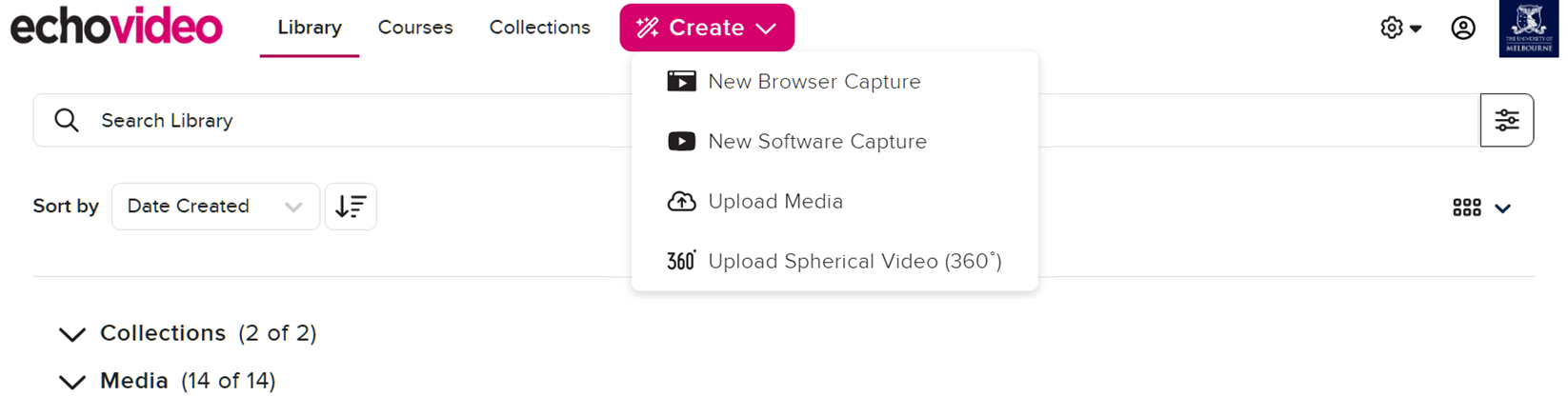
From there, you can either:
- Create a New Browser Capture using the EchoVideo browser application
- Create a New Software Capture using the EchoVideo Universal Capture software
- Upload Media directly from your device
By default, all created or uploaded media will appear in your Library, which can then be edited before downloading or submitting to the LMS.
Submit media to an LMS Assignment
Throughout your course, you may be required or wish to submit a video/audio recording to the LMS. To do so:
- In the LMS, locate your target subject and navigate to the assignment submission page.
- Under the submission options, select More and click on Lecture Capture.

- In the new dialogue box, select Launch Media Picker.
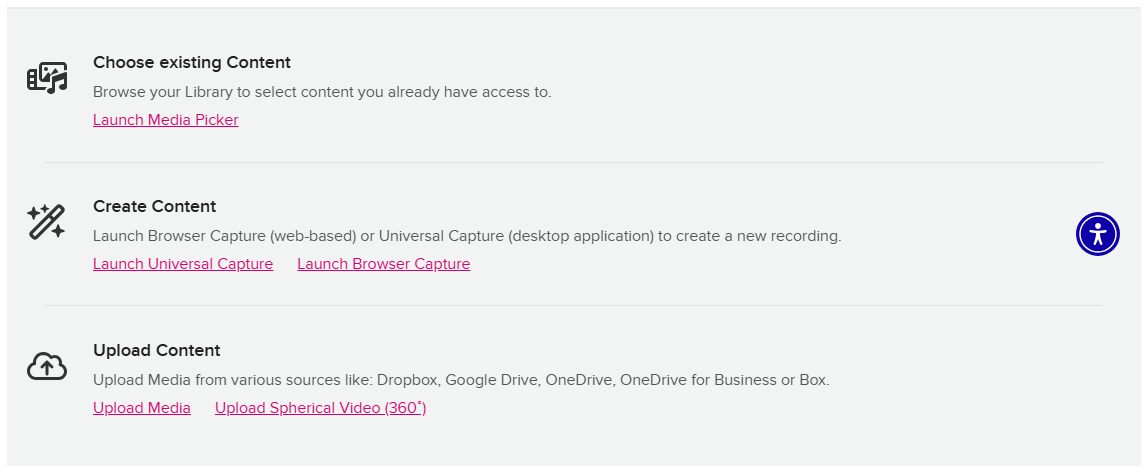
- Locate and select your target media file and select Next.

- A preview of the selected media will then display. Use this to verify that the correct media has been selected for submission.
- On the bottom-right of the screen, click Submit Assignment.
Important: Once a media file has been submitted to assignment, you will no longer be able to edit or delete the video. You can however create a copy of the media in your Library if you need an editable version.
Submit media to an LMS Discussion
- In the LMS, locate your subject and navigate to the Discussion you would like to contribute to.
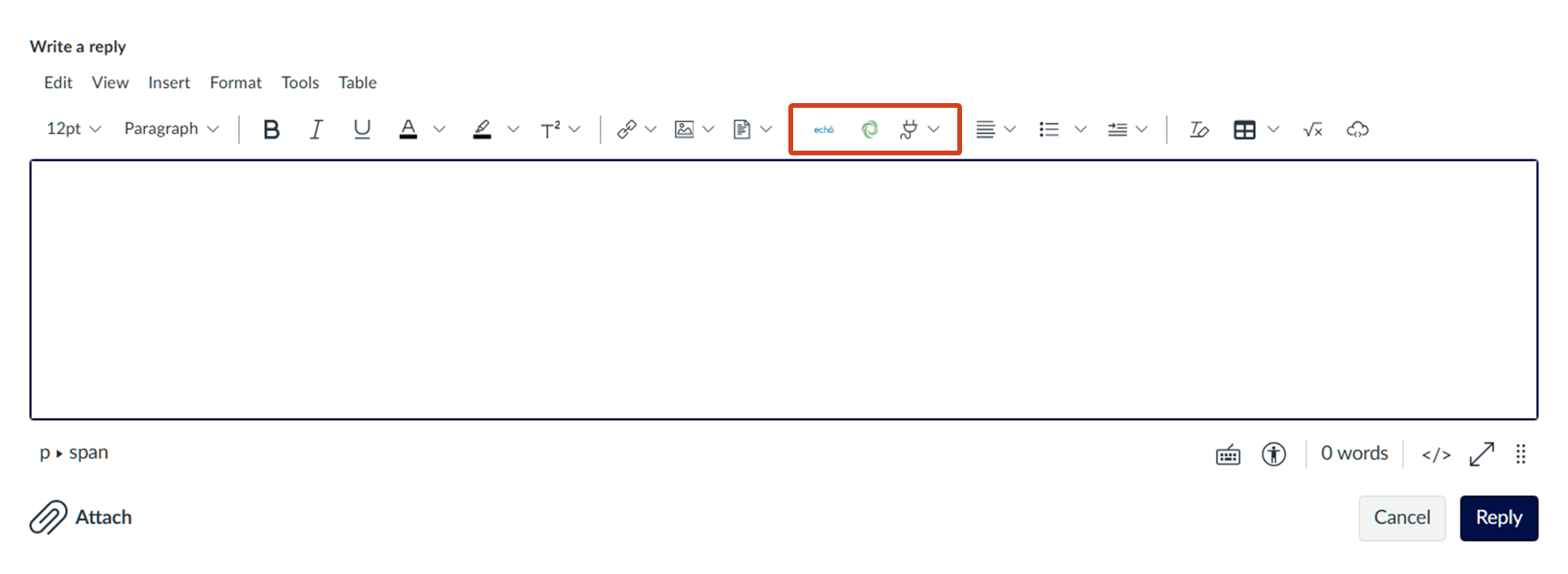
- Select Reply under the Discussion to open the Rich Content Editor.
- Under the toolbar, click on on the Echo icon. Alternatively, select the Apps icon and select Lecture Capture from the drop-down.
- In the EchoVideo dialogue box, select Launch Media Picker.
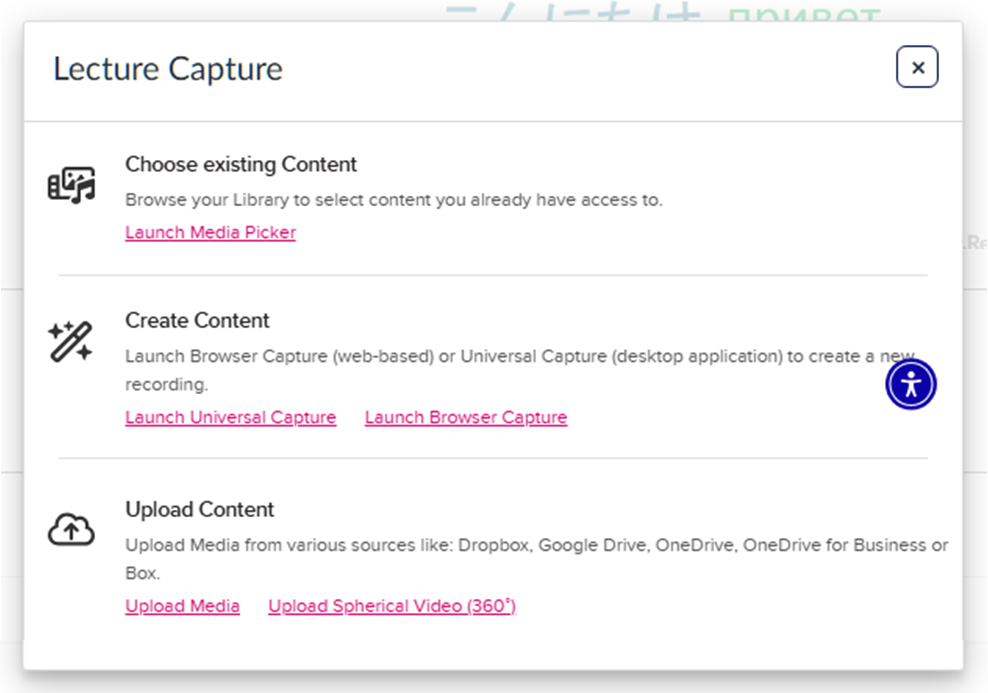
- Locate and select your target media file and select Next.
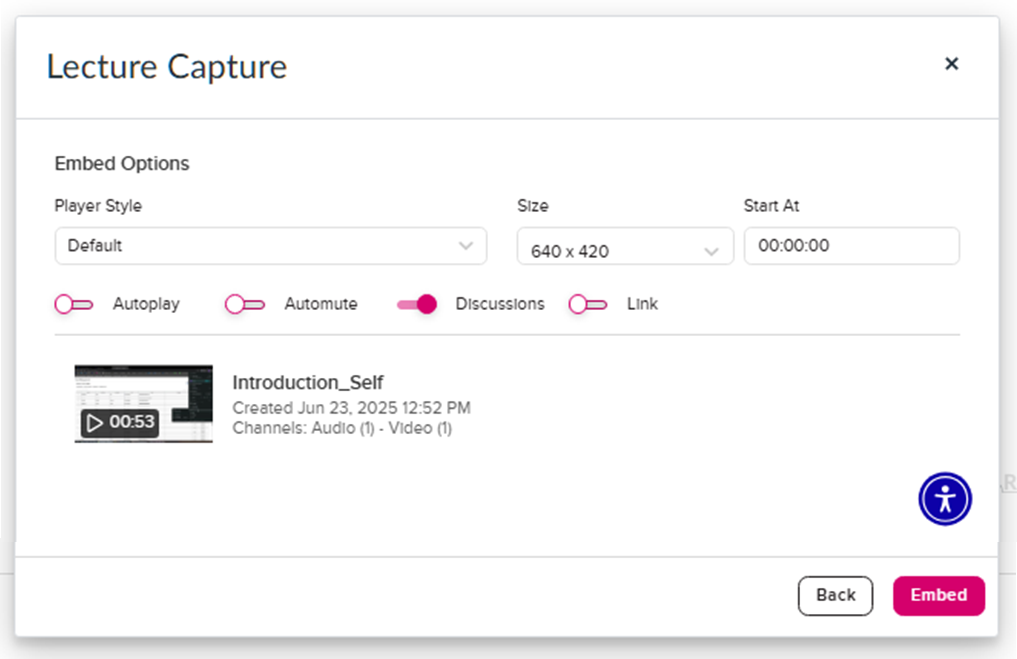
- Where necessary, adjust the embed options before confirming by clicking Embed.
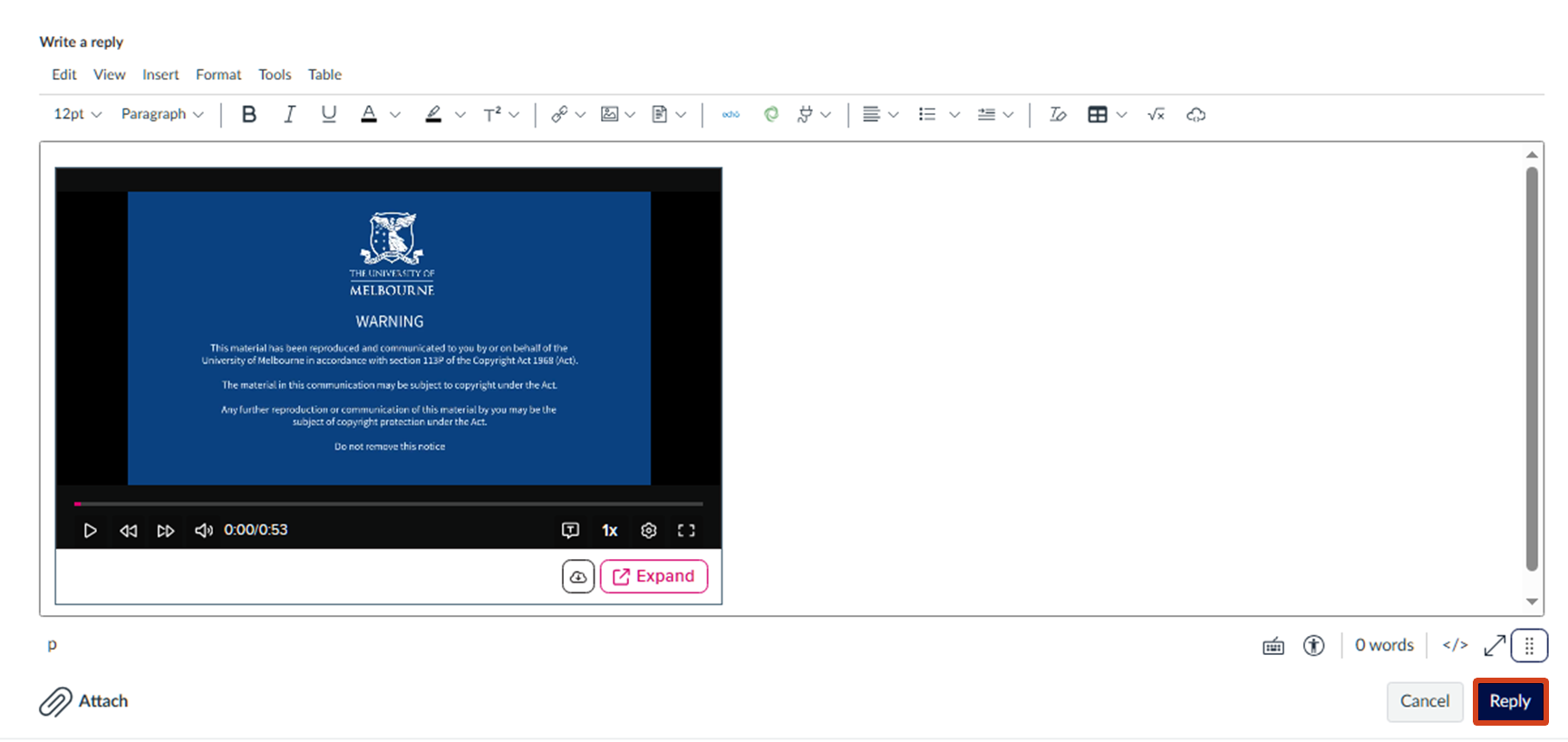
- The embed will then appear in the Rich Content Editor, allowing you to preview the embedded media. Click on Reply to post your media-embedded response to the Discussion.
Issues and support
If you have issues or concerns with Lecture Capture, please submit a support request.
This guide was last updated 27 Nov 2025.
Submit an LMS support request for further assistance or to report any errors or omissions in this guide.