View LMS subject content when offline
Sync your subject content in the mobile apps and view them as read-only while offline.
- Open the Canvas Student app.
- In the Dashboard, select the Options icon.
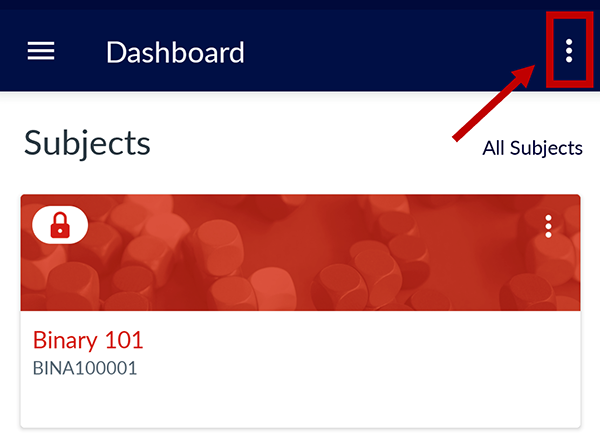
- Select Manage Offline Content.

- You can choose to:
- Select all subjects by selecting the SELECT ALL button [1]
- Select individual courses by selecting the check box next to a subject name [2]
- Select specific course content by selecting the down arrow next to a subject name, then selecting the content you want to sync. For example, Subject Overview.
- Once selections have been made, select the Sync button [3].

- A confirmation message displays with the approximate storage needed to sync content. Select the SYNC button.

- In the Dashboard, a progress bar displays during the sync process. Synced subjects will appear with a downward arrow to indicate that it has been downloaded and remain accessible when offline.

- When offline, only synced subjects are available for viewing.
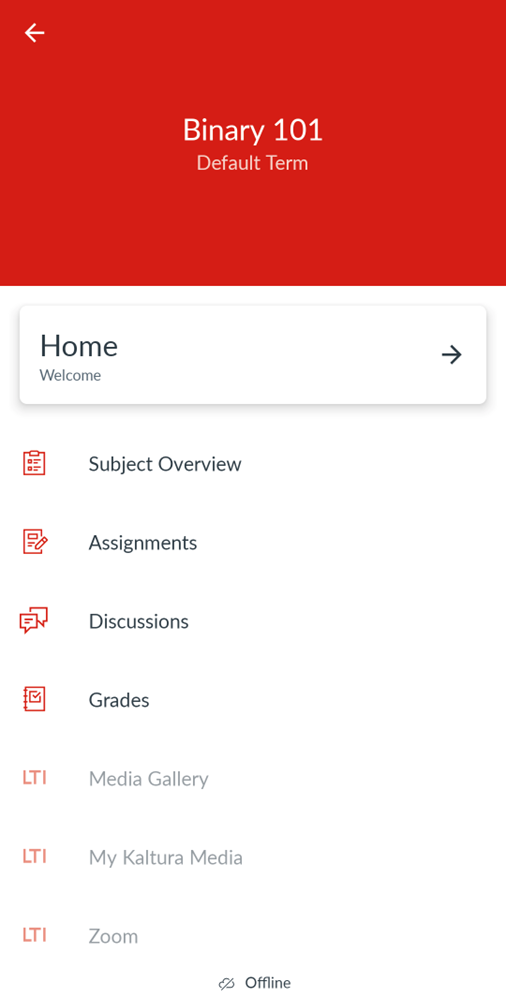
Note that the use of external tools that require an internet connection are not available when offline.
If you have any questions, please contact Student IT.
This guide was last updated 01 Jan 2025.
Please report any errors or omissions in this guide by submitting an LMS support request.