Document conversion with UDOIT
UDOIT offers the ability to convert from popular file formats such as PDF and DOCX to Canvas LMS pages (HTML)
This guide only refers to the Review Course Files option in UDOIT
- Navigate to UDOIT in the Canvas LMS subject navigation menu.
- Select the Review Course Files tab from the top menu in the UDOIT page.

A list of subject files will be displayed along with date of last update, any issue identified by UDOIT, alternate formats, and a button to review the file.
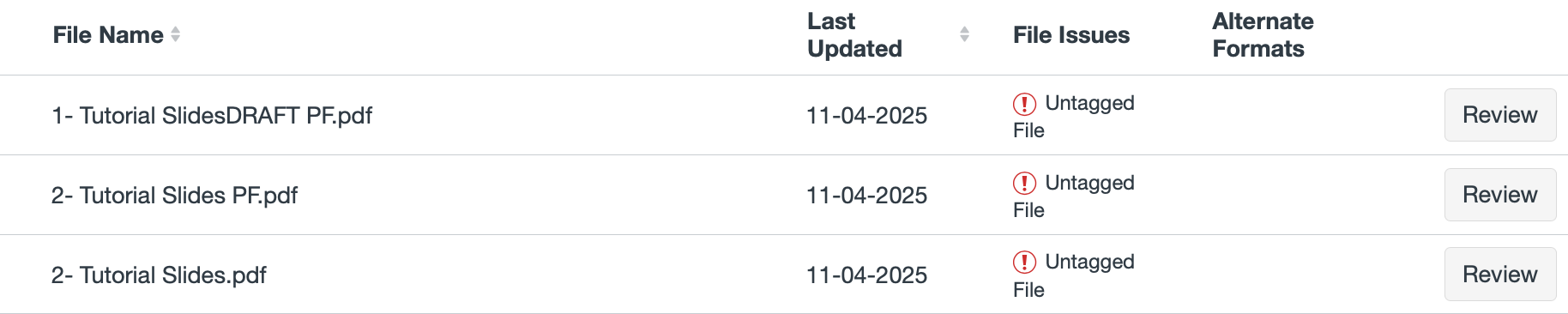
- Click the Review button to the right of the file you wish to review. You will be presented with a pop-up review panel.
Note: If the list is extensive, the pop-up will be located in the middle of the list, and may be located off-screen. Scroll up or down to locate the action window.

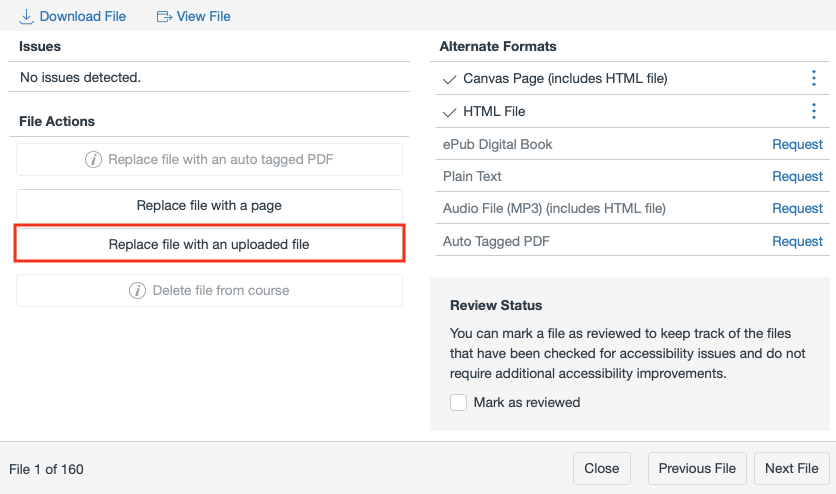
- Select the type of Alternate Format required (typically Canvas Page) and click the Request link. UDOIT will commence converting the file into the target format. The processing will take several minutes depending on the size of the file. Note: The maximum file size that can be converted is 20MB.
- Once the alternative format is complete, click the menu (3 vertically-aligned dots), and select View to review the output.

- If the previewed page is acceptable, you may choose to replace the original file links with the new page. This will seamlessly allow students to navigate to the new page wherever the previous document was linked to. Click the Replace file with a page to do this.
Do not proceed if the output of the page conversion is not suitable. While the original file will not be deleted, you cannot use UDOIT to relink the document once it has substituted new page links for the original file links.

- If the output of the alternate format is not suitable, you still have the option of replacing the file with a more accessible file, using the Replace file with an uploaded file button.
This guide was last updated 14 May 2025.
Submit an LMS support request for further assistance or to report any errors or omissions in this guide.