Field Friend Connect staff guide
This staff guide introduces Field Friend Connect, a platform designed to enhance interactivity and connection among students in field-based learning.
Designed akin to a social media site, Field Friend Connect is a platform designed to encourage sharing and interaction among students while they are in-field. Students are each given a profile (via their SSO login) to upload images and videos of their observations and findings while they are in the field, and posts are updated to a feed that is visible to staff and all students in the subject.
Student submissions and comments can either be assessed or left ungraded as an activity.
Accessing Field Friend Connect
To access Field Friend Connect, go to ffc.le.unimelb.edu.au
Sign in using your University of Melbourne SSO login details.
Linking a subject
Once logged into Field Friend Connect, you will need to link the subject in which you want to set up the activity.
- Click on the Link subject button located on the Home page. This will take you to the Add subject page.
- Select your subject from the drop-down menu that appears. Please note that only subjects where you are enrolled in as an Instructor or Subject Coordinator will appear and be available for you to link. Subjects where Field Friend Connect is already set up will not appear.
- Click Create subject.
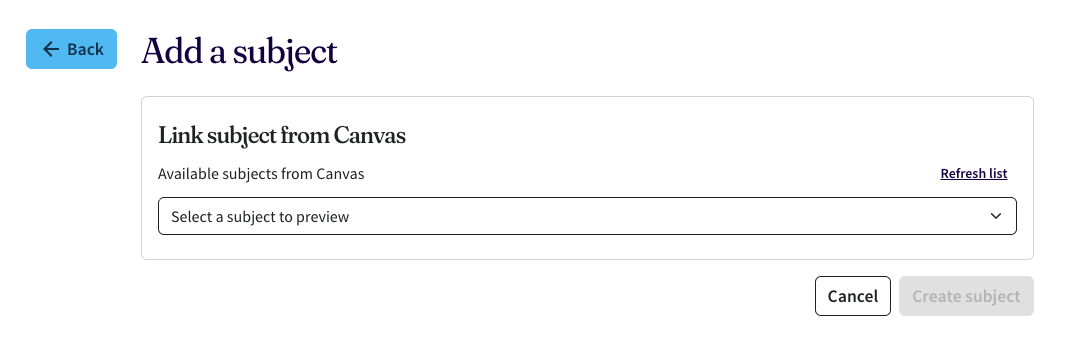
Once complete, you will be able to see your subject on the Home page.
- Settings is where you can edit the assignment’s requirements or add custom activity tags for students to use for filtering posts.
- Stats is where you will be able to track your cohort’s posts and activity. See user activity.

Adding an activity
To add an activity on Field Friend Connect, select Add activity from the Home page. This will take you to the Add an activity page.
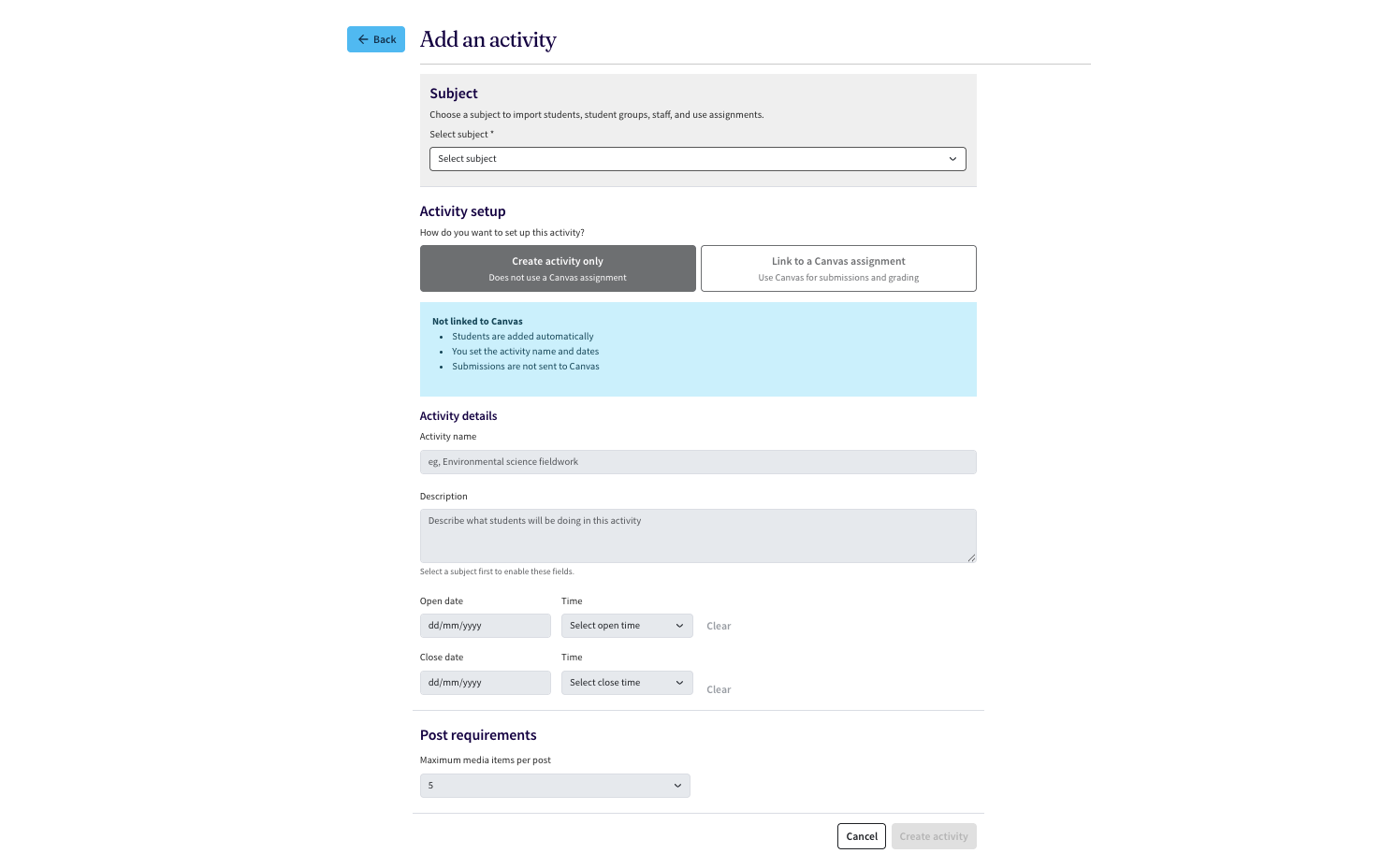
From there, select the subject in which you want to set up the Field Friend Connect activity in.
Ungraded activity
To set up an ungraded activity, select the Create activity only tab. From there, fill in the necessary activity details including activity name, description, and its open and close dates.
You will also need to set Post requirements for your students by setting the limit for the Maximum media items per post. For example, if the post limit is 5, students will be able to upload five images or videos, in a single post. This does not mean that the student can only post 5 posts for the whole time the activity is available to them.
Once complete, click Create activity. You will be redirected to the Home page and be able to see your created activity.
To edit your activity, click Settings next to your activity on the Home page. Click Save settings once changes have been made.
Please note that ungraded assignments will not be linked to Canvas. It will exist only in Field Friend Connect.
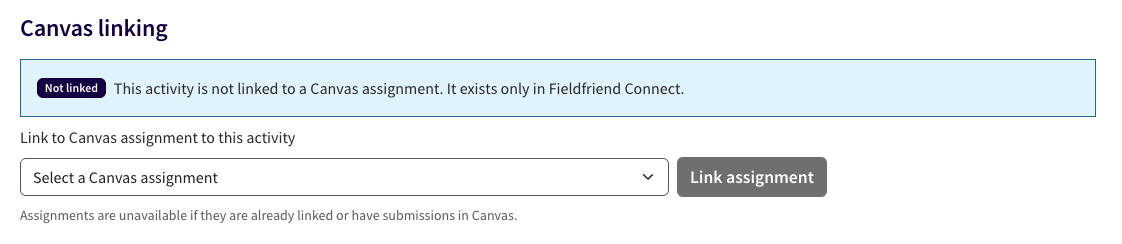
If you wish to turn your ungraded activity into an assignment, you can do so via Activity settings. To do so, create an assignment over on Canvas, and link it to Field Friend Connect by selecting it from the drop-down menu and clicking Link assignment.
Graded activity
To set up an assessed activity, you will first need to create and publish a Canvas assignment in order to link it over to Field Friend Connect. The assignment name, description, and availability dates are displayed from Canvas.
Please note that you will need to select Website URL as your Submission type in your assignment settings for a graded activity.
Once an assignment has been created on Canvas, return to Field Friend Connect and select the Link to a Canvas assignment tab. From there, choose the relevant Canvas assignment from the drop-down menu. The activity details should be pre-filled out and match what is on Canvas.

If your Canvas assignment is missing the necessary information, a notification will appear, asking you to complete the necessary set-up steps over on Canvas first.
You will also need to set Post requirements for your students by setting the limit for the Maximum media items per post. For example, if the post limit is 5, students will be able to upload five images or videos, in a single post. This does not mean that the student can only post 5 posts for the whole time the activity is available to them.
Once complete, click Create activity. You will be redirected to the Home page and be able to see your created assignment.
To edit your assignment’s Post requirements and Activity tags, click Settings next to your activity on the Home page. Click Save settings once changes have been made.
Marking a graded activity
Once the Until date of an assignment has passed, you will need to sync submissions from Field Friend Connect over to Canvas for grading. To do so, you can click on Sync grades for all with Speedgrader in the activity settings.
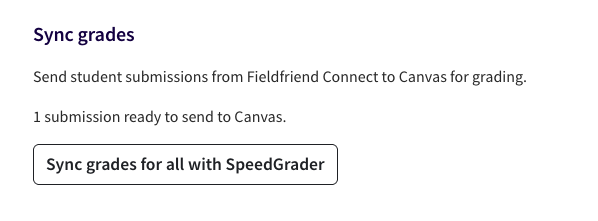
To view and grade students based off of their work on Field Friend Connect, you can use Speedgrader. The assignment preview will be available for you to see the student’s profile and their posts on Field Friend. Marking will still function as usual and grades will be available in the Gradebook once marking is complete.
User activity
To access analytics and view your students' user activity for a specific activity, you can click Stats from the Home page. It will take you to the Use activity page, where you can view broad statistics such as Total posts, Completion rate, and Days remaining until due date.
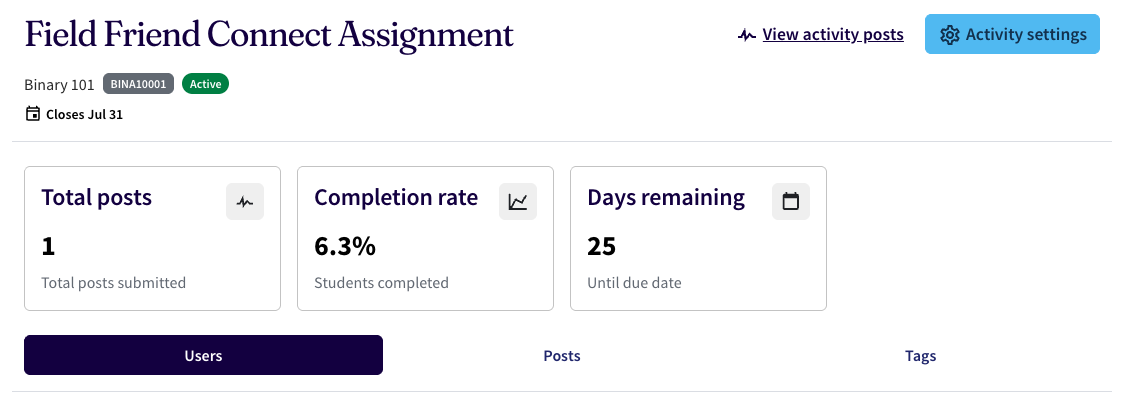
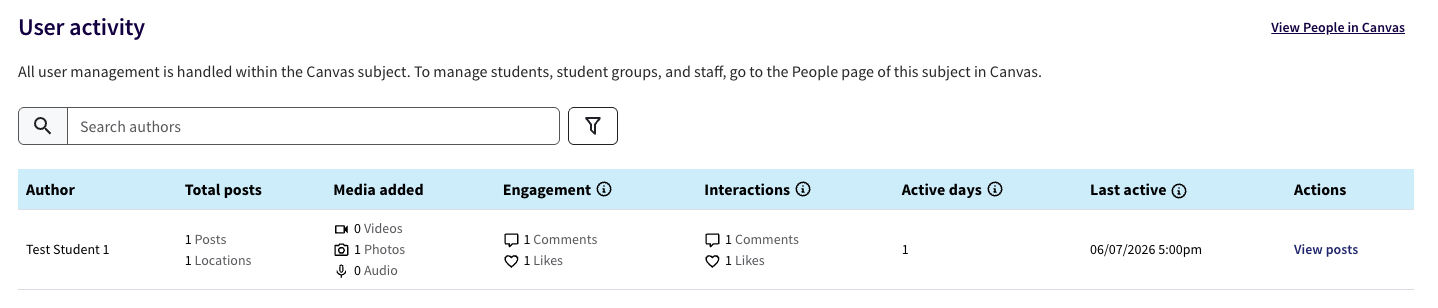
The following metrics are also available for you to view:
- Author: Name of the student
- Total posts: How many posts a student has made, and the total amount of locations they have been in
- Media added: The total number of videos, photos, or audio clips posted by a student
- Engagement: Total comments and likes on a students' posts by their cohort
- Interactions: Total comments and likes the student left on other posts
- Active days: Number of distinct calendar days the student has posted at least once for the activity
- Last active: Date and time of a student’s most recent post in the activity.
Additionally, you can click View posts to view all of the student’s posts on one page.
Please note that students will not be able to see and interact with each other’s posts if they opt to hide their posts from their cohort.
Support and resources
For support with Field Friend Connect, contact Teaching and Learning Innovation.
This guide was last updated 19 Aug 2026.
Submit an LMS support request for further assistance or to report any errors or omissions in this guide.