Photogrammetry
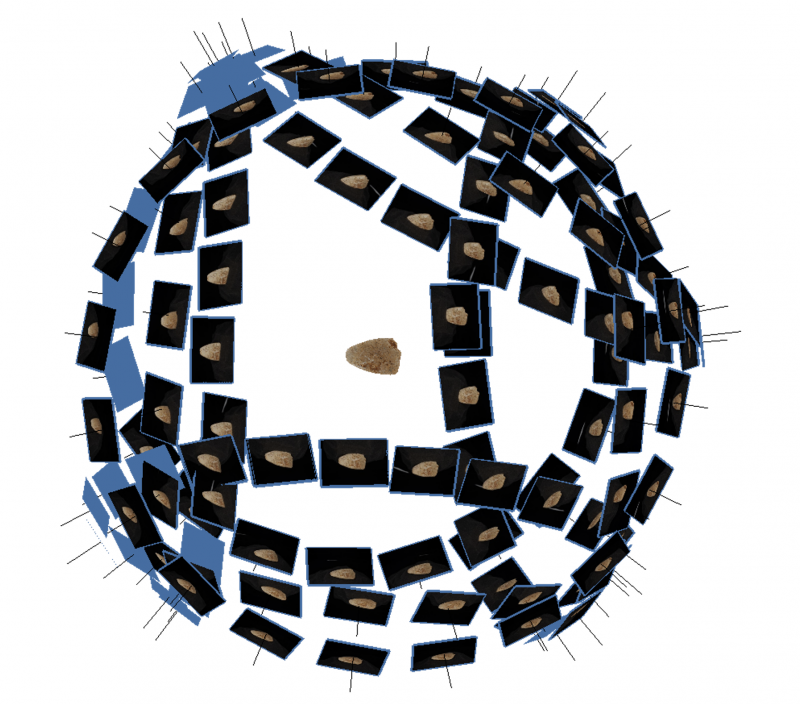
Structure-from-motion photogrammetry (henceforth simply ‘photogrammetry’) is the process of generating a 3D digital model of a real-world object from many photographs of the object. It is the most commonly used method of 3D digitsation of cultural heritage collections worldwide as well as for models on the University of Melbourne’s Pedestal 3D page.
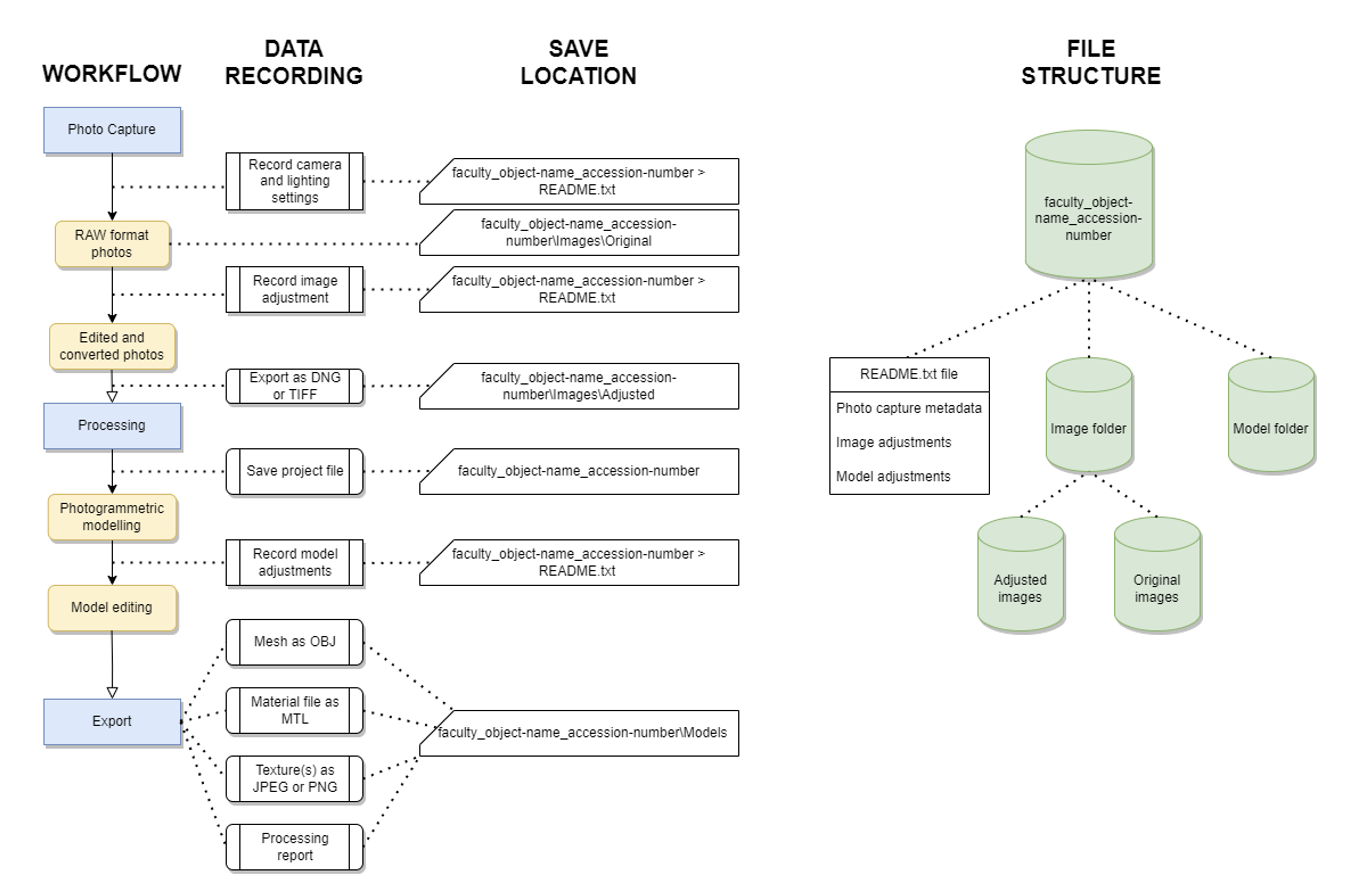
Photogrammetric modelling can be regarded in three stages, each of which involves different forms of data that should be recorded and retained in some manner. The steps and associated data are listed here:
- Data capture
- RAW format digital photographs (such as ARW, CRW, ORF, RW2)
- Photography metadata (recorded in a README.txt file)
- Lighting conditions, camera settings, the use of a turntable, camera settings, etc. Any information which would be helpful for future users to understand the capture process used to replicate the model.
- Processed and converted digital photographs (adjustments recorded in the same README.txt file; DNG and TIFF are recommended).
- Processing
- Photogrammetry software project file (PSX for Agisoft Metashape or RCPROJ for Reality Capture)
- Associated project folder containing the data used by the photogrammetry software
- Model editing metadata and software version number (recorded in the same README.txt file)
- Export
- 3D mesh data (OBJ)
- Diffuse texture files: colour data for the 3D mesh (PNG or JPEG)
- Material file: informs rendering software how textures are applied to the mesh (MTL)
- Supplementary texture files: such as normal maps or occlusion maps that impact how the 3D model appears (PNG or JPEG).
- Modelling reports (PDF)
Data capture
Photography for photogrammetry may produce anywhere between a few dozen and several thousand images depending on the needs of the subject and the desired level of detail for the 3D model. For optimal results, photography should be undertaken in your camera’s RAW format, as JPEG compression can remove details that may be important for photogrammetric modelling. RAW photos also retain more data than JPEGs, which provides more opportunities for processing photos prior to modelling.
During the process of data capture, it is advisable to separately record associated metadata about the project and save it in a README.txt file that will be stored with the project files. Metadata may include data such as the name of the project, the name of the target object/area/environment being modelled, an ID code associated with the target (such as a museum acquisition number), a brief description of the target, the date of the data capture, the lighting conditions under which the target was photographed, the camera used to photograph the object, and the name of the person operating it. If you feel any additional information is relevant, this is the time to write it down and save it in this document.
Photogrammetric modelling can also be improved by editing photos to eliminate areas that are over or under exposed and diminish the influence of shadows. It can be helpful to white balance the photographs or generate a colour profile to control for the impact of lighting. Editing photos can be undertaken using programs such as Adobe Lightroom. If changes are made to the photographs, it is best practice to keep a record of any adjustments made.
Many camera RAW files are in a proprietary format that may not be readable by photogrammetry software or accessible to other users. As such, it is recommended to convert these files to a non-proprietary format for processing, such as DNG or TIFF. There are many software options that can accomplish this, but most photo editing software is capable of the task. This also provides an extra layer of file management, offering an opportunity to rename the images to something recognisable rather than the titles automatically assigned (for example, ‘DJI0257’ becomes ‘haliartos_acropolis_112’).
Naming systems should accommodate both human and machine readability, such that they can be easily recognised and ordered. Numbers should begin with zeros so that they are machine ordered (e.g. 001-999 rather than 1-999).
It is best to convert the files to an archival file format that retains the image metadata, is readable across many platforms, and is minimally or losslessly compressed. The top recommended formats that fulfil these criteria are:
- DNG (Adobe Digital Negative): an openly documented archival format specifically developed for raw image processing.
- TIF/TIFF (Tagged Image File): the standard file format for archival storage of uncompressed images. This format comes at a significant cost in storage space.
These converted photos are more important to retain than the original RAW images, as they are the photos which will be used in processing. If records have been kept on any applied adjustments and the images are exported into an archival format, it may not be necessary to retain those original raw images (if storage space is a concern).
Processing
Once images are organised and any processing is completed, they can be used for photogrammetric modelling. Some commonly used programs are RealityCapture, Agisoft Metashape, and 3DF Zephyr.
Each of these programs will create a project file where the user is able to save their work and make edits or adjustments along the modelling pipeline. A project folder will be created where the data used in the project is stored – this folder must be retained for the project file to be usable.
Projects should be saved under a recognisable title following the recommended naming convention for discoverability. The photographs themselves are not stored in the project folder: they are accessed in their stored location as needed, following a fixed file directory. As such, it is important that you do not move the stored images once you begin processing. If images are accidentally moved the file path can be manually restored, but it is best to avoid this as much as possible, particularly for reuse by others.
Photogrammetric modelling produces 3D meshes which can be uploaded to Pedestal 3D, but it can also create other forms of data that may be useful for future research or analysis, such as point clouds and digital elevation models. As such, it is recommended to retain project files and folders so that this data can be accessed in the future without requiring the images to be reprocessed. These files can be saved in their default proprietary format. It is recommended to record the software version (e.g. Metashape Standard v1.8.2) in the README.txt file in the main project folder for backwards compatibility.
Photogrammetrists have influence over how the final model is created: photogrammetry is rarely an entirely automated process. As such, it is prudent for photogrammetrists to retain a record of their decisions and manipulations across the modelling pipeline so that the result can be better understood. Some examples of decisions that may be worth recording include whether the model was generated using point clouds or depth maps, whether aberrant points were deleted, whether and how multiple chunks were aligned together into a single model. Some of this information is saved by photogrammetry software, some will be lost if not deliberately recorded. This metadata can be saved in the README.txt file created during the process of data capture.
Pedestal 3D allows for high, medium, and low detail versions of the same model to be uploaded. Particularly if the model is quite large (>500,000 polygons) this option can make the models more accessible on low processing power devices. High detail models can be decimated to create medium and low detail models within photogrammetry software. It is recommended to generate 8192x8192 pixel texture for the high detail model, a 4096x4096 pixel texture for the medium detail model, and a 2048x2048 pixel texture for the low detail model. Normal maps can also be generated to provide the impression of finer resolution geometry on the medium and low detail 3D models.
Exports
Once a model has been finalised, it is ready for export and upload to Pedestal 3D. The high, medium, and low detail models should be exported separately and named according to the conventions outlined in the Pedestal 3D Upload Guide. The models should all be named identically except for _hp, _mp, or _lp at the end of the title to indicate high, medium, or low detail respectively. The following 3D mesh and image size are recommended for each level of detail:
- Low detail (lp): Up to 100,000 triangles and a 2048x2048 pixel texture.
- Medium detail (mp): 100,000 to 500,000 triangles and a 4096x4096 pixel texture
- High detail (hp): the full detail model and a 8192x8192 pixel texture
- If higher resolution colour data is required, it is recommended to upload multiple 8192x8192 pixel images rather than an individually higher resolution image.
Models should be exported as OBJ files for upload to Pedestal 3D, with the diffuse texture exported separately as an image file. An MTL file will also be produced informing hosting software how to connect the image file to the 3D mesh. As Pedestal 3D has upload limitations, it is recommended to export diffuse textures as JPEG or PNG images to allow more upload space for the 3D mesh. Normal maps, if you wish to use them, should also be exported in these formats.
Some photogrammetry software, such as Agisoft Metashape or RealityCapture provide an option to generate a modelling report which provides details on how modelling was completed and the estimated degree of error. If this option is available, it is worth exporting the report as a PDF file and saving it in the project folder for future records.
The following convention is recommended, with underscores connecting the elements:
faculty_object-name_accession-number_version-number_level-of-detail