Turn any Padlet board into a podcast
Transforms Padlet boards into Apple or Spotify podcasts by compiling audio and video posts into a continuous feed.
Introduction
Padlet has introduced a feature that converts boards into podcasts by compiling audio and video posts into a continuous podcast feed. Users can generate two dedicated feed URLs, a Real Simple Syndication (RSS) feed URL and Podcast feed URL which can be submitted to podcast platforms, including Apple Podcasts and Spotify for Creators, to distribute their content.
As this is a newly released feature in Padlet, some content may not convert seamlessly, and certain functionality may not perform as intended. To support your decision when selecting a podcast platform, please review the following platform limitations and considerations before proceeding.
Note: The Podcast feed URL is only available to the Padlet board owner and individuals who have been added with the Admin role.
Apple Podcast vs Spotify for Creators
Please note that:
- Apple Podcasts allow users to simply listen to the Padlet podcast without Apple ID login, however podcast subscription and review features are not enabled unless logged in.
- Publishing a Padlet board as a podcast on Spotify for Creators relies on having an existing Spotify account or creating a new account.
| Feature | Apple Podcast | Spotify for Creators |
|---|---|---|
Title and description of Padlet board becomes the podcast name and description |
|
|
Padlet background becomes the podcast cover image |
|
|
Audio file thumbnail becomes the episode artwork |
|
|
Supports audio Padlet posts |
|
|
Supports video and non-audio Padlet posts |
|
|
 RSS feed URL
 RSS feed URL
 Podcast feed URL supports only videos; does not support other non-audio files.
Get your board podcast ready
Please keep the following considerations in mind, as they will have a direct impact on the function and visual presentation of your podcast.
- The title and description of your Padlet board becomes the podcast name and description
- Posts in Padlet must have a subject title and/or body text in order to appear as an episode in the podcast.
- The body text attached to each board post aligns with the podcast episode descriptions.
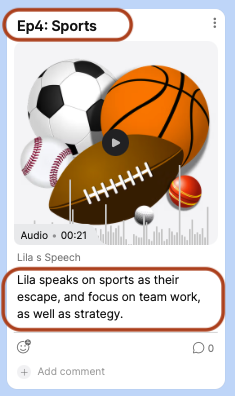
Sharing the board as a podcast
Padlet boards can be converted to podcasts by sharing the RSS and Podcast feed URLS to a podcast platform.
- To share the Padlet board as a podcast, click on the Share button in the top-right menu

- Feed URLs are located within Feeds, under the Advanced settings
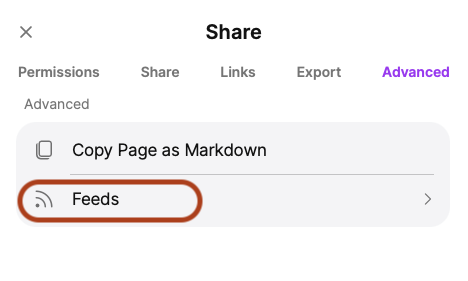
- Copy the appropriate feed URL into Apple Podcast or Spotify Creator
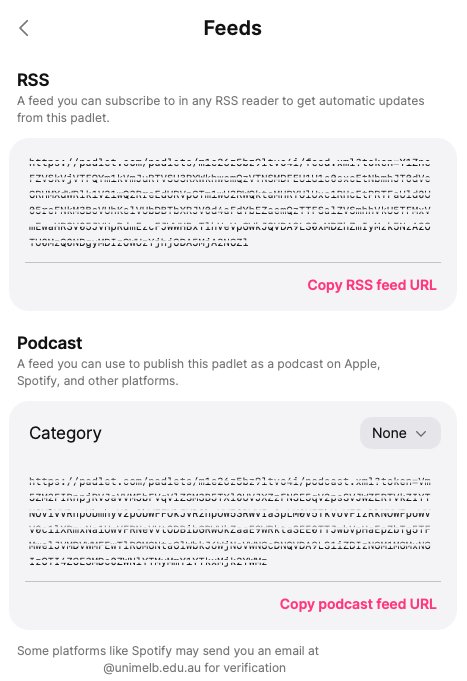
-
Users wishing to convert their board to a podcast via Apple, will need to navigate to the Apple Podcasts application.
Apple ID login is not necessary for users to simply listen. However, logging in will unlock additional features such as subscribing to shows, or syncing libraries across multiple devices.
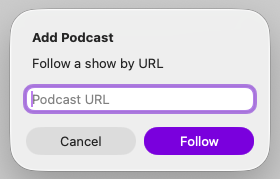
- Within the File settings of the Apple Podcasts app, click on Follow a Show by URL.
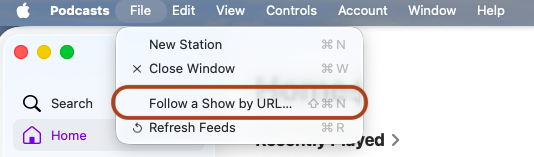
- Paste in the RSS or Podcast feed URL (per your preference) copied over from Padlet and click Follow.
- The podcast will appear in the application, detailing the number of episodes and provides a direct link to the Padlet board.
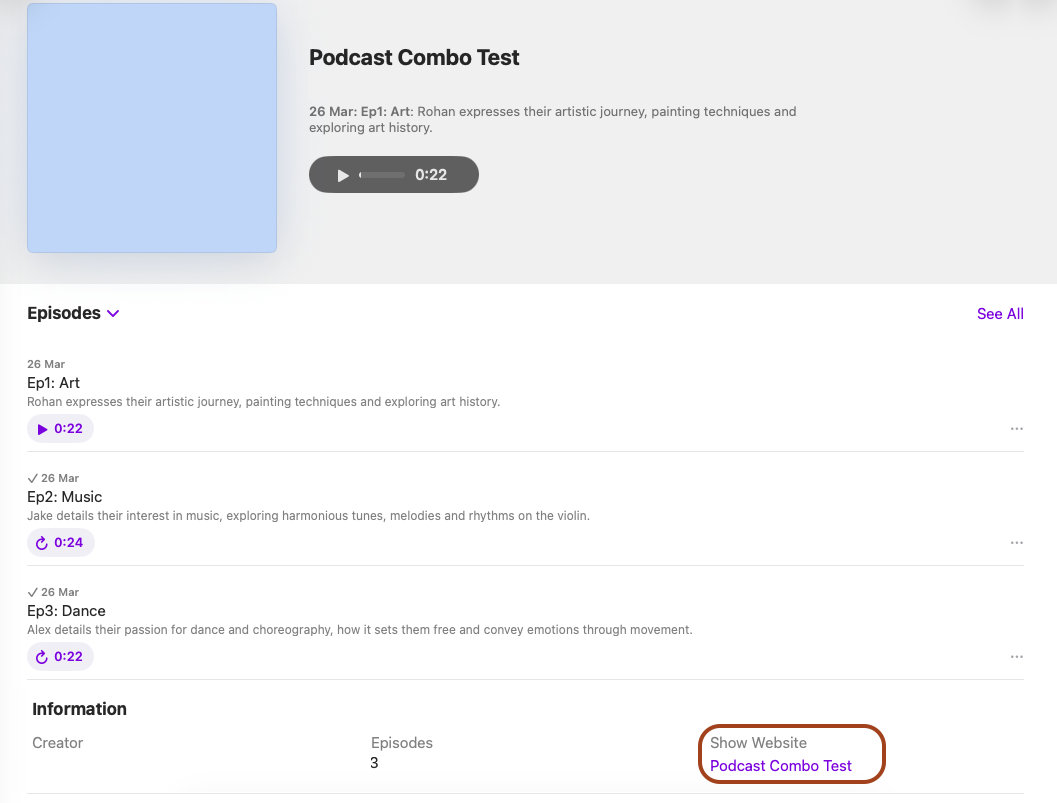
- The player bar is located at the bottom of the screen. Click the video to enter full-screen mode.

Important to note:
- Padlet posts must have a subject title and/or body text in order to appear as an episode in the podcast.
- Images, gifs and other non-audio files open up in a new browser link.
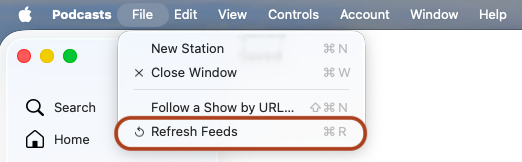
- When new posts are added or changes are made to existing posts or settings in the Padlet board, the Apple Podcasts app automatically updates but with some delay. There is the option to manually push through an update by clicking Refresh Feeds via the File settings.
Limitations
- The audio/video file thumbnail in Padlet does not become the episode artwork in Apple Podcast
- When the RSS feed URL is used to publish the podcast, the Padlet background does not become the podcast cover image.
- Within the File settings of the Apple Podcasts app, click on Follow a Show by URL.
-
Users who wish to publish their padlet as a podcast on Spotify will need to navigate to Spotify for Creators. An existing Spotify or new account is required to publish or manage a podcast.
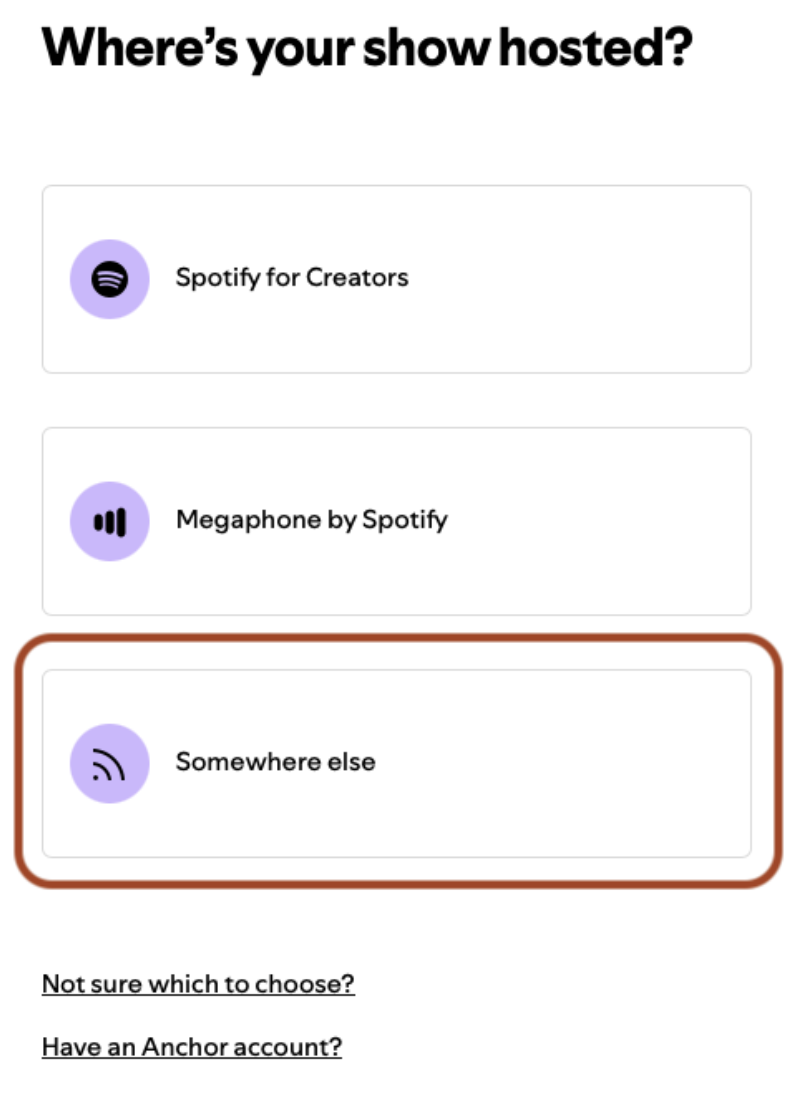
- Once logged in, users can select the Find an existing show option in order to input the Padlet RSS/Podcast feed URL. Proceed to select Somewhere else as the source.
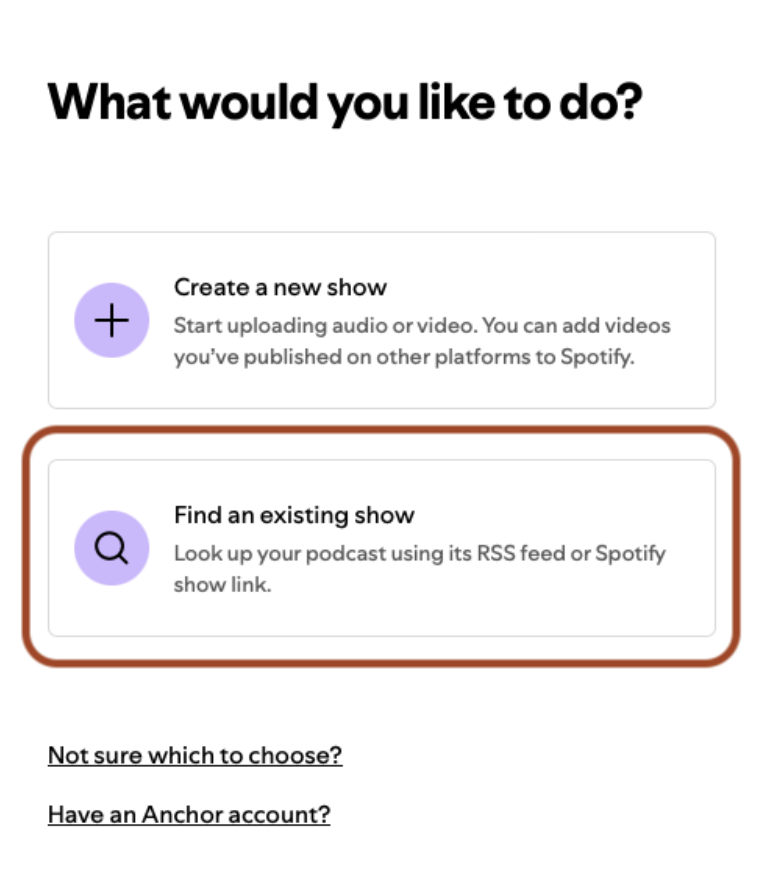
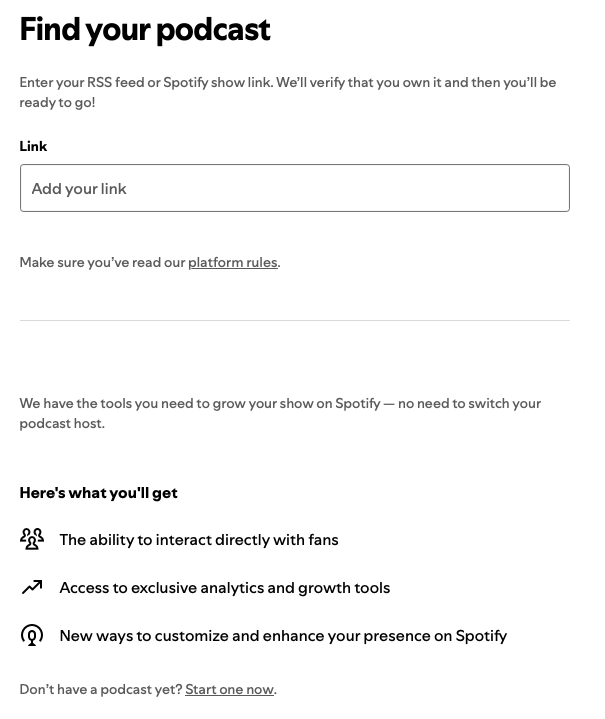
- Enter the Podcast feed URL from Padlet into the Link field.
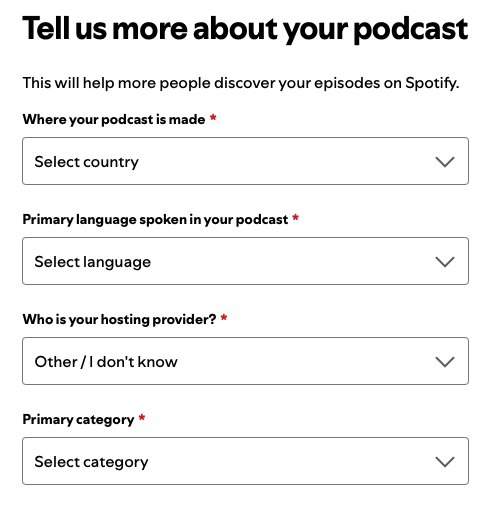
- Spotify will send through a verification code to the email address associated with the Padlet board. Once verified, you will be prompted to complete a set of questions to increase podcast exposure.
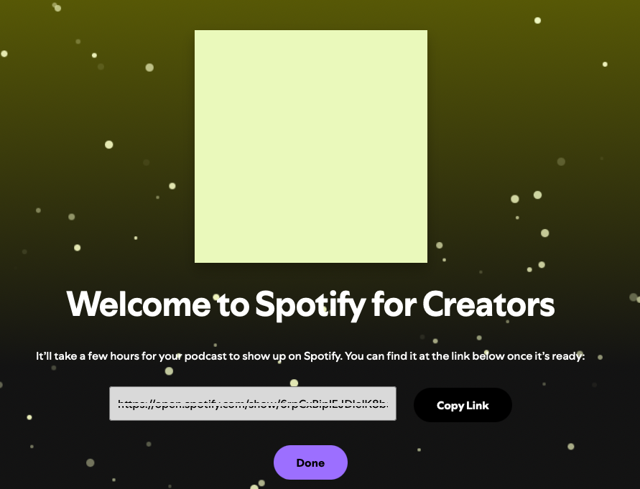
- A link to access the podcast will be provided once processed, please note that it may take up to 24 hours to generate.
Manually upload videos to a Spotify podcast
Spotify for Creators does not currently support Padlet boards that contain video posts. Only Padlet boards containing audio posts exclusively are supported for podcast conversion.
However, once your podcast has been created, you may manually upload video content directly within the Spotify for Creators platform. Please note that this process is independent of Padlet and is not synchronised with your Padlet board.
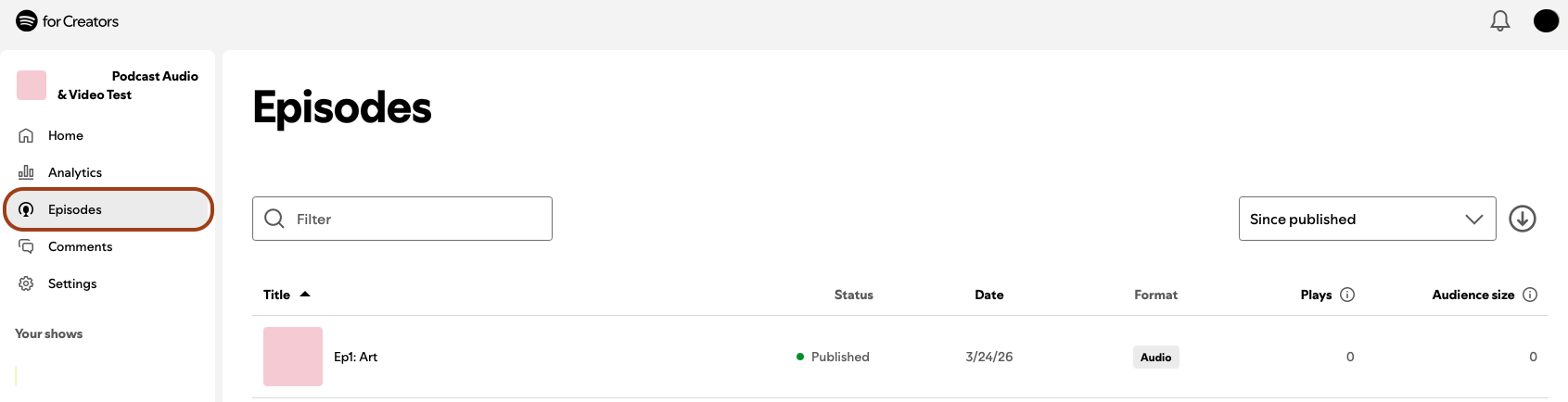
- To upload a video to your Spotify podcast, navigate to Episodes within your podcast show.
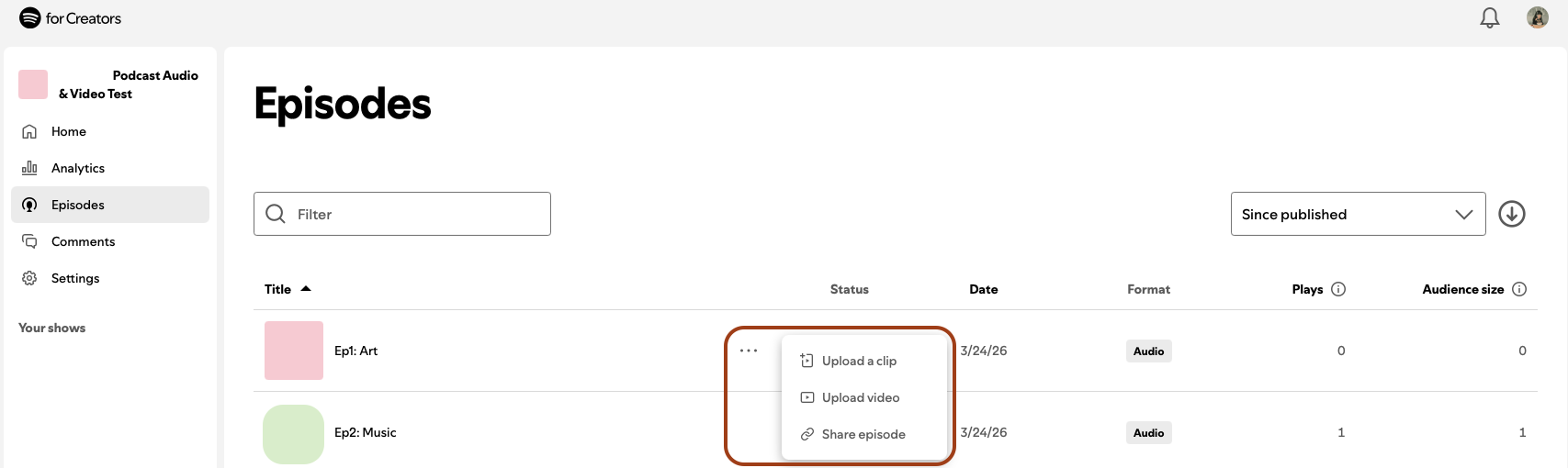
- Hover over the episode name to activate the three dot menu. Click the three dot menu and select Upload video.
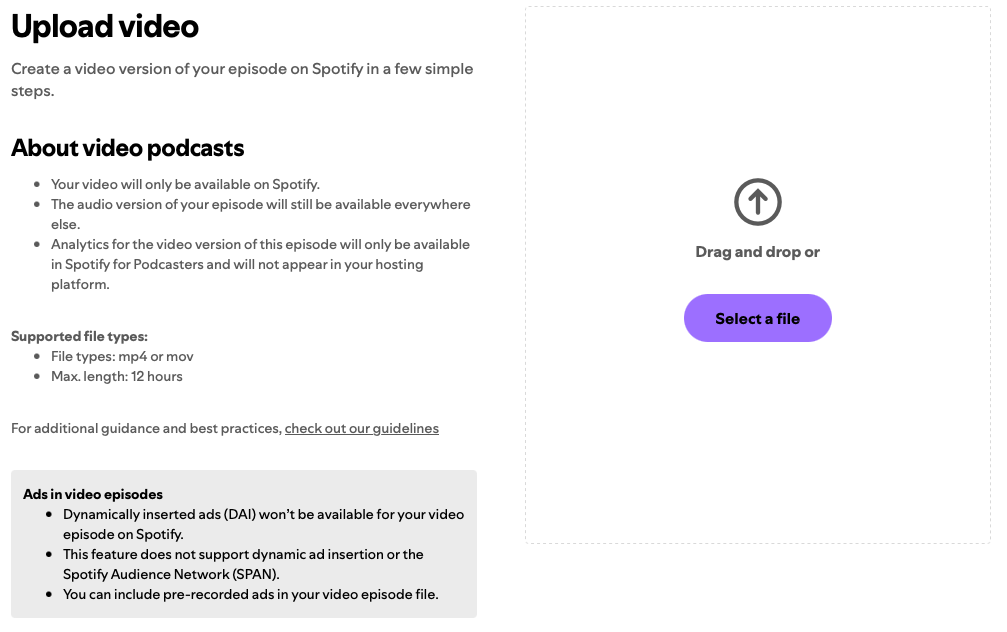
- You will be directed to the Upload video screen to select your video file.
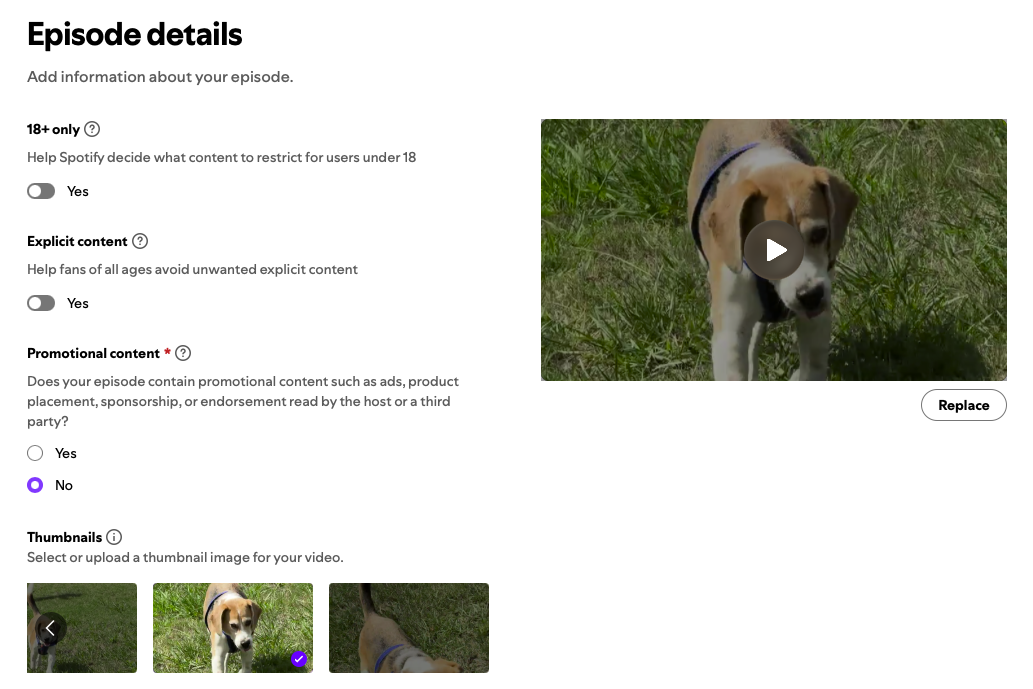
- Configure information (e.g content restrictions, thumbnail pictures) about your video via the Episode details screen before publishing.
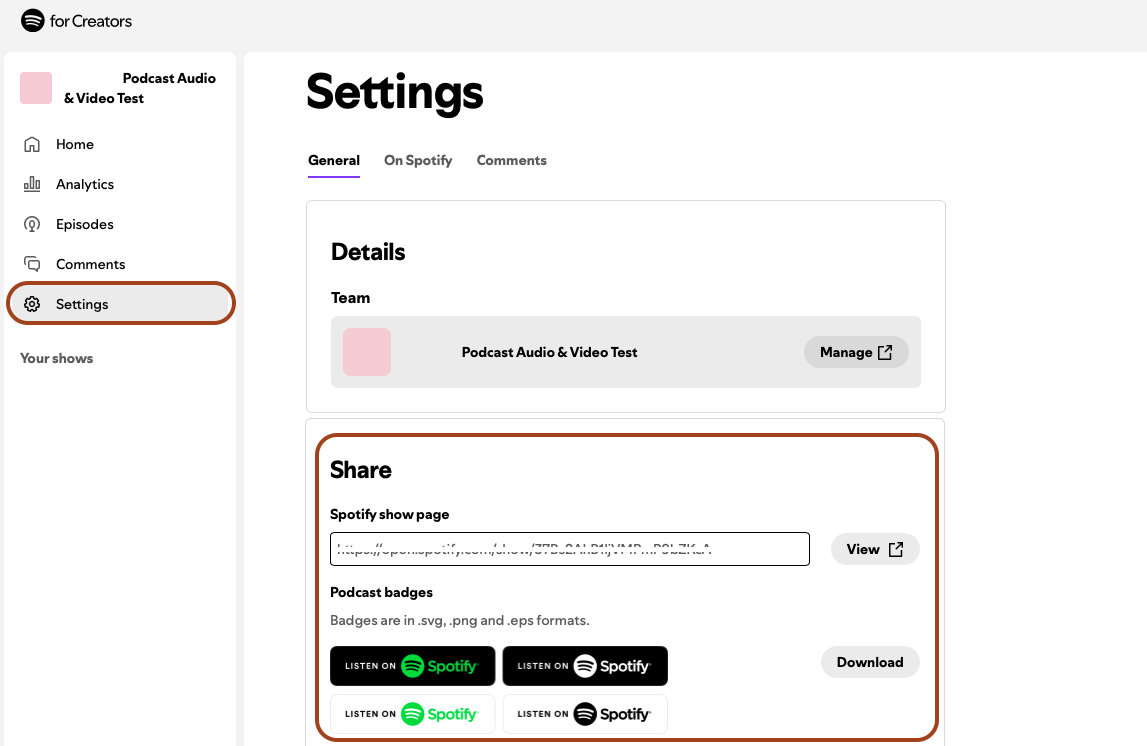
- Share the Spotify podcast link with others via Settings in Spotify for Creators.
- Once logged in, users can select the Find an existing show option in order to input the Padlet RSS/Podcast feed URL. Proceed to select Somewhere else as the source.
Support and resources
Padlet is supported by Teaching and Learning Innovation. Please submit a support request for assistance. For further instructions, inspirations and help please view the following guides.
This guide was last updated 07 Jul 2026.
Submit an LMS support request for further assistance or to report any errors or omissions in this guide.