Padlet LTI 1.3
Padlet LTI 1.3 in a Subject
Users can add Padlet directly into their subject content by selecting a specific Padlet and adding it directly within a Canvas assignment, module or page.
Assignments
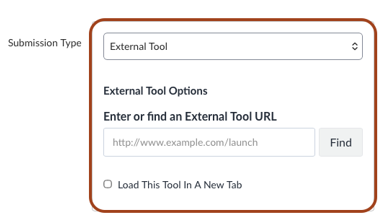
- When creating a new assignment, select External Tool from the Submission Type drop-down menu and click Find.
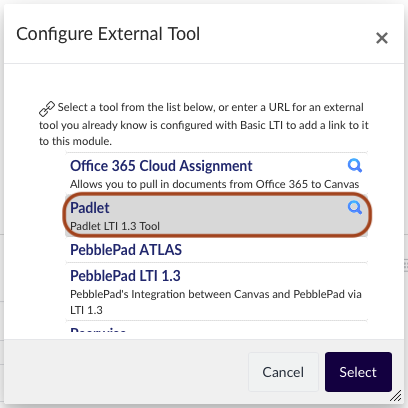
- From the Configure External Tool pop-up, locate and select the Padlet.
- Once connected, users can access their Padlet account via the LTI.
Modules
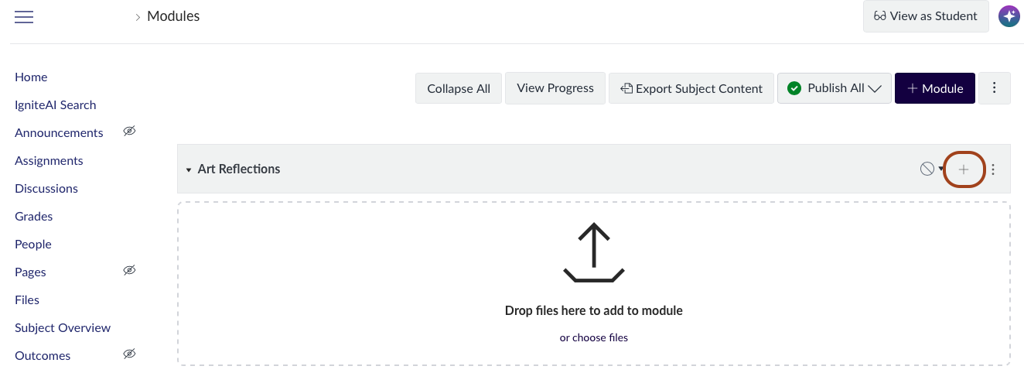
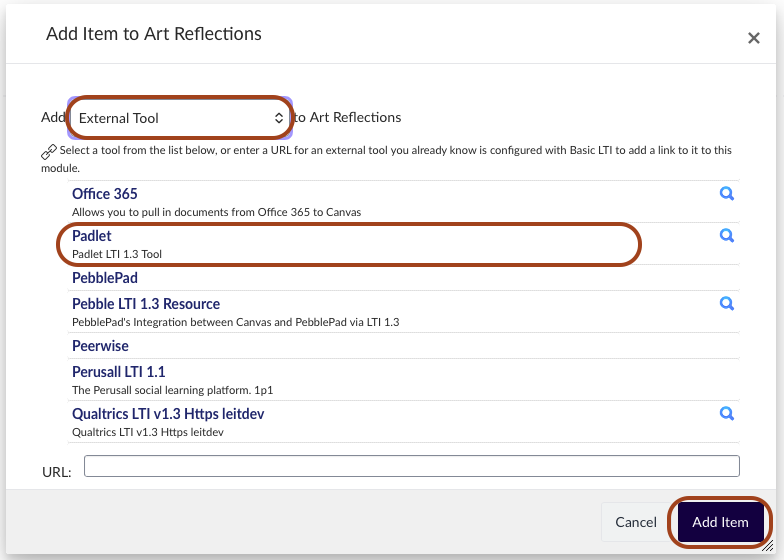
- Within Modules, users can click on the + icon and from the drop-down, select External Tool to add Padlet LTI 1.3 as an assignment.
- Once connected, users can access their Padlet account via the LTI.
Page
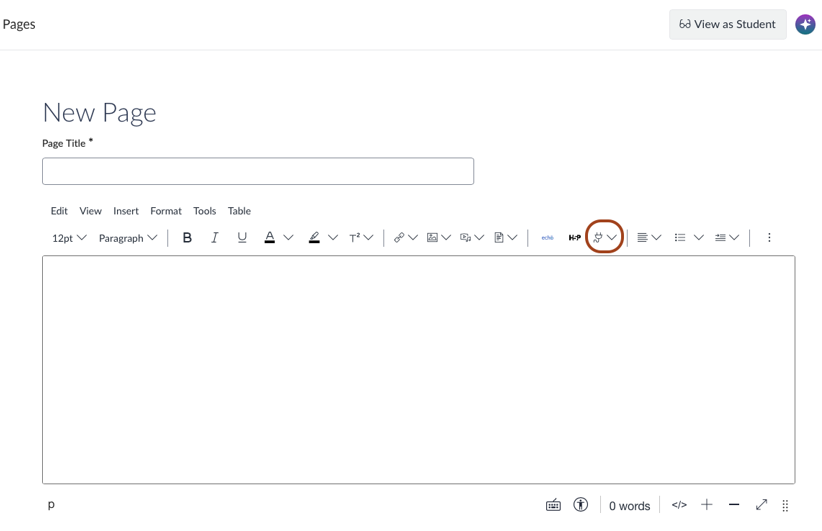
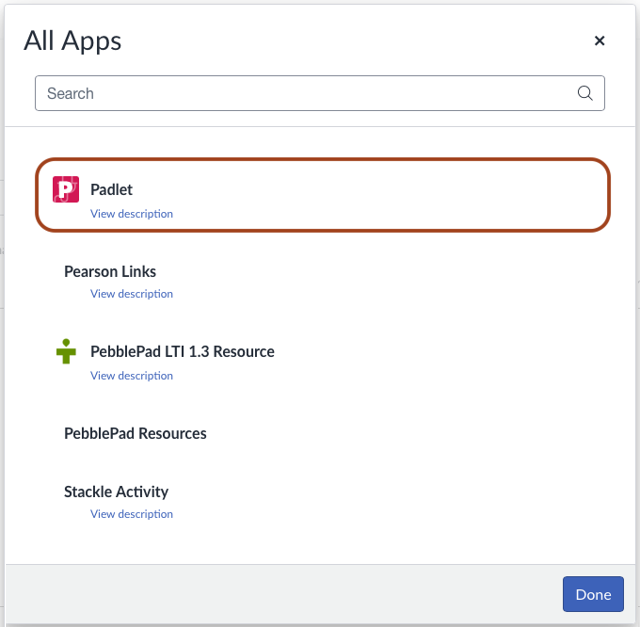
- When creating a new page in an LMS subject, users can click on the Apps icon within the Rich Content Editor and select View All to locate the Padlet LTI.
- Once connected, users can access their Padlet account via the LTI.
Functions within Padlet LTI 1.3
Upon connection, users will be able to access a number of Padlet functions from within Canvas.
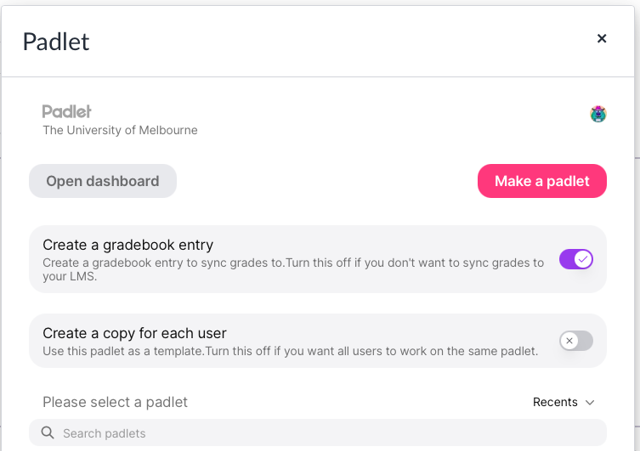
Functions include:
- Open Dashboard
Opens the user’s Padlet dashboard in a new browser tab.
- Make a Padlet
Directs users to Padlet’s templates in a new browser tab, where they can create a new Padlet. Newly created Padlets will automatically appear momentarily in the Padlet pop-up box in Canvas to select.
- Create a Gradebook Entry
Allows users to toggle grade synchronisation from the Padlet Gradebook with the LMS gradebook on or off
- Create a Copy for Each User
Allows users to choose whether each user receives their own copy of the Padlet or whether everyone works on the same Padlet. When this feature is toggled on, each student receives an individual Padlet, with the student’s name clearly displayed in the Padlet title.
Note: Individual student Padlet submissions cannot be accessed via the LMS, rather the Padlet creator is also automatically added as a collaborator to each student’s copy.
Padlet Gradebook
Padlet LTI 1.3 provides a more integrated experience between Padlet and Canvas, extending beyond simply accessing a Padlet from a subject. With LTI 1.3, users can now utilise Padlet gradebook and grade passback features when a Padlet has been added as an assignment in the LMS.
Note: Students must be signed into the LMS via SSO and access the Padlet assignment through their LMS subject to ensure that their contributions are correctly linked to their LMS account and that grades can be synced.
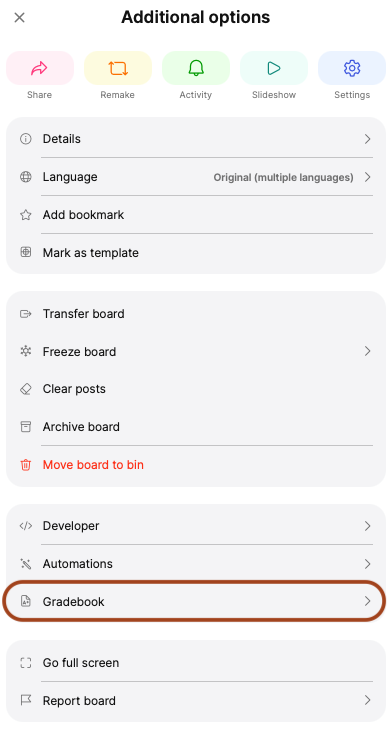
The Padlet Gradebook is accessible via the three-dot-menu at the top-right corner of a Padlet board.

Under Additional Options, click on Gradebook.
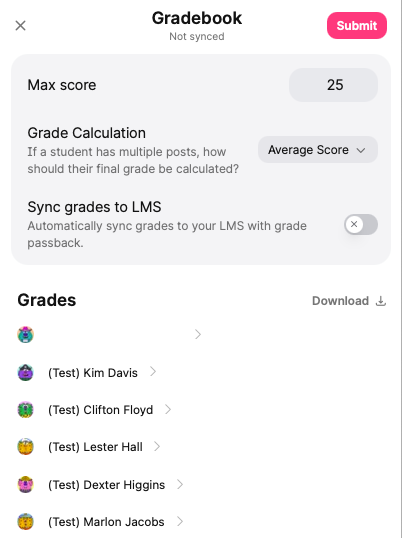
Gradebook Settings
Max Score
Users can set the maximum score, from 1–100, that can be awarded for each post using Max Score. Noting that scores must be whole numbers as decimals are not accepted.
Grade Calculation
In addition, grades for students with multiple posts can be calculated by either Average Score or Highest Score from the Grade Calculation drop-down. Average Score is most useful for peer-to-peer grading, where multiple scores may be awarded to the same post, whereas Highest Score is most useful for teacher-to-student grading, where a single final score is awarded to each post.
Sync grades to LMS
This can be toggled on to allow automatic grades and feedback syncs to the LMS. However, it is recommended to keep the toggle off until grades are finalised as each grade update may initiate an email to all students affected.
CSV Download
Users also are provided the option to download grades and feedback as an Excel csv. file
Entering scores and feedback
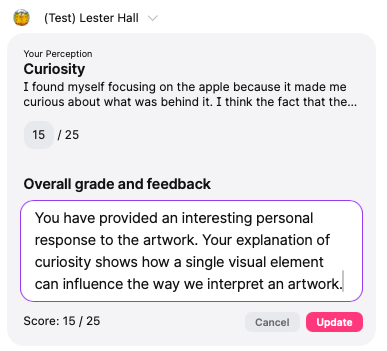
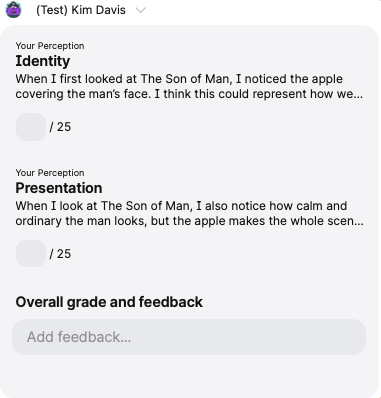
When entering grades, users can enter the score and written feedback. Students with multiple published posts will have their posts grouped under their name in a drop-down menu and feedback must be entered and the user must click Update before moving on to the next student.
Note: For Padlets where Create a Copy for Each User is toggled on and marking is shared across multiple teaching staff, the Padlet creator will need to invite other staff as a collaborator and assign them as Admin on top of the general visitor and/or University of Melbourne member access setting.
Grade Passback
Once grades have been finalised, users can toggle on the Sync grades to LMS setting and click Submit to initiate the synchronisation of grades from Padlet to the LMS assignment.
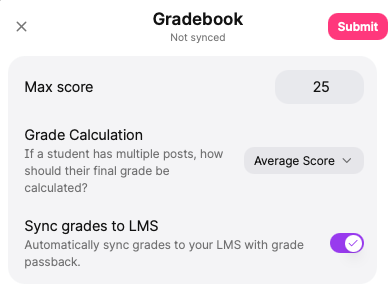
Upon successful grade submission, the sync status will update from ‘Not synced’ to ‘Last synced’ with a. timestamp, and a tick icon will be displayed confirming that the grade has been successfully synchronised.
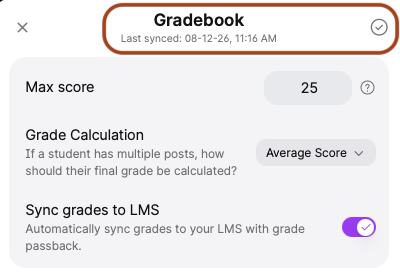
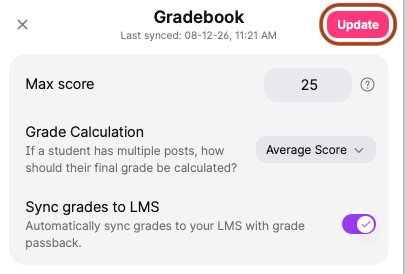
To update a grade, adjust the score and/or written feedback as required. Once changes are made, the Update button will appear. Click Update to sync the revised grade to the LMS Gradebook.
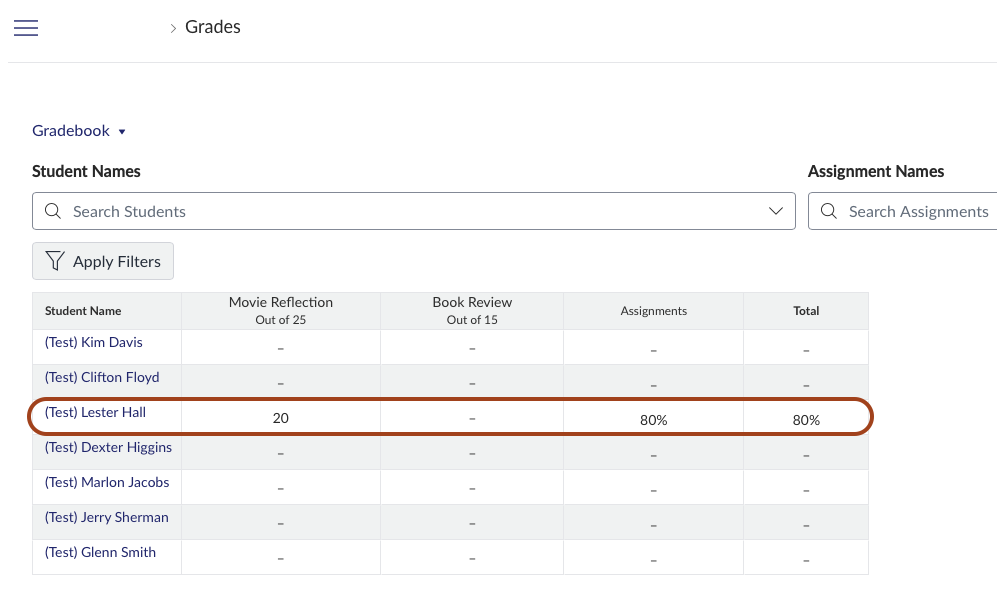
The synced grades will become visible in the LMS gradebook.
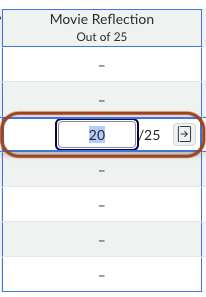
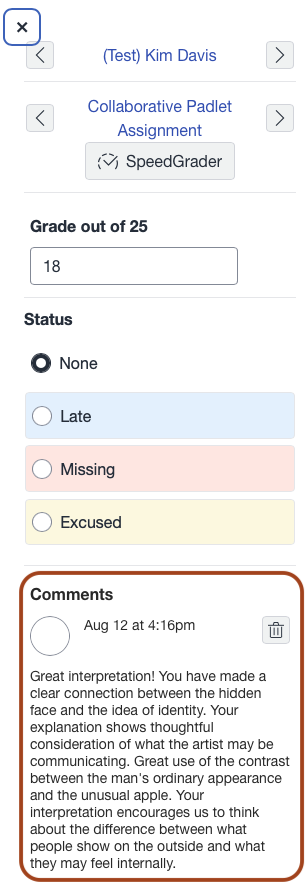
To view the written feedback in the LMS gradebook, select the individual grade cell in the LMS Gradebook, then click the arrow icon to expand the grade details.
For information on how to use Padlet and additional features, please refer to our list of Padlet guides.
This guide was last updated 27 Aug 2026.
Submit an LMS support request for further assistance or to report any errors or omissions in this guide.