Lecture Capture: Opt-out process
The University follows an opt-out model for the Lecture Capture service. By default, flexible access to digital lecture recordings is a service provided by the University to support a diverse student cohort with differing backgrounds and learning contexts.
Lectures and seminars for all subjects scheduled in the central timetable will be automatically captured and live-streamed if they take place in Lecture Capture enabled venues. For more information regarding this decision see University’s Lecture Capture practice guidelines.
Staff may request to opt-out of automated recording and/or live-streaming for their subject. Note that you need to be listed as a Subject Coordinator or Instructor in the subject in order to submit a request for that subject.
Important: Opt-out requests for lecture recordings are subject to review and approval by your Faculty’s Associate Dean. Once opt-out requests have been received, Teaching and Learning Innovation will contact Associate Deans for approval.
The following process applies:
- Log into the Schedule Assistant.
- Click Opt Out – Submit/Review followed by Submit an opt out request from the drop-down.
- Using the Select a subject drop-down menu, select your subject (for example, UNIM10001).
- Using the Select a section drop-down menu, select the offering of your subject (for example, UNIM10001_2026_SM1.
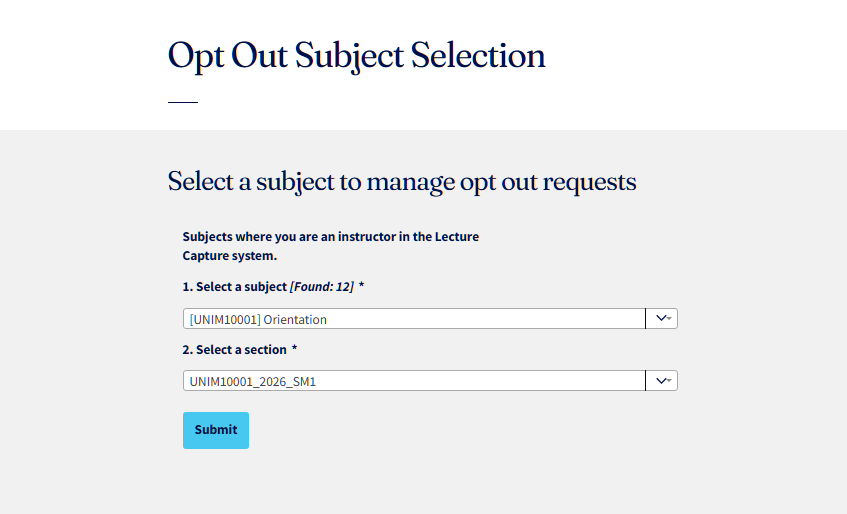
- Click the Submit button to confirm your subject offering selection.
- One confirmed, all active schedules for your subject will appear. Using the table, select the schedule(s) you wish to opt-out.

- Under Type of opt-out, select either:
- Opt out of ALL (recording and live streaming)
- Opt out of live streaming ONLY
- Under Reason to opt out drop-down, select the reason that best reflects your request.
- Click the Submit button to confirm.
- A pop-up window to confirm the opt-out request will be displayed. Click OK.
After submitting your request:
- A request receipt will be displayed on screen, showing your opt-out request ID.
- You may be contacted via email for more information around your opt-out request.
- On the Scheduling Assistant landing page, you can click on Opt Out – Submit/Review followed by Manage opt-outs to view or delete your opt-out requests.
Issues and support
If you have issues using the Schedule Assistant, please submit a support request.
This guide was last updated 10 Nov 2025.
Submit an LMS support request for further assistance or to report any errors or omissions in this guide.