Types of Alternative Exam Arrangements (AEAs) and the submission process
What are AEAs?
Alternative Exam Arrangements (AEAs) are study adjustments granted to students who require changes to the scheduled conditions or format of an exam. AEAs can apply to all timed exams including practical exams, and can also be applied as appropriate to in-class and mid-semester tests.
The Student Equity and Disability Services (SEDS) team determine a students' AEA conditions based off of their Academic Adjustment Plan (AAP) and can be approved for a single exam instance or for long-term adjustments that students with ongoing challenges may need.
For information on how to apply for AEAs and its deadlines see the AEA guide on Staff Hub.
For information for students on how to prepare for an AEA exam and for answers to frequently asked questions, see Alternative Exam Arrangements.
Transition from USBs
Previous exam processes for AEA students taking digital exams involved the use of USB drives to collect and transfer student exams between the exams team and faculties. To reduce assessment security risks and to improve efficiency, this process has now been replaced and transitioned to a more secure method.
Instead of using USB drives, AEA students taking digital exams can now either upload their completed exam onto Canvas, or work directly on Cadmus, depending on their AEA requirements.
Types of AEA requirements
There are 5 main types of AEA requirements that students can be offered.
-
Type 1 exams are originally written exams.
- AEA exam paper format: Cadmus exam
- Equipment: Student provides their own laptop with Respondus Lockdown Browser
Students offered a Type 1 adjustment may have dexterity requirements. Set up a Cadmus exam shell for these students to type their response.
No formatting changes will be needed for exams that are originally digital exams. If formatting changes are needed, see Type 1a. Students are also provided with a print-out of the exam paper.
-
Type 1a exams are originally written OR digital exams. Spellcheck is required and will need to be enabled for these exams. Students may handwrite equations, graphs, and/or drawings if needed.
- AEA exam paper format: Cadmus exam with spellcheck enabled
- Equipment: Student provides their own laptop with Respondus Lockdown Browser
Students offered a Type 1a adjustment may have dexterity requirements and will need spellcheck. Set up a Cadmus exam shell for these students to type their response.
If the digital exam is already in Cadmus, no changes are needed.
Type 1a students need changes to originally digital exams if they contain short answer questions (if they are in LMS Classic Quiz). If the original digital exam only has multiple-choice questions, no changes are required.
-
Type 2 exams are originally written OR digital exams. Students will need to type with assistive technology in Microsoft Word, and upload their response to the Canvas exam shell. Students may handwrite equations, graphs, and/or drawings if needed.
- AEA exam paper format: Canvas Classic Quiz with file upload
- Equipment: University provided laptop without Respondus Lockdown Browser
Students offered a Type 2 adjustment need accessibility software such as text-to-voice or speech-to-text. They do not need to access other software outside of Microsoft Word.
LMS Classic Quiz shells with a downloadable Microsoft Word file will need to be set up. Students will type their responses in Microsoft Word and upload to the same shell to submit.
Digital exam questions will need to be converted to a Microsoft Word document and uploaded to the LMS Classic Quiz shell.
-
Type 3 exams are originally written OR digital exams. Students will need advanced assistive technology and respond in a Microsoft Word document to be uploaded into a Canvas exam shell. Students may handwrite equations, graphs, and/or drawings if needed.
- AEA exam paper format: Canvas Classic Quiz with file upload
- Equipment: Student provides their own laptop without Respondus Lockdown Browser
Students offered a Type 3 adjustment will need advanced accessibility software that is not supported on fleet devices or with Respondus Lockdown Browser enabled.
Such software could include, but are not limited to:
- Read and Write
- Speechify
- Dragon
- Students will need to have their accessibility software installed on their own device.
LMS Classic Quiz shells with a downloadable Microsoft Word file will need to be set up. Students will type their responses in Microsoft Word and upload to the same shell to submit.
Supervisors will need to confirm that the file has been removed from the student’s personal device after the exam is complete.
-
Type 4 exams are offered to students with extenuating circumstances that are not captured in other AEA types. These will include various adjustments depending on student needs, that go beyond advanced accessibility software that is not supported on fleet devices or while Respondus Lockdown Browser switched on.
For bespoke needs, these AEAs should be raised with the Student Equity and Disability Services (SEDS) and the Examination and Graduations team before being finalised.
Uploading exam files to exam shells
A Canvas quiz or Cadmus exam shell will be created by the Student and Scholarly Services (SASS) exams team. Each student will be assigned to an individual shell. This shell must not be reused for other students or for the main cohort, as AEA arrangements and timings are tailored to individual needs.
Faculties or department representatives must upload the student’s exam file directly into the shell. The Teaching and Learning Innovation exams team will then perform digital health checks where they will check the configuration and settings.
If Respondus Lockdown Browser is required, this will be enabled by the Teaching and Learning Innovation exams team.
Deadlines for uploading content is as per the digital health check timelines.
Please ensure that any exam papers uploaded into Canvas are properly restricted using Canvas' file and folder restriction settings.
This will prevent students from accessing files before the intended release time.
Instructions on how to restrict files and folders in Canvas can be found in the how do I restrict files and folders guide.
Cadmus (Type 1 and 1a)
- Log into Canvas and navigate to your subject.
- Locate the student’s individual exam shell within Canvas. You can identify the exam shell by the student ID number attached to it.

- Click Go to Cadmus to load the exam.
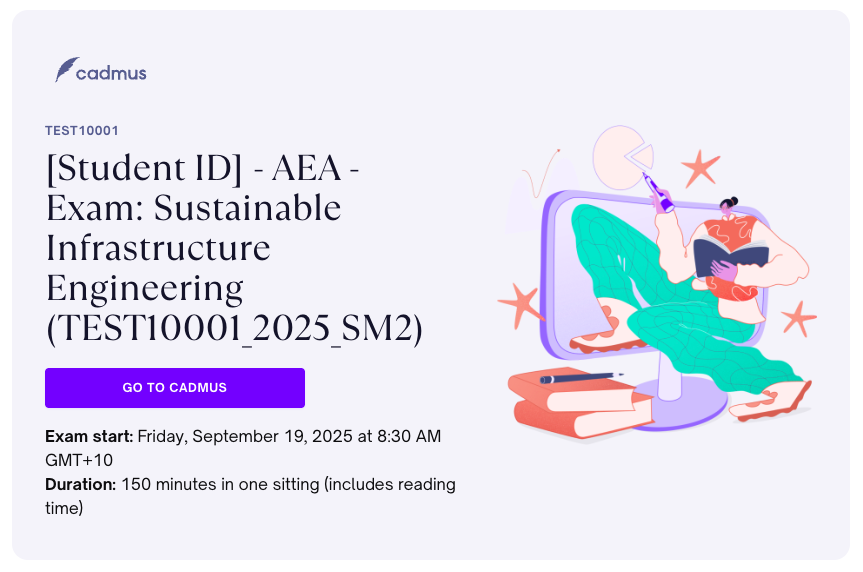
- Add your exam information or any relevant information your students may need to complete the exam digitally. This may include attaching a PDF version of the exam if the student requires one.
- Click Release when the instructions are finalised.
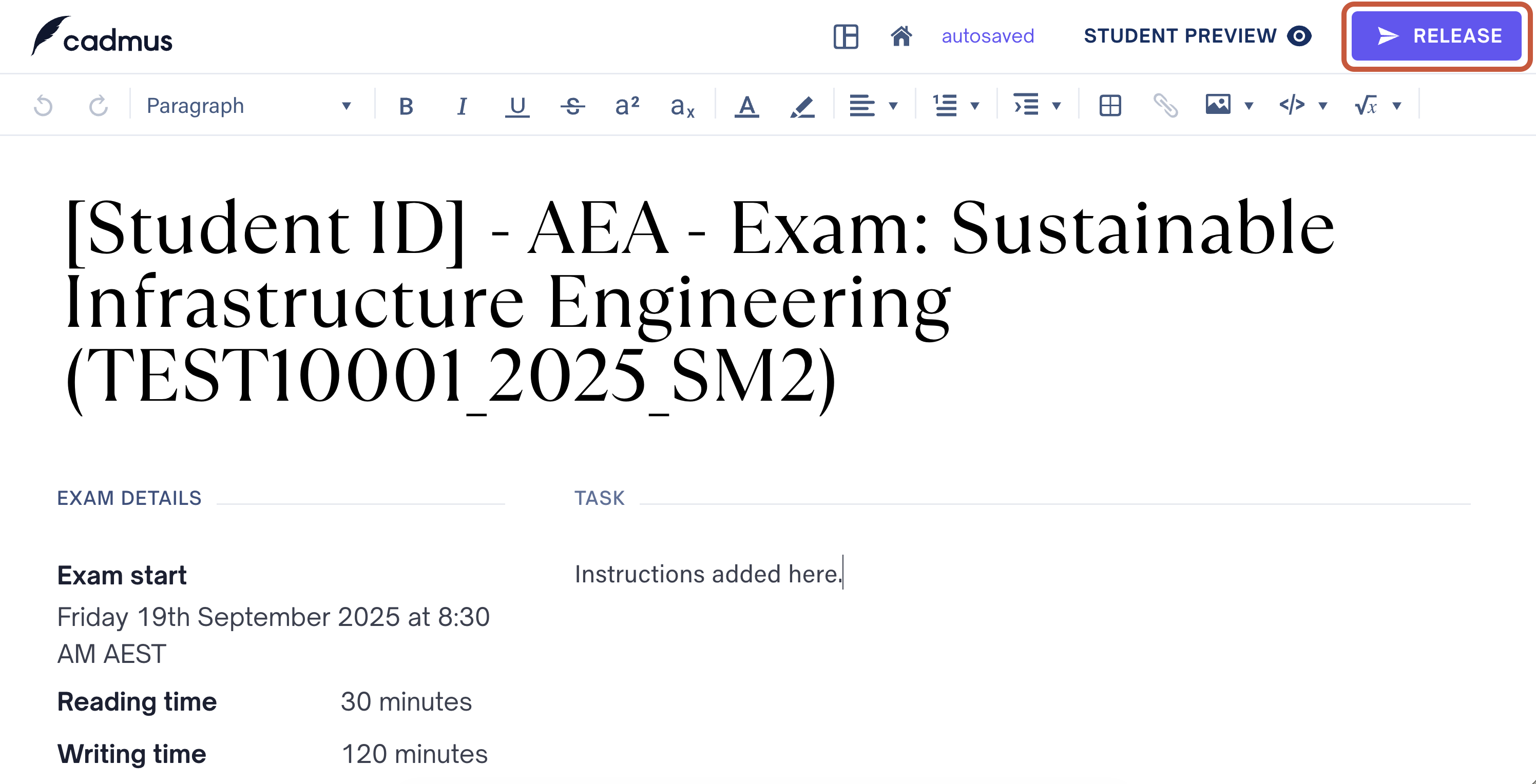
- Confirm once again by clicking Release instructions.
Canvas Quiz (Type 2, 3 and 4)
- Log into Canvas and navigate to your subject.
- Locate the student’s individual exam shell within Canvas. You can identify the exam shell by the student ID number attached to it.
- On the exam description page, click Edit.
- Under Assign To, check that the exam shell is assigned only to the specific student.
- Navigate to the Questions tab. There will be two questions: File download and Upload.
- Edit the File download question and upload your exam questions over the placeholder text. Upload a Microsoft Word document unless you have discussed accessibility of other file formats with the SEDS team. For more information on how to upload a document, see the how do I upload a document in the Rich Content Editor guide.
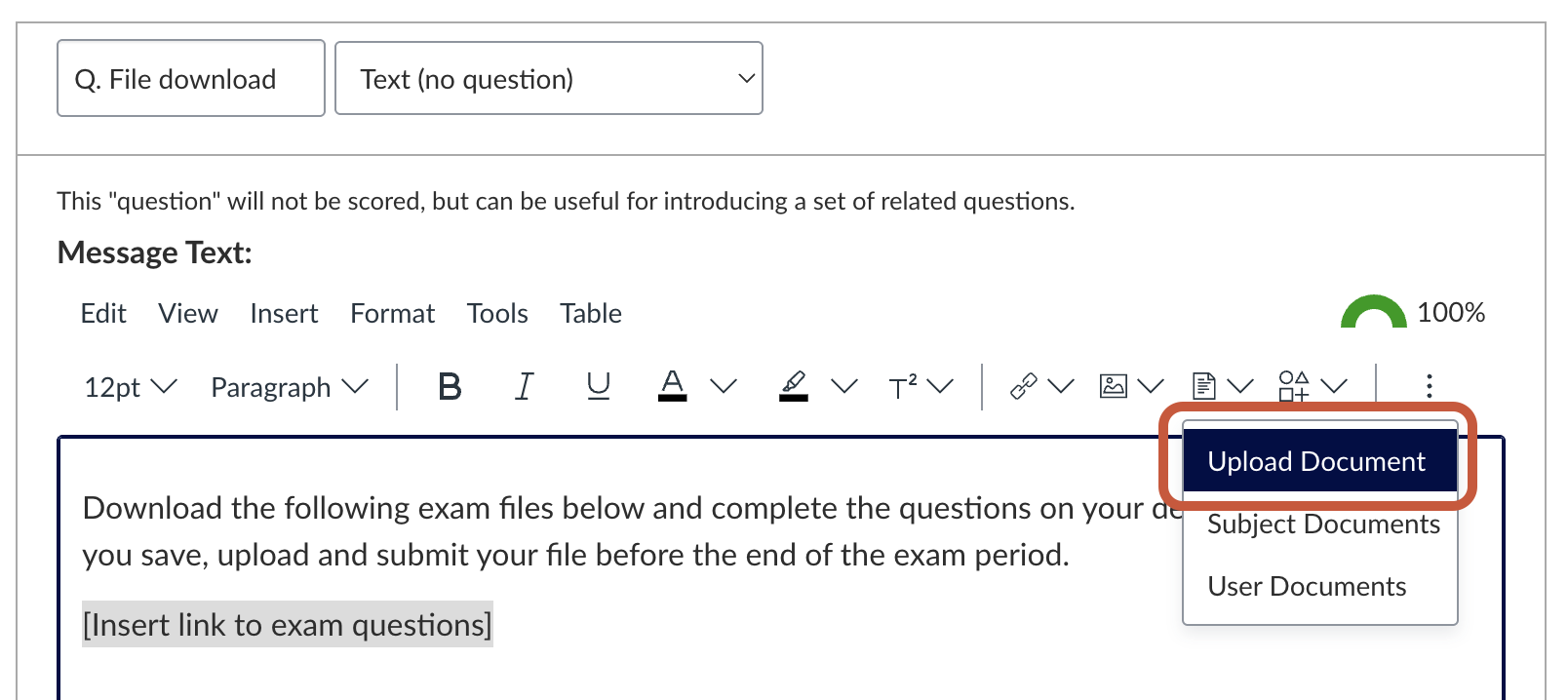
- Add more text and repeat Step 6 if your exam requires additional reference materials such as case studies or formula sheets.
- Once complete, click Update question.
- Back in the Questions tab, click Save to finalise your changes.
Converting digital exam content to printed paper exams
Departments are recommended to create a Word version of a digital exam if it needs to be converted to a printed paper format. This allows the exam to be completed digitally within the Word document or printed as a hard copy for students who require one.
Departments are also recommended to maintain a separate copy of all exam questions, for example in a spreadsheet or a database. This is important as copying and pasting directly from a Canvas exam shell can be difficult, especially where randomisation options such as shuffle answers or question banks have been enabled. A separate copy of exam questions will streamline the process of generating a new exam paper if a student requires a different version from the main cohort.
For interactive and multimedia content, complex accessibility requirements, or bespoke adjustments, submit a ServiceNow request to Teaching and Learning Innovation to confirm the appropriate format.
Post-exam process
At the end of the exam, students will upload and/or submit their responses via their exam shell.
A supervisor will oversee the submission and note on an incident report form which questions were completed on paper, and which were submitted digitally. Paper submissions will be scanned and uploaded to Sharepoint, followed by a notification to the subject coordinator.
Support and resources
- For support with clarifying AEA wording, clarifying on AEA types, and requests from students to change their AEAs, contact the SEDS team.
- For timetabling queries and to book a time to drop off printed papers for students, contact the exams team.
- For assistance with exam shell settings, please contact Teaching and Learning Innovation.
This guide was last updated 30 Sep 2026.
Submit an LMS support request for further assistance or to report any errors or omissions in this guide.