Getting started with Schoolyear Lockdown Browser
Schoolyear Lockdown Browser is a secure browser environment designed to protect academic integrity.
You may see an authorisation prompt, click Authorise to link your Canvas account to Schoolyear. You will need to create a Canvas quiz first before being able to enable Schoolyear for it.
- After creating a quiz, go to the Schoolyear tab on the side navigation bar.
- Select the quiz that you want Schoolyear enabled in by clicking Enable.
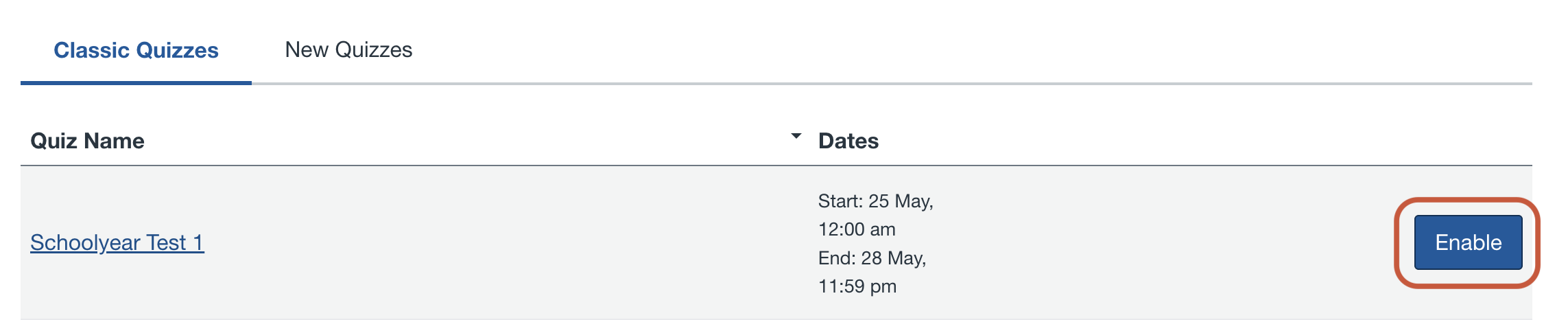
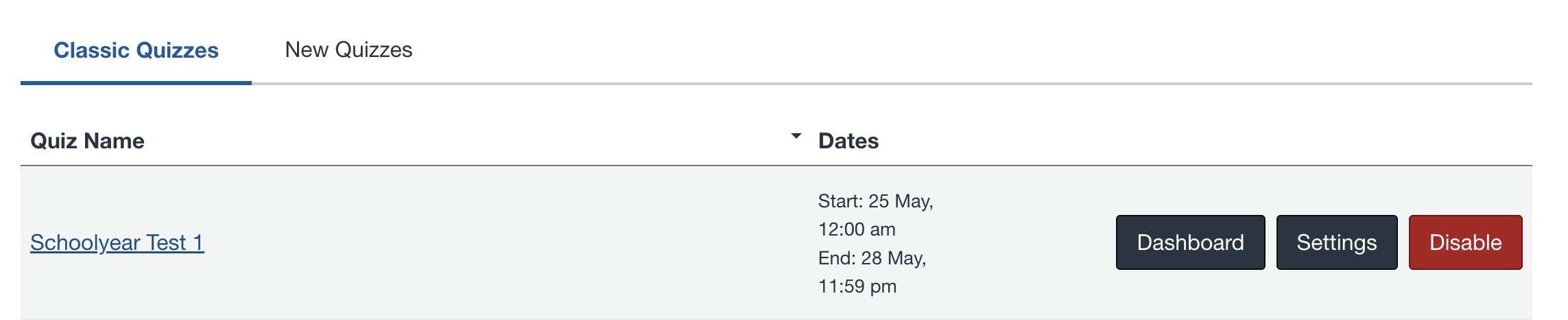
- Once enabled, three tabs appear next to the quiz:
- Dashboard: Provides insights into the activities of students during and after exams. For more information about the Dashboard, see Schoolyear dashboard features and functionalities and Frequently asked questions about the dashboard.
- Settings: Allows you to configure permitted URLs and upload files for students to access during the exam.
- Disable: Turns off Schoolyear Lockdown Browser for the exam.
- In Settings, you will be able to add permitted URLs and upload files that students will need to access during the exam.
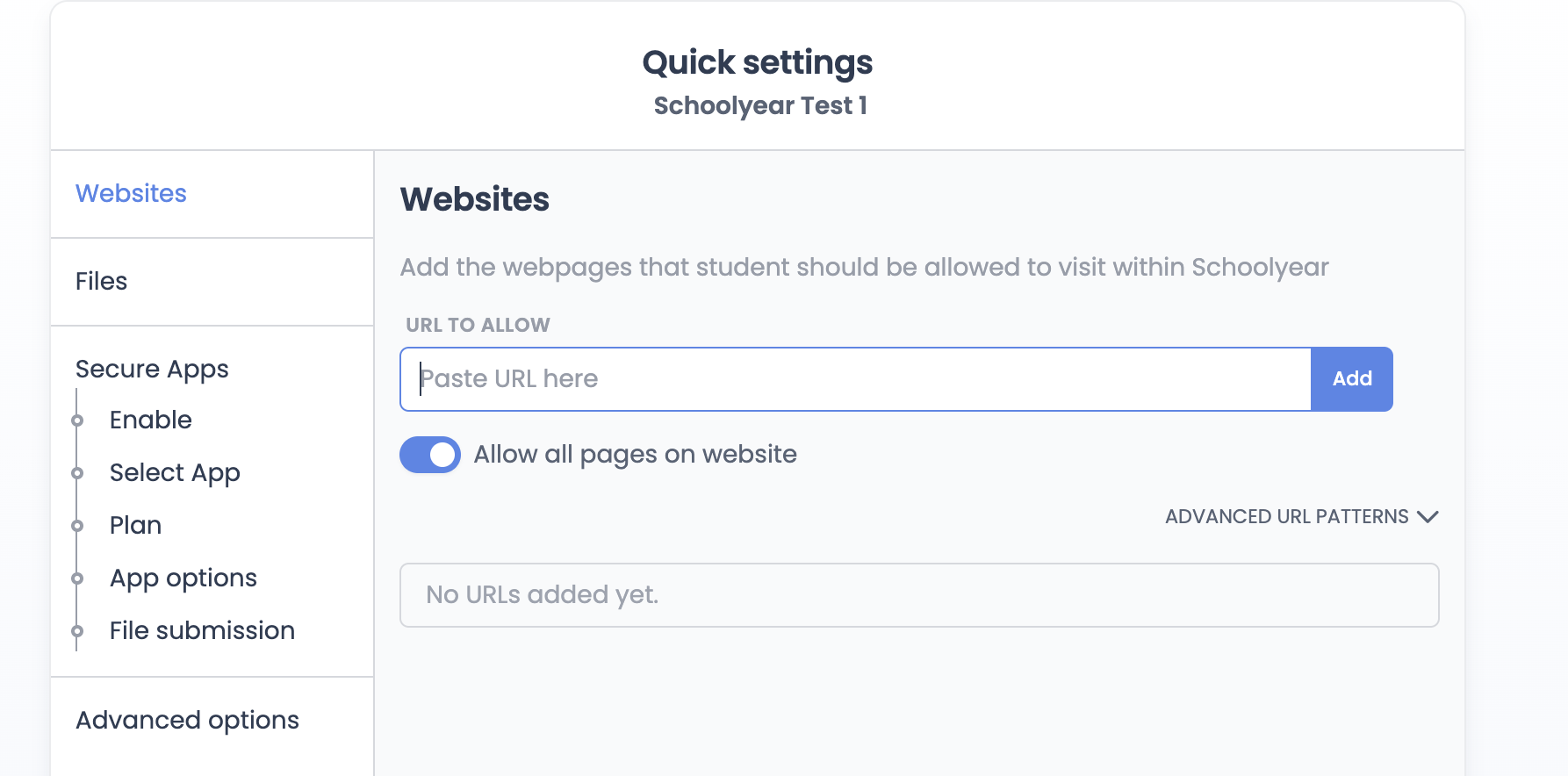
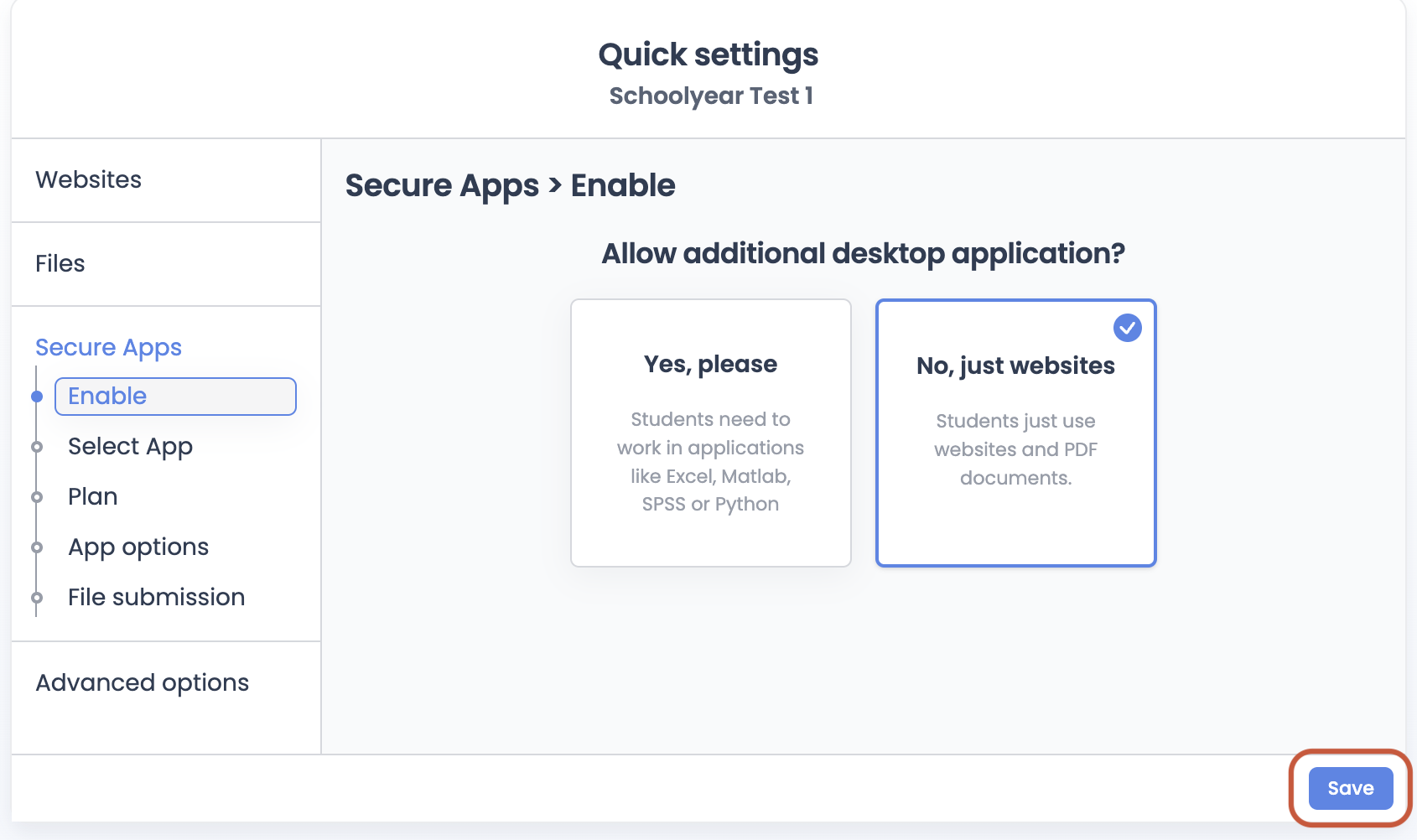
- Under Secure Apps > Enable, select No, just websites. Note that Schoolyear Azure Virtual Desktop (AVD) that allows for use of external applications such as Matlab and Microsoft Excel is not available at the moment.
- Once complete, click Save.
This guide was last updated 02 Sep 2026.
Submit an LMS support request for further assistance or to report any errors or omissions in this guide.