Enhanced rubrics
Enhanced Rubrics replaces Classic Rubrics, retaining and improving upon existing functionality while introducing new features to rubrics in Canvas LMS assignments.
This guide offers an overview on navigating the updated interface to locate familiar settings as well as how to utilise new features, such as student self-assessments.
No action is required on behalf of instructors and students; all existing rubrics have automatically been updated to Enhanced Rubrics. Additionally, all previous configuration settings and functionality have been retained.
Navigating Enhanced Rubrics
When a Classic Rubric is selected for an LMS Assignment, the entire rubric will appear on the assignment page with quick options to Edit, Search, or Delete the rubric:
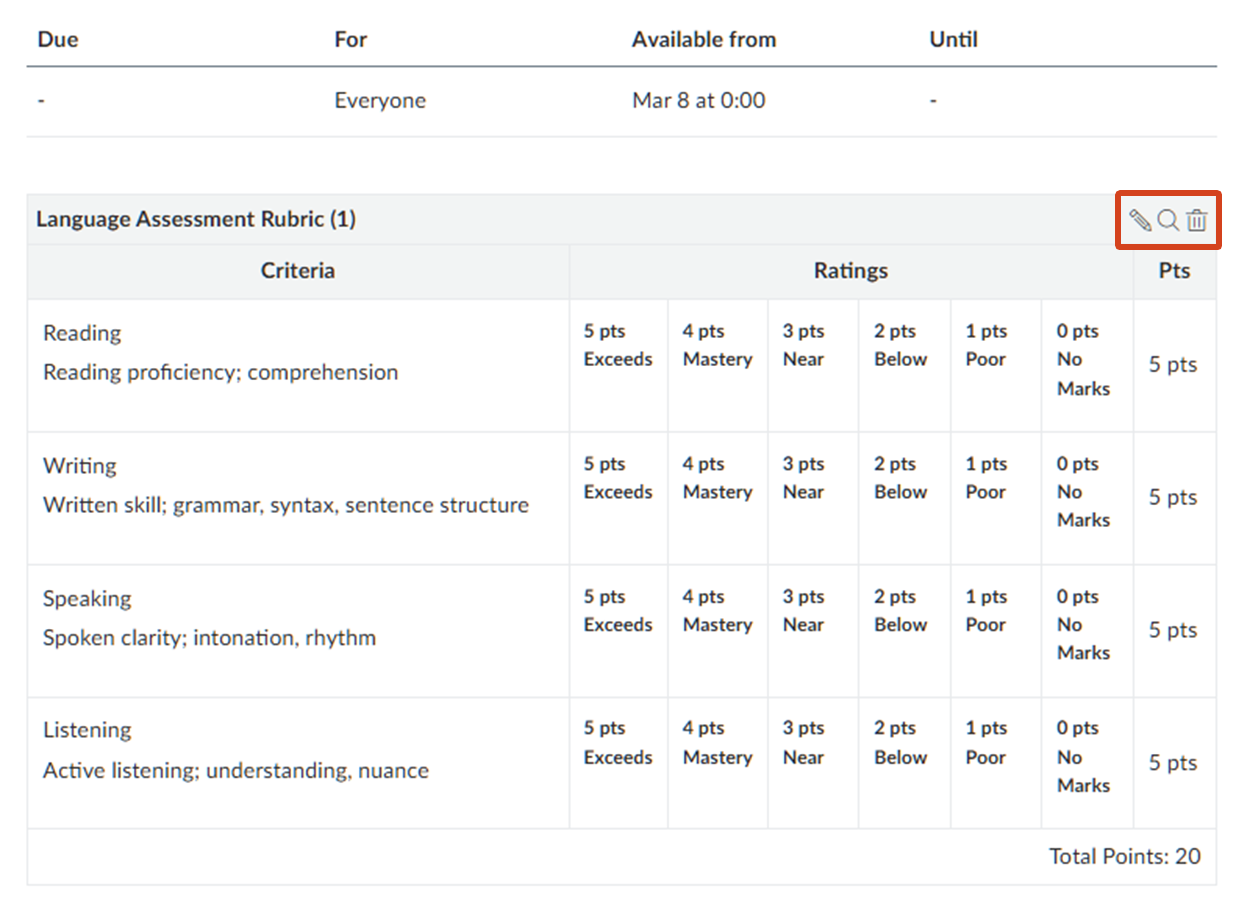
With Enhanced Rubrics, the interface has been updated to no longer show the entire rubric by default. Instead, users can now utilise the Preview Rubric option to view and interact with the selected rubric as it would appear during marking. Additionally, the Edit, Delete, and Search options remain accessible.
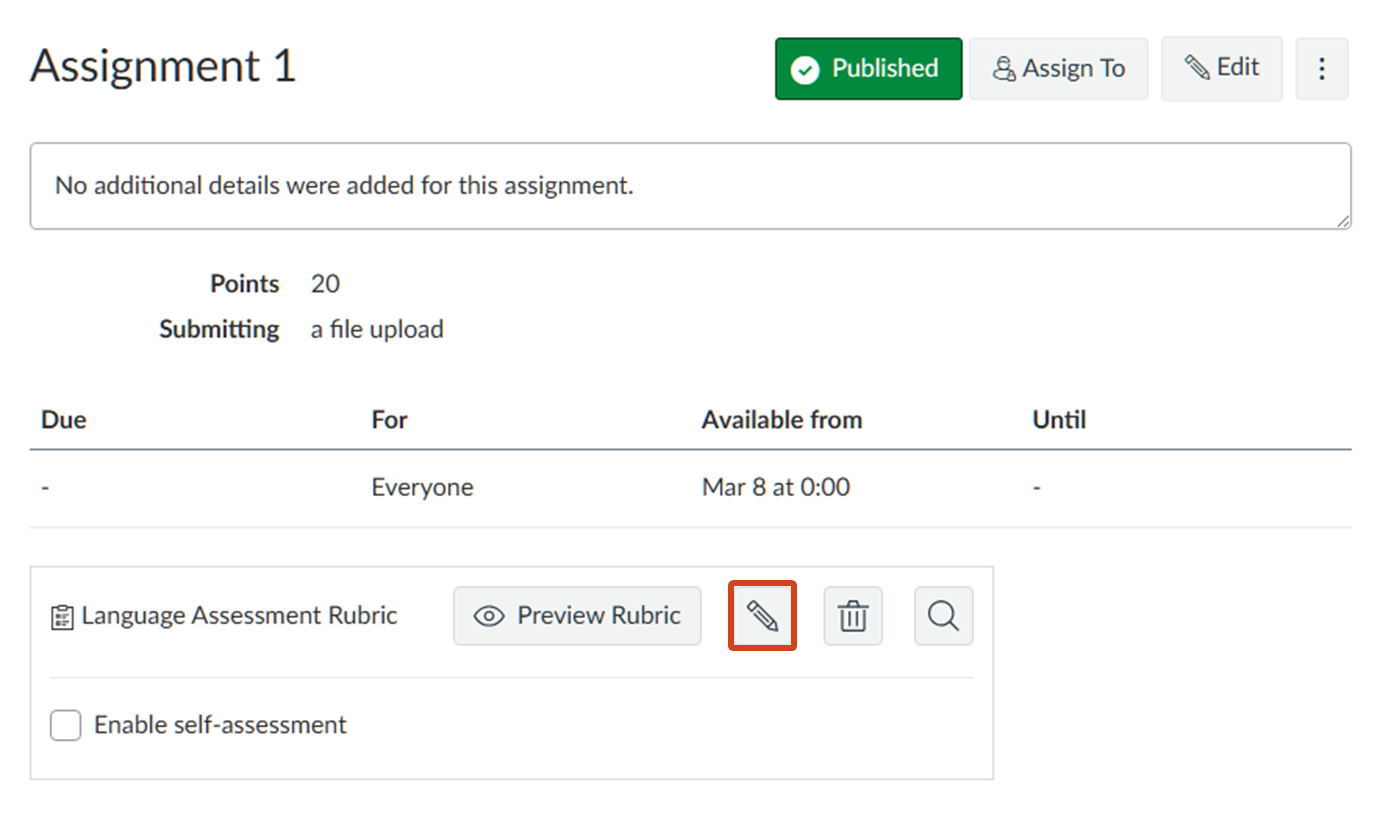
Clicking on Edit will open the Rubric Editor:
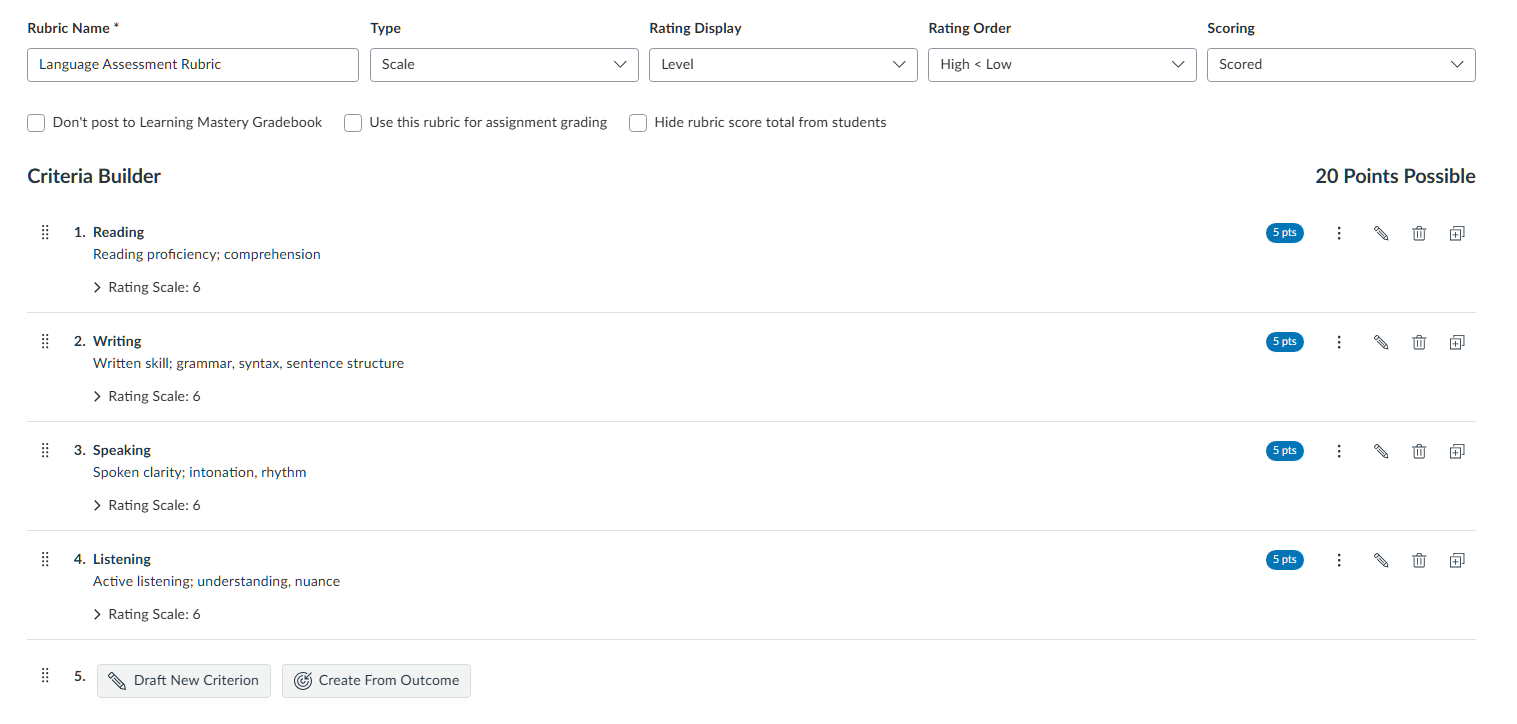
In the Rubric Editor, you can build and edit rubrics. Enhanced Rubrics retains existing functionality, allowing instructors to:
- Create rubrics, add criterion, and set-up points
- Set-up rating ranges as well as points up to 2 decimal places
- Match the assignment’s total points to the selected rubric
The following table provides an overview of key rubric options as they can be configured in the new interface:
| Classic Rubric | Enhanced Rubric |
|---|---|
| Check: I'll write free-form comments when assessing students | Select Type: Written Feedback |
| Check: Remove points from rubric | Select Scoring: Unscored |
| Check: Use this rubric for assignment grading | Check: Use this rubric for assignment grading |
| Check: Hide rubric score total from students | Check: Hide rubric score total from students |
| Check: Don't post to Learning Mastery Gradebook | Check: Don't post to Learning Mastery Gradebook |
In addition, there are also new features:
Drag-and-drop: Criterion and Ratings
Criterion and Ratings can now be rearranged via drag-and-drop when building rubrics. Click on the 8-dot icon next to the Criterion or Ratings title to drag-and-drop.
Rating Display: Level vs. Points
In addition to Points, instructors can toggle ratings to display as Levels.
Rating Order
The order of ratings when marking can be toggled between High to Low or Low to High.
Enhanced Rubric management
Previously, rubrics were listed with options to edit or delete.
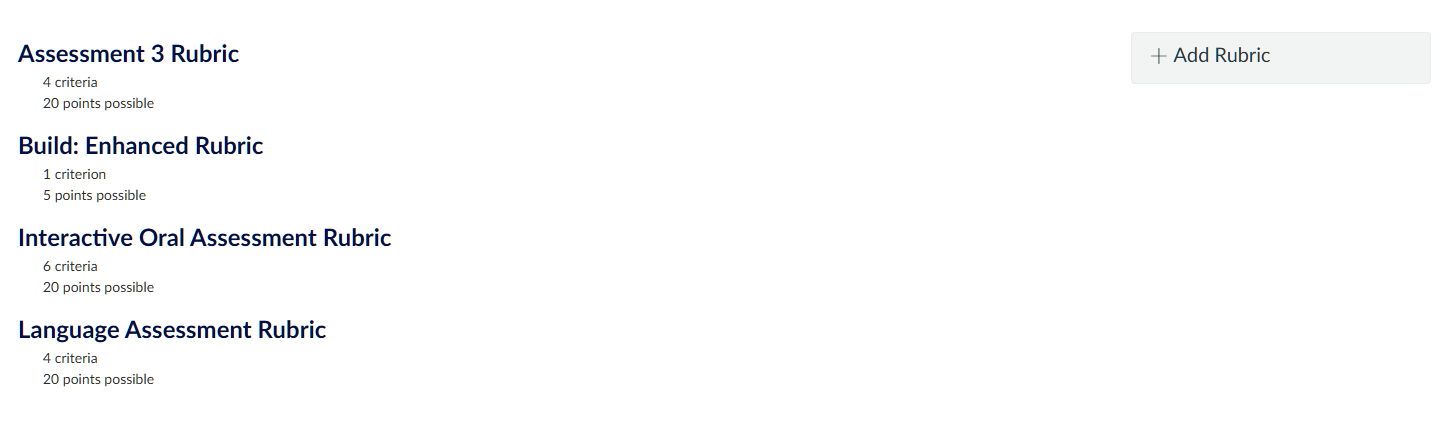
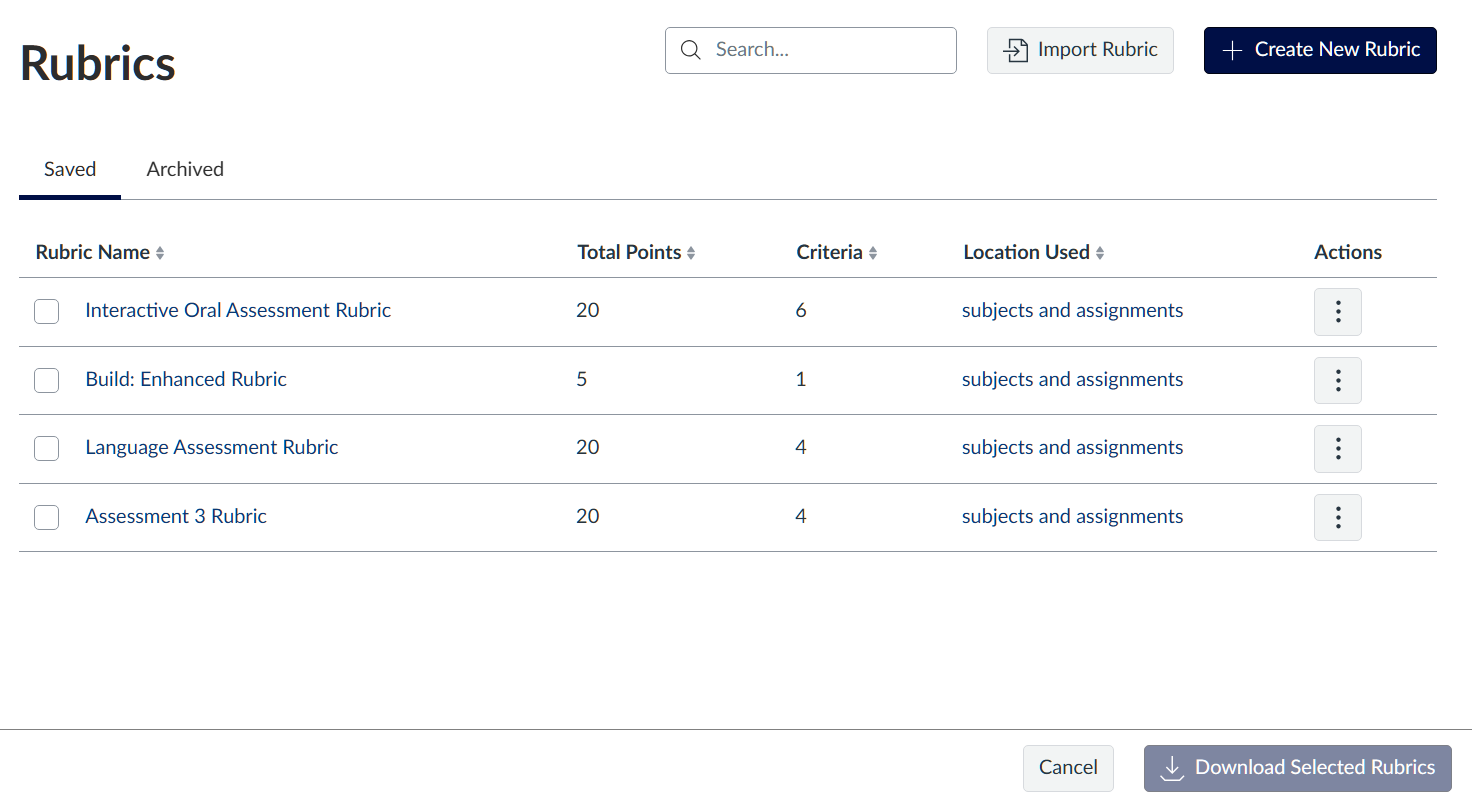
With Enhanced Rubrics, rubrics now display in a table with more clarity on the total points, number of criteria, and where they are used. In addition to the ability to Edit or Delete rubrics, new options under the Actions heading also allow users to Duplicate, Copy To, and Archive.
Archiving
Archiving a rubric makes it unavailable to be located or selected when setting a new assignment. However, rubrics already in use will remain linked to their assignments even after being archived. Archived rubrics will appear in the Archived tab and can be un-archived.
Downloading and importing
Enhanced Rubrics also introduces the ability to download and import rubrics.
Rubrics can be downloaded by selecting a rubric in the table and clicking on Download Selected Rubrics on the bottom-right of the page.
Rubrics can be imported by clicking on Import Rubric on the top-right of the page and uploading a (.csv) file. Templates are also available upon clicking the Import Rubric button for users who wish to first set-up a rubric using a (.csv) template.
Student self-assessments
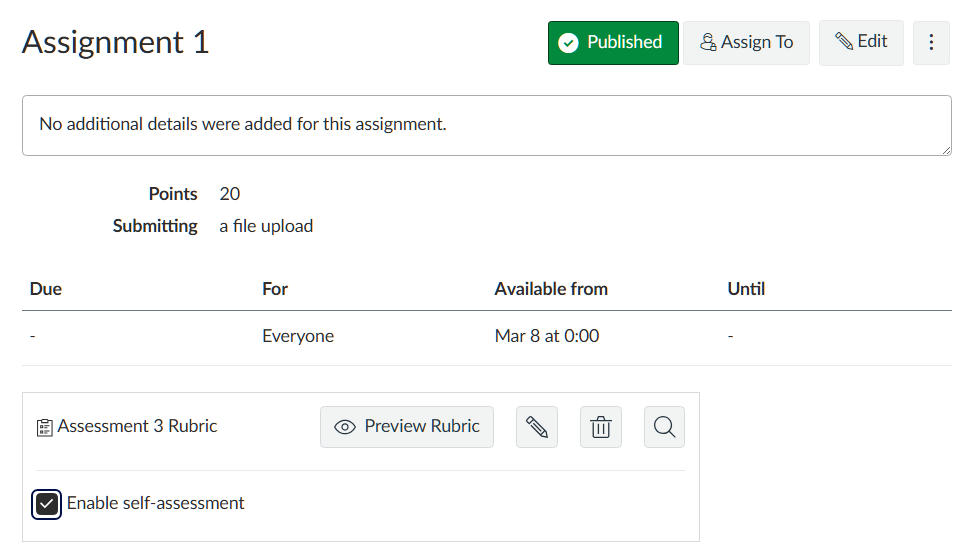
With Enhanced Rubrics, there is now the option to enable student self-assessments. This option can be toggled after selecting a rubric. The toggle will not be available if the assignment due date has passed and for group assignments. Note the toggle cannot be disabled once students have completed a self-assessment.
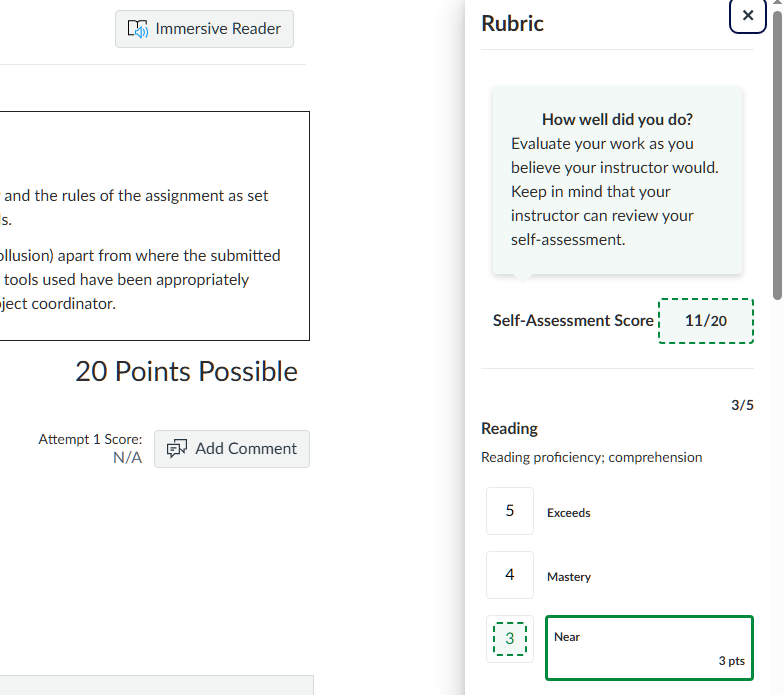
Once students have made a submission, they can click on the Self-Assess button on the bottom right of the page to initiate a self-assessment:
Students' self-assessments can then be viewed by instructors in Speedgrader by adjusting the View Student Self-Assessment toggle:
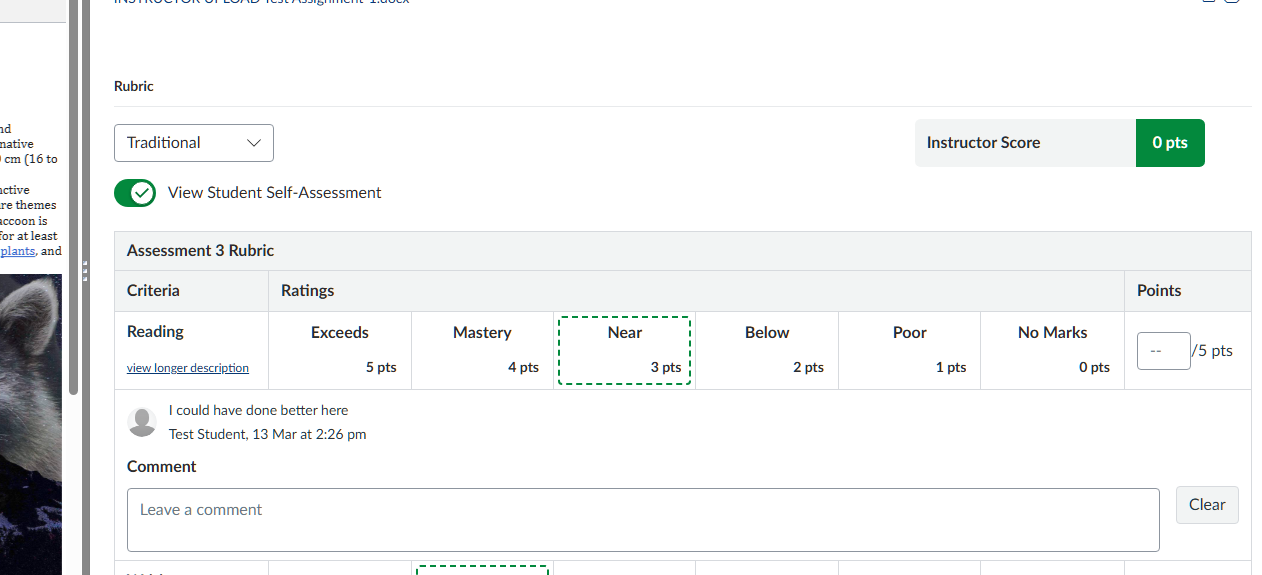
Self-assessments do not contribute to the students' grade and instead act as opportunities for students to provide reflection and insight into their work.
For further support on guiding students, please refer to the vendor guide on submitting a self-assessment as a student.
Limitations
While Enhanced Rubrics offers new improvements and features, several key limitations with rubrics still persist with this update.
Multiple markers
Support for multiple markers remains limited, with only the latest marker’s rubric entries retained. Additionally, although students can see a drop-down to select a “Grader”, only the latest marker and their entries appear.
Anonymous marking
Anonymous Grading does not currently apply to rubrics.
- Anonymous Grading (Graders cannot view student names) will hide student names to remove bias.
- Anonymous Instructor Annotations will anonymise annotations in the DocViewer. Grading completed via rubrics will clearly indicate the grader providing the marks.
Support and additional resources
For more information on Enhanced Rubrics, see the vendor guides on:
This guide was last updated 19 Mar 2026.
Submit an LMS support request for further assistance or to report any errors or omissions in this guide.