How to set up the H5P student consent AI declaration
Before using any GenAI tools to support your assessment of or feedback on student work, there is a need to provide students with a statement that clearly outlines the tools being used, their intended use in feedback and/or assessment.
Some students may not wish to have their work uploaded to a GenAI platform even when it is secure. Students should be given the option to opt-out.
The use of tools or services not part of the University’s suite of educational technologies needs to follow the process of requesting the use of that tool, and a Privacy Impact Assessment (PIA), a cybersecurity review as part of that process, and ensuring that data records and retention requirements are met.
The following instructions guide teaching staff on how to add the student consent declaration to a Canvas assignment.
Embedding the H5P student consent AI declaration into a Canvas Assignment
- In a Canvas assignment, add your instructions and modify settings as required.
- Ensure your cursor is on a new line under your instructions, as this is where the H5P student consent AI declaration will be embedded.

- On the rich content editor (RCE) toolbar, click the Apps icon, then select View all.
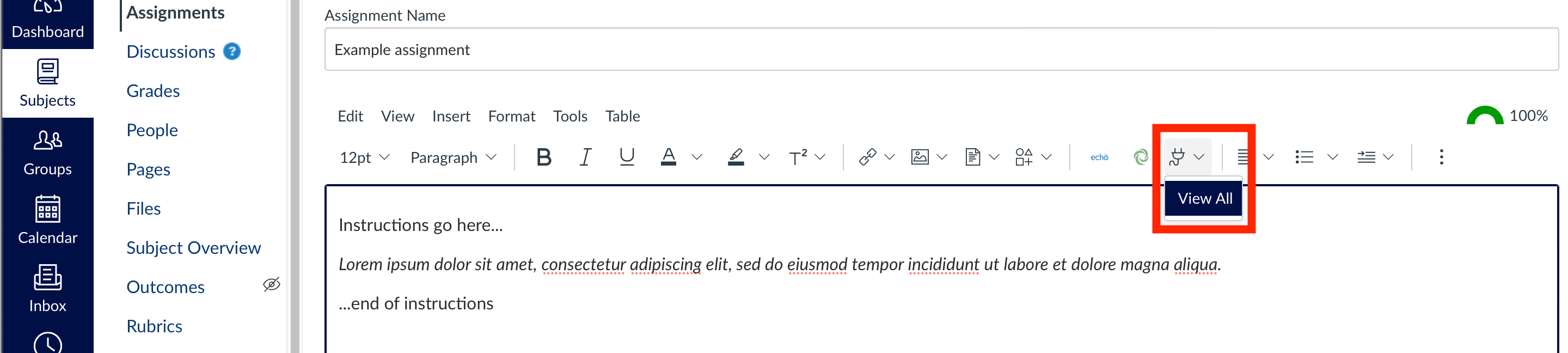
- The All Apps window will open.
- In the All Apps window, select Interactive Content - H5P.

- The Interactive Content - H5P window will open.

- From the Manage Content dropdown, select All Content.

- Under All Content, search for Student consent for staff use of AI for assessment/feedback.
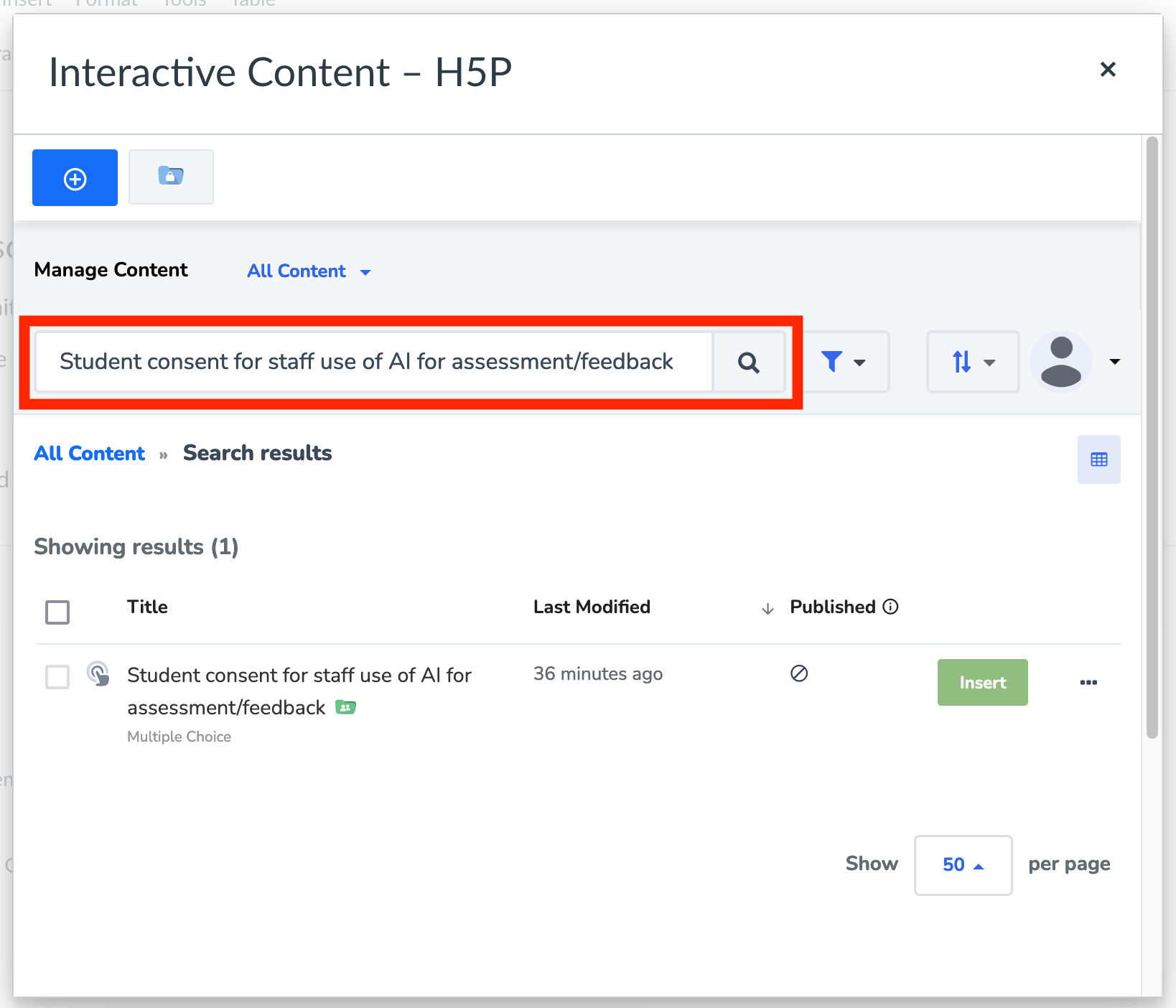
- To clone the student consent declaration H5P:
- Click the 3 dot/More options menu.
- Select Clone.

- A clone of the Student consent for staff use of AI for assessment/feedback H5P question will open in the H5P window for review and editing.

- Update the title in the H5P activity and review the settings in the H5P window. The recommended naming convention is:
- [subject]-[Assignment name]-Student consent for staff use of AI for assessment/feedback
If multiple declarations are needed for your subject, you will need to clone the H5P student consent declaration for each assignment.

- Once the H5P settings are finalised click the Clone and Insert button.

- The instructions in the assignment settings will be updated with the embedded H5P activity. To finalise the changes in the assignment, click Save.
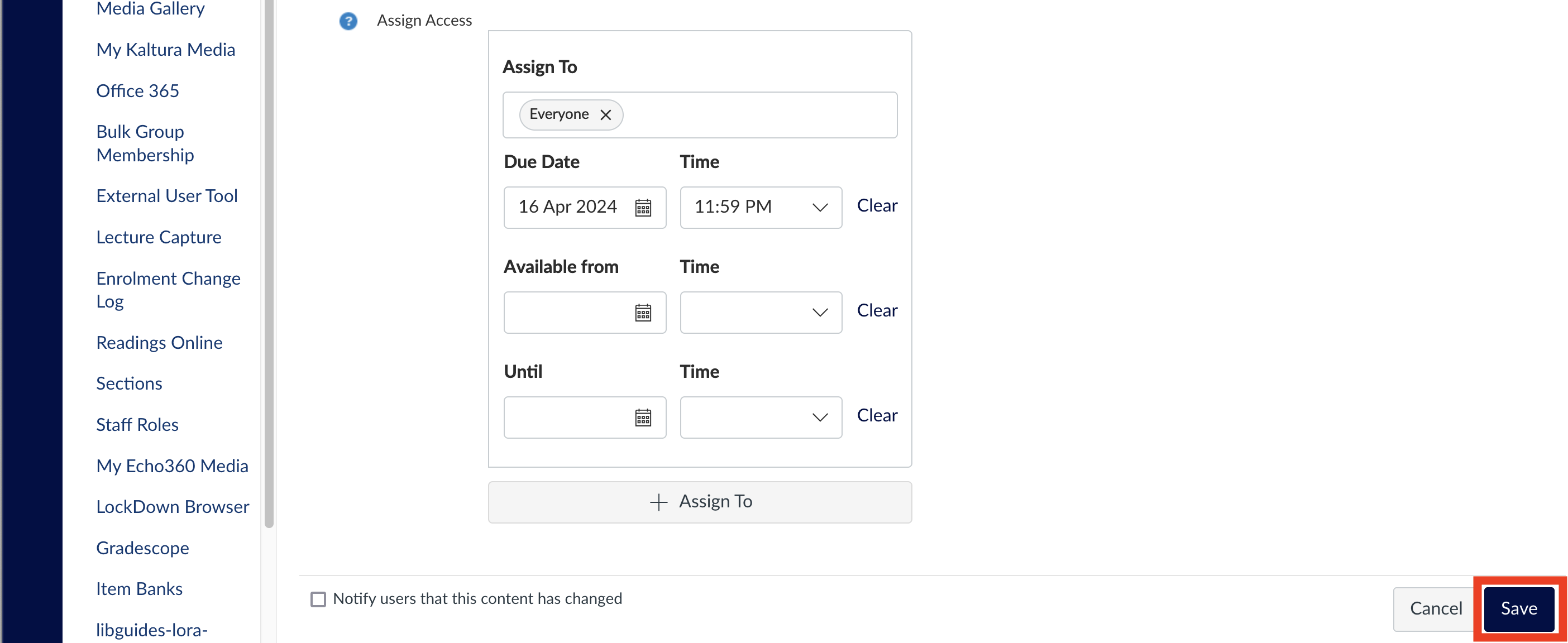
The H5P student consent declaration will be embedded in the Canvas assignment instructions.
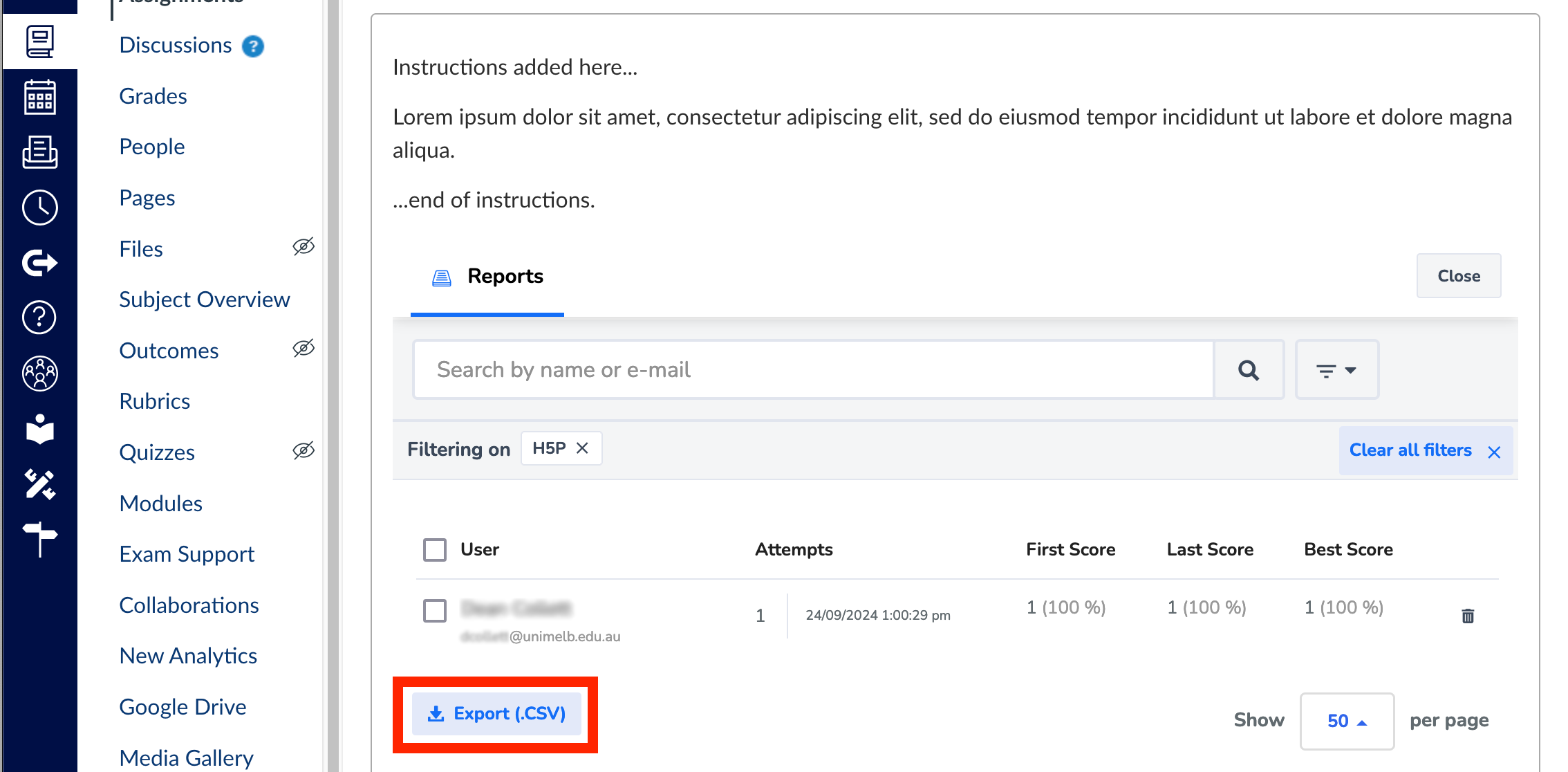
There is no separate column for the student consent declaration results in Gradebook, declaration results are viewed via H5P Reports. To view declaration results refer to the steps below under Reports.
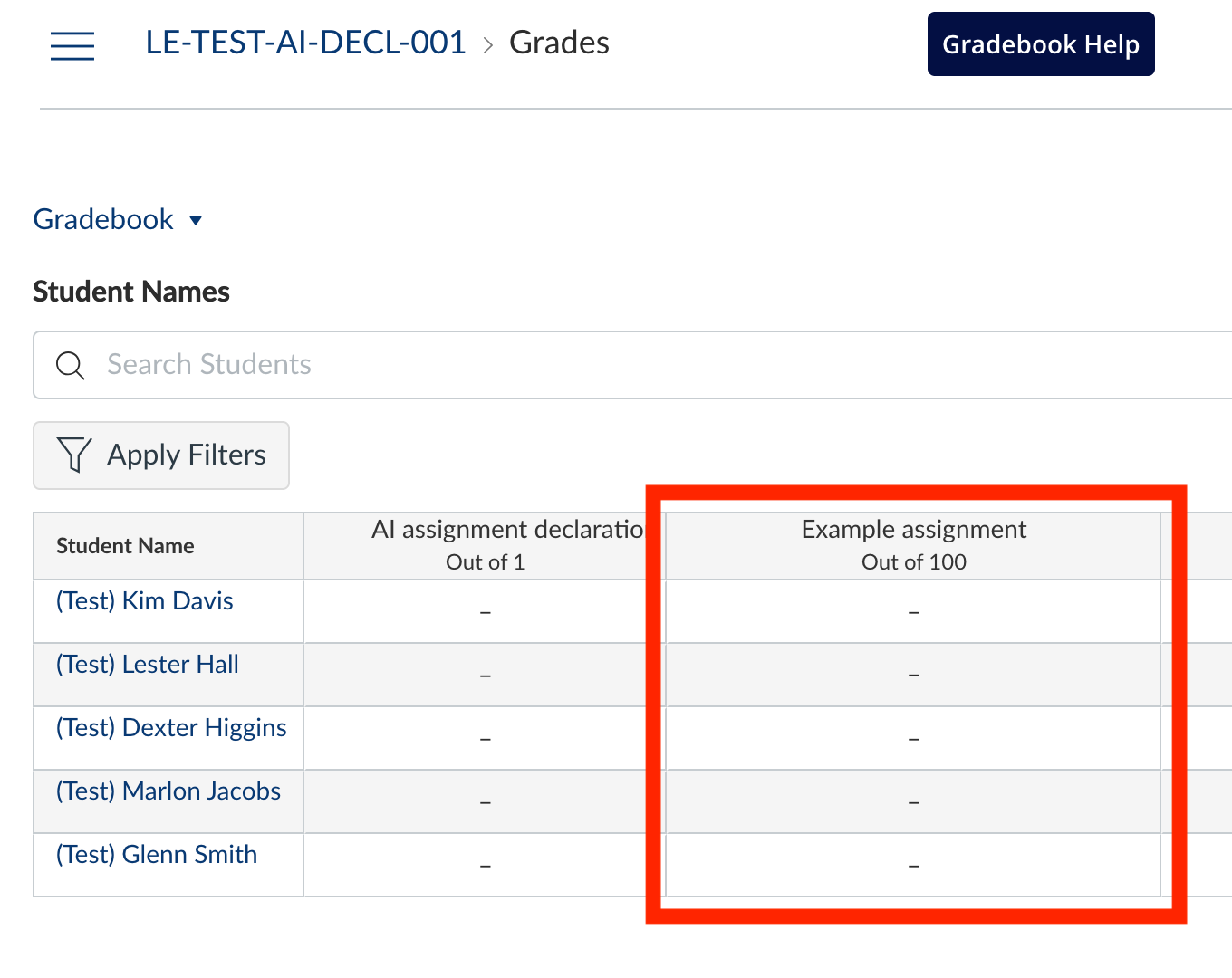
Reports
Users with the Canvas ‘Instructor’ role in a subject can track student declarations by navigating to the relevant H5P declaration activity and clicking the Reports button.

The report can also be exported to CSV.
Troubleshooting
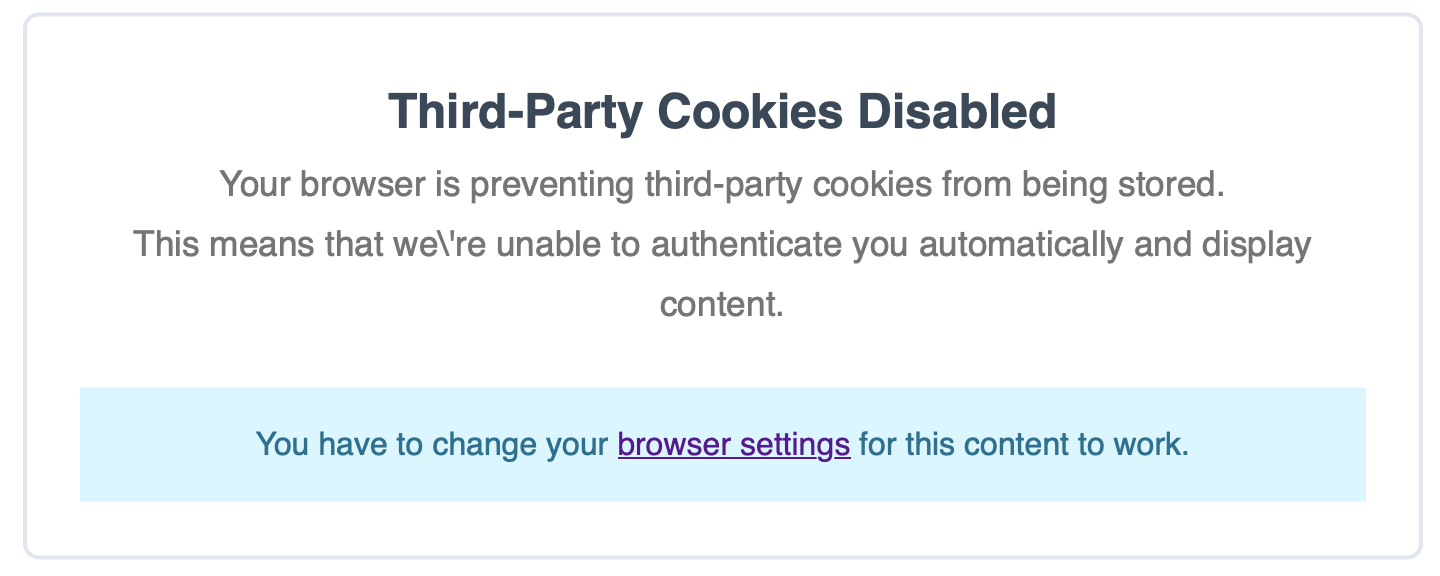
Third party cookies disabled
If a third-party cookies notice appears, users will need to adjust their browser settings for the embedded content to appear in the Canvas assignment.
This guide was last updated 18 Mar 2026.
Submit an LMS support request for further assistance or to report any errors or omissions in this guide.