Using the Assessment Support Console
The Assessment Support Console is a bespoke tool within the LMS that connects the new Extensions and Special consideration system with LMS assignments.
Introduction to the Assessment Support Console
The Assessment Support Console (formerly known as the Assessment Categorisation Tool) has been developed to streamline the processing of Special Consideration (Spec Con) requests by categorising Canvas assignments and mapping them directly to the appropriate Special Consideration categories.
It also enables the assignment of standard outcomes to Canvas assessments. Standard outcomes are predefined decisions for specific assessment types, as determined by academic staff.
Assignments are automatically categorised when they are created from the Curriculum Approval and Publication System (CAPS), the database that sits behind the Handbook; or when they are created manually within an automatically generated Assignment Group. However, standard outcomes are not assigned automatically and must be configured manually for each applicable assignment. Important to note:
- Newly created assignments will not appear immediately and are displayed after the database is refreshed and automatic categorisation has been completed, which may take up to 24 hours.
- Merge subjects and manually created assignment groups are not automatically categorised, but will be included in all manual categorisation processes. You do not need to update anything for these to be included successfully.
- Subject Coordinators have view-only access and the buttons in the top navigation menu are not currently available.
- Assessments created after the semester has commenced may require you to contact your faculty representative to have the standard outcomes assigned.
Assessment Support Console access permissions
Roles with view and edit access:
- Sub-account admins
- SEDS Spec Con
Roles with view-only access:
- All staff roles (for example, Subject Coordinator, Instructors etc.) have Assessment Support Console access only to their subject(s)
Roles with no access:
- Everyone else
If you require changes to your subject’s categorisation or assessment outcomes, please contact your relevant faculty representative.
How to access the Assessment Support Console
Subject Coordinators can access the Assessment Support Console via the LMS to view assessment categorisations and standard outcomes
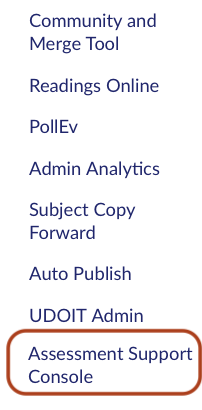
- Within your subject, click the Assessment Support Console tool in the left-hand navigation bar.
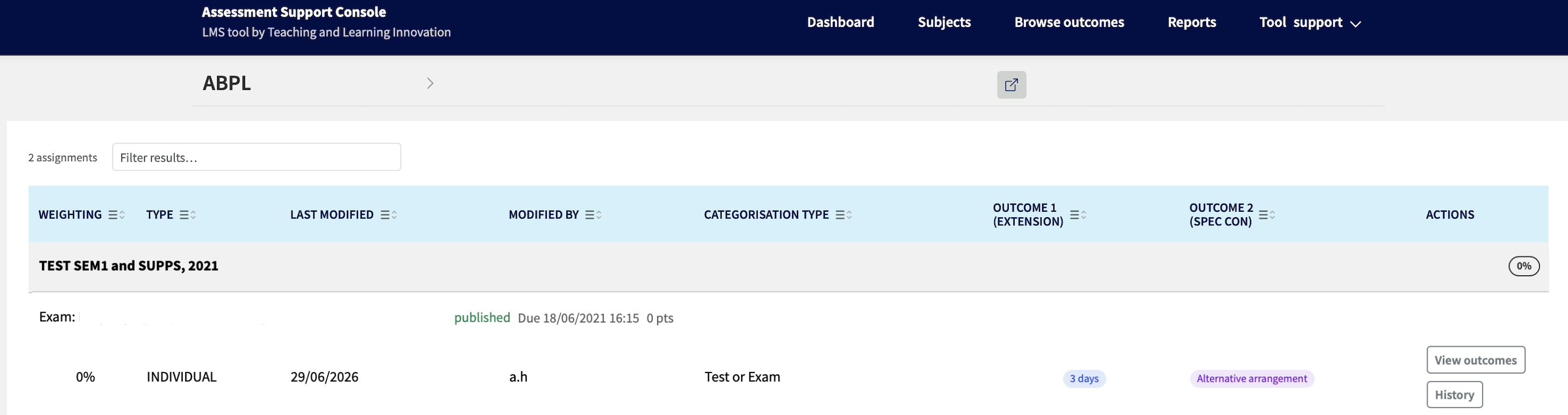
- You will be redirected to the Assessment Support Console, where you can view your subject’s categorisation and assessment outcome details.
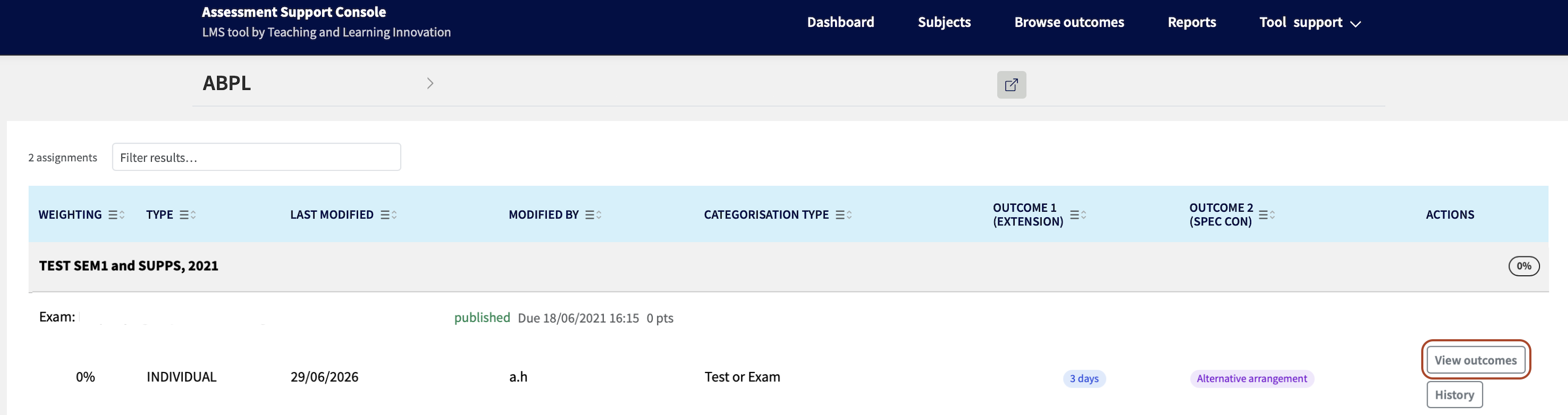
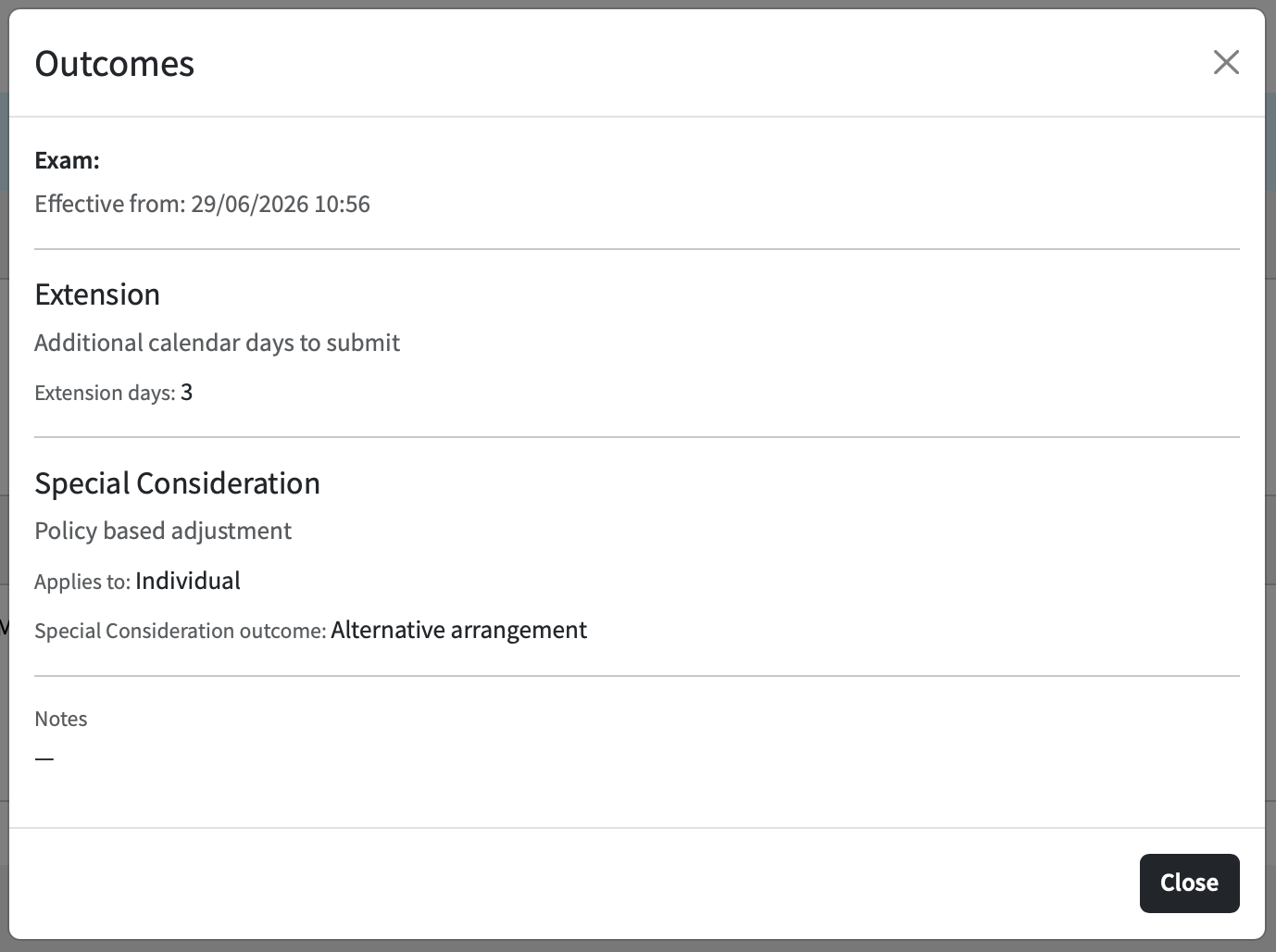
- Click on View outcomes to see details of the extension and special consideration applied, as well as additional notes added.
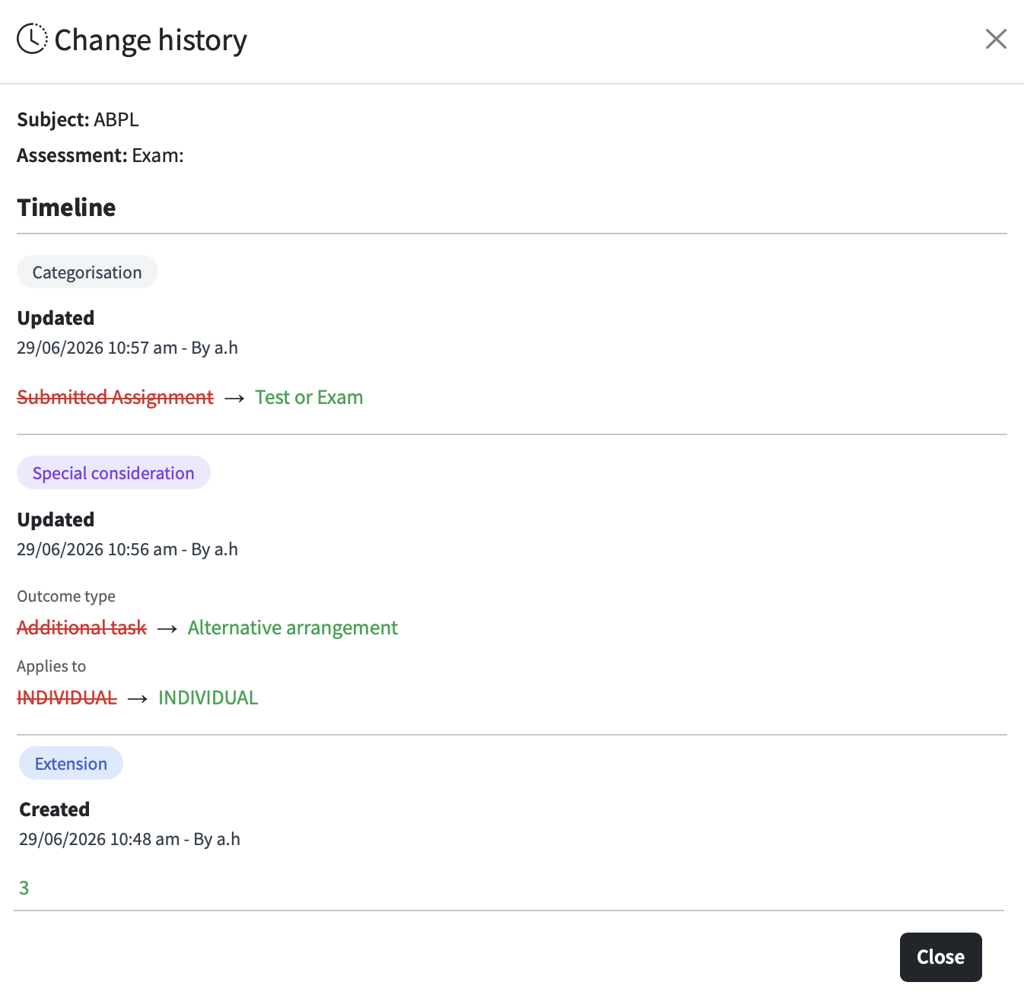
- To view a history log of all categorisation and outcome changes made to an individual assignment, click History.
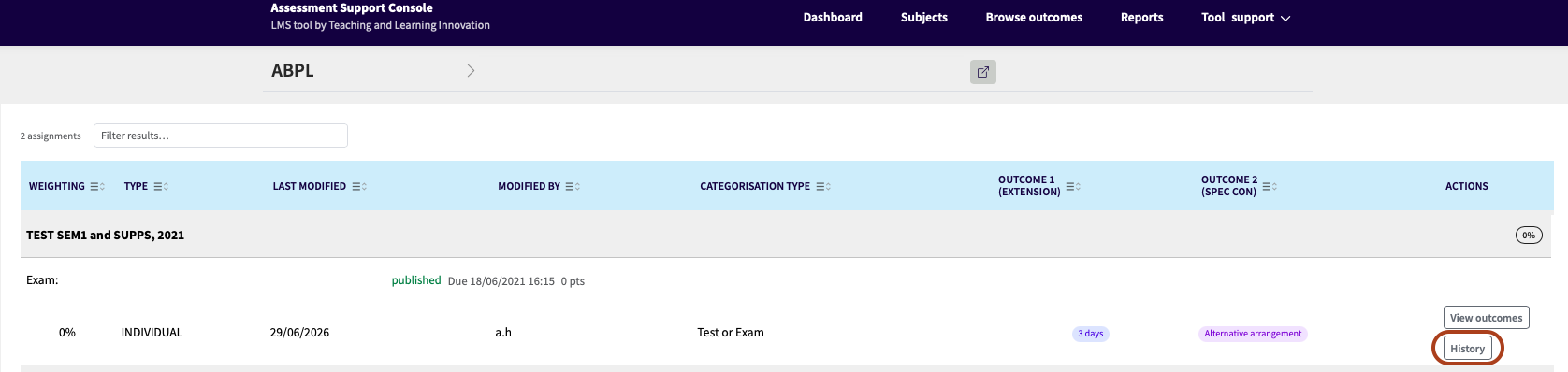
The previous settings are indicated in red with strikethrough formatting, while the revised settings are outlined in green.
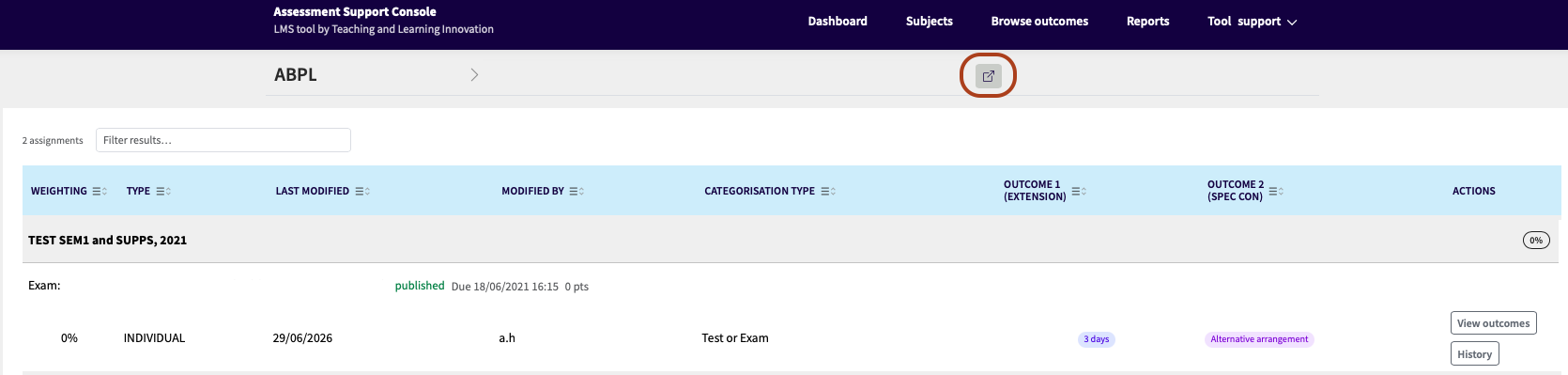
- To navigate to the assignment in the LMS, click on open in browser icon next to the subject name.
Support and resources
The Assessment Support Console is supported by Teaching and Learning Innovation. For assistance, please contact your faculty representative as your first point of contact.
This guide was last updated 11 Aug 2026.
Submit an LMS support request for further assistance or to report any errors or omissions in this guide.