Zoom: Getting started
Zoom is a video and audio communication tool utilised across the University. Zoom is often used for online drop-in sessions, meetings, and webinars.
What can I use to access Zoom?
- Desktop and laptop devices: Zoom can be downloaded on macOS, Windows, or Linux. You can also join Zoom meetings directly from supported browsers including Chrome, Firefox, Edge, and Safari.
- Mobile and tablet devices: The Zoom app can be downloaded for iOS or Android. If your device does not support the app, or cannot connect to a network, there is also an option to join Zoom by dialling in on your phone.
Note that while information in this guide is applies broadly to Zoom, this guide assumes primary engagement with Zoom is via desktop and laptop devices. For more information, see the desktop client and mobile app comparison.
Download Zoom
As the University makes frequent use of Zoom, we strongly encourage you to install Zoom at your earliest convenience. Download links can be found in the University of Melbourne Zoom download centre.
Download Zoom from a Zoom link
If you have not used Zoom before, you will prompted to install it the first time you follow a link to access a Zoom session. The download should begin automatically. If not, click the Download Now link that is available on your screen. The download should take no more than a few minutes.
Once downloaded, open the installation file - ZoomInstallerFull.exe (Windows) or ZoomInstallerFull.pkg (Mac) - from your Downloads folder.
If you are prompted with a message to allow the install of Zoom, select Yes/Allow. This will initiate the installation.
If you are unable to install Zoom on your device, click Launch Meeting to trigger the option to Join from your browser.

Log in to Zoom
Once you have downloaded and installed Zoom, you will be able to log in with your University of Melbourne credentials.
- Open the Zoom software on your device.
- In the Sign In window, click Sign in with SSO.

- Type unimelb into the company domain field. Click Continue.

- This will bring you to a University of Melbourne login page. Enter your student username and password, then click Login.
- Once successfully logged in, wait for the Zoom software to reload or click Launch Zoom.
How do I join a Zoom session?
There are a number of ways you may be invited to join a Zoom Meeting, either within or external to the LMS:
- Zoom tab in the LMS: If your subject coordinator has created Zoom sessions through your LMS subject, you will see a link to Zoom in your subject navigation menu. Locate the appropriate session by matching the Start Time, Topic, and Meeting ID number (if provided to you).

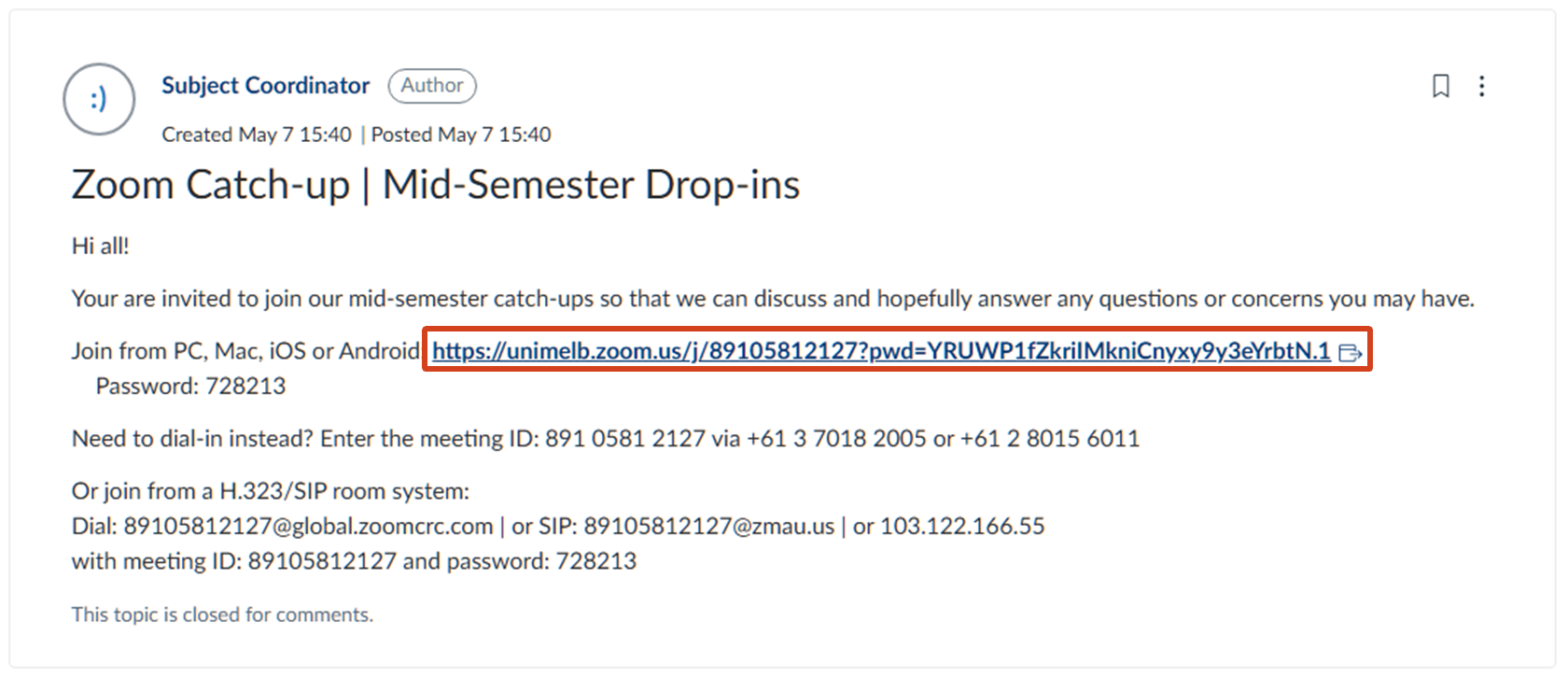
- Invitation with link to meeting : Alternatively, you may be sent an invitation link to join the Zoom meeting. Simply click on this link to join the session.
- Meeting ID: You may be sent an invite to Join a Meeting with a Meeting ID (for example, 123-456-789) directly through Zoom.
Registration required
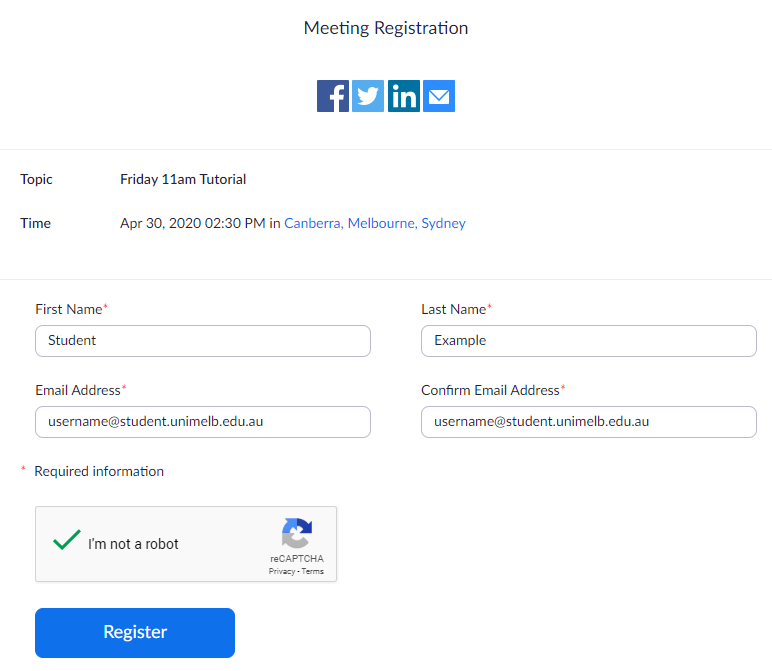
If your Subject Coordinator requires you to register for a meeting in Zoom, you must complete the meeting registration form or attend from the device where you have logged into Zoom with your University credentials.
After joining the Zoom session using any of the methods outlined, you will be prompted to enter your details to register including your first name, last name and University of Melbourne email address.
Important: You must use your username@student.unimelb.edu.au email address when joining all Zoom sessions.
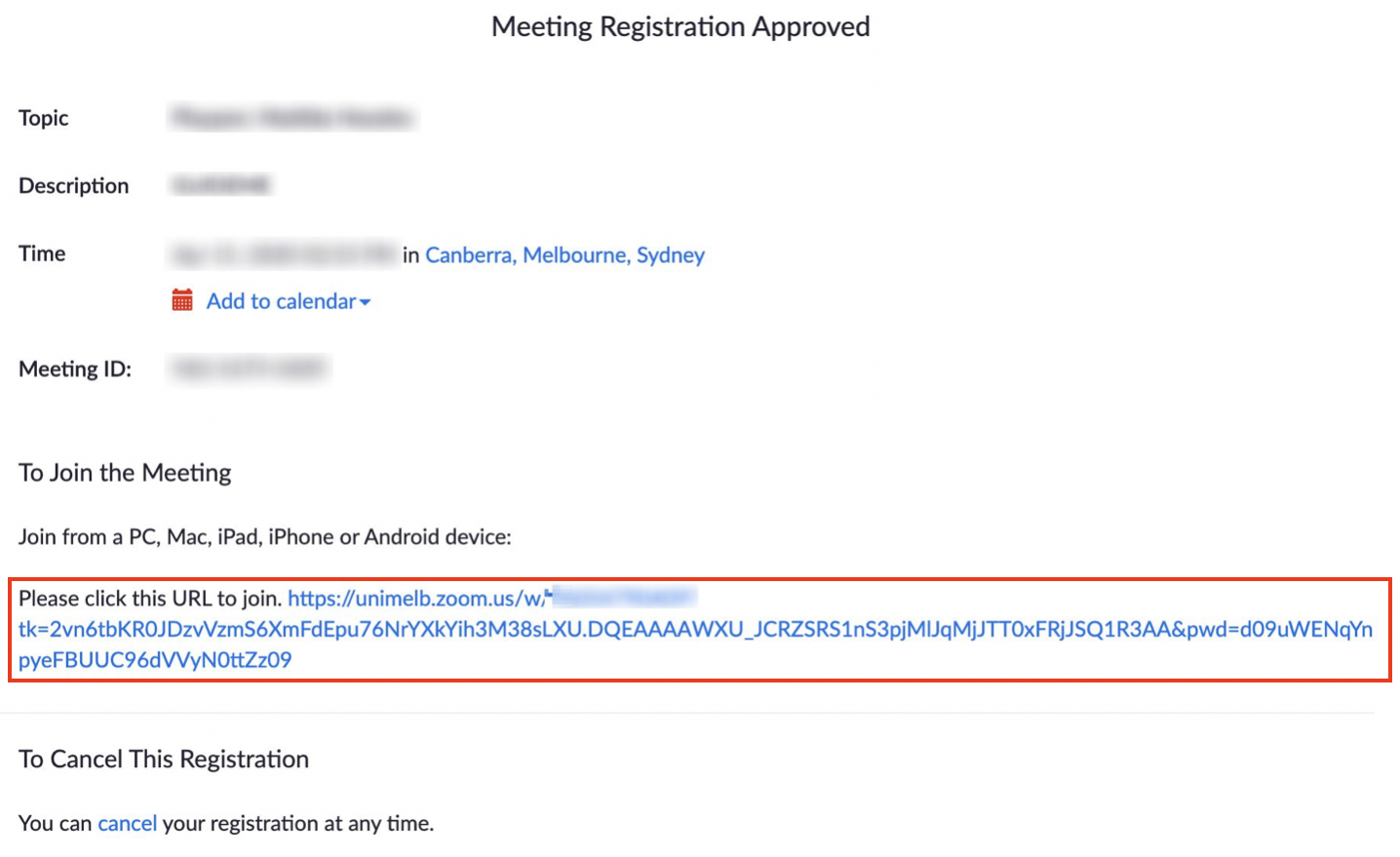
Once you have successfully registered, a screen will appear with a link to join the Zoom session. An email confirmation will also be sent to your student email with an additional link to the session.
Waiting Room
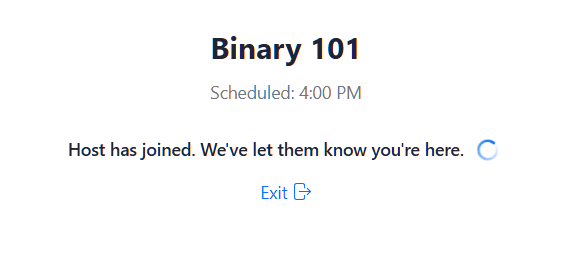
When you click on the link to join the session, depending on how the host has set up the meeting, you may automatically be placed in a Waiting Room. In these cases, please wait until the host has joined and admitted you into the session.
Update Zoom software
To ensure security and compatibility, you should ensure that you are using the latest version of Zoom.
To check that you’re using the latest version of Zoom
- Open the Zoom application on your computer.
- Click on the Profile icon in the top-right.
- Select Check for Updates.
- If an update is available, follow the prompts to install it.

Set up Zoom with audio and video
After you have clicked to join your Zoom session, the Zoom dialogue box will appear. Enter your name and click Join.
You may be prompted to decide whether or not to Join with video. Select your preferred option or that of which has been specified by your subject coordinator. Note that you will not get this option if you do not have a webcam. A webcam is not an essential requirement to be an active participant for most subjects.
You will then be shown the Audio options dialogue box. It is here you can Test Speaker and Microphone before joining.
We recommended that you use a headset with a microphone. This will help reduce background noise and ensure audio clarity when you speak.
When you join a meeting, Zoom automatically identifies and utilises the input and output devices that are used by the default. This includes your speaker, microphone, and camera – which can be changed as necessary in the Zoom settings. If you do not have a microphone, you can still be an active participant in Zoom by using the Chat feature.
Note: Your audio and video preferences are saved for future Zoom sessions, so you don’t need to set up every time.
Tips to prepare for your Zoom session
- You can familarise yourself with the Zoom Meeting interface and test your audio and video any time you like by joining Zoom’s always available Test Meeting
- Ensure you have a reliable internet connection. If you are unable to attend the meeting with reliable WiFi, you can also join Zoom by dialling in on your phone.
- Use a headset with a microphone to improve both the incoming and outgoing audio.
- Attending your session from a quiet location will also ensure that noise disruptions are kept to a minimum for both yourself and others.
- Avoid being in a room with others who are attending the same Zoom session as it may cause unwanted audio feedback.
- Mute yourself when not actively speaking.
- Use Zoom’s in-built “Blur my background” option if you wish to turn on your camera but prefer to limit visibility of your surroundings.
- Disable your camera if your connection to the internet is limited or unstable to limit bandwidth consumption.
More information:
- Troubleshooting: My video/camera isn't working
- Troubleshooting: Testing computer or device audio
- Refer to Zoom’s getting started with Zoom Meetings guide to see how to change your audio and video settings and use all of Zoom's features while in a session.
- Update your pronouns and optional preferred settings by visiting https://zoom.us. To change your display name or profile image, please raise a support request.
Requesting captioning or live transcription
Visit our Zoom accessibility page for more details on accessibility options in Zoom.
Zoom support
For support downloading, accessing or using Zoom, please submit a support request.
This guide was last updated 12 May 2025.
Submit an LMS support request for further assistance or to report any errors or omissions in this guide.