Assignments in the LMS
Accessing, submitting and viewing assignments in the LMS.
The Assignments section is where you will find all the assignments created and published in your subject by your Subject Coordinator. The assignment pages include:
- Information on what is expected for your submission
- How many points the assignment is worth
- Information on how to submit the assignment
- The assignment deadlines.
Any assignments in the Assignments section will also appear in the Grades, Calendar, and Syllabus features of the LMS.
Access an assignment
To access an assignment in the LMS:
- Open your subject in the LMS and click on Assignments in your subject navigation menu. All assessment items for the subject will be available from this page. From here, you can also see:
- The weightings of each assignment (or assignment group) for the subject
- The due dates for each assessment item
- How many points each is worth.
- Navigate to the assignment you want from the list and click on it to open the Assignment submission page.
Submit an assignment
- Once you have accessed the Assignment submission page, the page will display an ‘Academic integrity declaration’ at the top of the page. (For more information, you can refer to the University’s guidance on academic integrity.)
- Below that you will see the title of the assignment, the due date and the number of attempts allowed. You will also be able to view the rubric for the assignment at the bottom of the page, if your instructor has provided one. Take note of any special instructions provided by your lecturers/tutors in the ‘Details’ section.

- Depending on how your instructor has set up the assignment, you will have multiple ways to submit located at the bottom of the Assignment submission page. These include:
- A file upload from your computer (see What types of files can I submit? section)
- Direct text input, recording or uploading media
- A cloud submission from Google Drive, EchoVideo or Office 365 (see the “More” button for cloud options).
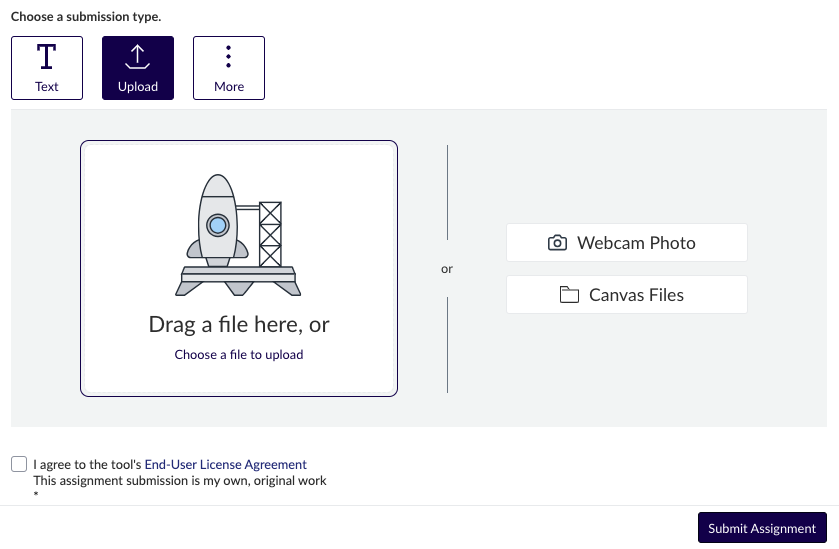
- Upload any files required and select the Submit Assignment button. Note that if your Subject Coordinator has selected to have your assignment submitted to Turnitin and to obtain a Turnitin Similarity Report on your submission, you will need to click the checkbox to agree to the user agreement before you can submit your assignment. Refer to the Turnitin Similarity Reports guide for more information on what these reports entail.
- You will be taken to a submission confirmation page where you will be able to see the file/s you have submitted. You can add comments here and annotate your files (if your lecturers/tutors have asked you to use these options). If you are allowed further attempts for the assignment, you will see an option to submit another attempt at the bottom right of the screen.

What file types can I submit?
Your Subject Coordinator will communicate to you what file types you can use when submitting your work to the LMS.
- If TurnItIn Similarity Reports are being generated, one of the following formats must be used: Microsoft Word, PowerPoint, Excel, Corel WordPerfect, Adobe PostScript, PDF, HTML, RTF, OpenOffice, Hangul, Google Docs or plain text.
- If a Similarity Reports are not being generated, your teaching staff may allow any file format to be submitted.
- Maximum allowable file size for Turnitin: 100 MB or 800 pages – if your document is larger than either of these limits, please contact your teaching staff immediately.
- Your document must not be password protected – ensure that you do not save your document this way.
- For video submissions, refer to the submit a video in Canvas LMS using EchoVideo guide for more information about submitting video files.
View a submitted assignment
To view an assignment you have submitted,
- Open your subject in the LMS and navigate to the assignment.
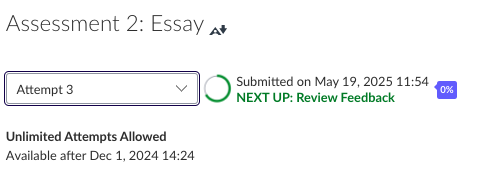
- You will see the submission confirmation page pictured below. If you have made more than one attempt, you can use the drop-down menu in the header underneath the assignment name to view each submission.
- If there is a Turnitin report for the assignment you can access this through the page header by clicking on the flag to the right of the submission details.
Marking and feedback
Have a look at the following Canvas LMS Community guides:
This guide was last updated 02 Jun 2025.
Submit an LMS support request for further assistance or to report any errors or omissions in this guide.