GoReact for students
GoReact is an assessment tool designed to support the delivery of Interactive Oral Assessments.
What is an Interactive Oral Assessment?
An interactive oral assessment (IOA) is a assessment format wherein students are evaluated on their understanding and communication of their learning. IOAs differ from typical presentations in that they are designed to be conversational and unscripted. Through interactive dialogue, IOAs assess students' knowledge on a given topic, the reasoning behind their thinking, as well as their ability to express and apply what they know in practice. Examples of IOAs can include:
- Oral examinations – students present their work (for example, a written assessment) and are questioned by assessors on the content of the work and the process by which the work was written.
- Role-play – students participate in a simulated exercise wherein they assume a role relevant to their study and respond to prompts (for example, as a medical practioner or in a court of law).
- Presentations – students present a project, concept, or design and respond to questions that require them to justify their choices or articulate the relationship between the work, the subject, and the assessment’s requirements.
Navigating GoReact
Be sure to follow the assessment instructions as outlined by your instructor; the following section is a broad overview of GoReact and may vary from your experience. If in doubt, reach out to your instructor.
GoReact assessments are only available via the Canvas LMS. To access your GoReact assessment, locate the assignment and either click Go Fullscreen if the activity is embedded on the page or the Load in a new window button.
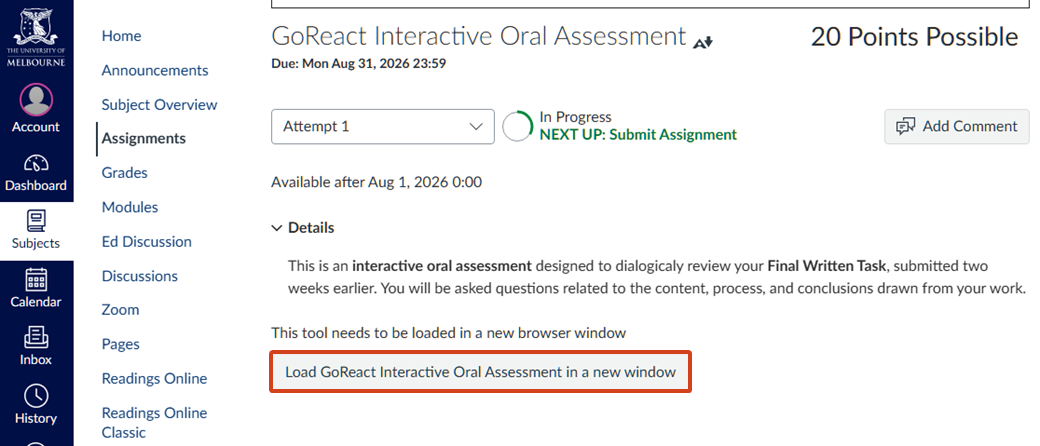
Access the recorder
Once you have your GoReact Activity open, you will need to access the recorder.
- If sessions have been created beforehand, you will be able to click Join on your assigned session. In the pop-up, click Join as Participant.
- If sessions have not been created beforehand, you will see a button to Create Video. Next, click Continue to Recorder to begin recording your submission. Alternatively, you can click on the Upload or YouTube tab to provide a submission via file upload or YouTube link, respectively.
GoReact will establish a connection to the server and verify the status of your device’s audio and video input.
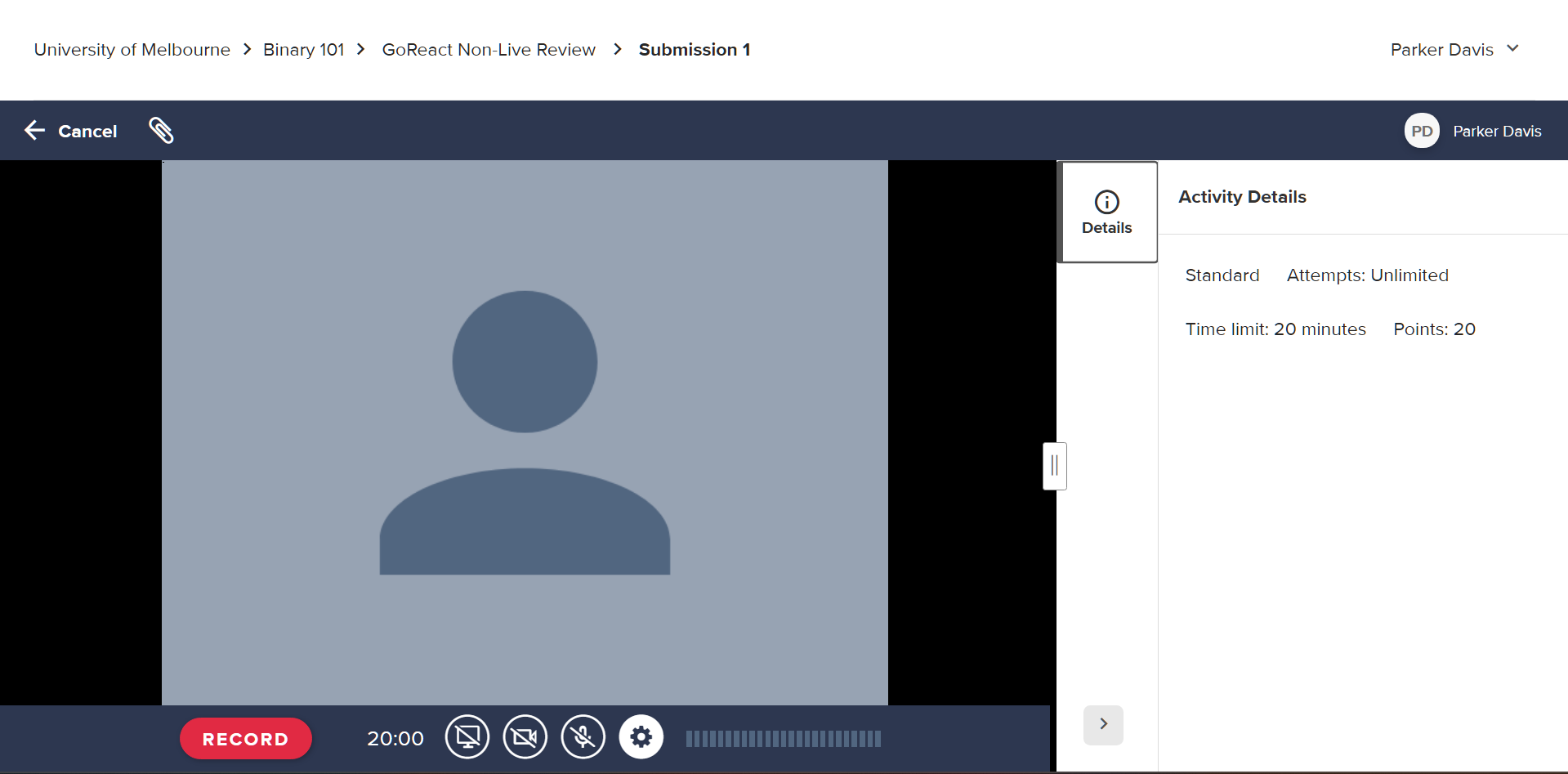
- Confirm your audio and video inputs. Depending on settings, you may also be permitted to attach files, share your screen, or add additional cameras to the recording stream.
- Click Record to commence your recording.
- Click Pause to temporarily stop your recording and Resume to continue. Click Stop to end your recording.
Submit your recording
- Once you have finished your recording, you will need to submit it.
- If the activity is set-up as a Live Review, you will be prompted to Post your recording to submit it.
- If the activity has not been set-up as a Live Review, you will need to navigate to the Submit Video task, select your recording, and click Submit.
- Both before and after submitting, you can click into your session to download the submission, add comments, as well as view recording details.
- Once scores and feedback have been posted, you can click into your session to view instructor evaluation of your submission.
Additional considerations
- For group activities, you can add additional participants as part of your recording.
- If peer reviews have been set-up for your activity, you can comment on peer submissions with feedback as well as view comments that others have posted for your submission.
Support
If you have issues accessing or using GoReact, please contact your subject coordinator or reach out via LMS support request.
This guide was last updated 26 Aug 2026.
Submit an LMS support request for further assistance or to report any errors or omissions in this guide.