Using EchoVideo videos in H5P
EchoVideo (Lecture Capture) videos can be used with H5P
To add an EchoVideo video to H5P:
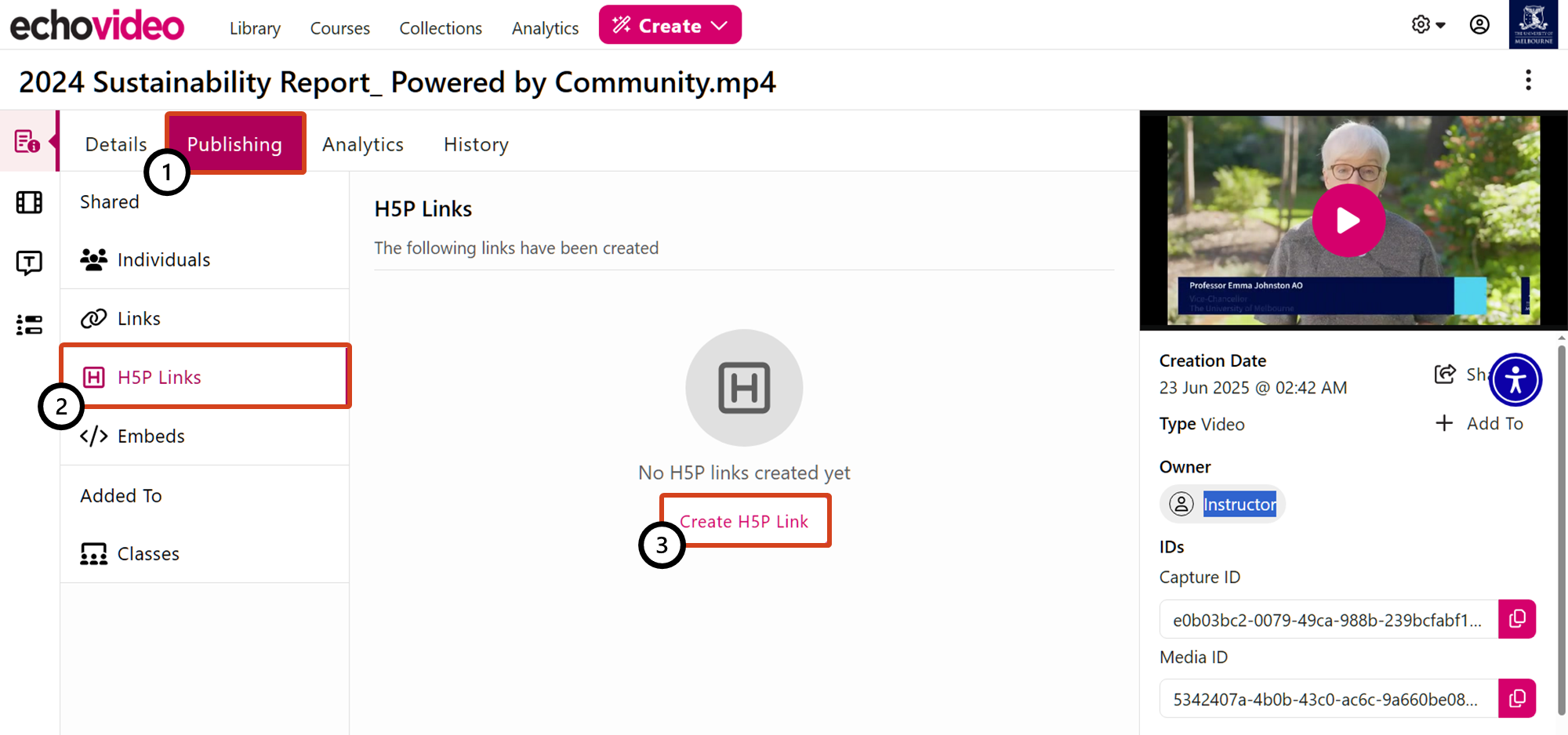
- Locate the media in your EchoVideo library that you wish to use in H5P.
- Under the Publishing tab [1], click on H5P Links [2].
The Share button is only available to the owners of the media.
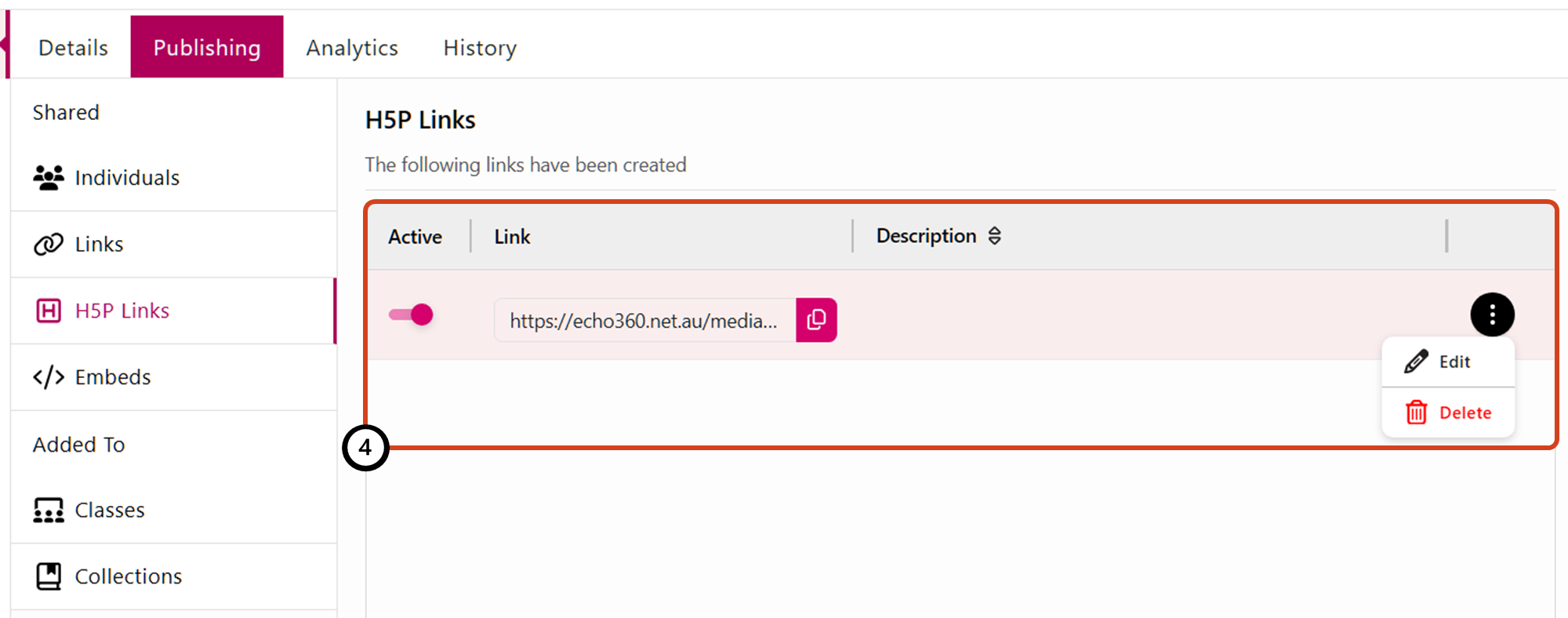
- Once the link has been successfully generated, copy the link. For generated links, you will also be provided options [4] to enable or disable the link, as well as additional options to edit and delete the H5P link.
To add this link to your H5P content:
- Open an H5P activity that uses video (for example, an Interactive Video).
- Locate the Upload/embed video tab [5].
- Click the + (Add File) button.
- Paste the copied link from EchoVideo into the video source URL field [6].
- Click Insert [7].

This guide was last updated 14 Jul 2025.
Submit an LMS support request for further assistance or to report any errors or omissions in this guide.