Sections
Sections are used to segment the student cohort for administrative purposes, typically based on lectures, workshops or tutorial groups.
Enable Sections
If the Sections link is not visible in your subject navigation menu, you can enable it any time in the Navigation settings.
- Click on Settings from your subject navigation menu, then select the Navigation tab.
- Locate Sections from the bottom list (indicates items are hidden from students) and drag it from the bottom list to the top list.
- Scroll to the bottom of the page and click Save.
The Sections tool is now enabled in your subject and added to the subject navigation menu.
Note: Students will not see the tool in the menu. You can check with Student View.

View the current Sections and enrolments
All subjects have a feed from the class registration system, Allocate+ , using the Sections tool. This means that associated activities for timetabled subjects are automatically fed into the LMS.
- To view these Sections, click on Sections in the subject navigation menu.
The Current Sections and Enrolments area displays a summary of all sections in your subject that have been created both automatically and manually. You also have the option to export the section data to an Excel file via the Export Section Data to Excel button located below the summary table on the right.

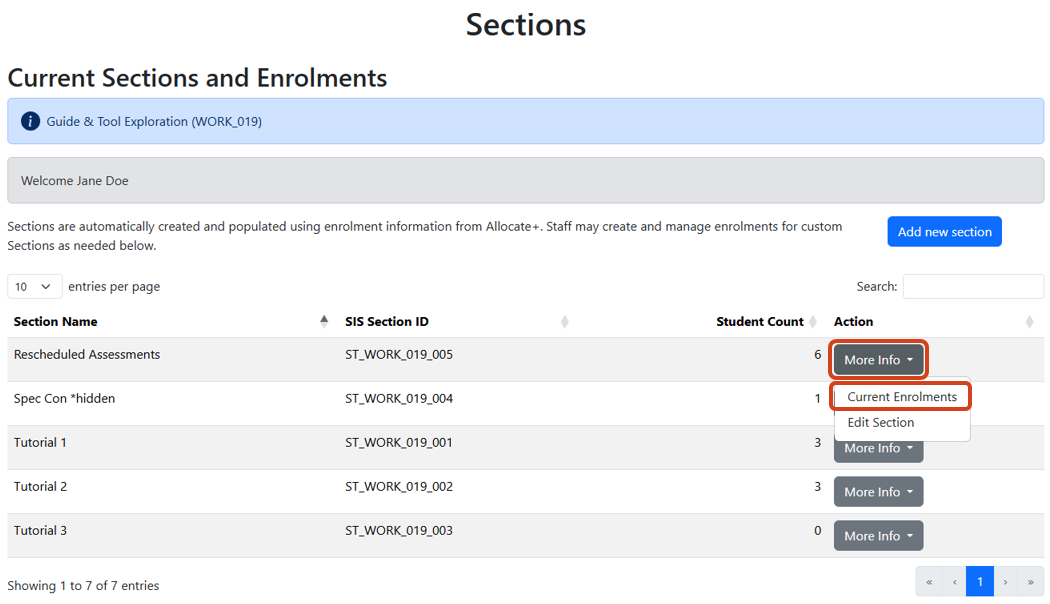
- To view the enrolments in each section, click the More Info button from the Action column and select Current enrolments.

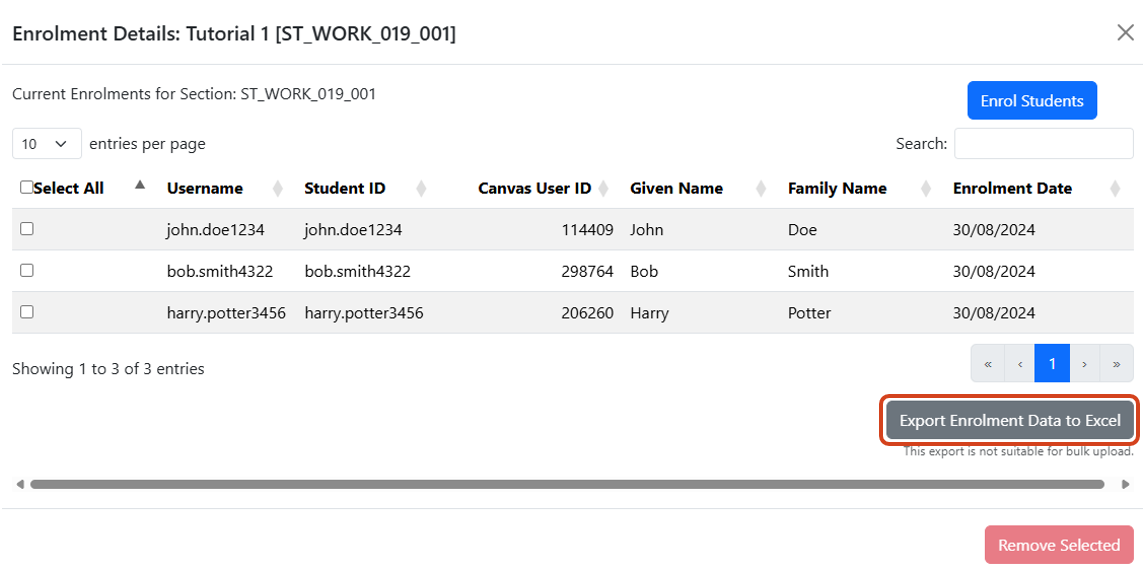
- A new window opens displaying all students enrolled in the selected Section. You also have the option to export the enrolment data for the selected section to an Excel file via the Export Enrolment Data to Excel button located below the summary table on the right.
Creating a new Section
Create a new Section manually
Staff with relevant permissions can manually create a new section in the LMS subject. A newly created section can also be made hidden from students’ view. See 'Create a new hidden Section' below for further information.
To manually create a new section:
- Click on Sections in the subject navigation menu, and then click Add new Section button.

- Enter an appropriate section name then click Save Changes
Note
- Section names are visible to students so should not include sensitive information.
- Section names cannot be duplicated in the same subject.

- A Section created message will display with the section ID (‘ST’ followed by the subject code and Section number). Click OK to complete the action.

You may need to refresh the page to view the latest changes.
Create a new hidden Section
Automatically created Sections are visible to allocated students by default. However, when creating Sections manually, staff have the option to create hidden Sections. A hidden Section enables staff to allocate students to a Section without revealing the Section's name. This feature is especially useful when the Section name contains sensitive information.
To manually create a new hidden Section:
- Click on Sections in the subject navigation menu, and then click the Add new Section button.
- Enter an appropriate name, adding *hidden before or after the Section name, then click Save Changes.

Note: Hidden Sections should not be selected when creating activities in external tools like FeedbackFruits, Perusall, Gradescope etc.
Rename a Section
Both automatically and manually created Sections can be renamed. For example, you may wish to rename the automatically created Section titled “ABCD10005_2020_SM1_L01_01” to “Monday 11am Lecture”.
Important: Section names are visible to students so should not include sensitive information such as special consideration status or other personal circumstances.
- While in the Sections tool, identify the section to be renamed and click the More Info button from the Action column and select Edit Section.

- Enter a new name for the section and click Save Changes.

- A successful message displays when processed by the system. Click OK to complete the action.

You may need to refresh the page to view the latest changes.
Delete a Section
Sections that have been created automatically cannot be deleted.
Any Section created manually by staff can be deleted, but only after all enrolments from the Section have been removed (student count is 0); see Remove students from a Section. As such, the Delete Section option shown below will not appear for Sections that currently have student enrolments.
Important: Deleting a Section that is currently used in a learning activity or assessment in an external tool, for example FeedbackFruits, may result in the loss of all student activity in that tool.
- Identify the Section you would like to delete by clicking the More Info button from the Action column and selecting Delete Section

- Ensure the Section you want to delete is correct and click Yes to confirm

- Once processed, a Section deleted message will display. Click OK to return to the Current Sections and Enrolments view.

You may need to refresh the page to view the latest changes.
Enrol students into a Section
The Sections tool allows for management of student enrolments in manually created Sections. Enrolments cannot be changed for the automatically created Sections, as these are controlled by the feed from Allocate+.
Note: Staff can also be added or removed from Sections. This can be useful for tutors, for example, to restrict their view of the Gradebook. To manage staff enrolments in Sections, use the Staff Roles area.
To enrol a student in a Section:
- Identify the Section you would like to add students, then click the More Info button from the Action column and select Current enrolments.

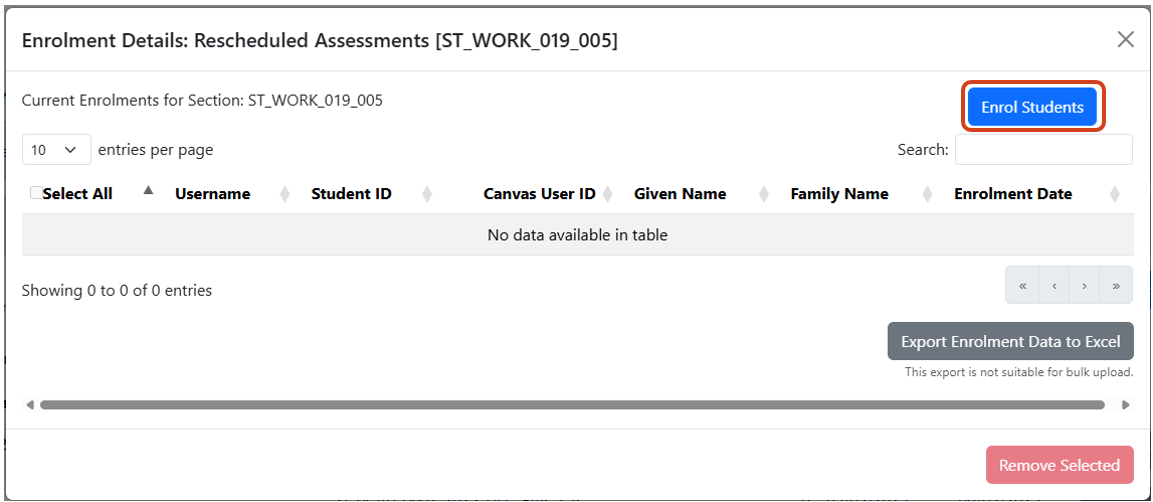
- The Section Enrolments screen opens. Click the Enrol Students button in the top right.
- All students currently enrolled in the subject will appear in the Student List.
Use the checkbox to the left of the Username column to select individual students or select the Select All checkbox if you want to enrol all students. The search field located in the top-right corner can be used to narrow your search results. When ready, click the Add Students to Section button.

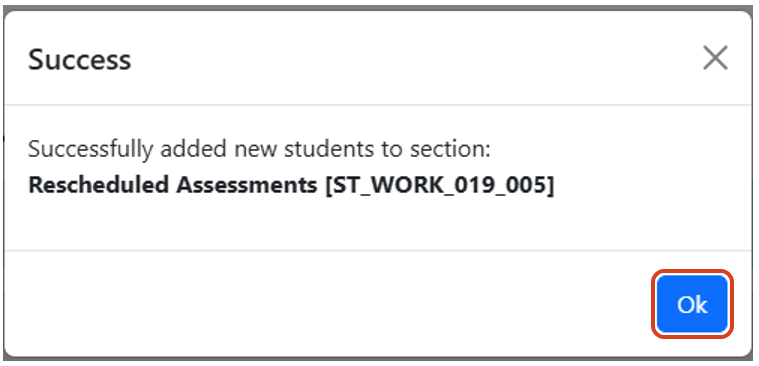
- Once processed, a successful message will be displayed confirming new enrolments in the Section. Click OK to complete the action.
You may need to refresh the Sections tool page to view the latest changes.
Remove students from a Section
- Identify the Section you would like to remove students from, then click the More Info from the Action column and select Current enrolments.
- Select the checkbox to the left of the Username column for relevant students who need to be removed from the Section or select the Select All checkbox to remove all students. The search field located in the top-right corner can be used to narrow your search results. Once ready, click the Remove Selected button.

- Once processed, the enrolment details window will display a temporary successful message confirming the removal of student enrolments. You can continue the unenrolment process or close this window to return to the Current Sections and Enrolments view.
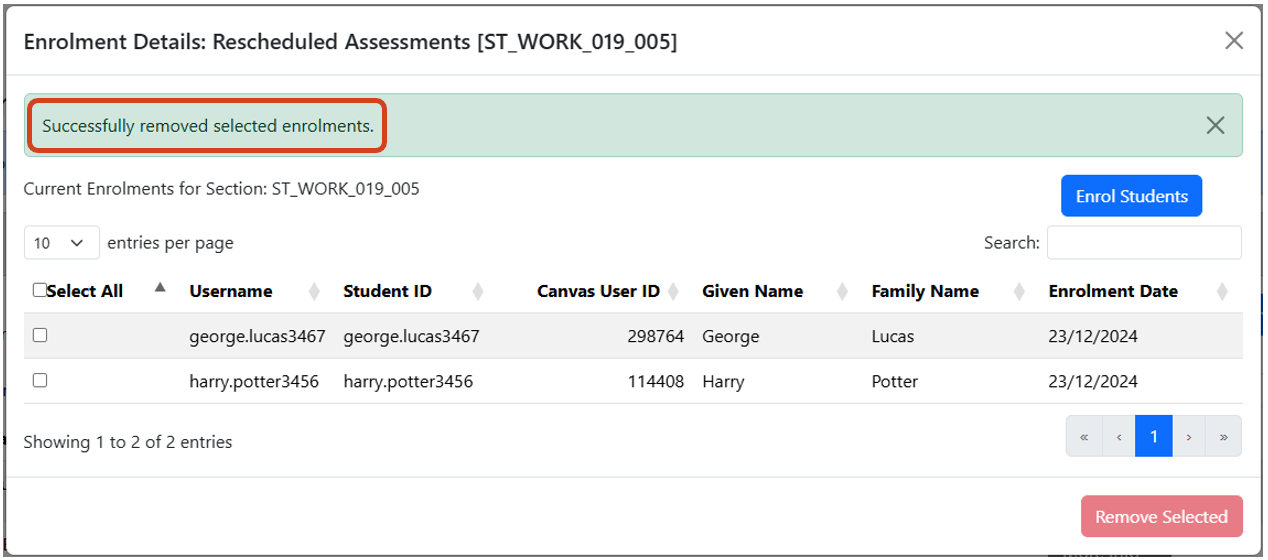
You may need to refresh the Sections tool page to view the latest changes.
Bulk manage Sections
Staff with relevant permissions have the option to manage changes to Section enrolments in bulk, by downloading the current Section enrolments as an Excel file. Within the Excel file, staff can choose one of the four enrolment methods (represented by the tabs within the file) to modify, enrol or un-enrol students, or add new Sections, then upload the updated file into the LMS subject for processing.
Note: .XLSX file extensions to be used only.
Download current section enrolments (Export Data)
- Click Sections from the subject menu.
- Scroll to Bulk Manage Sections.
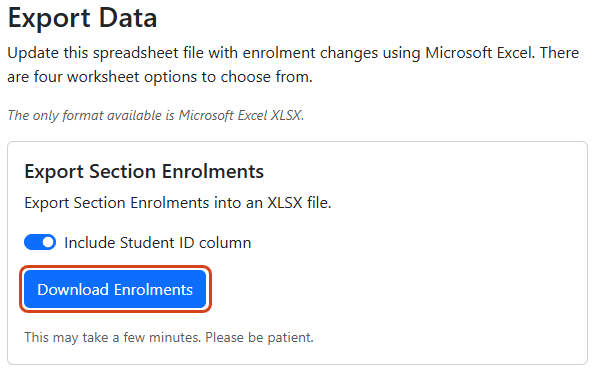
- Under the Export Data area, click the Download Enrolments button.
Tip: If you would like the student ID column to be included in the export, toggle on the Include Student ID column option.
Update the spreadsheet
The Excel file will have four separate tabs (also referred to as worksheets) which are Matrix, Single Dropdown, Multiple Dropdowns, and Quick Section Enrolment. These tabs are provided to cater to different approaches to managing Section enrolments. In the initial download, the same data will appear in all the four tabs and only the student roles will be downloaded. You will only need to edit one of these tabs.
Note: Only manually created Sections (represented by a Section ID starting with ST_) will be listed in the Excel file. Sections created via the integration with Allocate+ will not be listed due to editing restrictions.
| Tab | Option | Short description | When to use |
|---|---|---|---|
| 1 | Option 1 - Matrix | A format where you can view and action the enrolments across all Sections in one view. | Suitable for creating multiple Sections and managing multiple Section enrolment changes. |
| 2 | Option 2 - Single dropdown | A format where you can view and action the enrolments across all Sections using a dropdown. | Suitable for altering student enrolments from one or multiple Sections to another section (single Section changes). |
| 3 | Option 3 - Multiple dropdowns | A format where you can view and action the enrolments across all Sections using a dropdown. | Suitable for altering student enrolment across all available Sections (multiple Section changes) simultaneously. |
| 4 | Option 4 - Quick Section Enrolment | A format where you can add students into Sections using the student’s username. | Suitable for adding fewer than 1000 students into Sections. |
Create multiple Sections and manage multiple enrolments - Matrix
Use the Matrix enrolment method when you wish to create multiple Sections as well as managing multiple Section enrolment changes.
After completing the download of the Section enrolments into Excel file from the Export Data area:
- Open the downloaded Excel file and select the Matrix tab. Students who are already enrolled in a Section will have the text Enrolled next to their name.
Note: Enrolments in automatically created sections cannot be modified. Any student who is enrolled in an automatically created section will have the text Enrolled next to their name. If not enrolled, the corresponding section cell will be left blank.
- To add a new Section, enter the desired Section name in the next available column of the spreadsheet.
Note: If the name provided for a new Section coincides with an existing Section's name, no error will be reported, and the students will be added to the existing Section with that name instead of creating a new Section.
- To add a student to a manually created section, type Add OR select Add from the dropdown list for the relevant student you would like enrolled to the section.
- To remove a student from a manually created section, replace Enrolled with Remove.
- Repeat steps 2, 3 & 4 for all new Sections and their associated enrolments.

- Ensure that you save the changes in this file before uploading it to the LMS subject.
- Click Sections from the subject menu.
- Scroll to Bulk Manage Sections.
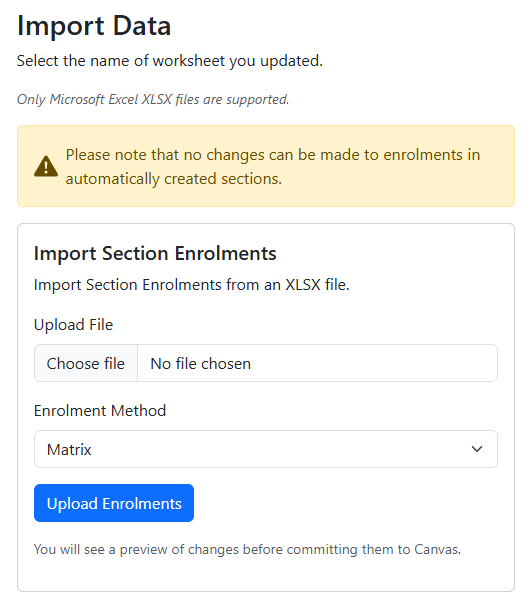
- Under the Import data area, click the Choose file / Browse... button and select the file you wish to upload
(file saved in step 6 above). - Ensure Matrix is selected from the Enrolment Method dropdown menu.
- Click Upload Enrolments.
Upload the updated file (Import Data)
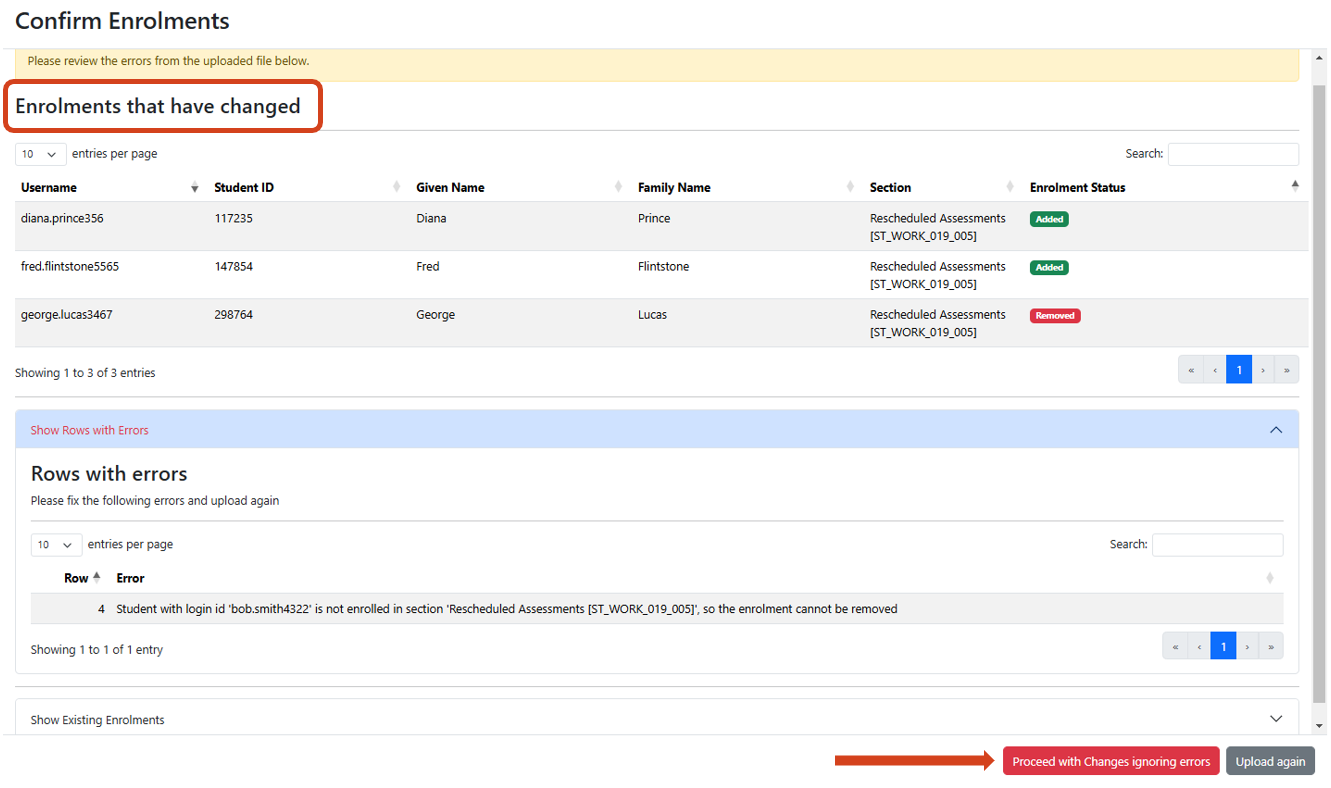
- A summary page with the proposed changes from your upload will appear for your review:
- Any errors will be displayed under Show Rows with Errors.
- Existing enrolments (without changes) will also be displayed below the changes list.
- Click Proceed with Changes or Proceed with Changes ignoring errors if you want to proceed with the change(s). Alternatively, you have the option to upload again if the data needs adjusting.
- Once the enrolment changes have been processed, a successful message will appear at the top of the screen. Click OK to return to the Sections tool. The Excel file available for downloading now contains the updated enrolment data.

Altering enrolment changes - single Section change
Use the Single Dropdown enrolment method when you wish to alter student enrolments from one or multiple Sections to another Section.
Note: Only enrolments in manually created sections can be modified.
After completing the download of the Section enrolments into Excel file from the Export Data area:
- Open the downloaded Excel file and select the Single Dropdown tab.
- Identify the student whose Section enrolment requires altering and select the desired section by clicking the dropdown arrow from the Enrol into Section column (only manually created sections will appear on the dropdown list).. By doing so, the student will be removed from their existing Section(s) and enrolled into the new Section. To remove a student from a Section completely, select the blank option from the dropdown menu or press the Delete key on your keyboard.
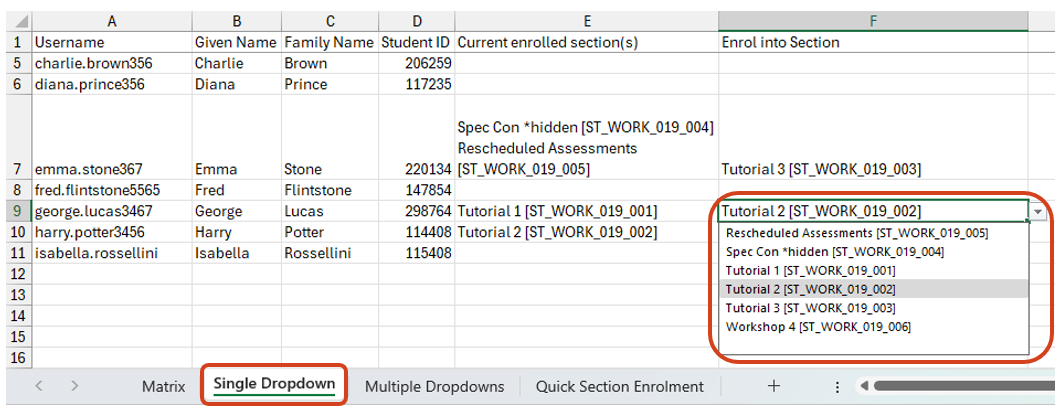
- Ensure that you save the changes in this file before uploading it to the LMS subject.
Upload the updated file (Import Data)
- Click Sections from the subject menu.
- Scroll to Bulk Manage Sections.
- Under the Import data area, click the Choose File / Browse... button and select the file you wish to upload (file saved in step 3 above).
- Ensure Single Dropdown is selected from the Enrolment method dropdown menu.
- Click Upload Enrolments.
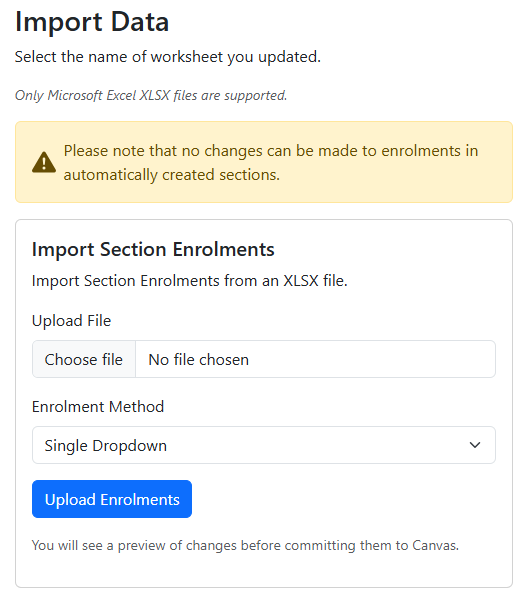
- A summary page with the proposed changes from your upload will appear for your review:
- Any errors will be displayed under Show Rows with Errors.
- Existing enrolments (without changes) will also be displayed below the changes list.
- Click Proceed with Changes or Proceed with Changes ignoring errors if you want to proceed with the change(s). Alternatively, you have the option to upload again if the data needs adjusting.
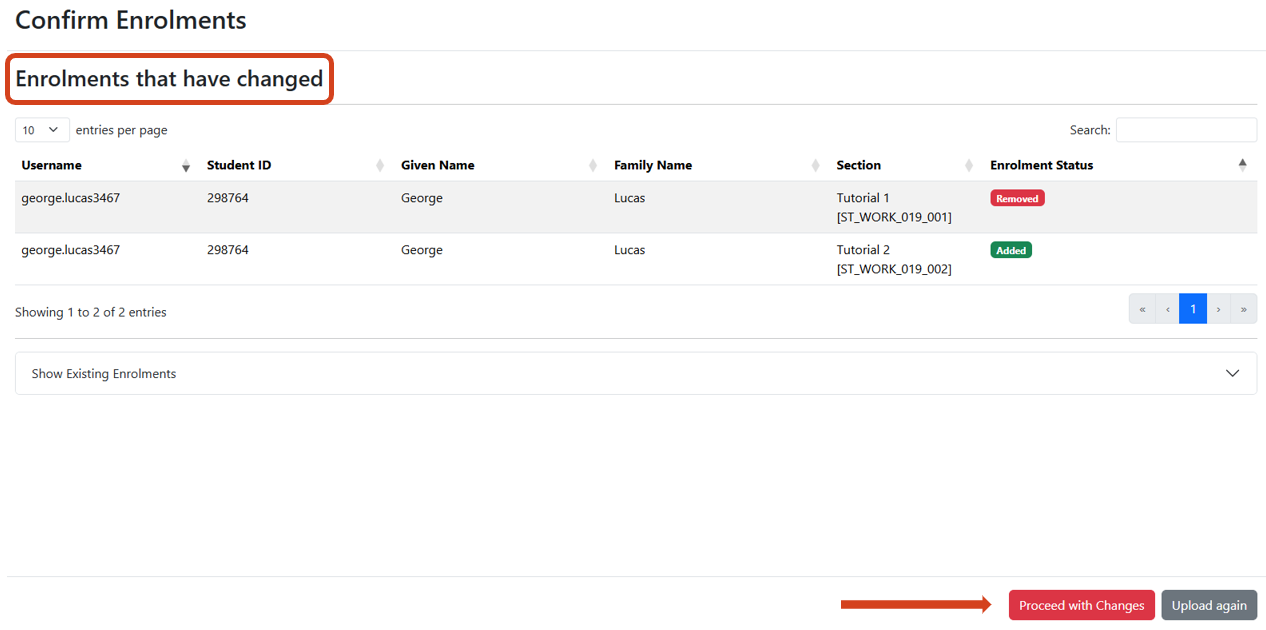
- Once the enrolment changes have been processed, a successful message will appear at the top of the screen. Click OK to return to the Sections Tool. The Excel file available for downloading now contains the updated enrolment data.
Altering enrolment changes - multiple Section change
Use Option 3 – Multiple Dropdowns when you wish to alter student enrolments across all available Sections.
Note: Only enrolments in manually created sections can be modified.
After completing the download of the Section enrolments into Excel file from the Export Data area:
- Open the downloaded Excel file and select the Multiple Dropdowns tab.
- The spreadsheet will display the number and section names students are currently associated with.
- To add a student to multiple sections, select a Section via the dropdown arrow of the next available Enrol into Section column. Only manually created sections will appear on the dropdown list. Repeat these steps for each additional Section that a student should be added to.
- To remove a student from any Section, select the blank option from the dropdown menu or press the Delete key on your keyboard.
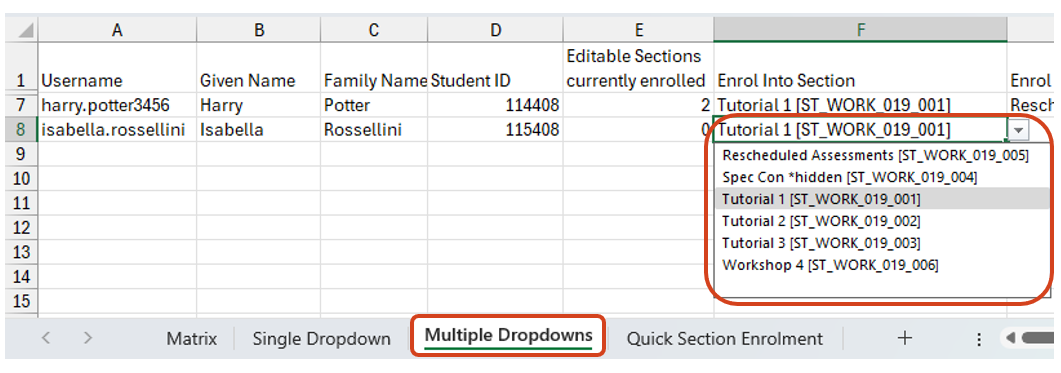
- Ensure that you save the changes in this file before uploading it to the LMS subject.
Upload the updated file (Import Data)
- Click Sections from the subject navigation menu.
- Scroll to Bulk Manage Sections.
- Under the Import data area, click the Choose File / Browse... button and select the file you wish to upload
(file saved in step 3 above). - Ensure Multiple Dropdowns is selected from the Enrolment method dropdown menu.
- Click Upload Enrolments.

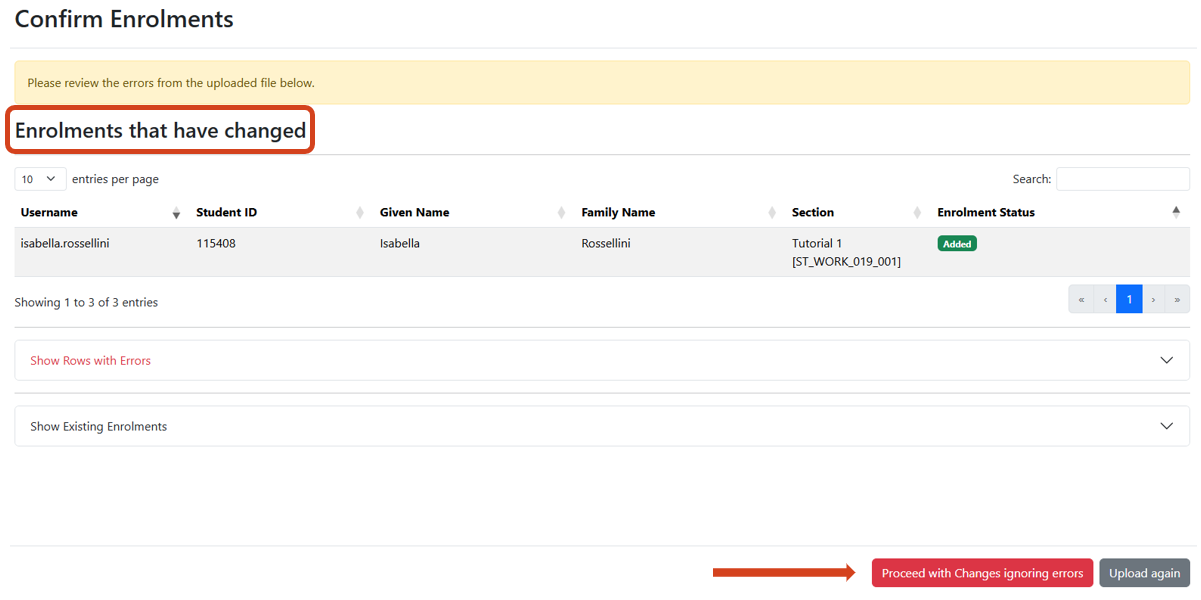
- A summary page with the proposed changes from your upload will appear for your review:
- Any errors will be displayed under Show Rows with Errors.
- Existing enrolments (without changes) will also be displayed below the changes list.
- Click Proceed with Changes or Proceed with Changes ignoring errors if you want to proceed with the change(s). Alternatively, you have the option to upload again if the data needs adjusting.
- Once the enrolment changes have been processed, a successful message will appear at the top of the screen. Click OK to return to the Sections Tool. The Excel file available for downloading now contains the updated enrolment data.
Quick Section enrolment
Use the Quick Section Enrolment method when you wish to manually add fewer than 1000 students to one or more sections in your LMS subject.
After completing the download of the Section enrolments into Excel file from the Export Data area:
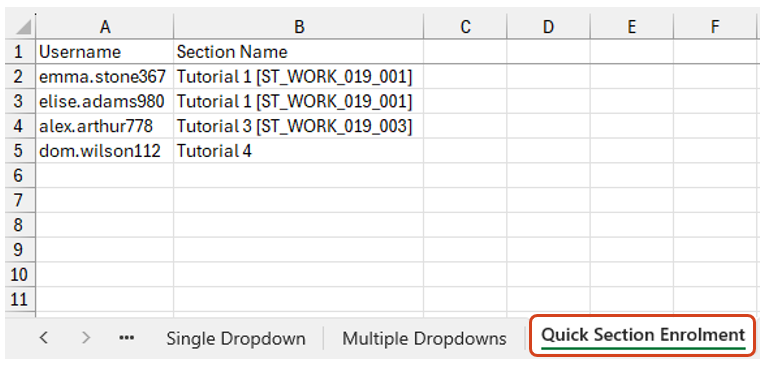
- Open the downloaded Excel file and select the Quick Section Enrolment tab.
- Add the student’s username to the Username column and the name of the Section which you wish to enrol them into under the Section Name column. You can copy the Section name, or combination of Section name and Section ID, for the existing Sections from the Matrix tab or from the Section tool in your LMS subject.
Note: Only manually created Sections (Section names starting with ST_) can be used for this enrolment method.
- A new Section can also be created using this method. Simply enter the desired section name next to the student’s username who will also be added to this new Section. In the example below, Tutorial 4 is a new Section.
- Ensure to save the changes in this file before uploading to the LMS subject
Upload the updated file (Import Data)
- Click Sections from the subject menu.
- Scroll to Bulk Manage Sections.
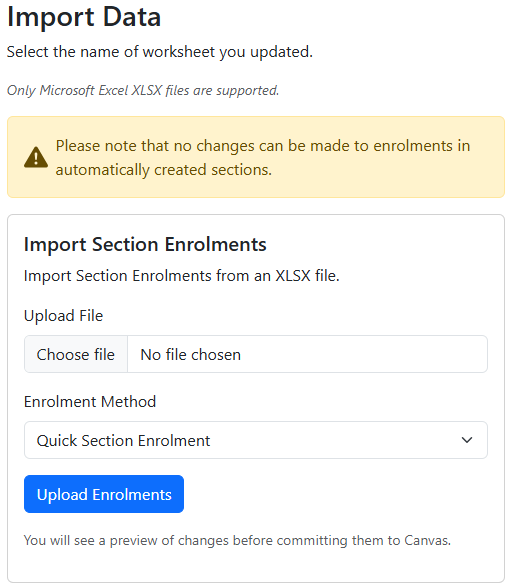
- Under the Import data area, click the Choose File / Browse... button and select the file you wish to upload (file saved in step 4 above).
- Ensure Quick Section Enrolment is selected from the Enrolment method dropdown menu.
- Click Upload Enrolments.
- A summary page with the proposed changes from your upload will appear for your review:
- Any errors will be displayed under Show Rows with Errors.
- Existing enrolments (without changes) will also be displayed below the changes list.
- Click Proceed with Changes or Proceed with Changes ignoring errors if you want to proceed with the change(s). Alternatively, you have the option to upload again if the data needs adjusting.

- Once the enrolment changes have been processed, a successful message will appear at the top of the screen. Click OK to return to the Sections Tool. The Excel file available for downloading now contains the updated enrolment data.