H5P in the LMS
H5P is a tool to easily create and embed rich interactive content and activities on content pages in the LMS, such as Assignments, Modules and Pages. Staff can create a H5P account within the University of Melbourne domain and synchronise it to the LMS.
Please note that all steps listed below must be completed for H5P to be correctly synchronised in the LMS.
Activate and connect your H5P account in the LMS
To activate your account, you must login to the LMS and create H5P content as an External Tool in a Module. This action will activate and link your H5P account to your Canvas account.
Note: All steps listed below must be completed for H5P to be correctly synchronised in Canvas.
We recommend using your Playpen subject to create and test new content. Then use the Import Existing Content feature on the subject home page, to copy the content to your current subject when ready.
- Log in to the LMS and navigate to your Playpen subject from the Dashboard.
- Click the Pages link in the subject navigation menu.
- Click the View All Pages button.
- Click the + Page button.
- Add a page title.
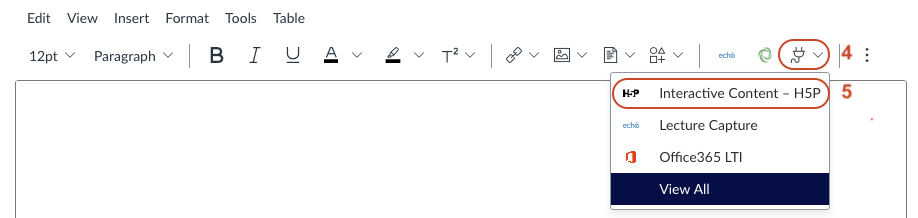
- Locate the Apps icon on the Rich Text Editor menu, and click to expand.
- Scroll to locate Interactive Content - H5P and click to select.
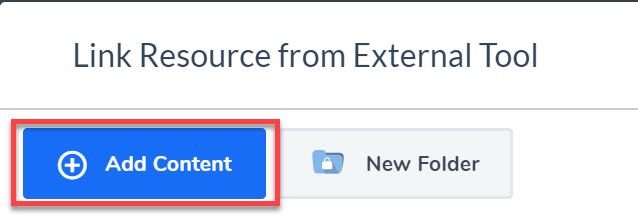
- The Interactive Content – H5P window will display. Click the blue Add Content button.
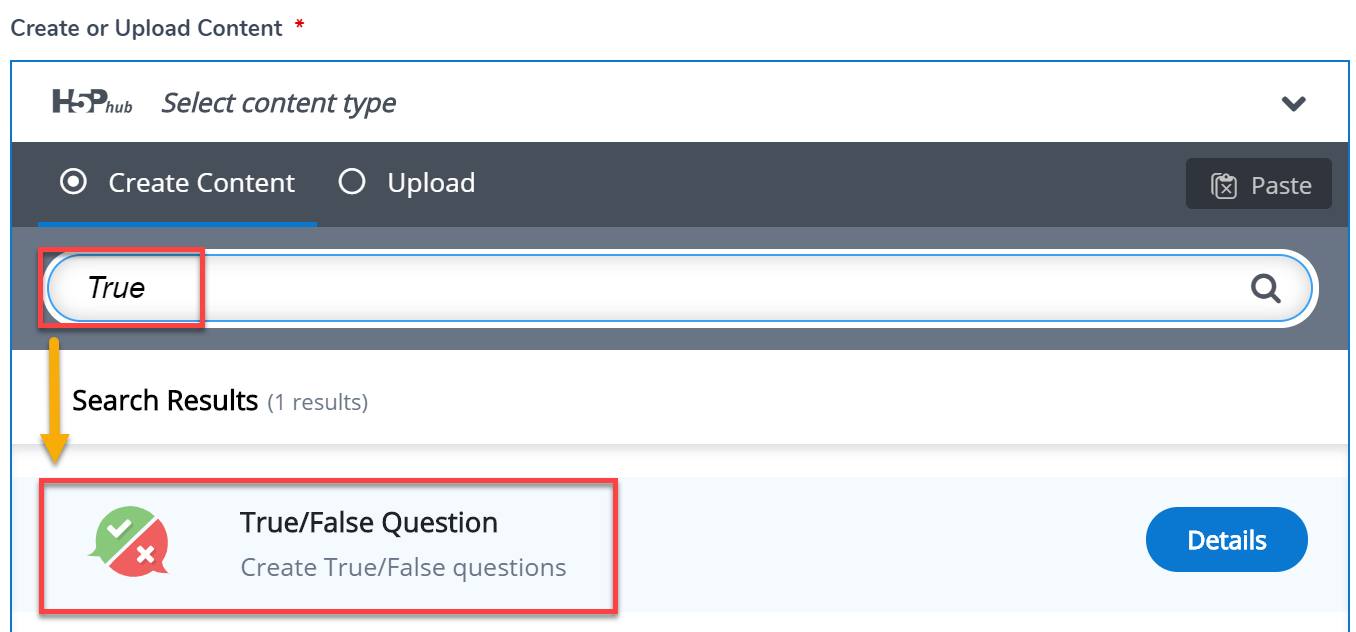
- For this example, we will add a new True/False Question. Scroll down, or type ‘True’ into the Search for Content Types to create field, then click on True/False Question.
Note: You can select from other H5P Content Types:
- Course Presentation - embellish presentation slides with multiple choice questions, fill in the blanks, text and other types of interactions.
- Interactive Video - enrich videos with interactive content such as explanations, pictures and quizzes and more. This includes EchoVideo (Lecture Capture) media, YouTube videos, as well as media files saved to your device.
- Branching Scenario - create dilemmas, learning scenarios and interactive choice trees.
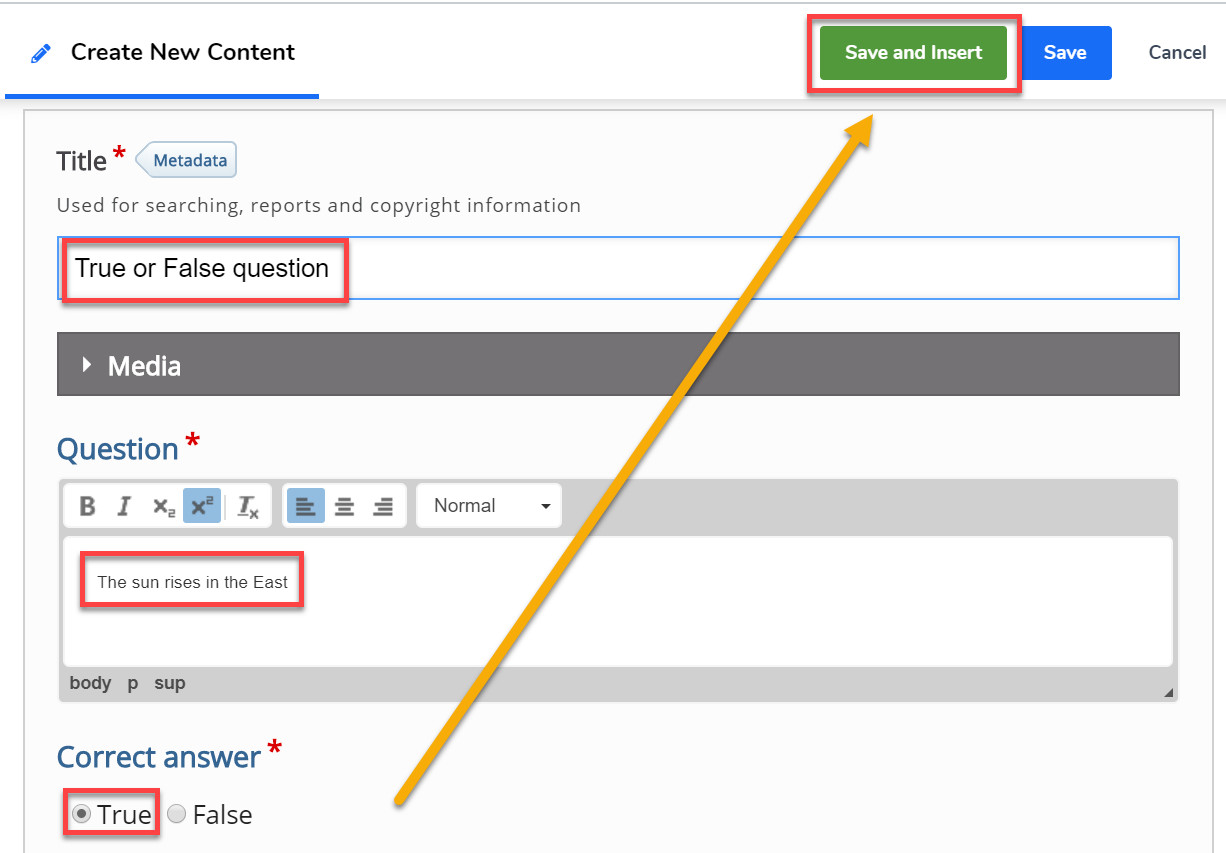
- Enter the question details following the below example:
- Title: True or False question
- Question: The sun rises in the East
- Correct Answer: Select True
- Click on Save and Insert.
- Your H5P interactive will be added to Canvas LMS editor window. Click the Save or Save & Publish button to save.
- H5P will now be synchronised with Canvas LMS across the University of Melbourne H5P domain.
Accessing H5P directly
Activities and resources may also be created and edited via the University of Melbourne H5P website.
To access H5P always do so via unimelb.h5p.com, not h5p.com or h5p.org.
Prior to accessing H5P directly for the first time, follow the instructions above to create an activity within the LMS using the rich text editor.
When accessing the H5P website for the first time, provide your email and set a password. Please use the primary email in your LMS account to ensure content created through the website will also be available within the LMS. The password should be unique to H5P, as it is not linked to your University of Melbourne SSO account.
More information
H5P offers the following guides on setting up content in different areas of Canvas LMS:
These tutorials will guide you through creating content in H5P:
- Agamotto tutorial - create a sequence of images that changes gradually
- Course Presentation tutorial - create a presentation with interactive slides
- Interactive Video tutorial - create videos enriched with interactions.
This guide was last updated 02 Dec 2025.
Submit an LMS support request for further assistance or to report any errors or omissions in this guide.