Feature release: Smart Search in Canvas LMS subjects
Smart Search has been introduced to Canvas LMS and can be used in subjects and communities. Once enabled, Smart Search indexes the content available within the subject, then allows all staff and student users to search using keywords or questions to return all related results.
Staff can now choose to enable this tool in the Feature Options section of the subject settings. Locate the Smart Search feature option, click on the red X icon in the State column, then select Enabled.

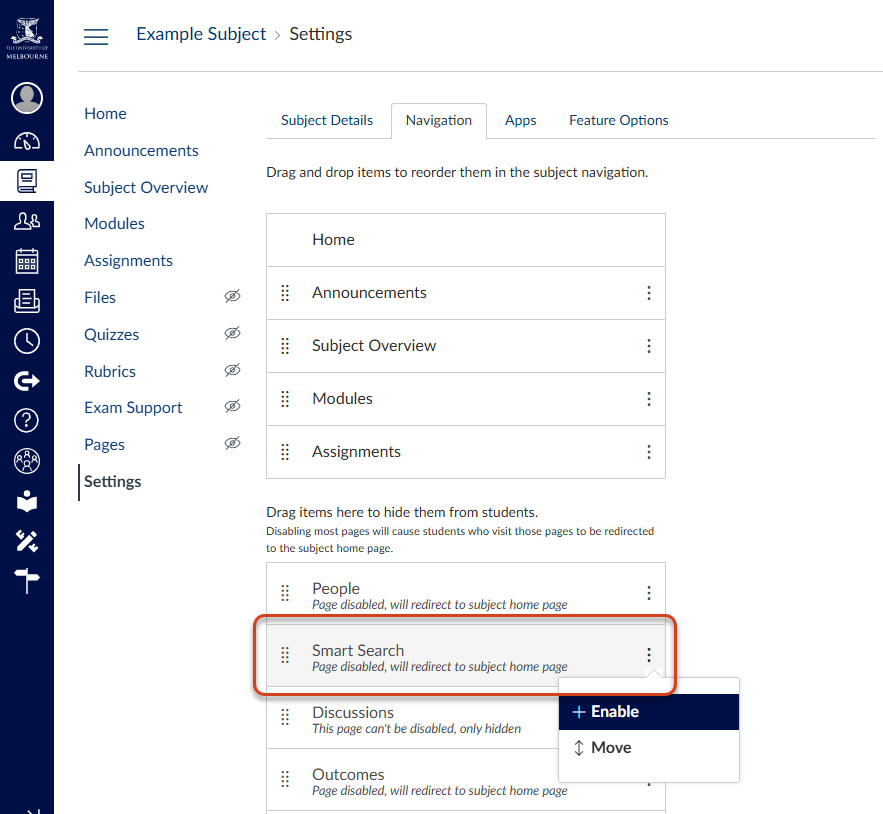
After enabling Smart Search, refresh the page, then update the Smart Search option in the Navigation section.
Currently, Smart Search can query the following items within a subject or community:
- Content pages
- Announcements
- Assignment descriptions
- Discussion topics.
Note it does not query discussion responses, files or external tools.
To find out more about the functionality of Smart Search, click on How It Works, or go to the Canvas Smart Search FAQs.

To begin, type in a keyword or search query. Results will display in order of relevance, with further content available under the Show additional results heading.

This tool is in active development. To assist with future improvements to the tool, users can provide feedback to Canvas using the thumbs up or thumbs down rating while viewing the search results.
Important: While Smart Search can be a helpful tool for students reviewing content in preparation for assessment, or to staff locating and updating information, it is important to note that the tool is limited and cannot be relied on to provide all relevant content.
Please contact Learning Environments with any questions or feedback about Smart Search.
More Information
Learning Environments