Using student activity data to check in and support learning
Student activity data can be used to check on how students are engaging with online activities and resources and progressing through a subject. This can assist with:
- Supporting students by identifying those who may benefit from additional assistance or resources.
- Gaining an overview of strengths and weaknesses in student learning and tailoring communications and resources to meet student needs.
How do I access student activity data in my LMS subject?
Each LMS subject includes tools to check in on student activity and progress. Use these tools to observe data about a group or individual student activity.
Subject Analytics
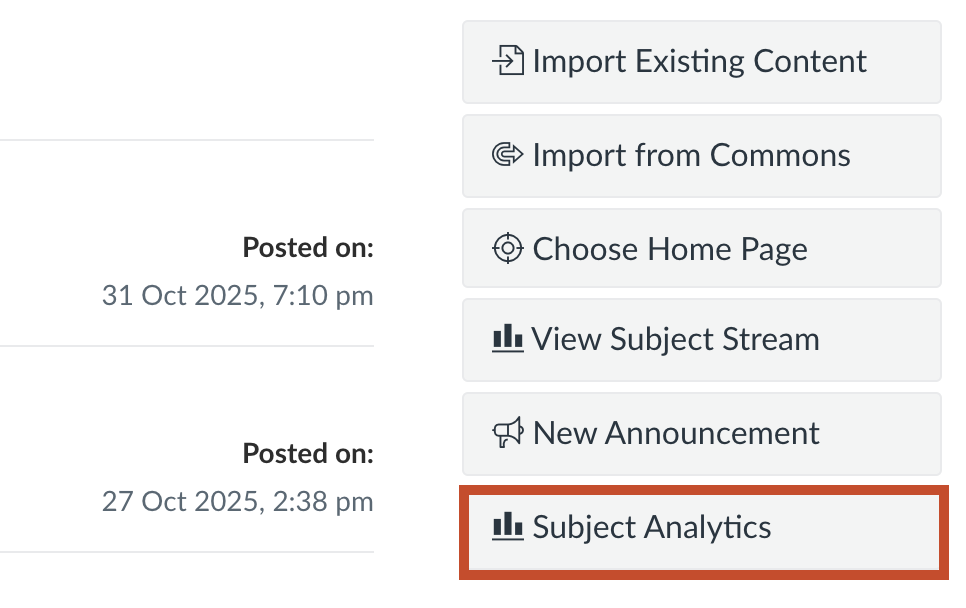
Once students have been active within a subject, a Subject Analytics button will appear on the right-hand side of the subject's home page.
The Subject Analytics dashboard presents an overview of online activity data. This includes:
- Needs attention
- Subject grade
- Weekly online sctivity
- Students
- Reports.
Each of these tools allows exporting data in .csv format.
The student file download includes the students name, email address and student ID.
For large classes, give the system a few extra seconds to load all the data.
See these Canvas guides on Course Analytics.
Access Reports
An access report for an individual student can be found via the People or Grades tools.
The People tool lists all staff and students in the subject and the time and date of their last activity. Clicking on a student's name from this list will open a box on the right with more information about the student.
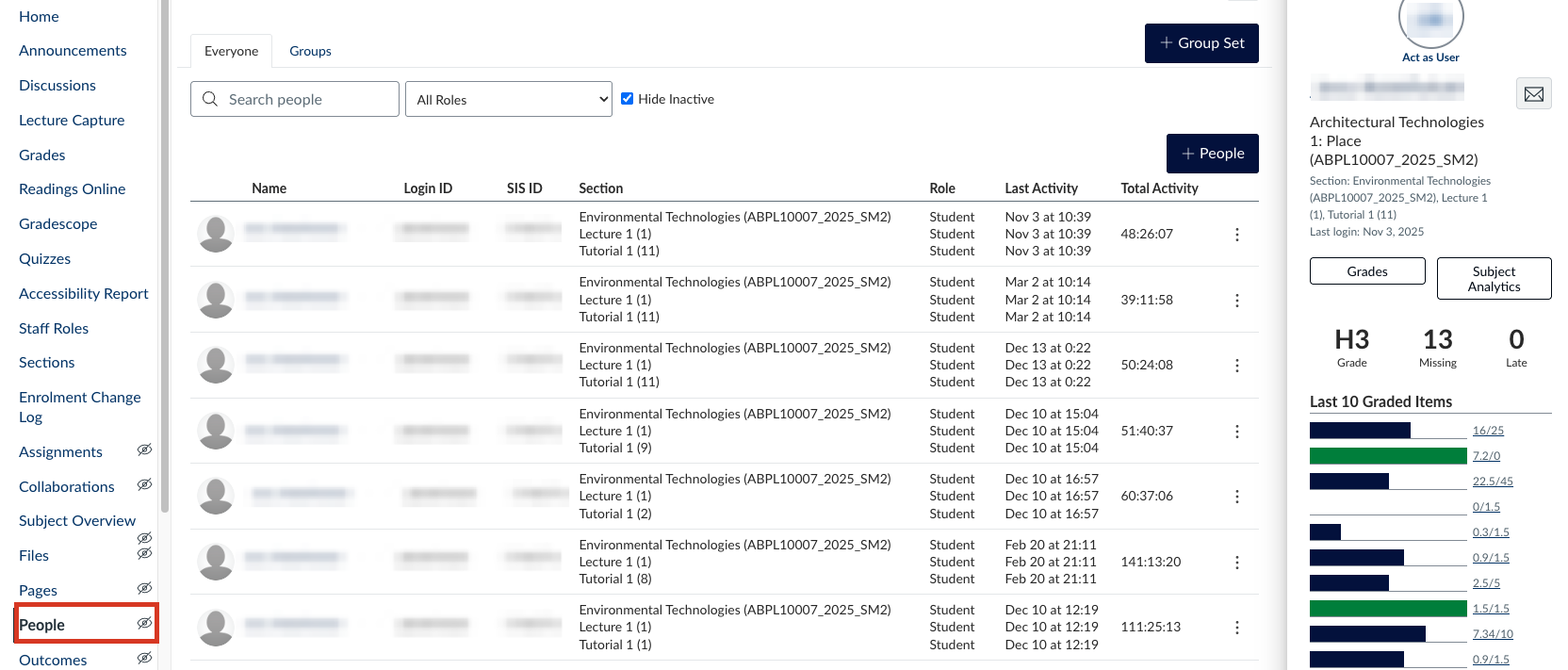
Clicking on the student's name will provide additional options; click Access Report to see which content and activities a student has accessed.
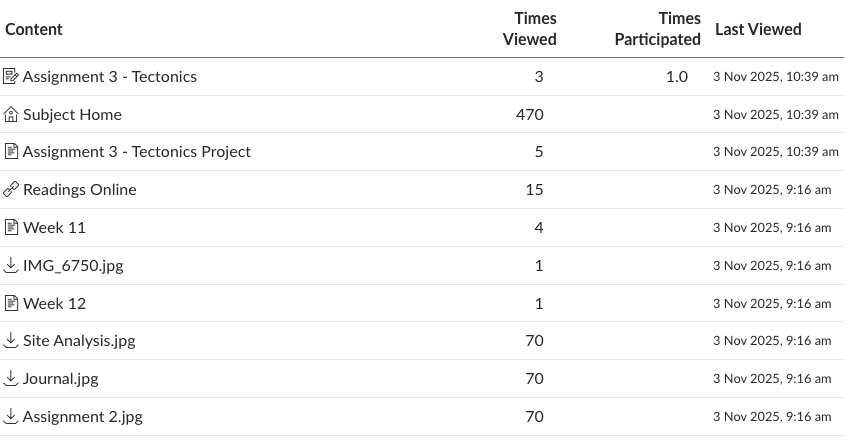
See this guide for information on how to view the course access report for an individual user.
How do I use student activity data to support learning and engagement?
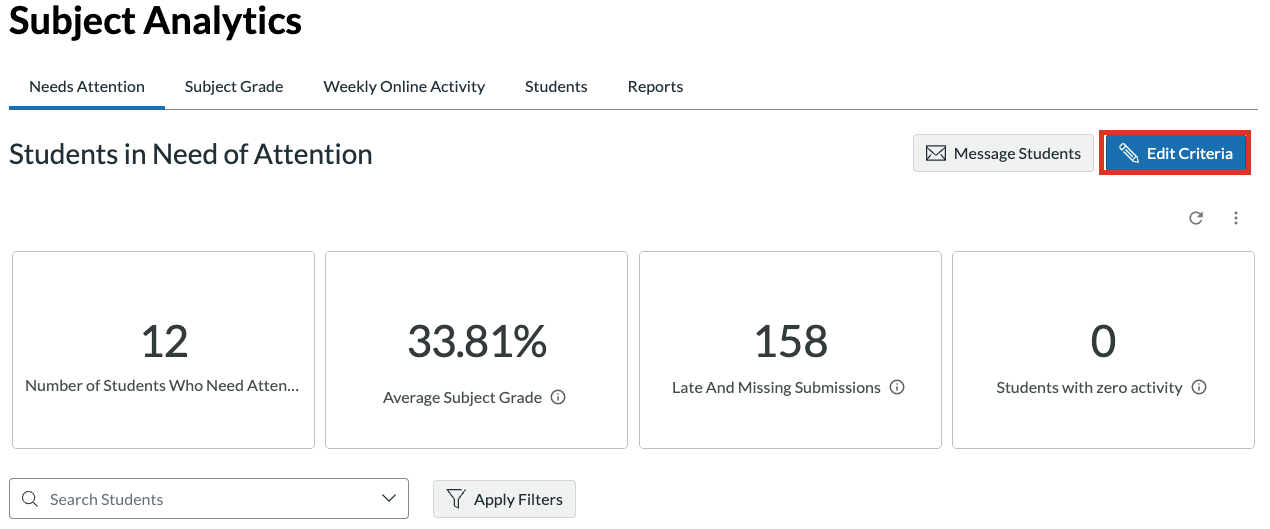
Use Subject Analytics to plan tailored communication that encourages student engagement. The default landing page displays Students in Need of Attention.
Data can be filtered by Student Engagement and Subject Performance. Each criterion allows further filtering and the option to message groups of students based on these filters.
Step one: Navigate to the Subject Analytics page and click on Edit Criteria
Step two: Filter your criteria accordingly
If a student meets all of the selected criteria, that student will show up on your dashboard as Number of Students Who Need Attention.
Click Save to capture these criteria.
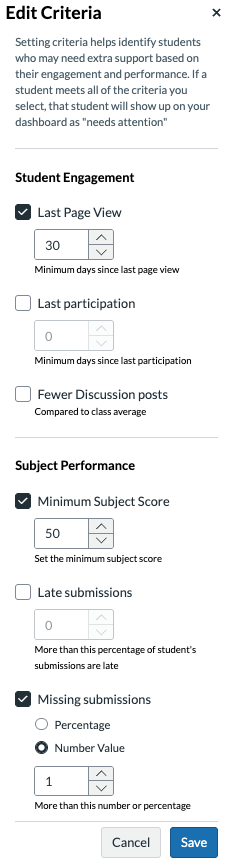
NOTE: Filters are applied using ‘and’ logic: each new criterion further restricts the results to items matching every selected filter.
Step three: Email your students in need of attention
- BCC: Shows how many, and which students the message will be delivered to. Recipients can be added or deleted if required.
- Message details: Subject of the message and the message itself.
Support and additional guides
For more information, see our guide on Intelligent Insights.
If you have any questions or concerns, please submit a support request.
This page was last updated on 18 Mar 2026.
Please report any errors on this page to our website maintainers