Getting started with Lecture Capture
Guide to accessing the Lecture Capture (EchoVideo) system as well as viewing and downloading recordings.
Access the Lecture Capture system
The Lecture Capture system can be accessed through any LMS subject with an available Lecture Capture link. Users can also access the system directly and by using the EchoVideo mobile app.
Note: Some LMS subjects may not have a Lecture Capture link enabled. If you are unsure if you should have access to Lecture Capture for your subject please contact your subject coordinator.
- Log in to the LMS and open your subject.
- Select the Lecture Capture page from the subject menu.

- Click on the Lecture Capture link in the subject menu to go to the Lecture Capture page. You will be presented with a list of available and scheduled Lecture Capture recordings for the selected subject.
Courses/Classes page
When accessing Lecture Capture via the LMS you will be automatically directed to the Classes tab on the Course page. This screen provides you with access to all available content for the selected subject. From here, you can:
- Watch or download lecture recordings
- Access slides or presentations (if they have been uploaded)
- See a list of future scheduled recordings

EchoVideo
EchoVideo is the Lecture Capture system's home page when accessing Lecture Capture directly. This page provides you with an overview of your media, current courses, recordings and other information for each course you have access to.
From the home page, you can navigate to each course for further information.
For more information, view the EchoVideo guide accessing course/classes.
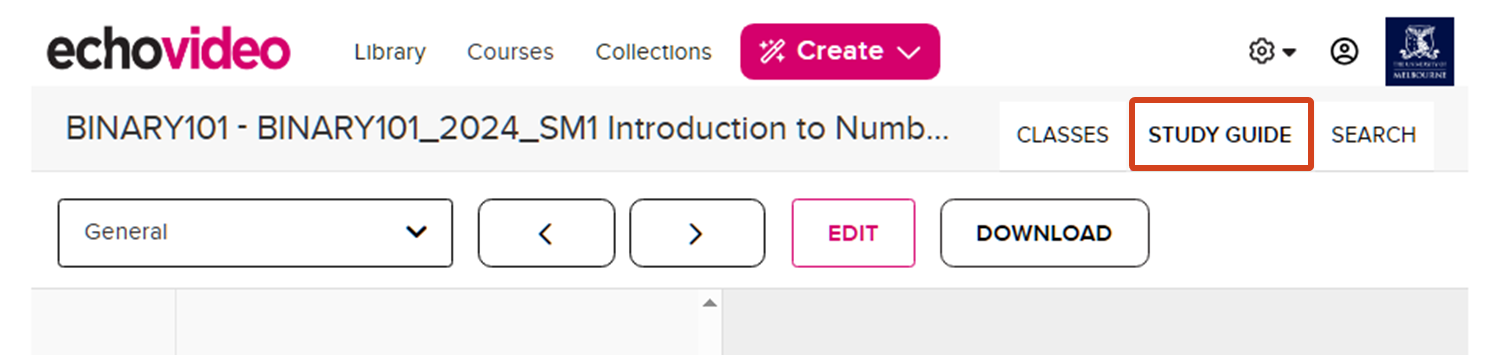
Study guide
The Study Guide section allows you to review notes and bookmarks that you have made throughout recordings. There is an additional option to download your notes from here.
For more information, view the EchoVideo guide to taking notes and using the study guide.
Note: Student study notes are private to the individual student and cannot be viewed by staff or fellow students. The University does not have access to the study notes and has an agreement with the vendor that the raw data cannot be analysed.
Search recordings
The Lecture Capture system gives you the ability to search for text that is used throughout the subject. Some examples of searchable information within the system are:
- Slide content (if a presentation has been uploaded to the system)
- Names, descriptions or dates of recordings
- Your own study notes and bookmarks
For a detailed walkthrough of the search functionality, view the EchoVideo guide to search across a section.
Watch lecture recordings
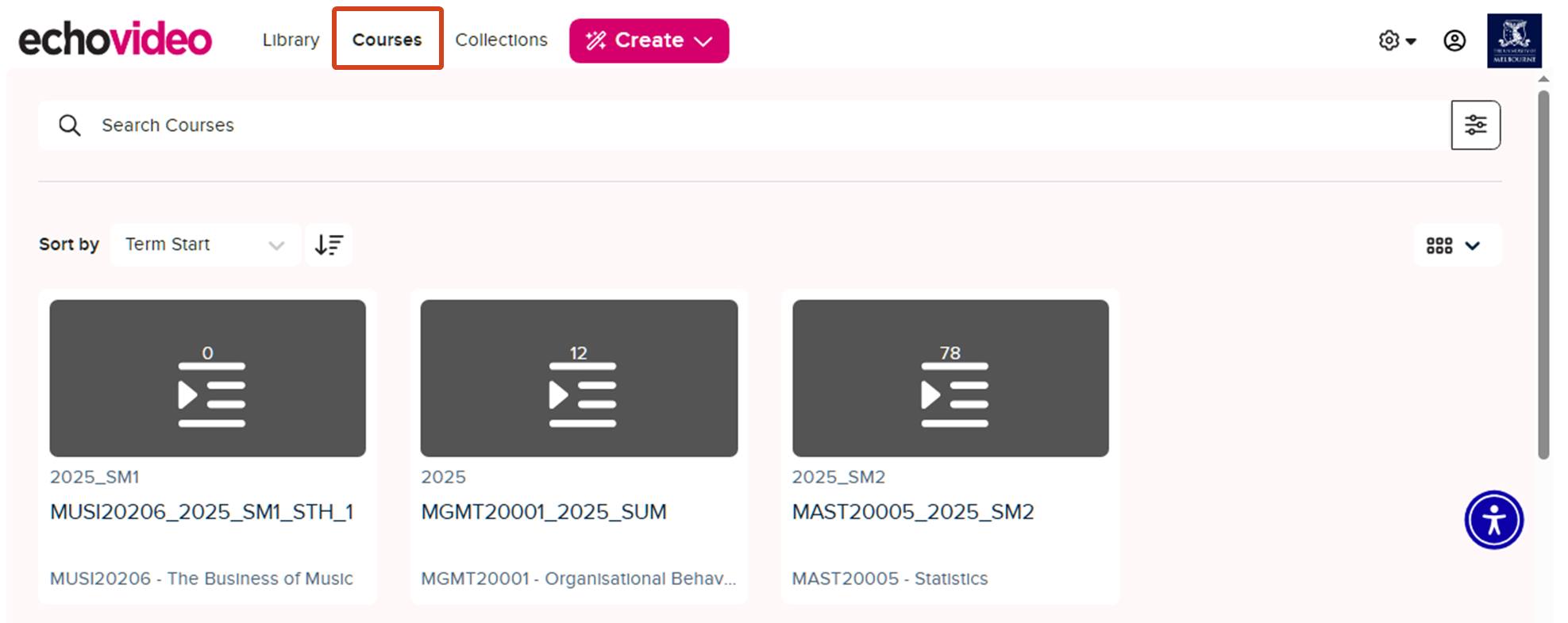
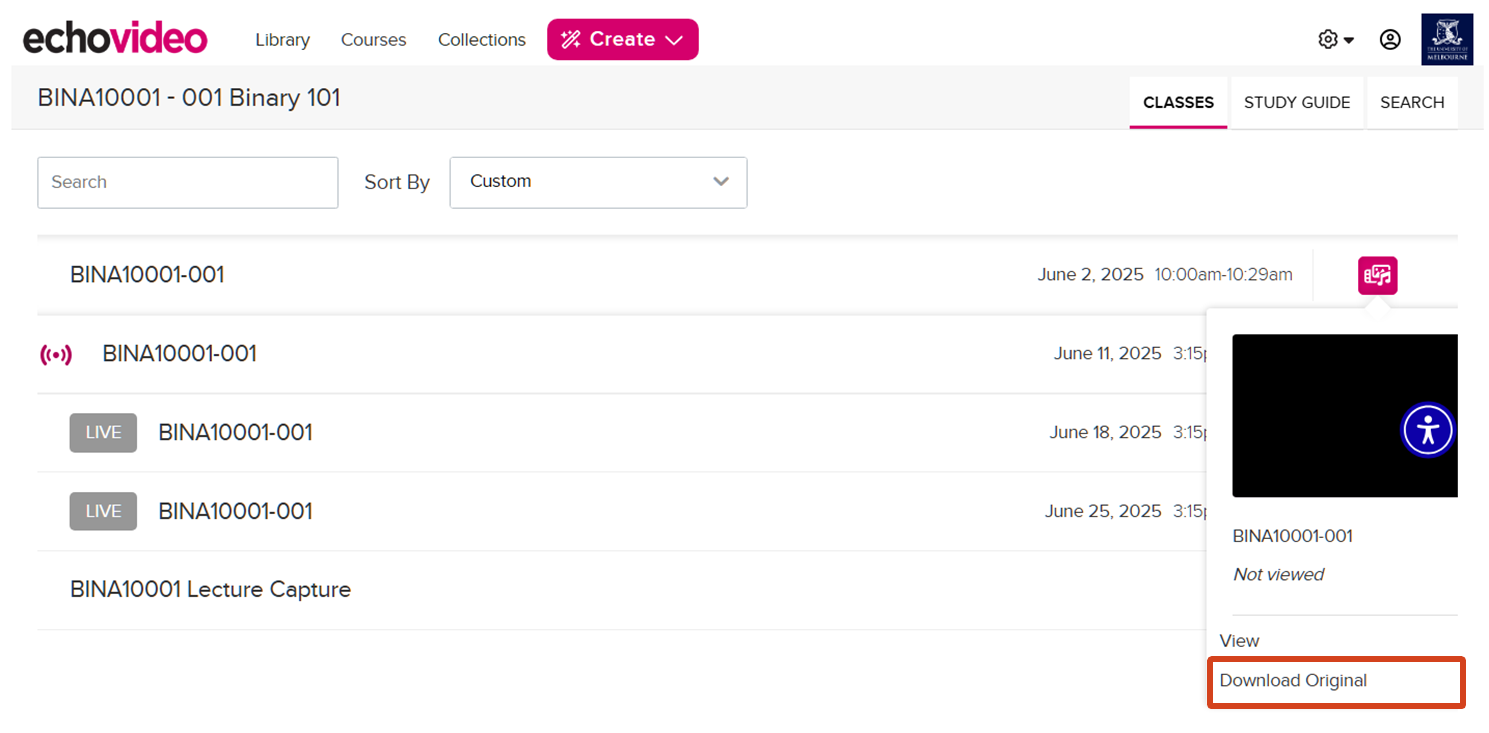
- Access the Lecture Capture link in your LMS subject or navigate to the recordings (Class List) for a subject by selecting the subject from your EchoVideo Home page if you have logged into Lecture Capture and by using the EchoVideo mobile app. (To see all of your subjects for which Lecture Capture is available, select the Courses tab from the navigation menu).
Note: When accessing Lecture Capture via the LMS you will be taken directly to the Class List. - Click on the name of a recording from the list provided. The icons shown in the table below may be displayed next to each recording.
- Click on the name of the desired recording; a video player will appear and playback will commence once the Play button is selected.

Media button
The Media button indicates that the media can be viewed or downloaded.

Presentation screen
The Presentation icon indicates a presentation or file has been added to complement the recording.

Live badge
The grey LIVE badge indicates a future class is scheduled to be streamed live.

Signal icon
The Signal icon indicates that a recording is currently live streaming.

Processing Media icon
The Processing Media icon indicates that the media is currently being processed.
Watch live lectures with Lecture Capture
The Lecture Capture system also hosts live streams. To access these live streams:
- Click Lecture Capture in the subject menu.
- Lectures that are currently being live streamed will appear with a raspberry signal icon to the left of the stream title. If the lecture is scheduled to be live later, a gray LIVE badge will appear to the left of the stream title.

- Click Join Session. You can choose to join Remotely or In person. By default, we recommend joining Remotely. Joining In-person automatically disables the stream’s audio.
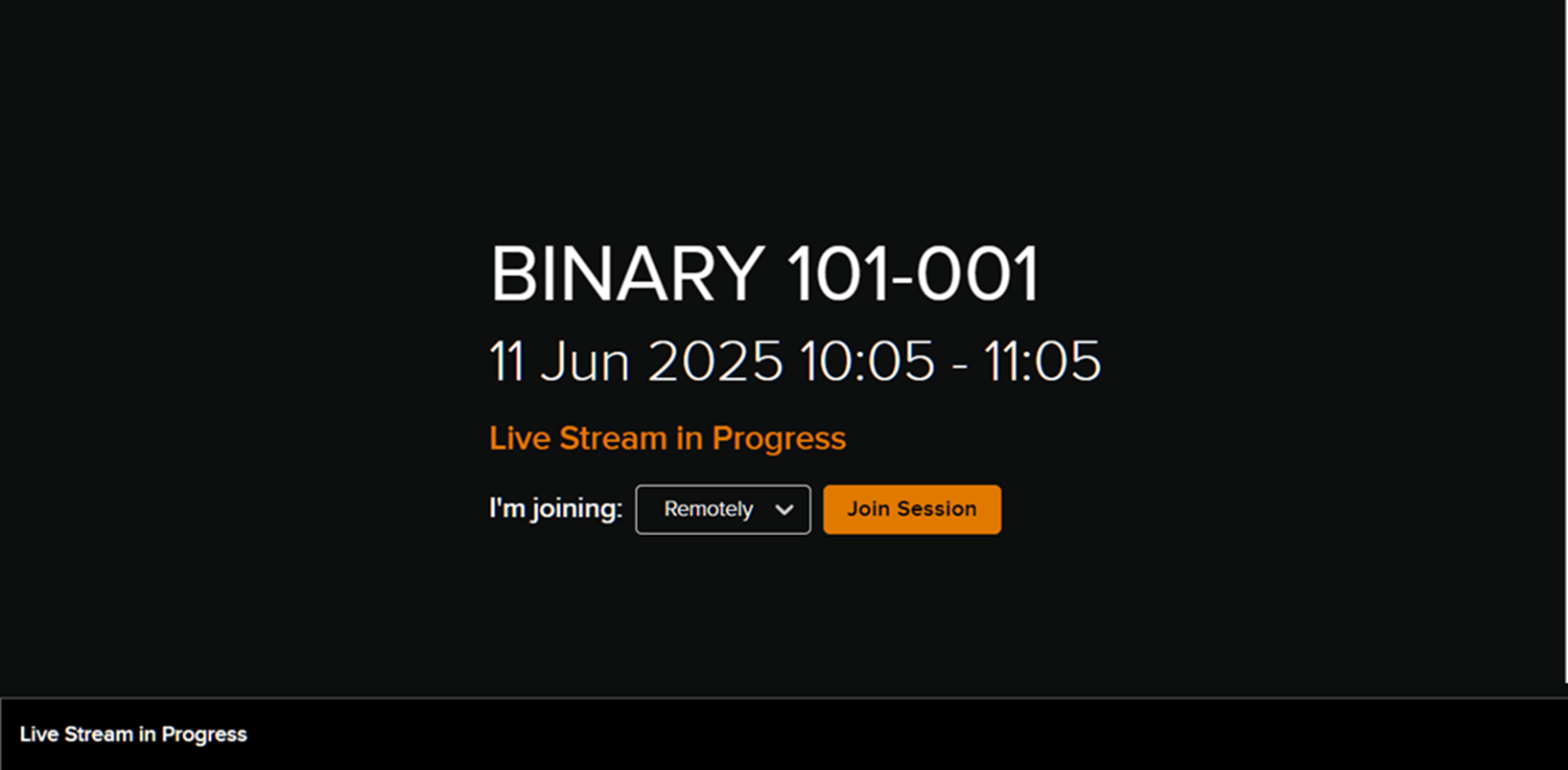
Once the live stream has ended, the recording will be automatically processed and published to your subject, unless auto-publishing has been disabled by your instructor.
Lecture recording playback
Once playback commences for recorded or live streamed content, you will be presented with a screen similar to the one shown below.
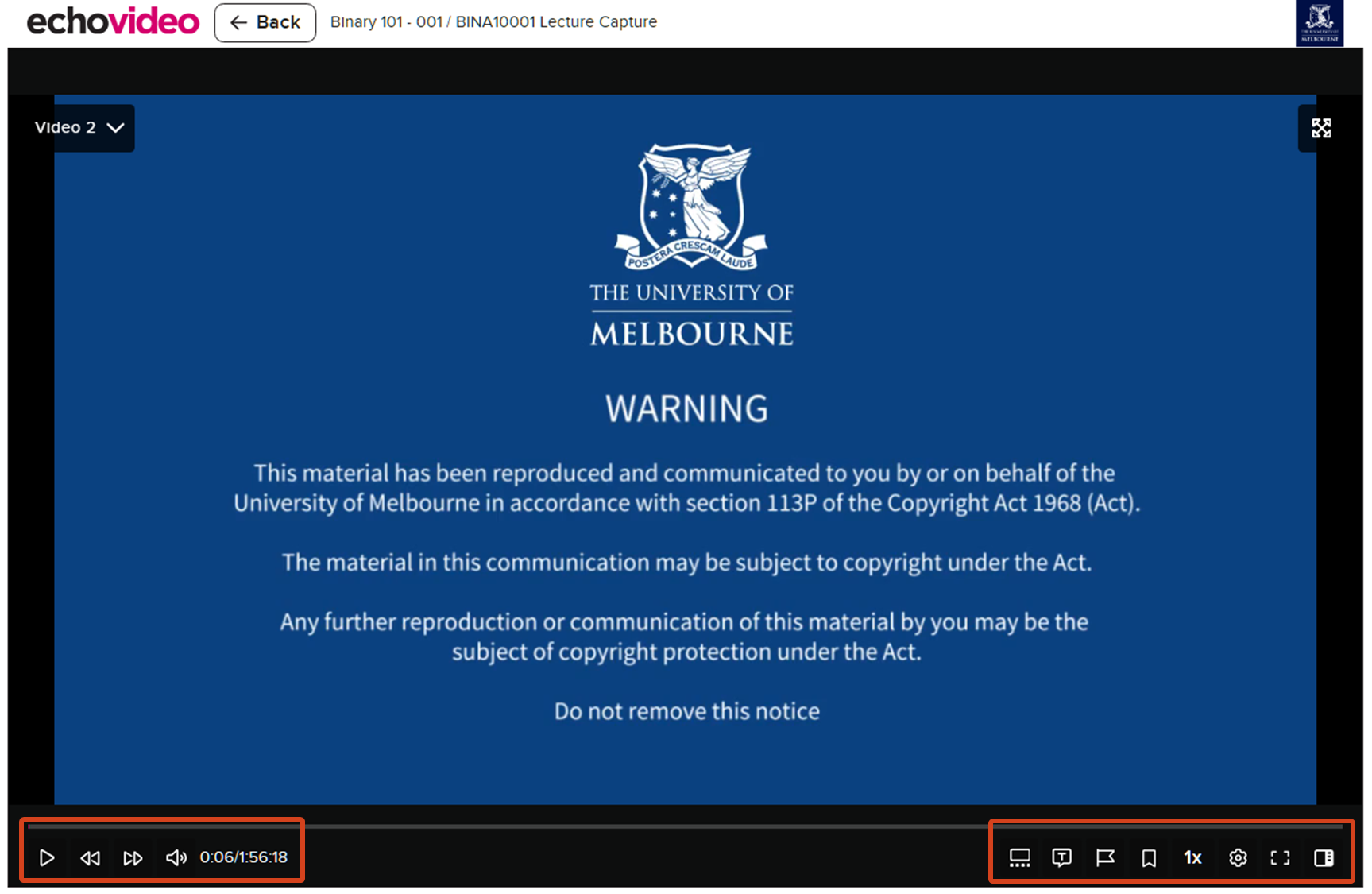
Below is a brief overview of the Lecture Capture media player and its various functions.
The left side of the playback control bar contains:
- Play/Pause button
- Skip forward/skip back buttons (10-second intervals)
- Volume control button
- Current timestamp/total duration of media
- The playback bar also shows the current playback progress in the coloured line above the controls.
The right side of the playback control bar contains:
- Layout button to adjust the display where more than one screen has been recorded
- Transcript button to search for and navigate to relevant parts of the recording
- Confusion Flag to mark a section of the media where there is potential confusion
- Bookmark to mark a section of the media where that you wish to save and revisit
- Speed control button/indicator
- Settings button for controlling streaming quality, closed caption settings, or opening the keyboard shortcuts list as shown below
- Full Screen button which expands playback to the full size of your monitor
- Open Sidebar to view media transcript and notes.
Download recordings
The Lecture Capture system has the option of downloading the lecture recording as either video (.mp4) or audio (.mp3) file formats.
For more information, view the EchoVideo guide to downloading content from the class list.
Note: Instructors have the ability to disable content downloads for a course. If the download options in your course are disabled (greyed out), the functionality may be unavailable. If unsure, check with the subject coordinator.
Issues and support
If you have issues viewing recordings or using the Lecture Capture system, please submit a Lecture Capture support request.
Glossary
| Term used in Lecture Capture | Term used in LMS |
|---|---|
| Section or Course | A subject or community |
| Class | A single Lecture Capture recording or uploaded video for a course |
| Classroom | Page with list of recordings or classes for the subject (course) |
This guide was last updated 30 Jun 2025.
Submit an LMS support request for further assistance or to report any errors or omissions in this guide.